
1. Sarrera
This manual provides essential information for setting up, operating, maintaining, and troubleshooting your HP 14-em 14-inch HD Laptop. Please read this guide thoroughly to ensure optimal performance and longevity of your device.
The HP 14-em laptop features an AMD Athlon Silver 7120U processor, 4GB RAM, 512GB eMMC storage, and runs on Windows 11 Pro. It is designed for everyday tasks, offering a balance of performance and portability.
2. Konfigurazioa
2.1 Desontziratzea eta hasierako ikuskapena
Kontu handiz atera ordenagailu eramangarria eta osagarri guztiak paketetik. Egiaztatu osagai guztiak daudela:
- HP 14-inch Laptop
- Elikatze-moldagailua
- Mytrix 2.4GHz Wireless Gaming Headset
- Dokumentazioa
Egiaztatu ordenagailu eramangarria kalterik duen. Kalterik aurkitzen baduzu, jarri harremanetan zure saltzailearekin berehala.
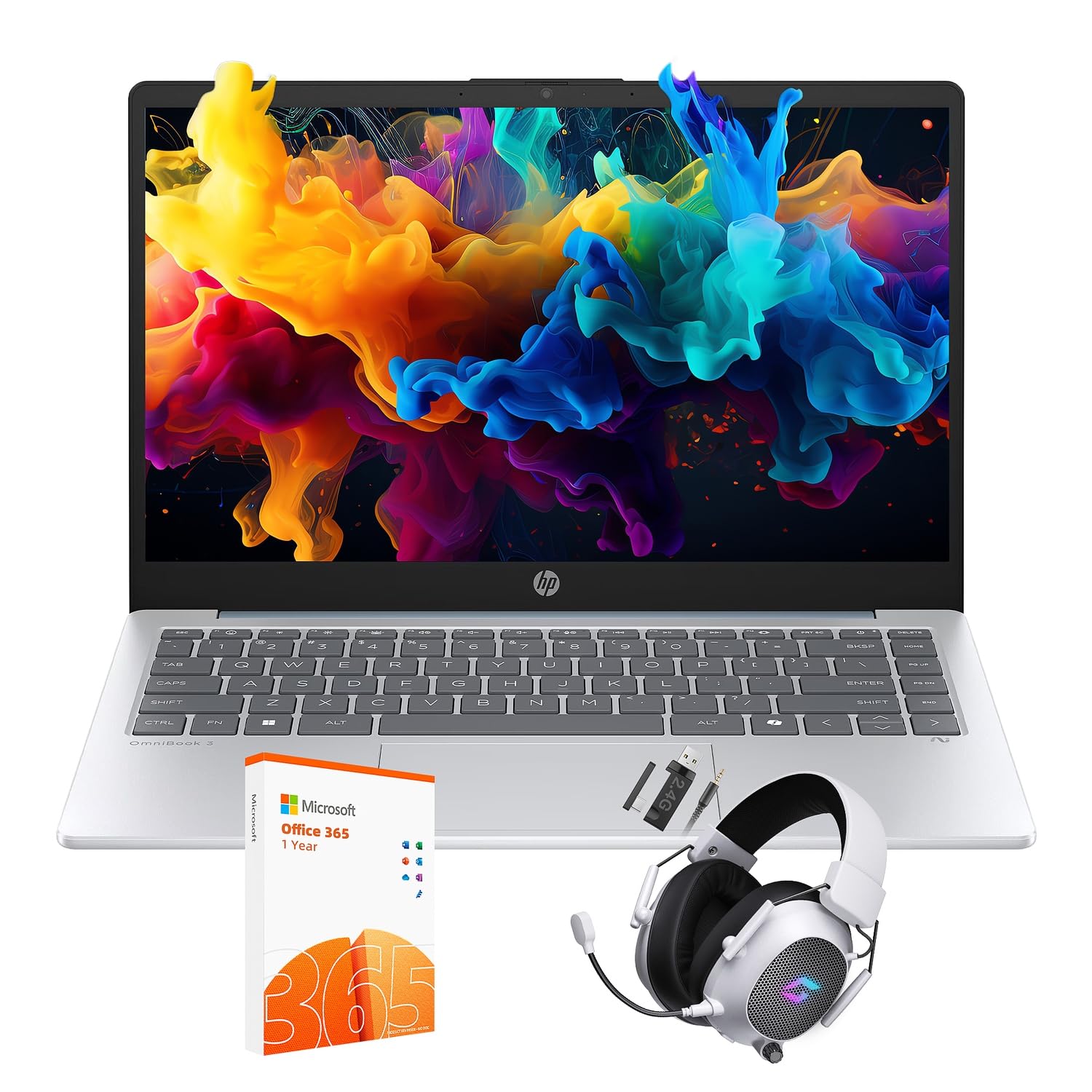
Figure 2.1: The HP 14-inch HD Laptop in Moonlight Blue, showcasinbere diseinu dotorea.
2.2 Energia-egokitzailea konektatzea
Connect the power adapter to the laptop's power port and then plug it into a wall outlet. It is recommended to fully charge the battery before initial use.
2.3 Initial Power On and Windows 11 Pro Setup
Press the power button located on the keyboard deck. The laptop will boot up and guide you through the Windows 11 Pro setup process. Follow the on-screen instructions to:
- Hautatu zure eskualdea eta hizkuntza.
- Konektatu Wi-Fi sare batera.
- Onartu lizentziaren baldintzak.
- Sortu erabiltzaile-kontu bat edo hasi saioa Microsoft kontu batekin.
- Pribatutasun ezarpenak konfiguratu.
2.4 Setting up the Mytrix Wireless Gaming Headset
Refer to the separate instructions provided with the Mytrix 2.4GHz Wireless Gaming Headset for detailed setup. Generally, this involves:
- Entzungailua kargatzen.
- Connecting the wireless dongle to an available USB port on the laptop.
- Powering on the headset and ensuring it pairs with the dongle.
- Configuring audio input/output settings in Windows 11 Pro.
3. Ordenagailu eramangarria erabiltzea
3.1 Energiaren kudeaketa
- Piztu: Sakatu pizteko botoia.
- Lo egiteko modua: Itxi tapa edo hautatu "Lo egin" Hasi menuan.
- Itzali: Hautatu "Itzali" Hasi menuan.
- Berrabiarazi: Hautatu "Berrabiarazi" Hasi menuan.
3.2 Ukipen-panela erabiltzea
The touchpad supports multi-touch gestures for navigation. Common gestures include:
- Sakatu: Sakatu hatz bakarra ezkerreko botoiarekin klik egiteko.
- Bi hatzekin ukitzea: Egin klik eskuineko botoiarekin.
- Bi hatzetako desplazamendua: Joan gora edo behera.
- Zoom egiteko apur bat egin: Handitu edo txikiagotu.
3.3 Connecting to Networks (Wi-Fi 6 and Bluetooth 5.4)
Wi-Fi sare batera konektatzeko:
- Egin klik ataza-barran dagoen Wi-Fi ikonoan.
- Hautatu nahi duzun sarea zerrendatik.
- Sartu sareko pasahitza eskatzen bazaizu.
Bluetooth gailu bat konektatzeko:
- Joan zaitez Ezarpenak > Bluetooth eta gailuak.
- Ziurtatu Bluetooth aktibatuta dagoela.
- Select "Add device" and follow the pairing instructions for your device.
3.4 External Port Usage
Zure ordenagailu eramangarriak kanpoko gailuak konektatzeko hainbat ataka ditu:

Figure 3.1: Available ports on the HP 14-inch HD Laptop.
- USB A mota: For connecting standard USB devices like mice, keyboards, and external storage.
- USB C mota: Datuak transferitzeko.
- HDMI: Kanpoko pantailetara edo proiektoreetara konektatzeko.
- Headphone/Microphone Combo: For connecting a headset or external speakers/microphone.
3.5 Windows 11 Pro-ren ezaugarriak
Windows 11 Pro offers advanced security, management tools, and productivity features. Explore the Start Menu, Taskbar, and Settings app to customize your experience. The laptop also supports a 180-degree hinge for flexible viewangeluak.
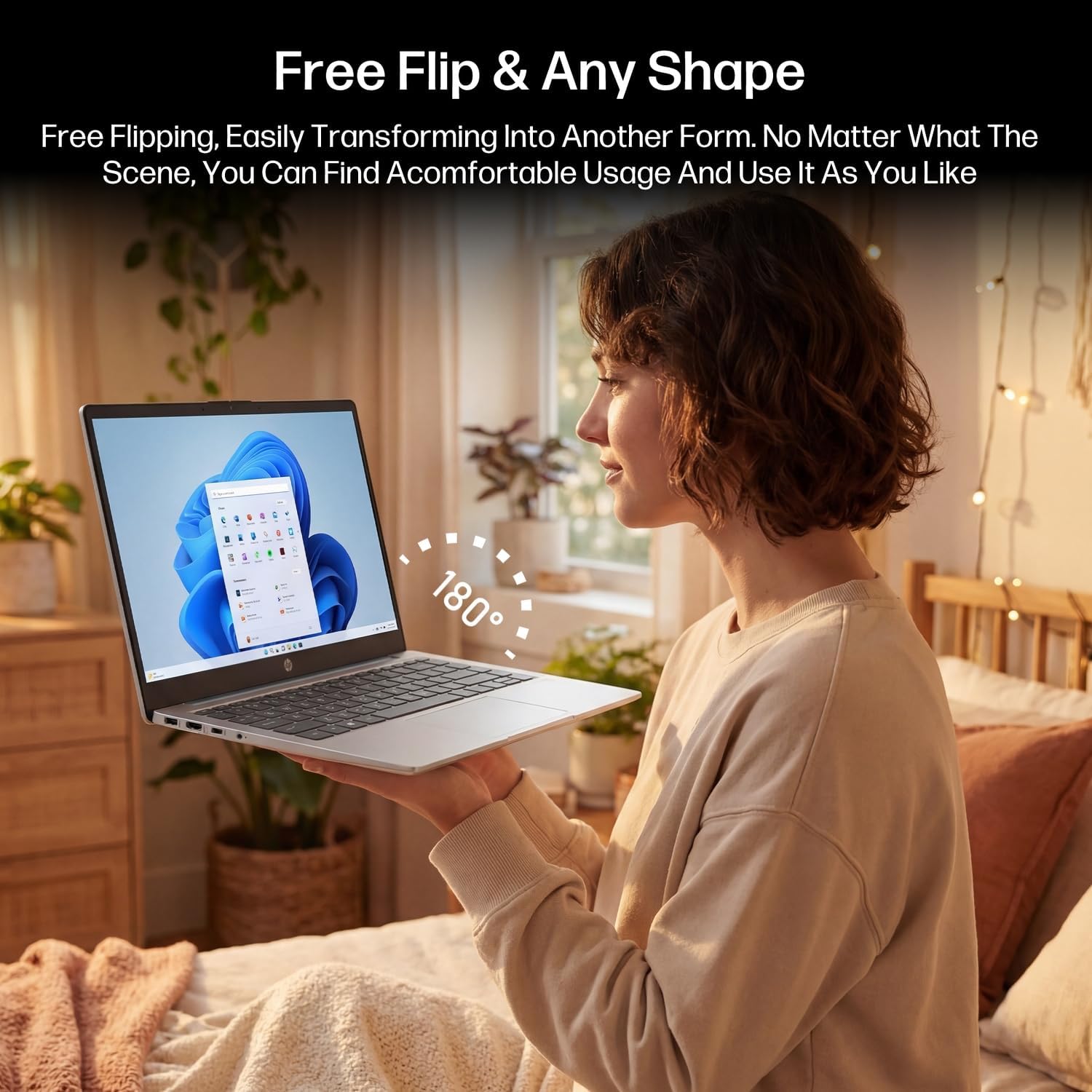
Figure 3.2: The laptop's 180-degree hinge for versatile use.

Figure 3.3: The HP laptop efficiently handles daily tasks.
4. Mantentzea
4.1 Ordenagailu eramangarria garbitzea
- Pantaila: Erabili lipurrik gabeko zapi leun bat dampUrarekin edo pantaila-garbitzaile batekin garbitu. Ez ihinztatu garbitzailea zuzenean pantailan.
- Txasisa eta teklatua: Erabili zapi leun eta lehor bat. Zikinkeria egoskorra bada, ukitu apur batamp oihal bat erabil daiteke. Saihestu gehiegizko hezetasuna.
- Portuak: Erabili aire konprimatua portuetako hautsa astiro-astiro kentzeko.
4.2 Bateria zaintzea
Bateriaren iraupena maximizatzeko:
- Saihestu muturreko tenperaturak.
- Ez utzi bateria maiz erabat deskargatzen.
- Utilize HP Fast Charge technology for quick recharging when needed.
4.3 Software eguneraketak
Egiaztatu eta instalatu aldizka Windows eguneraketak zure sistemak azken segurtasun-adabakiak eta errendimendu-hobekuntzak dituela ziurtatzeko. Joan honera Ezarpenak > Windows eguneratzea.
4.4 Biltegiratze kudeaketa
The 512GB eMMC storage provides fast boot-ups and file access. To maintain performance, periodically:
- Ezabatu behar ez den files.
- Desinstalatu erabiltzen ez diren aplikazioak.
- Use Windows' built-in Disk Cleanup tool.
5. Arazoak
This section addresses common issues you might encounter. For more complex problems, refer to HP's official support resources.
5.1 Ordenagailu eramangarria ez da pizten
- Ziurtatu korronte-egokitzailea ondo konektatuta dagoela ordenagailu eramangarrira eta funtzionatzen duen entxufe batera.
- Egiaztatu entxufea funtzionatzen duela beste gailu bat konektatuz.
- Bateria guztiz agortuta badago, utzi gutxienez 30 minutuz kargatzen berriro pizten saiatu aurretik.
5.2 Wi-Fi konexio arazoak
- Egiaztatu Wi-Fi gaituta dagoen Windows ezarpenetan.
- Berrabiarazi zure bideratzailea eta modema.
- Ahaztu sarea eta konektatu berriro, pasahitza berriro sartuz.
- Ensure your laptop is within range of the Wi-Fi signal.
5.3 External Display Not Detected
- Ensure the HDMI cable is securely connected to both the laptop and the external display.
- Check the input source on your external display (e.g., HDMI 1, HDMI 2).
- Sakatu Windows tekla + P and select a display option (Duplicate, Extend, Second screen only).
5.4 Audio arazoak
- Check volume levels in Windows and on any connected external audio devices.
- Ensure the correct audio output device is selected in Windows sound settings.
- If using the Mytrix headset, ensure it is powered on and properly paired.
6. Zehaztapenak
Detailed technical specifications for your HP 14-em 14-inch HD Laptop:
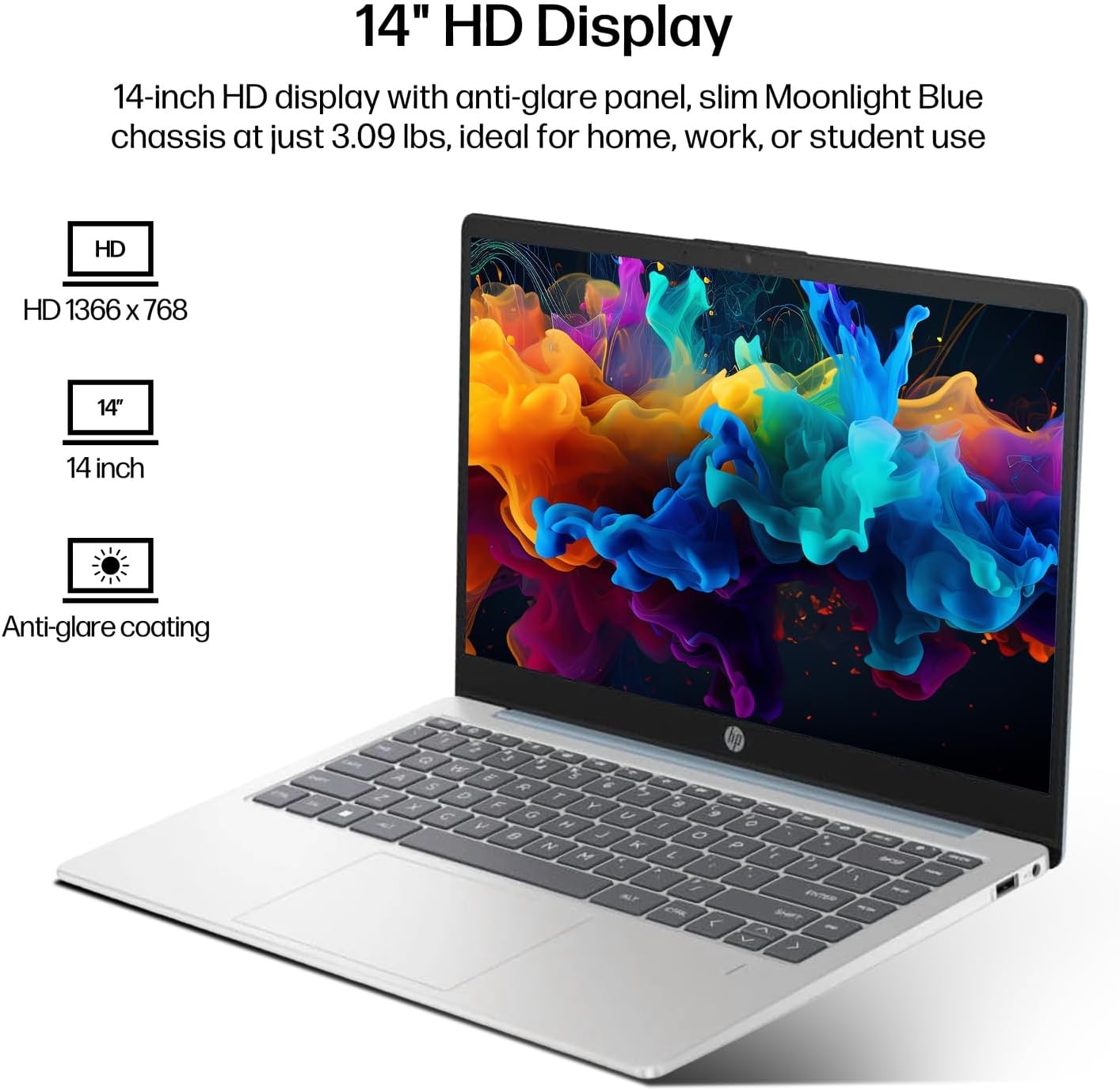
Figure 6.1: The 14-inch HD display features a resolution of 1366 x 768 pixels and an anti-glare coating.

Figure 6.2: The laptop is powered by an AMD Athlon Silver 7120U Processor with integrated AMD Radeon Graphics.
| Ezaugarri | Zehaztapena |
|---|---|
| Marka | HP |
| Ereduaren izena | 14-em |
| Prozesadorea | AMD Athlon Silver 7120U (2 Cores, 2 Threads, up to 3.5 GHz Boost Clock) |
| Grafikoak | AMD Radeon grafikoak (integratuak) |
| RAM | 4 GB DDR4 SODIMM |
| Biltegiratzea | 512 GB eMMC (Solid State) |
| Bistaratzea | 14-inch HD (1366 x 768) LED, Anti-Glare |
| Sistema eragilea | Windows 11 Pro |
| Haririk gabeko konexioa | Wi-Fi 6 (802.11ax), Bluetooth 5.4 |
| Portuak | 2x USB Type-A, 1x USB Type-C (Data Transfer), 1x HDMI, 1x Headphone/Microphone Combo |
| Kamera | Aurrera begira |
| Audioa | HD Audioa |
| Neurriak (L x W x H) | 12.74" x 8.46" x 0.7" |
| Pisua | 3.09 lb inguru |
| Osagarriak barne | Mytrix 2.4GHz Wireless Gaming Headset |

Figure 6.3: Physical dimensions of the HP 14-inch HD Laptop.
7. Bermea eta Laguntza
7.1 Produktuaren bermea
Your HP 14-em laptop comes with a 12-month manufacturer's warranty. This warranty covers defects in materials and workmanship under normal use. For specific terms and conditions, please refer to the warranty documentation included with your product or visit the official HP support webgunea.
7.2 Laguntza Teknikoa
Laguntza teknikoa, eskuliburu honetatik haratagoko konponketak edo berme-erreklamazioak jasotzeko, jarri harremanetan HP Bezeroarentzako Arreta Zerbitzuarekin. Harremanetarako informazioa HP-ren webgune ofizialean aurki dezakezu. website or through the support application pre-installed on your laptop.
Additional protection plans are available for purchase, including 2-Year and 4-Year Protection Plans, and a monthly Complete Protect plan. Details can be found where you purchased the product.


