
1. Konfigurazioa
This section guides you through the initial setup of your CHUWI CoreBook X laptop.
1.1 Kutxatik ateratzea eta lehen aldiz piztea
- Kontu handiz atera ordenagailu eramangarria eta osagarri guztiak paketetik.
- Connect the provided USB-C power adapter to the laptop's USB-C port (PD Charging/USB 2.0) and then to a power outlet.
- Open the laptop lid. The laptop may power on automatically or you may need to press the power button located on the keyboard.
- Jarraitu pantailan agertzen diren argibideei Windows 11 Pro-ren hasierako konfigurazioa osatzeko, hizkuntza hautatzea, sareko konexioa eta erabiltzaile kontua sortzea barne.
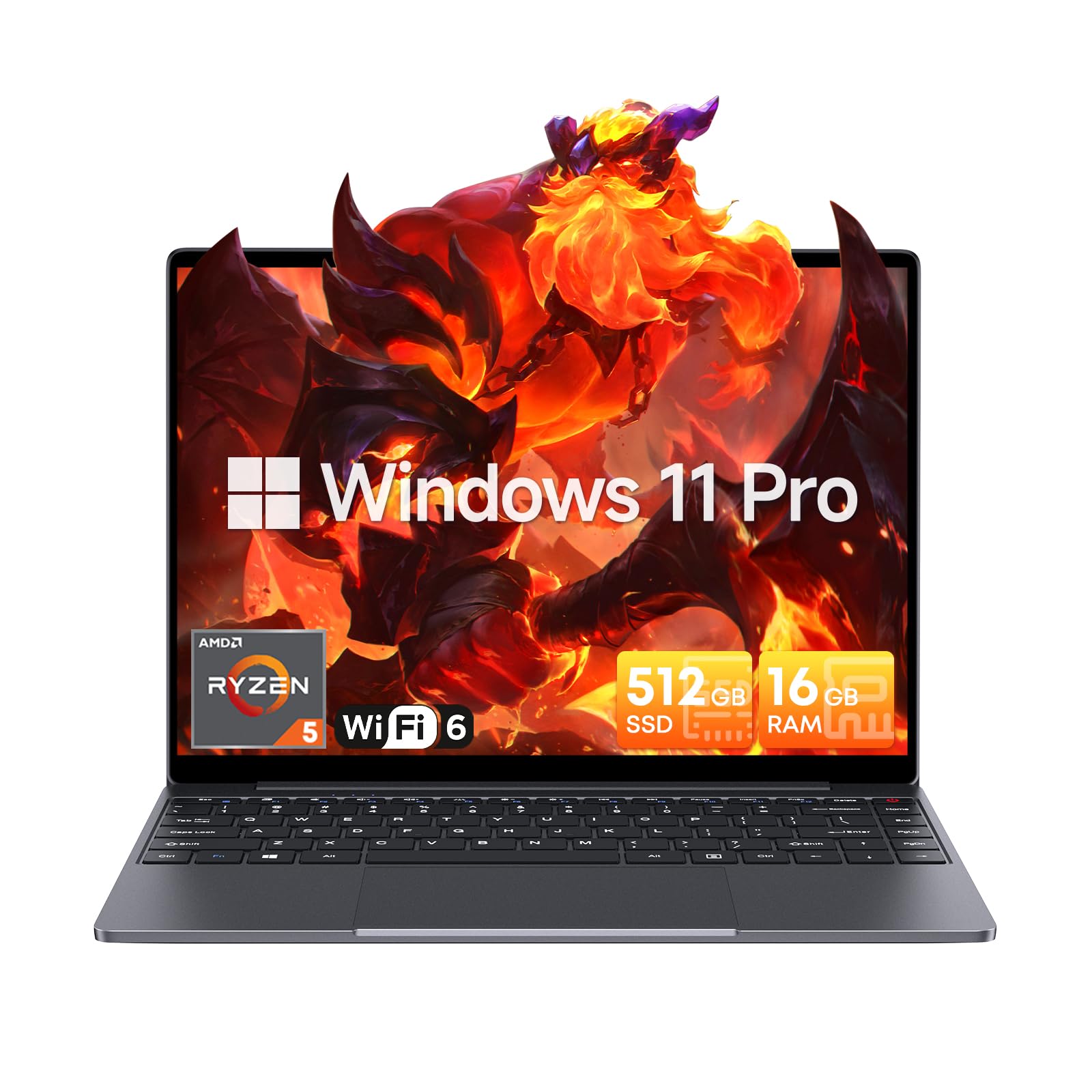
Image: The CHUWI CoreBook X laptop open on a desk, ready for use.
1.2 Periferikoak konektatzea
- USB gailuak: Connect USB mice, keyboards, or external storage devices to the available USB 3.0 ports.
- Kanpoko pantaila: Use the HDMI 1.4 port or the full-featured USB Type-C port to connect an external monitor.
- Audio gailuak: Konektatu entzungailuak edo kanpoko bozgorailuak 3.5 mm-ko audio-hargunera.
- TF txartela: Insert a TF card into the TF card slot for additional storage.

Irudia: Xehetasun handikoa view of the laptop's ports, including TF Card Slot, 3.5mm Headphone Jack, USB 3.0 Port, Lock Slot, USB Type-C (PD Charging/USB 2.0), HDMI 1.4, and Full-featured USB Type-C Port.
1.3 Network and Bluetooth Connection
- Wi-Fi 6: Haririk gabeko sare batera konektatzeko, egin klik ataza-barran dagoen Wi-Fi ikonoan, hautatu zure sarea eta idatzi pasahitza.
- Bluetooth 5.2: To pair Bluetooth devices, go to Windows Settings > Bluetooth & devices, turn on Bluetooth, and select your device to pair.
2. Funtzionamendua
This section covers the basic operation of your CHUWI CoreBook X laptop.
2.1 Energiaren kudeaketa
- Piztu: Sakatu pizteko botoia.
- Lo egiteko modua: Itxi tapa edo hautatu "Lo egin" Hasi menuan.
- Itzali: Select "Shut down" from the Start menu.
- Berrabiarazi: Select "Restart" from the Start menu.
2.2 Teklatua eta ukipen-panela
- The laptop features a full-sized backlit keyboard with white illumination. Use the function keys (Fn) in combination with other keys for shortcuts like adjusting brightness, volume, or toggling the backlight.
- The large touchpad supports multi-touch gestures for navigation. Refer to Windows settings for customizing touchpad gestures.

Irudia: Gertutik view of the laptop's backlit keyboard and large touchpad, highlighting its navigation features.
2.3 Pantaila eta audioa
- The 14-inch IPS display offers a 2160*1440 resolution. Adjust display settings (brightness, resolution, scaling) through Windows Display Settings.
- The laptop is equipped with stereo speakers. Volume can be controlled via the keyboard function keys or the Windows sound settings.
- An HD webcam is integrated for video conferencing.

Image: The laptop's 14-inch 2K IPS display showcasing vibrant colors and a comparison of 3:2 and 16:9 aspect ratios.
2.4 Bideoa Gainetikview
Video: An official product video demonstrating various features and usage scenarios of the CHUWI CoreBook X laptop, including its performance, display, and connectivity options.
3. Mantentzea
Mantentze egokiak zure ordenagailu eramangarriaren iraupena eta errendimendu optimoa bermatzen ditu.
3.1 Garbiketa
- Use a soft, lint-free cloth to clean the screen. For stubborn marks, dampen the cloth slightly with water or a screen-safe cleaner.
- Wipe the chassis and keyboard with a soft, dry cloth. Avoid using harsh chemicals or abrasive materials.
- Periodically use compressed air to clear dust from the vents to maintain efficient cooling.
3.2 Bateria zaintzea
- Avoid fully discharging the battery frequently. Charge the laptop when the battery level is low.
- Store the laptop in a cool, dry place if not used for extended periods, with the battery charged to around 50-70%.
- Use only the original or certified compatible USB-C PD charger.
3.3 Biltegiratze eta memoria eguneratzeak
The laptop supports RAM and SSD upgrades.
- The 16GB DDR4 RAM can be expanded up to 64GB via 2 SODIMM slots.
- The 512GB PCIe SSD can be expanded up to 2TB using the M.2 2280 PCIe slot.
- A convenient detachable bottom cover allows for easier access to upgrade components without removing the entire back panel.

Image: The underside of the laptop with the detachable cover removed, revealing the dual-channel SO-DIMM slot for RAM upgrades.
4. Arazoak
Atal honek aurki ditzakezun arazo ohikoenen irtenbideak eskaintzen ditu.
4.1 Ohiko arazoak eta irtenbideak
- Ordenagailu eramangarria ez da pizten:
- Ziurtatu korronte-egokitzailea ondo konektatuta dagoela ordenagailu eramangarrira eta funtzionatzen duen entxufe batera.
- Egiaztatu korronte-hartunea funtzionala dela.
- Saiatu pizteko botoia 10-15 segundoz sakatuta berrezarpen gogorra egiteko.
- Pantailaren arazoak (irudirik ez, keinuka):
- Doitu pantailaren distira funtzio-teklak erabiliz.
- Kanpoko monitore bat konektatuta badago, saiatu deskonektatzen.
- Berrabiarazi ordenagailu eramangarria.
- Wi-Fi edo Bluetooth konexio arazoak:
- Ziurtatu Wi-Fi/Bluetooth gaituta dagoela Windows ezarpenetan.
- Berrabiarazi zure bideratzailea/modema Wi-Fi arazoak badituzu.
- Kendu eta parekatu berriro Bluetooth gailuak.
- Update network and Bluetooth drivers through Device Manager.
- Errendimendu motela:
- Itxi atzeko planoan exekutatzen ari diren beharrezkoak ez diren aplikazioak.
- Check for Windows updates and driver updates.
- Ziurtatu SSDan nahikoa leku libre dagoela.
- Run a malware scan.
If you encounter issues not covered here or require further assistance, please refer to the Support section.
5. Zehaztapenak
Detailed technical specifications for the CHUWI CoreBook X laptop.

Image: An illustration of the AMD Ryzen 5 processor, highlighting its core count, threads, and clock speed.
| Ezaugarri | Zehaztapena |
|---|---|
| Ereduaren izena | Corebook X |
| Prozesadorea | AMD Ryzen 5 (6 Cores, 12 Threads, up to 4.3 GHz) |
| Grafikoak | AMD Radeon Graphics (1800MHz, Max 2GB Memory) |
| RAM | 16GB DDR4 (Expandable up to 64GB via 2 SODIMM slots) |
| Biltegiratzea | 512GB PCIe SSD (Expandable up to 2TB via M.2 2280 PCIe slot) |
| Bistaratzea | 14-inch IPS, 2160*1440 Resolution, 100% sRGB Color Gamut |
| Sistema eragilea | Windows 11 Pro |
| Konektibitatea | Wi-Fi 6 (802.11ax), Bluetooth 5.2 |
| Portuak | USB Type-C (PD Charging/USB 2.0), USB 3.0, HDMI 1.4, Full-featured USB Type-C, 3.5mm Audio Jack, TF Card Slot, Lock Slot |
| Bateria | 46.2Wh Lithium-Ion Battery, 65W USB-C PD Fast Charging |
| Teklatua | Full-sized Backlit Keyboard with White Illumination |
| Ukipen-panela | Large Touchpad, Multi-touch |
| Webkamara | HD Webkamara |
| Neurriak | 12.2"L x 9"W x 0.67"Th (17mm thin) |
| Pisua | 2.2 libra (1.4 kg) |
6. Bermea
The CHUWI CoreBook X laptop comes with a 1 urteko fabrikatzailearen bermea.
This warranty covers defects in materials and workmanship under normal use. It does not cover damage caused by accidents, misuse, unauthorized repairs, or modifications. Please retain your proof of purchase for warranty claims.
7. Laguntza
For technical assistance, warranty claims, or further inquiries, please contact CHUWI customer support.
- Fabrikatzailearen laguntza: Visit the official CHUWI weblaguntza baliabideetarako, maiz egiten diren galderetarako eta harremanetarako informaziorako gunea.
- Saltzailearen laguntza: If purchased through a retailer, you may also contact the seller for assistance.