
Sarrera
This manual provides essential information for setting up, operating, and maintaining your VIBOX V-582 PC Gamer. Please read these instructions carefully before using your new computer to ensure optimal performance and longevity. Keep this manual for future reference.
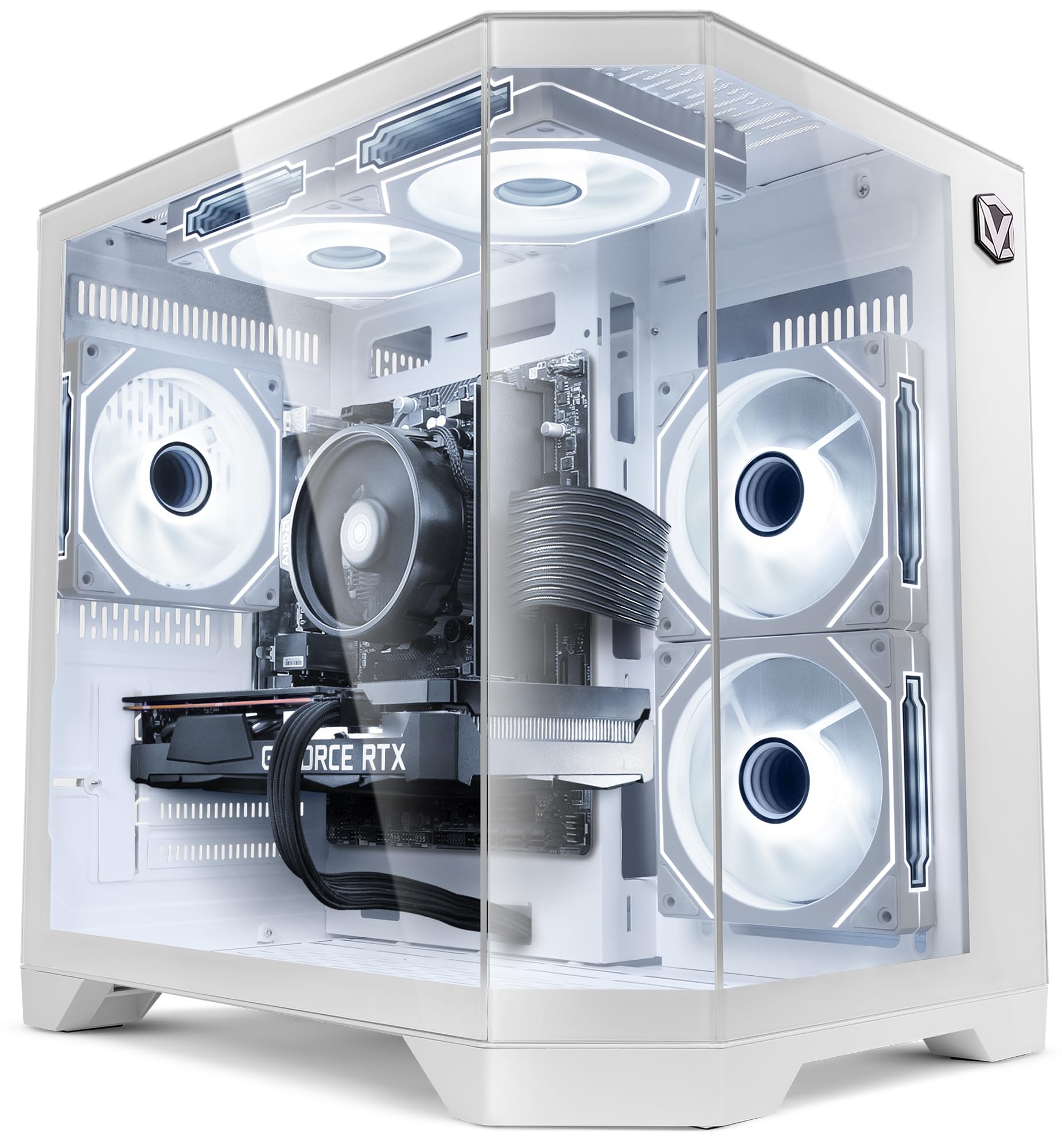
Image: The VIBOX V-582 PC Gamer, a white desktop computer tower with a transparent side panel showcasing internal components and RGB lighting.
Segurtasun Informazioa
- Ensure the computer is placed on a stable, flat surface to prevent accidental falls.
- Ez blokeatu aireztapen-irekidurak. Aire-fluxu egokia ezinbestekoa da hozteko.
- Keep the computer away from direct sunlight, heat sources, and liquids.
- Use only the power supply unit provided with the computer.
- Deskonektatu elikadura-kablea garbitu edo mantentze-lanak egin aurretik.
- Do not attempt to open the computer case unless instructed by technical support, as this may void your warranty.
Paketearen edukia
Egiaztatu elementu guztiak paketean daudela:
- VIBOX V-582 PC Gamer Desktop Computer
- Power Cable (Type C/EF – 2-pin European/hybrid FR-DE plug)
- USB Wi-Fi 6 AX900 and Bluetooth 5.4 Adapter
- Dokumentazioa (Hasierako Gida Azkarra, Bermearen Informazioa)
- RGB Lighting Remote Control (if applicable, based on "Éclairage RVB" in box content)
Note: Peripherals such as a monitor, keyboard, and mouse are typically sold separately unless specified in your purchase order.
Konfigurazioa
1. Desontziratzea eta kokatzea
Carefully remove the computer from its packaging. Place it on a flat, stable surface with sufficient space around it for proper ventilation. Avoid placing it in enclosed spaces or near heat sources.

Image: Diagram illustrating the dimensions of the PC case: 37.5cm height, 29.5cm depth, 22cm width, with an 8cm base.
2. Periferikoak konektatzea
Connect your monitor, keyboard, mouse, and other peripherals to the appropriate ports on the back and front of the computer.
- Monitorea: Connect your monitor using an HDMI or DisplayPort cable to the dedicated graphics card ports (Nvidia GeForce RTX 5050).
- Teklatua / Sagua: Use the USB ports for your keyboard and mouse.
- Audioa: Connect headphones or speakers to the audio jacks.
- Sarea: For wired internet, connect an Ethernet cable to the LAN port. For wireless, insert the provided USB Wi-Fi adapter.
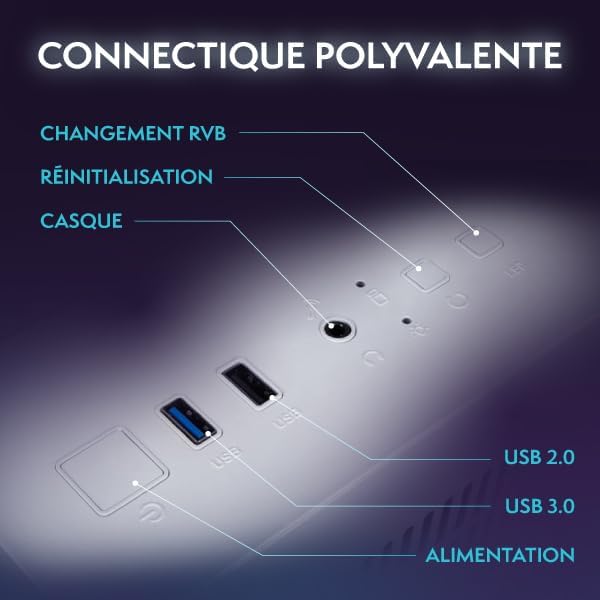
Image: Front panel connectivity, showing USB 2.0 and USB 3.0 ports, headphone jack, power button, reset button, and RGB change button.
3. Energia-konexioa
Connect the power cable to the power supply unit on the back of the computer, then plug the other end into a wall outlet.
4. Hasierako piztea eta Windows konfigurazioa
Press the power button on the front of the computer. The system will boot up, and you will be guided through the initial Windows 11 Home setup process. Follow the on-screen instructions to configure your language, region, network, and user account.
Zure ordenagailua erabiltzea
Oinarrizko Erabilera
Your VIBOX V-582 comes pre-installed with Windows 11 Home, offering a user-friendly interface. Explore the Start Menu for applications, use the taskbar for quick access, and manage files-rekin File Esploratzailea.

Image: Windows 11 Home interface highlighting features such as faster loading times with DirectStorage, enhanced graphics with AutoHDR, and optimized CPU performance.
Konektibitatea
- Wi-Fi 6: Connect to high-speed wireless networks using the included USB adapter.
- Bluetooth 5.4: Pair wireless devices such as headphones, controllers, or speakers.
- USB atakak: Utilize the multiple USB 2.0 and USB 3.0 ports for various peripherals and external storage devices.
- Bideo irteera: The Nvidia GeForce RTX 5050 graphics card supports HDMI 2.1 and DisplayPort for connecting up to multiple high-resolution displays.
RGB argiaren kontrola
Your PC features customizable RGB lighting for the internal fans. Use the dedicated RGB change button on the front panel or the provided remote control (if included) to cycle through various colors and lighting modes.

Image: Hex RGB Infinity 120mm fans, illustrating customizable lighting options with multiple colors and RGB modes.
Mantentzea
Garbiketa
- Regularly clean the exterior of the computer with a soft, dry cloth.
- Use compressed air to gently clear dust from ventilation grilles and fan blades. Ensure the computer is powered off and unplugged before cleaning.
- Do not use liquid cleaners directly on the computer.
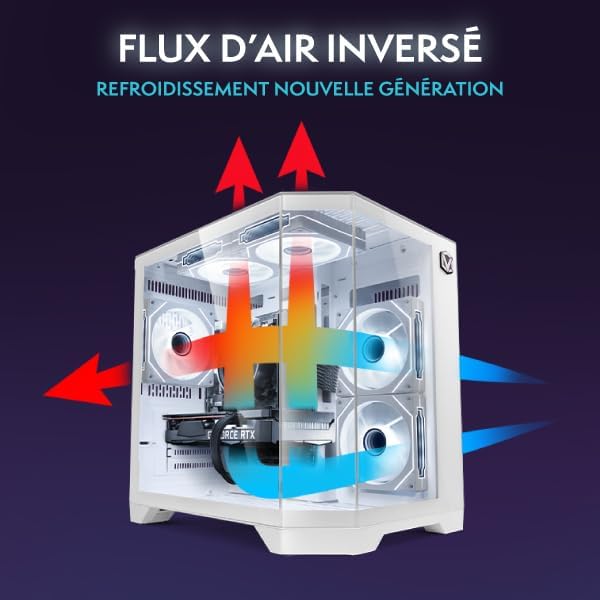
Image: Reverse airflow diagram, illustrating how the cooling system directs air through the PC case to optimize circulation and reduce heat buildup.
Software eguneraketak
Keep your Windows operating system, drivers (especially graphics drivers), and applications updated to ensure security, stability, and optimal performance. Windows Update can be accessed via the Settings menu.
Arazoak konpontzea
Arazoak badituzu, saiatu urrats hauek jarraitzen laguntzarekin harremanetan jarri aurretik:
- Potentziarik gabe: Ensure all power cables are securely connected to the computer and the wall outlet. Check if the power outlet is functional.
- Ez dago pantailarik: Verify that the monitor is powered on and correctly connected to the graphics card ports (HDMI/DisplayPort) on the back of the PC, not the motherboard ports. Try a different cable or monitor if possible.
- Sistemak blokeatzen/matxuratzen du: Restart the computer. Ensure all drivers are up to date. Check for sufficient ventilation to prevent overheating.
- Errendimendu motela: Close unnecessary applications. Check for malware. Ensure your SSD has sufficient free space.
- Ez dago Interneteko konexiorik: For Wi-Fi, ensure the USB adapter is installed and drivers are updated. Check network settings in Windows. For wired, ensure the Ethernet cable is connected and your router is working.
Arazo iraunkorretarako, jo hona: Erabiltzailearen gida ofiziala (PDF) or contact VIBOX customer support.
Zehaztapenak
| Osagaia | Xehetasuna |
|---|---|
| Ereduaren izena | V-582 (VTX-8) |
| Prozesadorea (CPU) | AMD Ryzen 5 5500 (6 Cores, 12 Threads, 3.6 GHz Base, 4.2 GHz Max Boost) |
| Txartel grafikoa (GPU) | Nvidia GeForce RTX 5050 (8GB GDDR7, HDMI 2.1, DisplayPort) |
| RAM | 16 GB DDR4 (2666 MHz) |
| Biltegiratzea | 500 GB SATA SSD |
| Sistema eragilea | Windows 11 Home |
| Haririk gabeko konexioa | Wi-Fi 6 AX900, Bluetooth 5.4 |
| Portuak | 4x USB (total), 1x HDMI, 2x Output Ports (likely DisplayPort/other video out), Audio Jacks |
| Hoztea | Air Cooling (5x 120mm RGB Fans) |
| Neurriak (L x W x H) | 35 x 28 x 38 cm |
| Kolorea | Zuria |
| Entxufe mota | Type C/EF – 2-pin (European/hybrid FR-DE) |
Bermea eta Laguntza
Your VIBOX V-582 PC Gamer comes with a comprehensive warranty:
- Piezen bermea: 2 Urte
- Lan-bermea: Bizitza osoan
For technical assistance, warranty claims, or further inquiries, please contact VIBOX customer support through their official website or the retailer where you purchased the product. Please have your product model (V-582) and purchase details ready when contacting support.
Era berean, bisitatu dezakezu VIBOX Brand Store on Amazon informazio eta baliabide osagarrietarako.


