
Samsung SM-X230
Samsung Galaxy Tab A11+ SM-X230 User Manual
Eredua: SM-X230
1. Sarrera
This manual provides essential information for setting up, operating, maintaining, and troubleshooting your Samsung Galaxy Tab A11+ SM-X230 tablet. Please read this manual carefully to ensure safe and optimal use of your device.
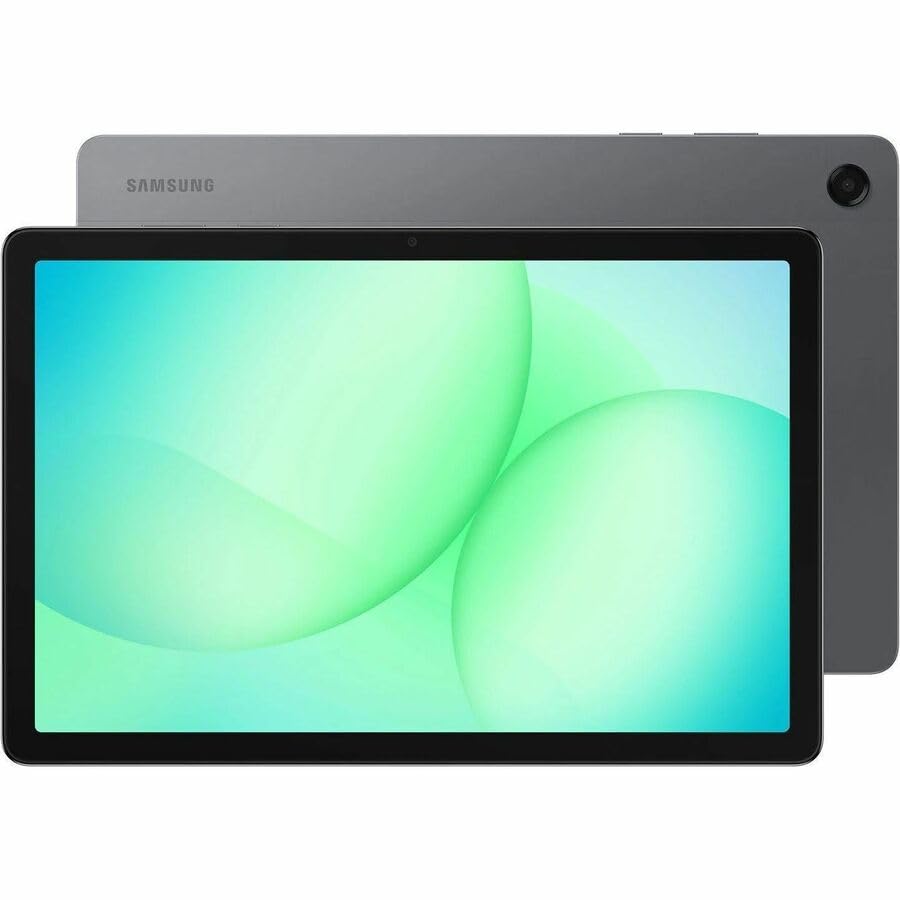
Image: Samsung Galaxy Tab A11+ tablet, showcasing its sleek design and available colors.
The Samsung Galaxy Tab A11+ SM-X230 is an 11-inch WUXGA tablet powered by a MediaTek Dimensity 7300 Octa-core processor, offering 6 GB of RAM and 128 GB of internal storage, expandable via microSD. It features a modern design, a vibrant 90 Hz display, and Dolby-engineered Quad Speakers for an immersive experience.
2. Hasteko urratsak (konfigurazioa)
2.1 Kutxatik ateratzea eta hasierako ikuskapena
Carefully remove all components from the packaging. Verify that all items are present: the Samsung Galaxy Tab A11+ tablet, a USB-C charging cable, and any included documentation. Inspect the tablet for any physical damage before proceeding.
2.2 Gailua kargatzea
Before first use, fully charge your tablet. The device is equipped with a 7040 mAh battery and supports 25W Super Fast Charging.
- Connect the USB-C cable to the tablet's charging port.
- Connect the other end of the cable to a compatible power adapter (not always included) and plug it into a wall outlet.
- The charging indicator will appear on the screen. Allow the tablet to charge until the battery icon shows a full charge.

Image: Visual representation of the tablet charging, highlighting its 7040mAh battery and 25W Super Fast Charging capability.
2.3 Piztu/Itzaltzea
- Pizteko: Sakatu eta eutsi pizteko botoiari (alboan dago) Samsung logotipoa agertu arte.
- Itzaltzeko: Sakatu eta eutsi pizteko botoiari, eta ondoren hautatu 'Itzali' pantailan agertzen diren aukeren artean.
2.4 Hasierako konfigurazio-morroia
Upon first power-on, the tablet will guide you through an initial setup process:
- Aukeratu nahi duzun hizkuntza.
- Konektatu Wi-Fi sare batera.
- Review eta onartu Azken Erabiltzailearen Lizentzia Hitzarmena eta Pribatutasun Politika.
- Hasi saioa zure Google kontuarekin edo sortu berri bat. Hau ezinbestekoa da Google Play Store eta beste Google zerbitzu batzuk atzitzeko.
- Konfiguratu pantailaren blokeoa (PINa, eredua, pasahitza).
- Follow any additional prompts to customize your device settings.
2.5 Inserting a microSD Card
The Galaxy Tab A11+ supports microSD cards up to 2 TB for expanded storage.
- Bilatu SIM/microSD txartelaren erretilua tabletaren alboan.
- Insert the ejection pin (if provided, or a paperclip) into the small hole on the tray to eject it.
- Jarri microSD txartela erretiluan, urre-koloreko kontaktuak behera begira dituela.
- Sartu erretilua astiro-astiro zirrikituan klik egin arte.
3. Tabletaren erabilera
3.1 Ukipen-pantailaren nabigazioa
The tablet's primary interface is its 11-inch WUXGA (1920 x 1200 pixels) touchscreen with a 90 Hz refresh rate for smooth interactions.
- Sakatu: Hautatu elementu bat edo ireki aplikazio bat.
- Eduki sakatuta: Sartu testuinguru-menuetara edo mugitu elementuak.
- Pasatu hatza: Nabigatu pantailetan zehar, joan zerrendara edo baztertu jakinarazpenak.
- Zoom egiteko apur bat egin: Handitu edo txikitu view irudien eta web orrialdeak.
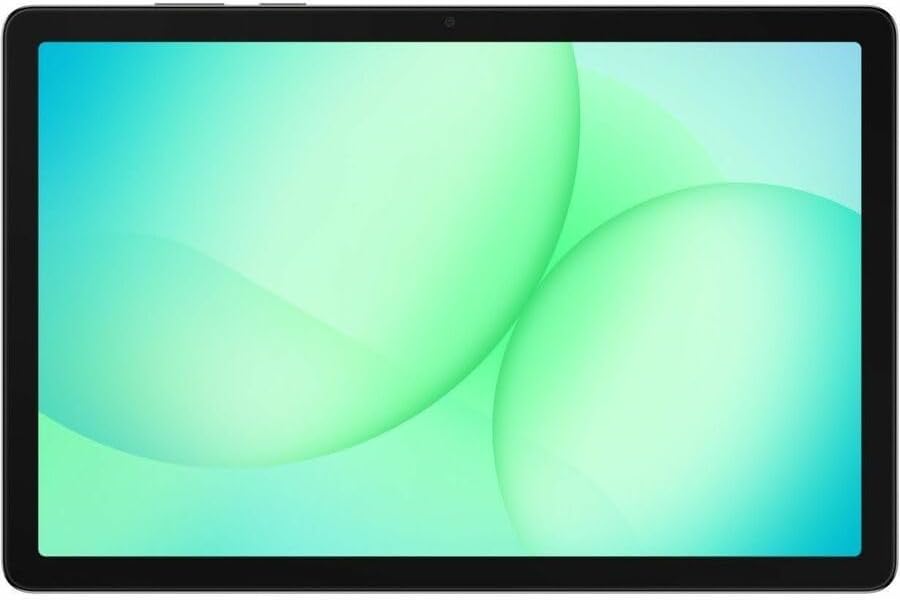
Image: The Samsung Galaxy Tab A11+ display, showcasing its vibrant and clear screen.
3.2 Errendimendua
The tablet is powered by a MediaTek Dimensity 7300 (4 nm) Octa-core processor with 6 GB of RAM, ensuring responsive performance for various tasks, from gaming to multitasking.

Image: A visual representation of the tablet's enhanced CPU and GPU performance.
3.3 Biltegiratze kudeaketa
Your tablet comes with 128 GB of internal storage. You can expand this by up to 2 TB using a microSD card.
- To check storage: Go to Ezarpenak > Bateriaren eta gailuaren zaintza > Biltegiratzea.
- To free up space: Delete unnecessary files, desinstalatu erabiltzen ez diren aplikazioak edo mugitu handiak filehodeiko biltegiratzera edo kanpoko microSD txartel batera.

Image: The tablet displaying various media, illustrating its ample internal storage and microSD expansion capabilities.
3.4 Kameraren funtzioak
The tablet features an 8 MP rear camera and a 5 MP front camera for photos and video calls.
- Ireki Kamera aplikazioa hasierako pantailatik edo aplikazioen tiraderatik.
- Sakatu obturadorearen botoia argazkia ateratzeko.
- Aldatu aurreko eta atzeko kameren artean kamera aldatzeko ikonoa erabiliz.
- Select video mode to record videos (up to HD 720p).
3.5 Audio ezarpenak
Experience rich, multidimensional audio with Dolby-engineered Quad Speakers. The tablet also includes a 3.5 mm audio jack for wired headphones.
- Adjust volume using the physical volume buttons on the side of the tablet.
- Access detailed audio settings via Settings > Sounds and vibration.
- Connect wired headphones to the 3.5 mm jack for private listening.

Irudia: Tabletaren erakustaldiaasing its immersive audio experience with Dolby Atmos technology.
3.6 Konexioa (Wi-Fi, Bluetooth)
- Wi-Fi: Joan zaitez Ezarpenak > Konexioak > Wi-Fi to connect to available networks. The tablet supports 802.11ac wireless compatibility.
- Bluetootha: Joan zaitez Ezarpenak > Konexioak > Bluetootha Bluetooth gailuekin parekatzeko, hala nola entzungailuekin edo bozgorailuekin.
3.7 Using Google Gemini
The Galaxy Tab A11+ integrates with Google Gemini. You can interact with Gemini to get assistance based on what you see on your screen or through your camera.
- To activate: Long press the side button to launch Google Gemini.
- Share your screen or camera view to ask for advice or information.

Image: The tablet demonstrating Google Gemini's capability to provide real-time assistance based on visual input.
3.8 File Partekatzea
Partekatu erraz files between your tablet and other compatible devices.
- Use built-in sharing options within apps (e.g., Gallery, Files) to send content via Bluetooth, Wi-Fi Direct, or cloud services.
- Connect to a computer via USB-C cable to transfer files zuzenean.

Image: Multiple Samsung devices illustrating the ease of file sharing across the ecosystem.
4. Mantentzea eta Zainketa
4.1 Tableta garbitzea
- Erabili zapi leun eta lihorik gabeko bat pantaila eta gorputza garbitzeko.
- Orban egoskorretarako, apur bat dampGarbitu oihal bat urarekin edo elektronikarako bereziki diseinatutako pantaila-garbitzaile batekin.
- Saihestu produktu kimiko gogorrak, material urratzaileak edo gehiegizko hezetasuna erabiltzea.
4.2 Software eguneraketak
Egiaztatu eta instalatu software eguneraketak aldizka, errendimendu, segurtasun eta funtzio berrietarako sarbidea optimoa bermatzeko.
- Joan zaitez Ezarpenak > Softwarearen eguneraketa.
- Sakatu Deskargatu eta instalatu.
- Ziurtatu tableta Wi-Fi-ra konektatuta dagoela eta bateria nahikoa duela eguneratzea hasi aurretik.
4.3 Bateriaren iraupena
Bateriaren iraupena maximizatzeko:
- Saihestu muturreko tenperaturak.
- Ez utzi tableta denbora luzez guztiz kargatuta edo deskargatuta.
- Adjust screen brightness and use power-saving modes when possible.
4.4 Biltegiratze optimizazioa
Aldian behin berriroview your storage to remove unnecessary files and apps. This helps maintain device performance.
- Utilize cloud storage for backups of photos and videos.
- Move large media files to an inserted microSD card.
5. Arazoak
5.1 Ohiko arazoak eta irtenbideak
- Gailua ez da pizten:
- Ziurtatu bateria kargatuta dagoela. Konektatu tableta kargagailura gutxienez 30 minutuz.
- Berrabiarazi behartu bat egin pizteko botoia eta bolumena jaisteko botoia aldi berean sakatuta edukiz 7-10 segundoz.
- Wi-Fi konexio arazoak:
- Aktibatu eta itzali Wi-Fia Ezarpenetan.
- Berrabiarazi zure Wi-Fi bideratzailea.
- Ahaztu sarea eta konektatu berriro.
- Errendimendu motela:
- Itxi atzeko planoan exekutatzen ez diren aplikazioak.
- Garbitu maiz erabiltzen diren aplikazioen cache datuak.
- Check available storage and free up space if necessary.
- Berrabiarazi tableta.
- Aplikazioak huts egiten ari dira:
- Garbitu aplikazioaren cachea eta datuak (Ezarpenak > Aplikazioak > [Aplikazioaren izena] > Biltegiratzea).
- Desinstalatu eta berriro instalatu aplikazioa.
- Ziurtatu aplikazioa azken bertsiora eguneratuta dagoela.
5.2 Fabrika berrezarri
If you encounter persistent issues, a factory reset can resolve many software-related problems. Abisua: Honek tabletako datu guztiak ezabatuko ditu. Jarraitu aurretik, egin datu garrantzitsuen babeskopia.
- Joan zaitez Ezarpenak > Kudeaketa orokorra > Berrezarri > Fabrika datuen berrezarri.
- Review informazioa eta sakatu Berrezarri.
- Enter your screen lock credentials if prompted.
- Sakatu Ezabatu guztiak to confirm. The tablet will restart and begin the reset process.
6. Produktuaren zehaztapenak
| Ezaugarri | Zehaztapena |
|---|---|
| Marka | Samsung |
| Ereduaren izena | Galaxy Tab A11+ |
| Modelo zenbakia | SM-X230 |
| Pantailaren tamaina | 11 hazbetekoa |
| Bistaratzeko mota | TFT LCD |
| Berezko Ebazpena | 1920 x 1200 pixel (WUXGA) |
| Bistaratu freskatze-tasa | 90 Hz |
| Prozesadorea | MediaTek Dimensity 7300 (4 nm) Octa-core, 2.5 GHz |
| RAM Memoria | 6 GB |
| Barne Biltegiratzea | 128 GB |
| Biltegiratze zabalgarria | microSD (2 TB arte) |
| Sistema eragilea | Android |
| Atzeko kamera | 8 MP |
| Aurrealdeko kamera | 5 MP |
| Bideo Harrapaketa Ebazpena | HD 720p |
| Bateria Edukiera | 7040 mAh (litio polimeroa) |
| Bateriaren batez besteko bizitza | 10 ordu |
| Kargatzen | 25W-ko kargatze super azkarra |
| Konektibitatea | Wi-Fi (802.11ac), Bluetooth, USB Type C |
| GPSaren funtzionaltasuna | GPS-Enabled (GLONASS, Galileo, Beidou, QZSS) |
| Audio Ezaugarriak | Dolby-engineered Quad Speakers, 3.5 mm audio jack |
| Dimensions (L x W x Thickness) | 0.3"L x 10.1"Z x 6.6"Lo |
| Elementuaren pisua | 1.4 kilo |
7. Bermearen informazioa
The Samsung Galaxy Tab A11+ SM-X230 comes with a 12-month Manufacturer Warranty. This warranty covers defects in materials and workmanship under normal use. For specific terms and conditions, please refer to the warranty card included with your product or visit the official Samsung support webgunea.
Gorde erosketa-froga berme-erreklamazioetarako.
8. Laguntza eta Zerbitzua
For further assistance, technical support, or service inquiries, please contact Samsung customer support through the following channels:
- Lineako laguntza: Bisitatu Samsung-en laguntza ofiziala webMaiz egiten diren galderen, arazoak konpontzeko giden eta softwarearen deskargen gunea. www.samsung.com/us/support/
- Telefono-laguntza: Kontsultatu zure produktuaren ontzia edo Samsung-en laguntza-zerbitzua. webeskualdeko harremanetarako zenbakietarako gunea.
- Zerbitzu Zentroak: Bilatu Samsung-en baimendutako zerbitzu-zentroak aurrez aurreko laguntza jasotzeko.
When contacting support, please have your tablet's model number (SM-X230) and serial number ready.
Ask a question about this manual
Ask about setup, troubleshooting, compatibility, parts, safety, or missing instructions. Manuals+ will review the question and use this page’s manual context to help answer it.