
Sarrera
This manual provides comprehensive instructions for setting up, operating, maintaining, and troubleshooting your Apple iPad Air (M4) 13-inch. Please read this manual thoroughly to ensure proper use and to maximize the device's capabilities. The iPad Air features a Liquid Retina display, the powerful M4 chip, advanced cameras, Wi-Fi 7, and 5G Cellular connectivity.
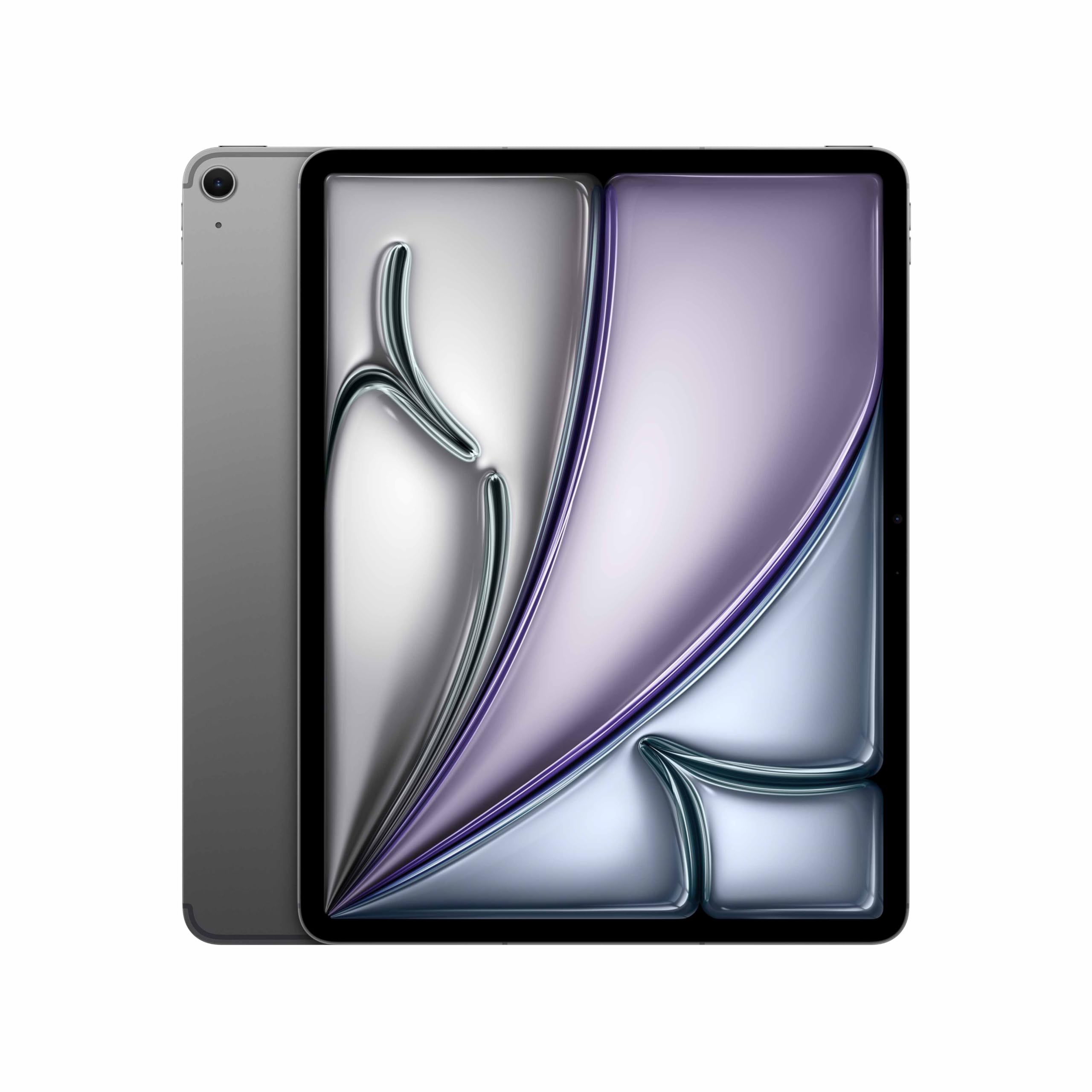
Image: The Apple iPad Air (M4) 13-inch in Space Gray, showcasinbere diseinu dotorea.
1. Konfigurazioa
1.1 Kutxatik ateratzea eta barneko osagaiak
Kontu handiz atera elementu guztiak paketetik. Ziurtatu osagai hauek daudela:
- iPad Air (M4) 13-inch
- USB-C karga-kablea
- 20W-ko USB-C korronte egokitzailea

Image: The iPad Air, USB-C charge cable, and 20W USB-C power adapter, illustrating the contents of the box.
1.2 Hasierako piztea eta oinarrizko konfigurazioa
- Piztu: Eduki sakatuta goiko botoia Apple logotipoa agertu arte.
- Jarraitu pantailako argibideak: Hautatu zure hizkuntza eta eskualdea.
- Konektatu wifira: Aukeratu zure Wi-Fi sarea eta idatzi pasahitza.
- Datuak eta pribatutasuna: Review Appleren Datuen eta Pribatutasunaren informazioa.
- Ukipen IDaren konfigurazioa: Follow the prompts to set up Touch ID for secure authentication.
- Sortu pasakode bat: Set a six-digit passcode for additional security.
- Aplikazioak eta datuak transferitu: Choose to restore from a backup (iCloud or computer) or set up as a new iPad.
- Apple IDa: Hasi saioa zure Apple IDarekin edo sortu berri bat. Hau ezinbestekoa da App Store, iCloud eta beste Apple zerbitzuetarako.
- Location Services & Siri: Configure these settings as desired.
- Pantaila-denbora: Set up parental controls or monitor your usage.
- Aplikazioen analisiak: Choose whether to share analytics with Apple.
- Benetako Tonuaren Pantaila: Enable or disable True Tone for automatic white balance adjustment.
1.3 Charging the iPad Air
Connect the USB-C Charge Cable to the iPad Air's USB-C port and the 20W USB-C Power Adapter. Plug the power adapter into a wall outlet. The battery icon in the status bar will indicate charging status.
2. Funtzionamendu-argibideak
2.1 Oinarrizko nabigazioa eta keinuak
- Hasierako pantaila: Irristatu hatza pantailaren beheko ertzetik gora hasierako pantailara joateko.
- Aplikazio aldatzailea: Irristatu hatza beheko ertzetik gora eta gelditu pantailaren erdian view ireki aplikazioak.
- Kontrol Zentroa: Irristatu hatza goiko eskuineko izkinatik behera ezarpen azkarretara sartzeko.
- Jakinarazpenak: Irristatu behera goiko ezkerreko izkinatik edo erdialdetik view jakinarazpenak.
- Bilatu: Swipe down from the middle of the Home Screen to open Search.
2.2 Using Touch ID
Touch ID is integrated into the top button. Place your registered finger on the top button to unlock your iPad, make purchases, or authenticate within apps.
2.3 Wi-Fi and 5G Cellular Connectivity
- Wi-Fi: Joan zaitez Ezarpenak > Wi-Fi to connect to available networks. The iPad Air supports Wi-Fi 7 for faster wireless speeds.
- 5G zelularra: Insert a nano-SIM card or set up an eSIM. Go to Ezarpenak > Datu mugikorrak to manage your cellular plan and data usage.
2.4 Kamera
The iPad Air features 12MP front and back cameras. Open the Camera app to take photos, record videos, or use features like Center Stage for video calls.
2.5 iPadOS and Apple Intelligence
iPadOS provides a powerful and intuitive operating system. The M4 chip enhances performance for demanding tasks and enables advanced Apple Intelligence features, offering personalized assistance and improved productivity.

Image: The iPad Air screen showing a presentation outline and a trend search report, highlighting the M4 chip and iPadOS for speed, power, and flexibility.

Image: The iPad Air screen showing detailed notes on whale vocalizations, illustrating how Apple Intelligence provides effortlessly helpful features.

Image: The iPad Air attached to a Magic Keyboard, showcasing an enhanced typing and trackpad experience.
3. Mantentzea
3.1 Zure iPad Air garbitzea
To clean your iPad Air, use a soft, lint-free cloth. Avoid abrasive materials, aerosols, solvents, or ammonia-based cleaners. For stubborn marks, slightly dampGarbitu zapi bat urarekin. Ez bota garbitzailerik zuzenean gailuaren gainean.
3.2 Bateria zaintzea
For optimal battery life, avoid exposing your iPad to extreme temperatures. Charge your device regularly, but it is not necessary to fully discharge it before recharging. If storing the iPad for an extended period, charge it to about 50% to prevent deep discharge.
3.3 Software eguneraketak
Keep your iPad Air's software up to date to ensure the latest features, security enhancements, and performance improvements. Go to Ezarpenak > Orokorra > Softwarearen eguneraketa eskuragarri dauden eguneraketak egiaztatu eta instalatzeko.
4. Arazoak
4.1 Ohiko arazoak eta irtenbideak
- Gailuak ez du erantzuten: If your iPad is unresponsive, force restart it. Press and quickly release the Volume Up button, press and quickly release the Volume Down button, then press and hold the Top button until the Apple logo appears.
- Wi-Fi konexio-arazoak: Try turning Wi-Fi off and on in Control Center or Settings. Restart your Wi-Fi router. If issues persist, reset network settings (Ezarpenak > Orokorra > iPada transferitu edo berrezarri > Berrezarri > Sarearen ezarpenak berrezarri).
- Aplikazioak kraskatzen edo izozten: Close the app from the App Switcher and reopen it. If the problem continues, restart your iPad. Ensure the app and iPadOS are updated to the latest versions.
- Bateria azkar husten: Egiaztatu bateriaren erabilera hemen: Ezarpenak > Bateria to identify apps consuming significant power. Reduce screen brightness, disable unnecessary background app refresh, and ensure software is up to date.
4.2 Fabrika berrezarri
As a last resort for persistent issues, you can factory reset your iPad. This will erase all data and settings. Before proceeding, ensure you have backed up your data to iCloud or a computer. Go to Ezarpenak > Orokorra > iPada transferitu edo berrezarri > Eduki eta ezarpen guztiak ezabatu.
5. Zehaztapenak
| Marka | Sagarra |
| Ereduaren izena | 13-inch iPad Air (M4, 2026) |
| Modelo zenbakia | MH9H4HN/A |
| Pantailaren tamaina | 13 hazbete (32.78 cm) |
| Bistaratzeko Gehienezko bereizmena | 2732 x 2048 pixel |
| Sistema eragilea | iPadOS |
| Prozesadorea | Apple M4 |
| RAM memoria instalatuta | 12 GB |
| Hard-Drive Size | 256 GB |
| Haririk gabeko Teknologia Mota | Wi-Fi 7, 5G Cellular |
| Bateria zelula mota | Lithium Ion (36.59 Watt Hours) |
| Elementuaren pisua | 0.62 kilogramo |
| Elementuaren neurriak (L x W x lodiera) | 21.5L x 28.1W x 0.6Th Centimeters |
| Dakarten osagaiak | iPad Air, USB-C Charge Cable, 20W USB-C Power Adapter |
6. Bermearen informazioa
Your Apple iPad Air (M4) 13-inch is covered by an Apple urteko (1) berme mugatua from the date of original retail purchase. This warranty covers manufacturing defects and workmanship under normal use. For full terms and conditions, please refer to the warranty documentation included with your product or visit the official Apple support webgunea.
The warranty does not cover damage caused by accidents, unauthorized modifications, or misuse. Proof of purchase may be required for warranty service.
7. Laguntza
For further assistance, technical support, or service inquiries, please contact Apple Support:
- Lineako laguntza: Visit the official Apple Support website for articles, troubleshooting guides, and contact options. support.apple.com
- Fabrikatzailearen kontaktua: Apple Inc, One Apple Park Way, Cupertino, CA 95014, USA.
- India Specific Contact: Apple India Private Limited, 13th Floor, Prestige Minsk Square, Municipal No. 6, Cubbon Road, Bengaluru, Karnataka - 560001, India.
Before contacting support, it is recommended to have your device's serial number available. This can be found in Ezarpenak > Orokorra > Honi buruz.