
Sarrera
This user guide provides essential information for the HP OfficeJet Pro 8125e printer. It covers initial setup, connecting to networks, performing print, scan, and copy functions, routine maintenance, and troubleshooting common issues. Follow these instructions to ensure optimal performance and longevity of your device.
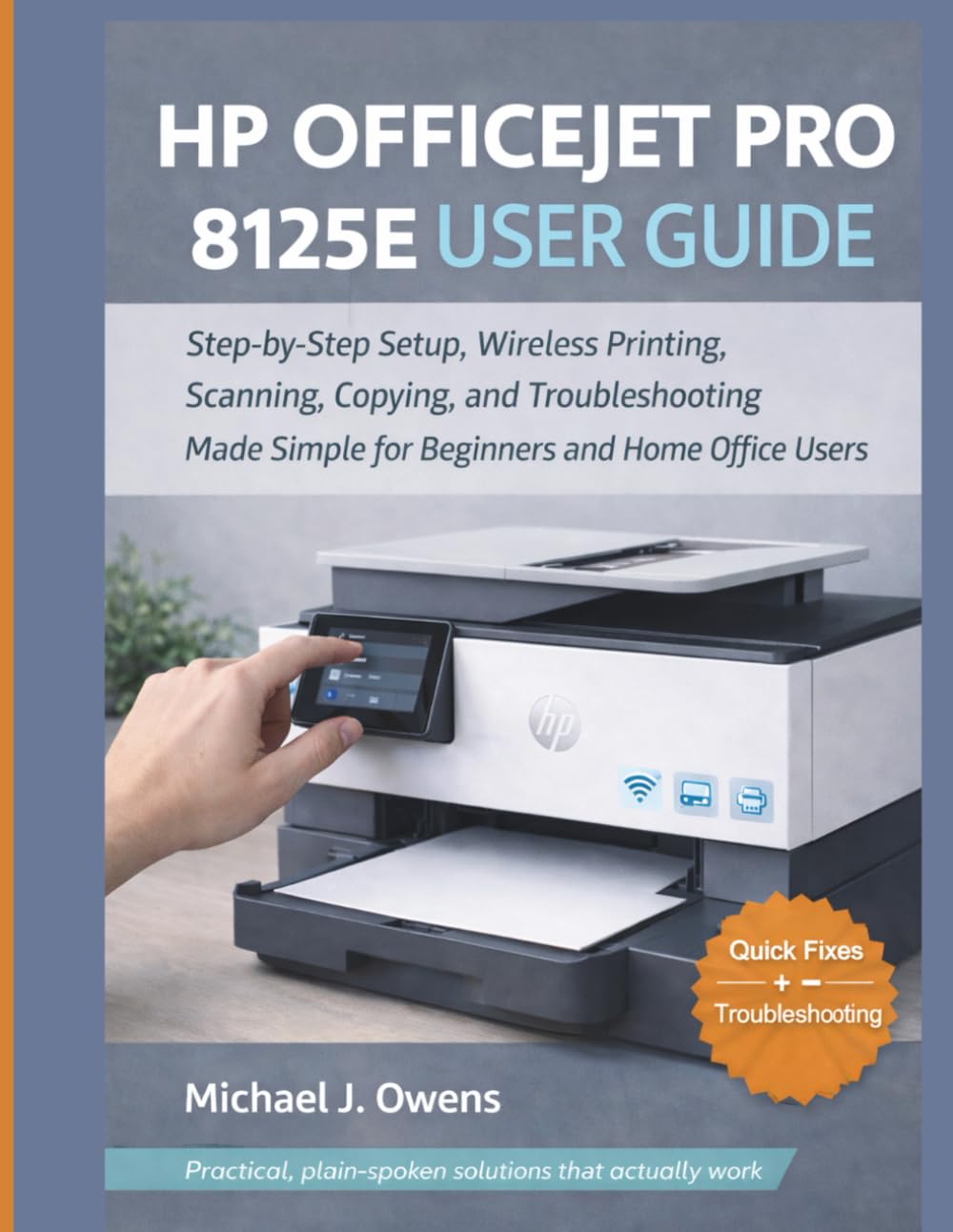
Image: Front cover of the HP OfficeJet Pro 8125e User Guide. This image represents the manual itself, designed to assist users with their printer.
1. Konfigurazioa
1.1 Kutxatik ateratzea eta lehen aldiz piztea
- Kendu arretaz inprimagailua ontzitik.
- Kendu babes-zinta eta ontziratze-material guztiak inprimagailuaren kanpoaldetik eta barrualdetik.
- Konektatu elikatze-kablea inprimagailura eta gero hormako entxufe batera.
- Sakatu pizteko botoia inprimagailua pizteko.
- Follow the on-screen prompts on the printer's control panel to select your language and region.
1.2 Tinta-kartutxoak instalatzea
- Ireki tinta-kartutxoak sartzeko atea.
- Itxaron inprimatzeko gurdia erdira mugitu arte.
- Tinta-kartutxo berriak deskonprimitu.
- Sartu kartutxo bakoitza dagokion zirrikituan, klik eginez ondo finkatzen dela ziurtatuz.
- Itxi tinta-kartutxoak sartzeko atea.
1.3 Papera kargatzea
- Atera sarrerako erretilua.
- Doitu paper-gidak paper-tamaina zuzenera.
- Load a stack of plain white paper into the tray, print side down.
- Sartu sarrerako erretilua berriro inprimagailuan.
- Confirm paper type and size on the printer's control panel if prompted.
1.4 Wi-Fira konektatzea
- On the printer's control panel, navigate to the Wireless Setup Wizard.
- Hautatu zure Wi-Fi sarea eskuragarri dauden sareen zerrendatik.
- Enter the Wi-Fi password (WPA key) when prompted.
- Confirm the connection. The wireless light on the printer should turn solid blue.
1.5 Gidariaren instalazioa
For Windows and Mac computers, download the latest drivers and HP Smart software from the official HP support webgunea. Jarraitu pantailan agertzen diren argibideei instalazioan zehar.
2. Inprimagailuaren funtzionamendua
2.1 Dokumentuak inprimatzea
- Ordenagailu batetik: Open the document, select "Print," choose your HP OfficeJet Pro 8125e, and adjust settings as needed before printing.
- From Mobile Devices (HP Smart App): Install the HP Smart app, add your printer, and use the app to print photos or documents directly from your smartphone or tablet.
- Email Print: If enabled, send documents to your printer's unique email address.
2.2 Dokumentuak eskaneatzea
- Jarri dokumentua aurpegia behera eskaner-kristalean edo aurpegia gora Dokumentu-elikagailu Automatikoan (ADF).
- On the printer's control panel or via the HP Smart app/software on your computer, select "Scan."
- Choose scan settings (e.g., color, resolution, destination).
- Hasi eskaneatzea.
2.3 Dokumentuak kopiatzea
- Jarri jatorrizko dokumentua eskaneraren beiraren gainean edo ADFn.
- On the printer's control panel, select "Copy."
- Adjust settings such as number of copies, color/black & white, and size.
- Sakatu "Kopiatzen hasi" botoia.
3. Mantentzea
3.1 Cleaning the Print Heads
If print quality degrades (streaks, faded colors), perform a print head cleaning from the printer's control panel or the HP Smart software. This process uses ink, so only perform it when necessary.
3.2 Tinta-kartutxoak ordezkatzea
When an ink cartridge is low or empty, the printer will notify you. Follow the steps in Section 1.2 to replace cartridges. Use genuine HP ink cartridges for best results.
3.3 Garbiketa orokorra
Garbitu inprimagailuaren kanpoaldea oihal leun eta lehor batekinamp, lint-free cloth. Clean the scanner glass regularly with a glass cleaner applied to a cloth (not directly to the glass) to prevent smudges from affecting scan quality.
4. Arazoak
| Arazoa | Irtenbidea |
|---|---|
| Printer Offline Message |
|
| Paper-atalak |
|
| Inprimatze-kalitate eskasa |
|
| HP Smart App Issues |
|
5. Zehaztapenak
Note: The following specifications are typical for the HP OfficeJet Pro 8125e printer. For precise details, refer to the official HP product page or documentation.
- Funtzioak: Print, Copy, Scan, Fax (optional, depending on region/model)
- Inprimatzeko teknologia: HP tintazko termikoa
- Inprimatzeko abiadura (beltza): Gehienez 22 ppm (ISO)
- Print Speed (Color): Gehienez 18 ppm (ISO)
- Print Resolution (Best): Up to 4800 x 1200 optimized dpi color
- Scan Resolution (Optical): Gehienez 1200 ppp
- Konektibitatea: Wi-Fi 802.11a/b/g/n, Ethernet, USB 2.0
- Paperaren manipulazioa: 250-sheet input tray, 60-sheet output tray, 35-sheet ADF
- Duplex inprimaketa: Automatikoa (estandarra)
- Pantaila: Koloretako ukipen-pantaila
6. Bermea eta Laguntza
For warranty information, please refer to the documentation included with your printer or visit the official HP support website. HP provides various support resources, including online FAQs, driver downloads, and contact options for technical assistance.
Image: Back cover of the HP OfficeJet Pro 8125e User Guide. This image provides additional information and ISBN details for the manual.