
Sarrera
This manual provides comprehensive instructions for the HP 14-inch Laptop, Model 2026 Essential. It covers initial setup, daily operation, maintenance tips, and troubleshooting common issues. Please read this manual thoroughly to ensure proper use and longevity of your device.

1. irudia: HP 14-inch Essential Laptop highlighting key features like Intel Processor N150, 4GB LPDDR5 RAM, 628GB storage, Windows 11 Pro, HD anti-glare display, Intel Graphics, Wi-Fi 6, Microsoft Copilot Key, HD camera, integrated digital mics, and stereo speakers.
1. Konfigurazioa
1.1 Kutxa irekitzea eta paketearen edukia
Carefully unpack your HP 14-inch Laptop and verify all components are present.
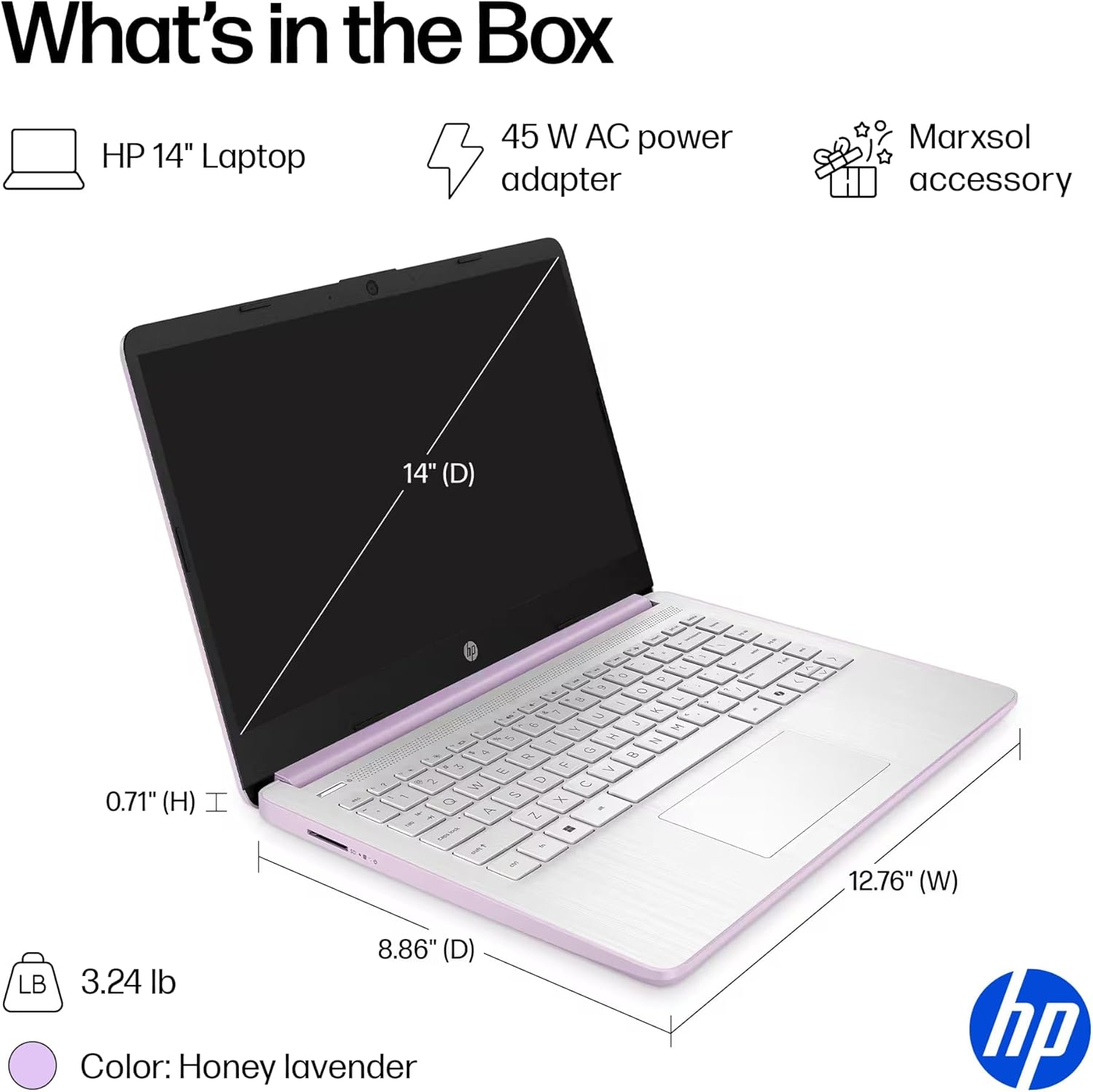
2. irudia: The package includes the HP 14-inch Laptop, a 45W AC power adapter, and the Marxsol accessory bundle. The laptop dimensions are 12.76" (W) x 8.86" (D) x 0.71" (H) and it weighs 3.24 lbs.
Zure paketeak eduki behar du:
- HP 14-inch Laptop
- 45W AC korronte egokitzailea
- Marxsol Accessory Bundle:
- 6-in-1 USB-C Docking Station Hub
- 500GB External Drive
- USB Extension Cord
- HDMI kablea
- Mouse Pad
- Haririk gabeko sagua

3. irudia: The Marxsol accessory bundle includes a 6-in-1 USB-C Docking Station, Wireless Mouse, Mouse Pad, USB Extension Cable, HDMI Cable, and a 500GB External Drive.
1.2 Potentzia konektatzea
Connect the AC power adapter to the laptop's AC Smart pin port and then plug the adapter into a power outlet. The battery will begin charging automatically. It is recommended to fully charge the battery before first use.
1.3 Hasierako abiarazpena eta Windows 11 Pro konfigurazioa
Press the power button to turn on the laptop. Follow the on-screen instructions to complete the initial setup of Windows 11 Pro. This process typically involves selecting your region, language, connecting to a Wi-Fi network, and creating a user account.

4. irudia: The laptop comes pre-installed with Windows 11 Pro and includes Microsoft Office 2024.
2. Zure ordenagailu eramangarria erabiltzea
2.1 Piztea/Itzaltzea eta lo modua
- Piztu: Sakatu teklatuan dagoen pizteko botoia.
- Itzali: Click the Start button, then Power, and select "Shut down."
- Lo egiteko modua: Close the lid or click the Start button, then Power, and select "Sleep."
2.2 Teklatua eta ukipen-panela
The laptop features a full-size English keyboard and a multi-touch touchpad.
- Touchpad keinuak: Refer to Windows 11 settings for customizable touchpad gestures (e.g., two-finger scroll, pinch-to-zoom).
- Funtzio-teklak: Erabili Fn key in combination with the function keys (F1-F12) for quick access to features like volume control, screen brightness, and Wi-Fi toggle.
2.3 Connecting Peripherals (Ports)
Zure ordenagailu eramangarriak kanpoko gailuak konektatzeko hainbat ataka ditu.
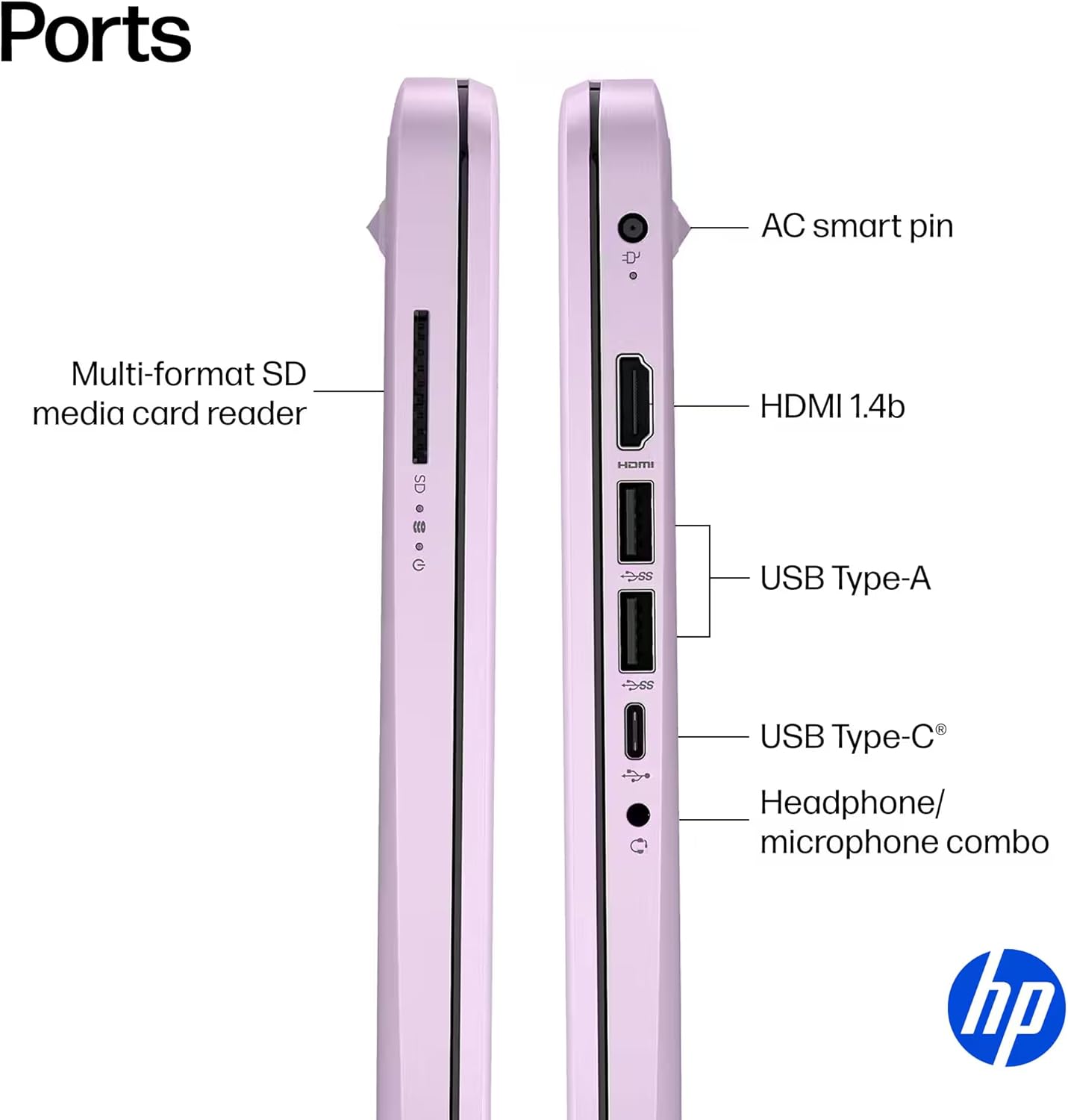
5. irudia: Aldea view of the HP 14-inch laptop showing available ports.
- USB Type-C (5Gbps signaling rate): Datuen transferentziarako soilik.
- USB Type-A (5Gbps signaling rate): For connecting USB devices like external drives, keyboards, and mice.
- HDMI 1.4b: Kanpoko pantailetara edo proiektoreetara konektatzeko.
- Entzungailuen/mikrofonoaren konbinazio-jacka: Aurikularrak edo mikrofonodun aurikularrak konektatzeko.
- Multi-format SD Media Card Reader: For reading SD cards.
- Korronte alternoko pin adimenduna: Korronte-egokigailua konektatzeko.
2.4 Haririk gabeko konexioa
The laptop supports Wi-Fi 6 (802.11ax) and Bluetooth 5.4 for high-speed wireless connections.
- Wi-Fi: To connect to a wireless network, click the Wi-Fi icon in the taskbar, select your network, and enter the password if required.
- Bluetootha: To pair Bluetooth devices, go to Windows Settings > Bluetooth & devices, and follow the pairing instructions.
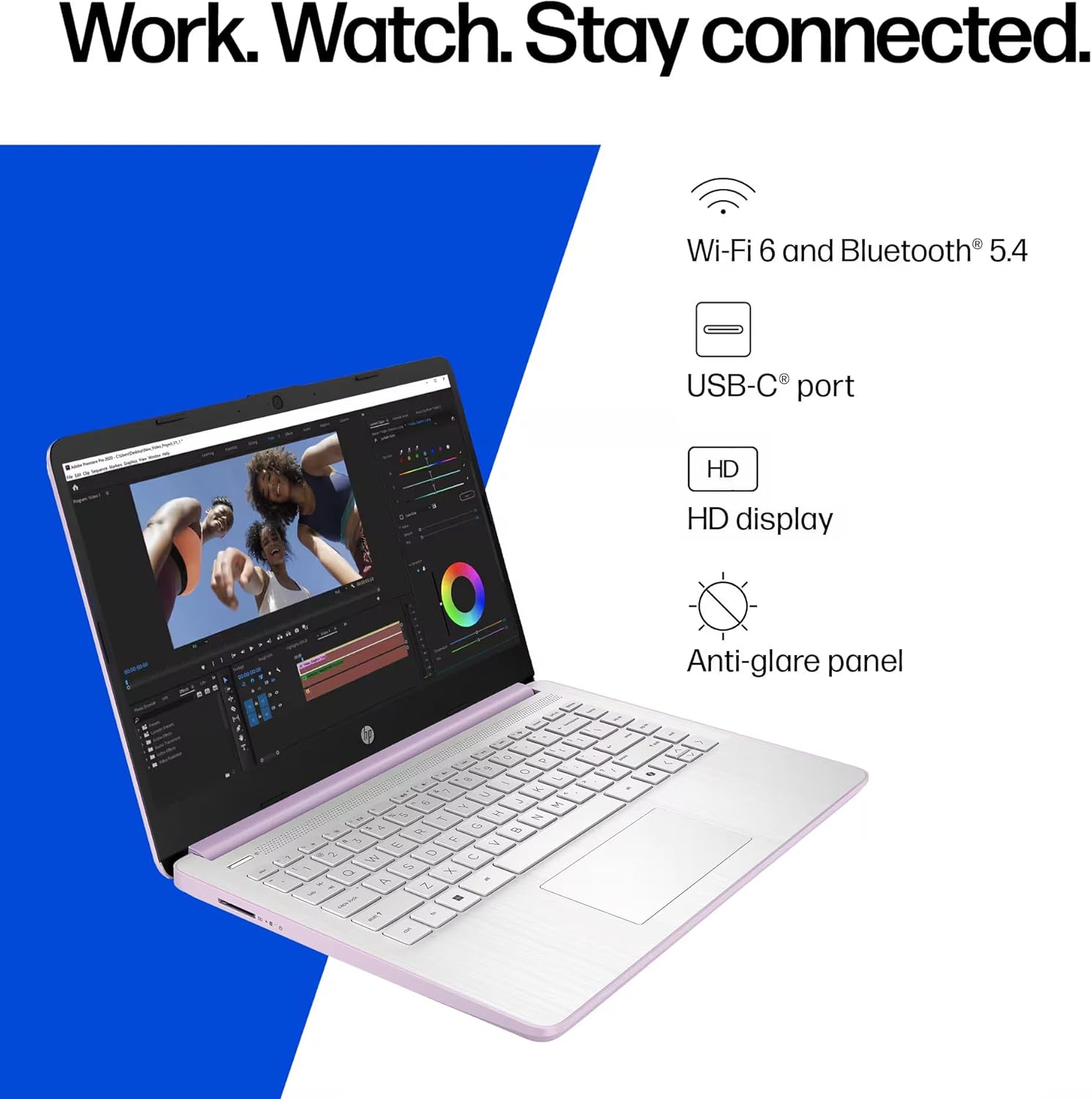
6. irudia: The laptop offers Wi-Fi 6 and Bluetooth 5.4 for robust wireless connectivity, alongside a USB-C port, HD display, and anti-glare panel.
2.5 Microsoft Copilot Key
The dedicated Microsoft Copilot key provides instant access to AI assistance. Press this key to launch Copilot and interact with it for various tasks, information, and creative assistance.

7. irudia: The Microsoft Copilot key on the keyboard provides quick access to AI features.
3. Mantentzea
3.1 Bateria zaintzea
- Bateriaren iraupena maximizatzeko, saihestu bateria maiz erabat deskargatzea.
- Denbora luzez erabiltzen ez baduzu, gorde ordenagailu eramangarria leku fresko eta lehor batean.
- The laptop features a 3-cell, 41 Wh Li-ion battery, providing up to 9 hours of usage.
3.2 Ordenagailu eramangarria garbitzea
- Pantaila: Erabili lipurrik gabeko zapi leun bat dampUrarekin edo pantaila-garbitzaile batekin garbitu. Ez ihinztatu likidoa zuzenean pantailan.
- Teklatua eta txasisa: Erabili zapi leun eta lehor bat. Zikinkeria egoskorra bada, ukitu apur batamp oihal bat erabil daiteke, likidorik irekiduretan sartzen ez dela ziurtatuz.
- Portuak: Mantendu atakak hauts eta hondakinik gabe. Erabili aire konprimatua beharrezkoa bada, lata zutik eutsiz.
3.3 Software eguneraketak
Regularly update your Windows 11 Pro operating system and drivers to ensure optimal performance, security, and compatibility.
- Joan zaitez Ezarpenak > Windows eguneratzea eguneraketak egiaztatu eta instalatzeko.
- Ziurtatu zure antibirus softwarea eguneratuta dagoela.
4. Arazoak
This section addresses common issues you might encounter with your HP 14-inch Laptop.
4.1 Energia arazoak
- Ordenagailu eramangarria ez da pizten:
- Ziurtatu korronte-egokitzailea ondo konektatuta dagoela ordenagailu eramangarrira eta funtzionatzen duen entxufe batera.
- Egiaztatu entxufea funtzionatzen duela beste gailu bat konektatuz.
- Bateria guztiz agortuta badago, utzi gutxienez 30 minutuz kargatzen pizten saiatu aurretik.
- Bateria ez da kargatzen:
- Egiaztatu korronte-egokitzailea eta kablea kalterik duten.
- Ensure the AC adapter is correctly seated in the laptop's charging port.
- Try restarting the laptop.
4.2 Bistaratzeko arazoak
- Pantaila hutsik edo beltzez dago:
- Ziurtatu ordenagailu eramangarria piztuta dagoela eta ez dagoela lo moduan.
- Connect an external monitor via HDMI to check if the issue is with the laptop's display or graphics output.
- Doitu pantailaren distira funtzio-teklak erabiliz.
- Pantaila keinukaria:
- Eguneratu zure kontrolatzaile grafikoak.
- Check display settings in Windows for refresh rate compatibility.
4.3 Konexio arazoak (Wi-Fi/Bluetooth)
- Ezin da wifira konektatu:
- Ziurtatu Wi-Fia gaituta dagoela (egiaztatu funtzio-teklak edo Windows ezarpenak).
- Berrabiarazi zure bideratzailea eta modema.
- Forget the network in Windows settings and try reconnecting.
- Sareko gidariak eguneratu.
- Bluetooth gailua ez da parekatzen:
- Ziurtatu Bluetooth gaituta dagoela bai ordenagailu eramangarrian bai gailuan.
- Place the Bluetooth device in pairing mode.
- Remove previously paired instances of the device from Windows settings and try pairing again.
Laguntza gehiago lortzeko, jo HPren laguntzara webwebgunean edo jarri harremanetan bezeroarentzako zerbitzuarekin.
5. Zehaztapenak
Detailed technical specifications for the HP 14-inch Laptop (Model 2026 Essential).
| Ezaugarri | Deskribapena |
|---|---|
| Ereduaren izena | 2026 Essential HP 14 Laptop |
| Prozesadorea | Quad-Core Intel Processor N150 (Up to 3.6 GHz Max Turbo Frequency, 6 MB Intel Smart Cache, 4 cores, 4 threads) |
| Grafikoak | Intel Graphics integratua |
| Sistema eragilea | Windows 11 Pro |
| Software barne | Microsoft Office 2024 |
| Memoria (RAM) | 4GB LPDDR5 RAM |
| Biltegiratzea | 128GB UFS (Universal Flash Storage) + 500GB External Drive |
| Bistaratzea | 14-inch diagonal, HD (1366 x 768), micro-edge, anti-glare, 250 nits, LED |
| Konektibitatea | Wi-Fi 6 (802.11ax) and Bluetooth 5.4 combo |
| Audioa | HD Audio with stereo speakers |
| Webkamara | HP True Vision 720p HD kamera, zarata tenporala murriztearekin eta matrize bikoitzeko mikrofono digital integratuta |
| Portuak |
|
| Bateria | 3-cell, 41 Wh Li-ion battery, Up to 9 hours usage |
| Neurriak (W x D x H) | 12.76 x 8.86 x 0.71 hazbete |
| Pisua | 3.24 kilo |
| Kolorea | Honey Lavender |

8. irudia: Intel Processor N150 specifications, highlighting its 4 cores, 4 threads, 6 MB cache, and up to 3.6 GHz Turbo Boost frequency.
6. Bermea eta Laguntza
Bermeari buruzko informazioa lortzeko, kontsultatu zure produktuarekin batera datorren dokumentazioa edo bisitatu HPren laguntza ofiziala. website. HP provides various support resources, including drivers, software updates, and troubleshooting guides.
If you encounter issues that cannot be resolved using the troubleshooting steps in this manual, please contact HP Customer Support for assistance. Have your product model number (2026 Essential HP 14 Laptop) and serial number ready when contacting support.
Lineako laguntza: Bisitatu support.hp.com