
1. Sarrera
This manual provides essential information for setting up, operating, maintaining, and troubleshooting your Lenovo IdeaCentre AIO 27 All-in-One Desktop PC. Please read this manual thoroughly before using your device to ensure proper functionality and to maximize its lifespan.

Figure 1: Lenovo IdeaCentre AIO 27 All-in-One Desktop PC
2. Paketearen edukia
Egiaztatu elementu guztiak zure produktuaren ontzian daudela:
- Lenovo IdeaCentre AIO 27 Desktop PC
- Elikadura egokitzailea (90W)
- Teklatua (kable bidezkoa edo haririk gabekoa izan daiteke, konfigurazioaren arabera)
- Sagua (kable bidezkoa edo haririk gabekoa izan daiteke, konfigurazioaren arabera)
- Dokumentazioa (Hasierako Gida Azkarra, Bermearen Informazioa)
3. Produktua amaitu daview
3.1 Funtsezko osagaiak
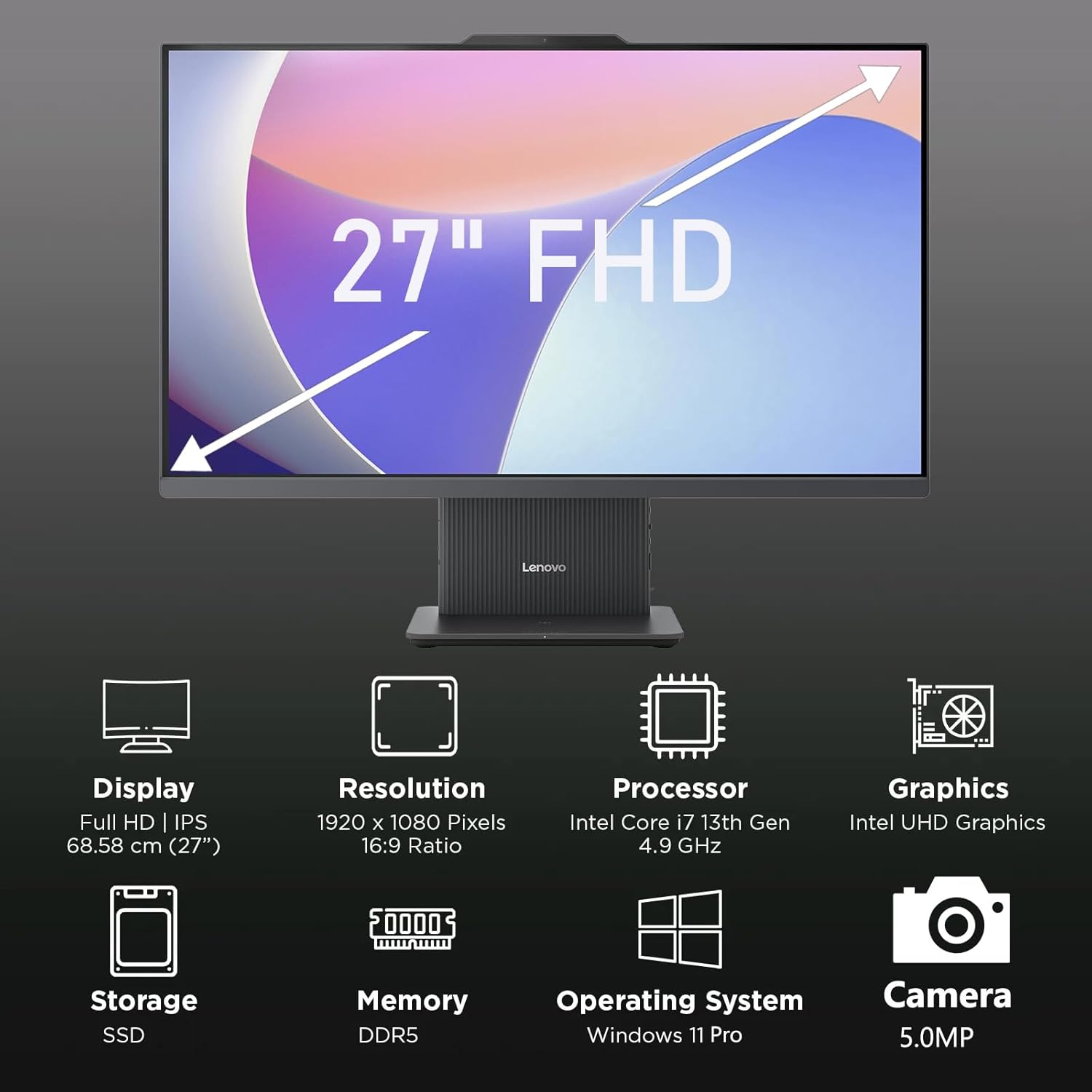
2 Irudia: Gainetikview of key features including Display, Resolution, Processor, Graphics, Storage, Memory, Operating System, and Camera.
- Pantaila: 27-inch Full HD (1920x1080) IPS, 300 nits, anti-glare.
- Webkamera: Integrated 5.0MP webcam with dual microphones.
- Hizlariak: Integrated 3W x2 HARMAN speakers.
- Prozesadorea: Intel Core i7-13620H.
- Memoria: DDR5 RAM.
- Biltegiratzea: PCIe NVMe SSD.
3.2 Portuak eta konektoreak

Figure 3: Detailed diagram of ports and connectors on the Lenovo IdeaCentre AIO 27.
- E-shutter (for webcam privacy)
- Pizteko botoia
- HDMI sarrera 1.4
- Potentzia DC sarrera
- USB-A 480Mbps (USB 2.0)
- Ethernet (RJ-45)
- USB-A 480Mbps (USB 2.0)
- USB-A 10 Gbps (USB 3.2 2. belaunaldia)
- HDMI irteera 2.1 TMDS
- USB-C 10Gbps (data transfer only)
- Headphone / microphone combo jack
4. Konfigurazioa
4.1 Kutxatik ateratzea eta kokapena
- Carefully remove the AIO PC and all accessories from the packaging.
- Place the AIO PC on a stable, flat surface with adequate ventilation around the device.
4.2 Potentzia konektatzea
- Connect the power adapter cable to the DC-in port (4) on the rear of the AIO PC.
- Entxufatu korronte-egokigailua lurretik harrera elektriko batean.
4.3 Periferikoak konektatzea
- Connect your keyboard and mouse to the available USB-A ports (5, 7, 8) on the rear of the AIO PC.
- If using wired Ethernet, connect the cable to the RJ-45 port (6).
- For external displays, use the HDMI-out port (9). To use the AIO as a display for another device, use the HDMI-in port (3).
4.4 Hasierako abiarazpena eta Windows konfigurazioa
- Press the power button (2) to turn on the PC.
- Jarraitu pantailan agertzen diren argibideei Windows 11 Pro-ren hasierako konfigurazioa osatzeko, hizkuntza, eskualdea, sareko konexioa eta erabiltzaile-kontua sortzea barne.
4.5 Euskarria doitzea

Figure 4: The AIO stand allows for ergonomic tilt adjustment.
The integrated stand allows for tilt adjustment from -5° to 15° to optimize your viewing angle and posture. Gently adjust the display to your preferred position.
5. Zure ordenagailua erabiltzea
5.1 Oinarrizko funtzionamendua
- Piztu/Itzali: Press the power button (2) to turn on. To shut down, click Start > Power > Shut down in Windows.
- Lo egiteko modua: Press the power button briefly or select Sleep from the Start menu.
5.2 Erabili Webkamera eta audioa

Figure 5: The 5MP webcam and Harman audio enhance video conferencing.
- Webkamera: 5.0MP integratua. webcam is ideal for video conferencing and online communication. Use the E-shutter (1) to physically block the camera for privacy.
- Mikrofonoak: Dual microphones provide clear audio input.
- Hizlariak: HARMAN speakers deliver high-quality audio output.
5.3 Konektibitatea
- Wi-Fi 6: Konektatu haririk gabeko sareetara abiadura handiko interneterako sarbidea izateko.
- Bluetooth 5.2: Pair with Bluetooth-enabled devices such as headphones, speakers, or mobile phones.
- USB atakak: Utilize the various USB-A and USB-C ports for connecting external drives, printers, and other peripherals.
5.4 Windows 11 Pro-ren ezaugarriak
Your AIO PC comes pre-installed with Windows 11 Pro, offering advanced features for productivity and security:
- BitLocker: For advanced data encryption.
- Urruneko mahaigaina: Access your PC from another device.
- Domain Join: Integrate into corporate networks.
- Windows Kaixo: Secure and fast login using facial recognition (if IR camera is present) or PIN.
6. Mantentzea
6.1 Cleaning Your PC
- Pantaila: Erabili lipurrik gabeko zapi leun bat dampUrarekin edo pantaila-garbitzaile ez-urratzaile batekin garbitu. Ez ihinztatu likidoa zuzenean pantailan.
- Xasea: Wipe with a soft, dry cloth. Avoid harsh chemicals or abrasive materials.
- Aireztapena: Ziurtatu aireztapen-irekiduretatik hautsik eta oztoporik gabe daudela gehiegi berotzea saihesteko.
6.2 Software eguneraketak
Regularly check for and install Windows updates and driver updates to ensure optimal performance and security. Go to Settings > Windows Update to check for updates.
6.3 Datuen babeskopia
Aldian-aldian, egin babeskopia datu garrantzitsuenak kanpoko disko gogor batean edo hodeiko biltegi batean, datuak galtzea saihesteko.
7. Arazoak
This section addresses common issues you might encounter with your IdeaCentre AIO 27.
| Arazoa | Irtenbide posiblea |
|---|---|
| PCa ez da pizten | Ensure the power adapter is securely connected to both the PC and a working electrical outlet. Test the outlet with another device. |
| Ez dago pantailan bistaratu | Check power connection. Ensure the PC is powered on. If using HDMI-in, verify the external device is on and correctly connected. |
| No internet connection (Wi-Fi) | Check if Wi-Fi is enabled in Windows settings. Verify your router is working. Reconnect to the Wi-Fi network. |
| Audiorik ez | Check volume levels in Windows. Ensure speakers are not muted. Verify audio drivers are up to date. |
| Webkamerak ez du funtzionatzen | Ensure the E-shutter (1) is open. Check privacy settings in Windows. Verify webcam drivers are installed and up to date. |
8. Zehaztapenak

Figure 6: Details of the Intel Core i7-13620H processor.

Figure 7: The 27-inch FHD display offers comfortable viewing.
| Ezaugarri | Zehaztapena |
|---|---|
| Marka | Lenovo |
| Ereduaren izena | IdeaCentre AIO 27 |
| Sistema eragilea | Windows 11 Pro |
| Prozesadorea | Intel Core i7-13620H (10 nukleo, 16 hari, 4.9 GHz-ra arte) |
| Grafikoak | Intel UHD grafiko integratua |
| Bistaratzea | 27-inch FHD (1920x1080) IPS, 300 nits, Anti-glare, 99% sRGB |
| Memoria | 32GB DDR5 RAM (5200 MT/s) |
| Biltegiratzea | 1TB M.2 PCIe 4.0x4 NVMe SSD |
| Audioa | High Definition (HD) Audio, Realtek ALC233-CG codec, 3W x2 HARMAN speakers |
| Webkamara | 5.0MP with Dual Microphones |
| Haririk gabeko konexioa | Wi-Fi 6 (802.11ax 2x2), Bluetooth 5.2 |
| Portuak (Atzekoak) | 1x USB-A 10Gbps, 2x USB-A 480Mbps, 1x HDMI-in 1.4, 1x HDMI-out 2.1 TMDS, 1x RJ-45, 1x Power Connector |
| Portuak (Ezkerrean) | 1x USB-C 10Gbps (data transfer only), 1x 3.5mm combo audio jack |
| Segurtasun Txipa | TPM 2.0 firmwarea |
| Elikatze-moldagailua | 90W 89% adapter |
| Neurriak (W x D x H) | 611.72 x 192 x 473.16 mm (24.08 x 7.55 x 18.62 hazbete) |
| Pisua | 7.1 kg inguru (15.65 lb) |
9. Bermearen informazioa
Your Lenovo IdeaCentre AIO 27 PC comes with a standard manufacturer's warranty. The specific terms and duration of your warranty may vary by region and purchase agreement. Please refer to the warranty documentation included in your product packaging or visit the official Lenovo support webinformazio zehatza lortzeko gunea.
Typically, the warranty covers defects in materials and workmanship under normal use. It does not cover damage caused by misuse, accidents, unauthorized modifications, or external factors.
10. Laguntza eta Harremanetarako informazioa
For technical support, service, or additional information, please contact Lenovo customer support through the following channels:
- Lenovo laguntza Webgunea: Bisitatu support.lenovo.com gidariak, eskuliburuak eta arazoak konpontzeko gidak lortzeko.
- Telefono-laguntza: Refer to your warranty card or the Lenovo support webeskualdeko harremanetarako zenbakietarako gunea.
- Lineako txata: Available on the Lenovo support webdenbora errealeko laguntzarako gunea.
Please have your product's serial number ready when contacting support. The serial number is typically located on a label on the back or bottom of your AIO PC.