1. Sarrera eta Overview
The Avision AV 320D2+ is a high-performance A3 document scanner designed for efficient and reliable document digitization. Featuring a 600 dpi optical resolution and USB connectivity, it is capable of handling a wide range of document sizes up to A3, making it suitable for various professional environments. This manual provides essential information for setting up, operating, maintaining, and troubleshooting your scanner.
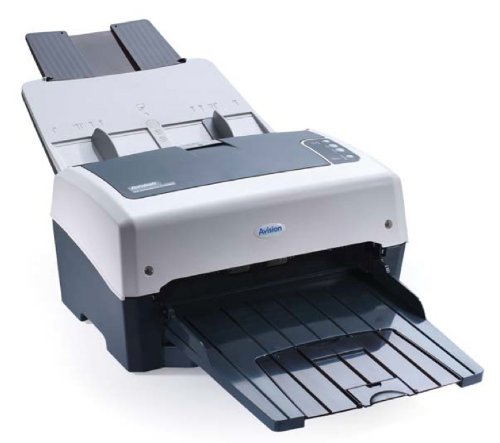
Figure 1: Avision AV 320D2+ A3 Document Scanner. This image displays the Avision AV 320D2+ A3 Document Scanner from a front-right perspective. The scanner is light grey and dark grey, featuring an automatic document feeder (ADF) at the top with paper guides visible, and an extended output tray at the front. The Avision logo is visible on the front panel.
2. Konfigurazioa
2.1 Paketatzea
- Kontu handiz atera eskanerra eta osagarri guztiak paketetik.
- Egiaztatu ontziratze-zerrendan zerrendatutako osagai guztiak daudela.
- Remove all protective tapes and packing materials from the scanner, including any inside the document feeder and output tray.
2.2 Eskanerra konektatzea
- Jarri eskanerra ordenagailuaren ondoan gainazal egonkor eta lau batean.
- Konektatu korronte-egokitzailea eskanerraren elikatze-sarrerara eta, ondoren, entxufe elektriko batera.
- Connect one end of the supplied USB cable to the USB port on the scanner and the other end to an available USB port on your computer.
- Power on the scanner using the power button, typically located on the side or rear panel.
2.3 Software-instalazioa
Before using the scanner, you must install the necessary drivers and scanning software. Refer to the included software CD or visit the official Avision website for the latest drivers and utilities.
- Insert the software installation CD into your computer's CD/DVD drive, or download the software package from the Avision support webgunea.
- Follow the on-screen instructions to install the scanner drivers and bundled scanning applications. It is recommended to install all provided software for full functionality.
- Berrabiarazi ordenagailua instalazioa amaitutakoan eskatzen bazaizu.
3. Eskanerra erabiltzea
3.1 Dokumentuak kargatzea
- Dokumentuen elikadura automatikoa (ADF): Open the ADF input tray. Adjust the paper guides to fit the width of your documents. Place the documents face-down with the top edge first into the ADF. The standard sheet capacity is 50 sheets.
- Ensure documents are free of staples, paper clips, or any foreign objects that could damage the scanner.
- For mixed-size documents, ensure they are aligned properly to prevent skewing.
3.2 Basic Scanning Procedures
- Kargatu dokumentuak ADFn goian azaldu bezala.
- Open your preferred scanning application (e.g., Avision Button Manager, TWAIN/ISIS compatible software).
- Select the Avision AV 320D2+ as your scanner.
- Choose your desired scanning settings (e.g., color mode, resolution, destination folder).
- Initiate the scan from the software interface. The scanner will automatically feed and scan the documents.
- Review eskaneatutako irudiak eta gorde itzazu nahi duzun kokapenean.
3.3 Eskaneatze ezarpenak
The scanner supports various settings to optimize scan quality and file tamaina:
- Ebazpena: Adjustable up to 600 dpi. Higher resolution provides better image quality but results in larger file neurriak.
- Kolore modua: Options typically include Color, Grayscale, and Black & White (Binary).
- Duplex eskaneatzea: The AV 320D2+ supports duplex (two-sided) scanning, allowing you to capture both sides of a document in a single pass.
- Irteera formatua: Common output formats include PDF, JPEG, TIFF, and searchable PDF.
4. Mantentzea
4.1 Eskanerra garbitzea
Regular cleaning ensures optimal performance and extends the life of your scanner.
- Kanpoaldea: Garbitu kanpoko gainazalak leun batekin, damp, oihal lihozkoa. Ez erabili garbitzaile edo disolbatzaile urratzailerik.
- Beirazko gainazalak: Erabili zapi leun bat dampened with a non-abrasive glass cleaner to clean the scanner's glass surfaces (if applicable).
- Arrabolak: Aldian-aldian garbitu elikatze-arrabolak oihal leun batekin, astiro-astiroampIsopropil alkoholarekin garbitu paper hautsa eta hondakinak kentzeko.
- Eskanerra beti itzali eta deskonektatu garbiketa egin aurretik.
5. Arazoak
This section addresses common issues you might encounter with your Avision AV 320D2+ scanner.
| Arazoa | Kausa posiblea | Irtenbidea |
|---|---|---|
| Ordenagailuak ez du eskanerra detektatu | Loose USB cable, power off, driver issue | Egiaztatu USB konexioa, ziurtatu eskanerra piztuta dagoela, eta berriro instalatu gidariak. |
| Paper ataskatzeak | Misaligned documents, worn rollers, foreign objects | Remove jammed paper carefully, align documents properly, clean rollers. |
| Eskaneatze-kalitate eskasa (marrak, irudi lausoak) | Dirty glass, incorrect settings, worn rollers | Clean scanner glass and rollers, adjust resolution/color settings. |
| Dokumentuak ez dira sartzen | Incorrectly loaded, worn feed rollers | Ensure documents are loaded correctly, clean or replace feed rollers if worn. |
6. Zehaztapenak
Key technical specifications for the Avision AV 320D2+ scanner:
- Produktu mota: Dokumentuen eskanerra
- Paper formatua: A3
- Ebazpena: 600 dpi (Optikoa)
- Konektibitatea: USBa
- Kolorea: Beltza/Zuria
- Pisua: Gutxi gorabehera 26.46 libra (12 kg)
- Energia-kontsumoa: 38.4 Watt
- Orri-ahalmen estandarra (ADF): 50 fitxa
- Sentsore optikoen teknologia: CMOS
- Ereduaren izena: AV320D2+
- Elementuaren eredu-zenbakia: FT-0807H
7. Bermea eta Laguntza
7.1 Fabrikatzailearen bermea
The Avision AV 320D2+ scanner typically comes with a 2 urteko fabrikatzailearen bermea. This warranty covers defects in materials and workmanship under normal use. Please retain your proof of purchase for warranty claims. For specific terms and conditions, refer to the warranty card included with your product or visit the official Avision webgunea.
7.2 Laguntza Teknikoa
For technical assistance, driver updates, or further troubleshooting not covered in this manual, please contact Avision customer support. Support contact information can usually be found on the Avision official webgunean edo eskanerrarekin batera emandako dokumentazioan.
Note: Availability of spare parts and software updates may vary. Please check the manufacturer's official channels for the most current information.


