1. Produktua amaitu daview
The D-Link AC1200 Wi-Fi Router (DIR-850L) delivers next-generation wireless speed and coverage to all your Wi-Fi devices. With wireless dual-band speeds of 300 Mbps (2.4 GHz) and 867 Mbps (5 GHz), the DIR-850L avoids interference to deliver fast wireless speeds, improved coverage, and reliable connections. This router is ideal for streaming HD video, gaming, connecting multiple devices, and watching shows on your TV simultaneously. The DIR-850L is also backward compatible with existing wireless 802.11a/g/n devices for seamless connectivity. D-Link’s free mobile apps provide easy setup, remote monitoring, and access to content from anywhere on your smartphone or tablet.
Ezaugarri nagusiak:
- Next Generation Wireless Technology: Wireless AC1200 for optimized performance and reliable coverage, delivering high-quality HD video streaming, gaming, and file transferentziak.
- Atzerako bateragarritasuna: Compatible with wireless 802.11a/g/n devices.
- Hainbat gailu konexioa: Connect more devices with four Gigabit Ethernet ports.
- Multimedia partekatzea: Stream and share files using the USB Share Port and free mobile app.
- Konfigurazio erraza: Intelligent browser wizard and Quick Router Setup Mobile app for simplified installation.
- Segurtasun aurreratua: Preset security with advanced WPA2 encryption.
2. Paketearen edukia
Ensure all items are present in your D-Link DIR-850L package:
- D-Link Wireless AC 1200 Dual-Band Gigabit Router (DIR-850L)
- Elikatze-moldagailua
- Ethernet kablea
- Instalazio azkarraren gida
If any items are missing or damaged, please contact your retailer or D-Link support.
3. Hardwarea amaitu daview
Familiarize yourself with the physical components and indicators of your DIR-850L router.

3.1. irudia: Aurrealdea View. Shows the cylindrical design of the router with the D-Link logo and LED indicators for Power and Internet status.

3.2. irudia: Aldea View. Illustrates the side of the router, highlighting the USB port for storage sharing and the Wi-Fi Protected Setup (WPS) button.
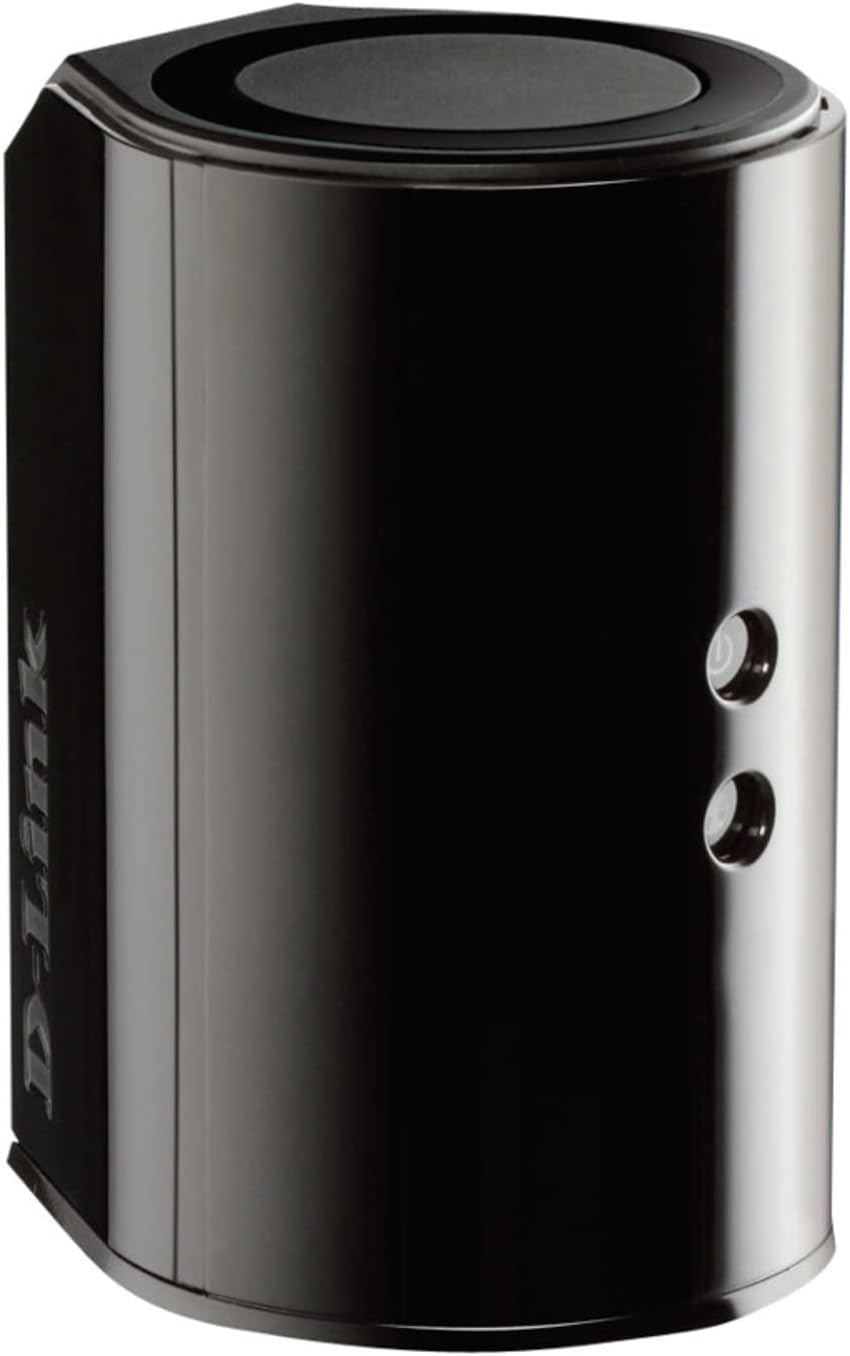
3.3. Irudia: Atzealdea View. Displays the back panel of the router, featuring the WAN (Internet) port, four LAN (Ethernet) ports, and the power input connector.
LED adierazleak:
- Power LED: Solid green indicates the router is powered on. Blinking green indicates a firmware upgrade or reset.
- Interneteko LEDa: Solid green indicates a successful connection to the internet. Blinking green indicates data activity. Amber indicates no internet connection.
Portuak eta botoiak:
- WAN (Internet) Port: Interneterako sarbidea izateko modemara konektatzen da.
- LAN portuak (1-4): Connect wired devices such as computers, gaming consoles, or network storage.
- USB ataka: Connect a USB storage device for network sharing.
- Energia konektorea: Barneratutako energia-egokitzailera konektatzen da.
- Berrezarri botoia: Luze sakatu 10 segundoz fabrikako ezarpen lehenetsiak berrezartzeko.
- WPS botoia: Initiates Wi-Fi Protected Setup for easy wireless connection of compatible devices.
4. Konfigurazioa
Follow these steps to set up your D-Link DIR-850L router:
- Routerraren kokapena: Place your router in a central location in your home, away from obstructions and devices that may cause interference (e.g., cordless phones, microwaves).
- Modemera konektatu:
- Itzali modema.
- Connect one end of the provided Ethernet cable to the WAN (Internet) port on your DIR-850L router.
- Connect the other end of the Ethernet cable to the Ethernet port on your modem.
- Piztu:
- Power on your modem and wait for its indicator lights to stabilize (usually indicating an active internet connection).
- Connect the power adapter to the power connector on your DIR-850L router and plug it into a power outlet.
- Wait for the Power LED on the router to turn solid green. The Internet LED should also turn green, indicating a successful connection.
- Konektatu gailu bat:
- Kable bidezko konexioa: Connect an Ethernet cable from one of the LAN ports (1-4) on the router to your computer's Ethernet port.
- Haririk gabeko konexioa: On your Wi-Fi enabled device (laptop, smartphone, tablet), search for available Wi-Fi networks. Select the network name (SSID) found on the Wi-Fi Configuration Card (usually a sticker on the bottom of the router) and enter the Wi-Fi password.
- Exekutatu konfigurazio-morroia:
- Ireki a web browser (e.g., Chrome, Firefox) on the connected device.
- Mota
http://dlinkrouter.localor192.168.0.1helbide-barran sartu eta Sartu sakatu. - Follow the on-screen instructions of the D-Link Setup Wizard to configure your internet connection and personalize your Wi-Fi network name (SSID) and password.
Setup Video (General D-Link Router Overview):
Video 4.1: D-Link Wireless AC 1200 Mbps Home Cloud App-Enabled Dual-Band Gigabit Router Overview. Bideo honek ikuspegi orokorra eskaintzen duview of D-Link routers, including the DIR-850L, and highlights their features and target users. While not a step-by-step setup guide, it offers insights into the router's capabilities.
5. Funtzionamendu-argibideak
Once your D-Link DIR-850L router is set up, you can manage and optimize your network.
Gailuak konektatzea:
- Haririk gabekoa: Use the Wi-Fi network name (SSID) and password you configured during setup to connect your wireless devices. The router supports both 2.4 GHz and 5 GHz bands.
- Sare: Connect devices directly to the LAN ports using Ethernet cables for a stable, high-speed connection.
Routerraren ezarpenetara sartzea:
To access advanced settings, open a web arakatzailea eta nabigatu http://dlinkrouter.local or 192.168.0.1. Log in with the administrator password you set during the initial setup. From here, you can:
- Change Wi-Fi settings (SSID, password, security type).
- Configure guest Wi-Fi networks.
- Konfiguratu gurasoen kontrolak.
- Kudeatu konektatutako gailuak.
- Eguneratu firmwarea.
Using the USB Share Port:
Plug a USB storage device (e.g., flash drive, external hard drive) into the USB port on the router. You can then access and share files on this storage device across your network using the D-Link SharePort Mobile app or through network shares on your computer.
6. Mantentzea
Mantentze-lan erregularrak zure routerraren errendimendu optimoa eta iraupena bermatzen laguntzen du.
- Berrabiaraztea: Periodically reboot your router (unplug from power for 10 seconds, then plug back in) to clear its memory and refresh network connections. This can resolve minor performance issues.
- Firmware eguneraketak: Check the D-Link support website for firmware updates. Firmware updates can improve performance, add new features, and fix security vulnerabilities. Follow the instructions provided by D-Link carefully when performing updates.
- Garbiketa: Keep the router clean and free from dust. Use a soft, dry cloth to wipe the exterior. Do not use liquid cleaners or aerosols. Ensure ventilation openings are not blocked.
- Segurtasuna: Regularly change your Wi-Fi password and router administrator password to enhance network security.
7. Arazoak
If you encounter issues with your D-Link DIR-850L router, refer to the following common problems and solutions:
Ez dago Interneteko konexiorik:
- Egiaztatu kableak: Ensure all Ethernet cables are securely connected to the router and modem.
- Modemaren egoera: Egiaztatu zure modema behar bezala funtzionatzen duela eta Interneteko konexio aktiboa duela.
- Reboot Sequence: Power off your modem, then your router. Wait 30 seconds, then power on the modem first. Once the modem is fully online, power on the router.
- ISP Contact: If the issue persists, contact your Internet Service Provider (ISP) to confirm service status.
Wi-Fi abiadura motela:
- Routerraren kokapena: Move the router to a more central location, away from obstacles and interference sources.
- Kanalen interferentzia: Hasi saioa bideratzailean web interface and try changing the Wi-Fi channel for both 2.4 GHz and 5 GHz bands to a less congested one.
- Konektatutako gailuak: Disconnect unused devices from your network.
- Firmwarea: Ziurtatu zure bideratzailearen firmwarea eguneratuta dagoela.
Ezin da Wi-Fira konektatu:
- Pasahitz zuzena: Double-check that you are entering the correct Wi-Fi password (case-sensitive).
- SSID igorpena: Ensure the router is broadcasting its Wi-Fi network name (SSID).
- WPS: If your device supports WPS, try using the WPS button on the router to connect.
- Berrezarri bideratzailea: As a last resort, perform a factory reset (see Hardware Overview) and reconfigure the router.
8. Zehaztapenak
| Ezaugarri | Deskribapena |
|---|---|
| Ereduaren izena | DIR-850L |
| Haririk gabeko mota | 802.11ac (backward compatible with 802.11a/b/g/n) |
| Maiztasun Banda Klasea | Banda bikoitza (2.4 GHz eta 5 GHz) |
| Haririk gabeko Abiadura | 300 Mbps arte (2.4 GHz), 867 Mbps arte (5 GHz) |
| Ethernet Portuak | 4 x Gigabit LAN, 1 x Gigabit WAN |
| USB ataka | 1 x USB 2.0 (for SharePort) |
| Antena Mota | Barnekoa |
| Sistema eragileen bateragarritasuna | Windows® 8, 7, Vista®, XP SP2, or Mac OS® X (v10.4 or higher) |
| Neurriak (LxWxH) | 4.45 x 3.43 x 5.72 hazbete |
| Elementuaren pisua | 9.9 ontza (0.62 libra) |
| Kolorea | Beltza |
9. Bermea eta Laguntza
D-Link produktuak berme mugatu batez babestuta daude. Bermearen baldintza zehatzak ikusteko, kontsultatu zure produktuarekin batera datorren bermearen informazioa edo bisitatu D-Link webgune ofiziala. webgunea.
For technical support, product registration, and access to the latest drivers, firmware, and user manuals, please visit the D-Link support portal:
D-Link laguntza Webgunea: www.dlink.com/laguntza
You may also find helpful resources and community forums on the D-Link webgunea.


