1. Sarrera
This manual provides comprehensive instructions for the Monoprice MS-WN513N2 Wireless N300 4-Port Broadband Router. This device is designed to provide a high-speed wireless network connection for your home or small office, offering reliable internet access and advanced security features. Please read this manual thoroughly before operating the device.
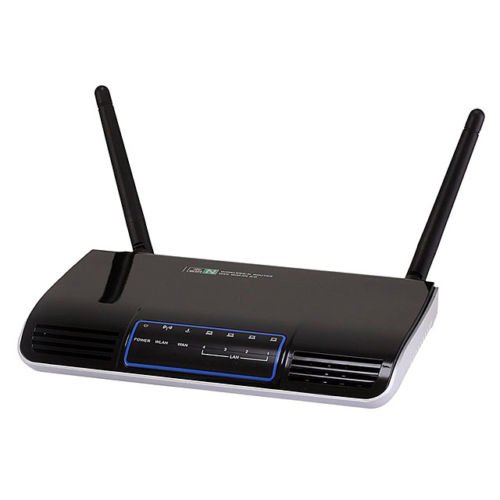
1.1. irudia: Aurrealdea view of the Monoprice MS-WN513N2 Wireless N300 Router. The router is black with indicator lights on the front panel.
2. Ezaugarriak
The Monoprice MS-WN513N2 router offers a range of features to enhance your network experience:
- Wireless N300 Performance: Complies with 802.11b/g/n standards, offering wireless transmission speeds up to 300 Mbps.
- 4-Port Broadband Router: Includes four (4) LAN ports for wired connections.
- Segurtasun aurreratua: Supports 64-bit/128-bit WEP, WPA/WPA2, and WPA-PSK/WPA2-PSK authentication.
- IPv6 euskarria: Compatible with Internet Protocol Version 6.
- Zerbitzuaren kalitatea (QoS): Bandwidth control for prioritizing network traffic.
- WPS (Wi-Fi Babestutako Konfigurazioa): Simplifies wireless security configuration.
- Hainbat funtzionamendu modu: Can be configured as a Gateway, Wireless Bridge, or Wireless ISP (WISP).
- Dynamic DNS (DDNS): Supports dynamic domain name system configuration.
- UPnP Support: Universal Plug and Play for easy device discovery.
- Firewall: Integrated firewall for network protection.
- Automatic MDI/MDIX: Automatic cable detection for Ethernet ports.
3. Paketearen edukia
Mesedez, egiaztatu elementu guztiak zure paketean daudela:
- Monoprice MS-WN513N2 Wireless N300 Router
- Korronte egokitzailea (DC 5V)
- Ethernet kablea
- Instalazio Gida Azkarra (barne badago)
4. Gainbehera fisikoaview
4.1 Aurrealdeko panelen adierazleak
Aurrealdeko panelean egoerari buruzko informazioa ematen duten LED adierazleak daude:
- Power LED: Indicates if the router is powered on.
- WAN LED: Interneterako konexioaren egoera adierazten du.
- LAN LEDak (1-4): Indicate activity on the respective wired LAN ports.
- WLAN LEDa: Haririk gabeko sarearen jarduera adierazten du.
4.2 Atzeko paneleko atakak eta botoiak
The rear panel contains all physical connection points:
- DC 5V Power Portua: Barneratutako energia-egokitzailera konektatzen da.
- WAN ataka: Zure modem edo Interneteko zerbitzu hornitzailearen sarera konektatzen da.
- LAN portuak (1-4): Connect to wired devices such as computers, gaming consoles, or switches.
- WPS botoia: Haririk gabeko konexio erraz bat lortzeko Wi-Fi Babestutako Konfigurazioa abiarazten du.
- Berrezarri zuloa: Used to restore the router to factory default settings. Insert a paperclip and hold for 5-10 seconds.
- Antena atakak: Two (2) ports for connecting the external antennas.
5. Konfigurazioa
5.1 Hardware konexioa
- Antenak konektatu: Screw the two external antennas onto the antenna ports on the rear panel.
- Konektatu modema: Connect one end of an Ethernet cable to your modem's LAN port and the other end to the WAN bideratzailearen portua.
- Konektatu energia: Connect the power adapter to the router's DC 5V elikadura portua and plug the adapter into a power outlet.
- Piztu: Wait for the router to power on. The Power LED should illuminate. Allow a few minutes for the router to boot up and establish a connection.
- Ordenagailua konektatu (aukerakoa): For initial configuration, it is recommended to connect a computer directly to one of the router's LAN portuak Ethernet kable bat erabiliz.
5.2 Hasierako konfigurazioa (Web Interfazea)
- Sarbide bideratzailea: Ireki a web browser on a connected computer. In the address bar, type the router's default IP address (commonly
192.168.1.1or192.168.0.1) eta sakatu Sartu. Ikusi zure bideratzailearen beheko aldean dagoen etiketa IP helbide zehatza eta saioa hasteko kredentzial lehenetsiak ikusteko. - Saioa hasi: Enter the default username and password (e.g.,
adminbietarako). - Exekutatu konfigurazio-morroia: Bideratzailearena web interface will typically present a Quick Setup Wizard. Follow the on-screen prompts to configure your internet connection type (e.g., PPPoE, Dynamic IP, Static IP) and basic wireless settings (SSID, password).
- Aldatu lehenetsitako kredentzialak: For security, it is highly recommended to change the default login username and password for the router's web interfazea.
6. Funtzionamendua
6.1 Haririk gabeko sarearen konfigurazioa
To configure your wireless network:
- Nabigatu Haririk gabeko ezarpenak atalean web interfazea.
- SSID: Change the default Wireless Network Name (SSID) to a unique name.
- Segurtasun modua: Hautatu WPA2-PSK as the recommended security mode.
- Pasahitza: Set a strong, unique password (at least 8 characters, including letters, numbers, and symbols).
- Kanala: The router can automatically select the best 2.4 GHz channel. You can also manually select a fixed channel (e.g., 1, 6, or 11) to avoid interference.
- Gorde zure aldaketak.
6.2 Segurtasun ezarpenak
The router provides various security features:
- Firewall: The built-in firewall helps protect your network from external threats. Ensure it is enabled.
- MAC Iragazkia: You can restrict network access to specific devices based on their MAC addresses.
- Gurasoen kontrola: Some routers offer features to block specific websites or limit internet access times for certain devices.
- WPS: Use the WPS button for quick, secure connections with WPS-compatible devices.
6.3 Ezaugarri aurreratuak
Explore the advanced settings in the web interface for more control:
- Zerbitzuaren kalitatea (QoS): Prioritize bandwidth for applications like gaming or video streaming.
- Portua birbidaltzea: Configure specific ports to allow external access to devices on your local network (e.g., for gaming servers).
- Dynamic DNS (DDNS): If you have a dynamic public IP address, DDNS allows you to access your network using a consistent domain name.
- IPv6: Configure IPv6 settings if your ISP supports it.
- Eragiketa modua: Change the router's mode to Wireless Bridge or WISP if needed for specific network setups.
7. Mantentzea
7.1 Firmware eguneraketak
Periodically check the Monoprice website for firmware updates. Firmware updates can improve performance, add new features, and fix security vulnerabilities. Follow the instructions provided with the firmware update carefully to avoid damaging the device.
7.2 Routerraren berrezarpena
If you forget your login password or experience persistent issues, you can restore the router to its factory default settings:
- With the router powered on, locate the Berrezarri zuloa atzeko panelean.
- Use a paperclip or a thin, pointed object to press and hold the reset button inside the hole for approximately 5-10 seconds.
- Release the button when the router's LEDs flash or restart.
- The router will reboot with factory default settings. You will need to reconfigure it using the web interfazea.
8. Arazoak
Hona hemen arazo ohikoen irtenbideak:
- Interneterako sarbidea ez:
- Check if the WAN LED is lit. If not, ensure the Ethernet cable from the modem is securely connected to the router's WAN port.
- Berrabiarazi modema eta bideratzailea.
- Egiaztatu zure Interneteko konexioaren ezarpenak bideratzailearen web interfazea.
- Ezin da sartu Web Interfazea:
- Ziurtatu ordenagailua routerrari konektatuta dagoela Ethernet edo Wi-Fi bidez.
- Verify the router's IP address. Try
192.168.1.1or192.168.0.1. - Garbitu zure arakatzailearen cachea edo saiatu beste arakatzaile bat erabiltzen.
- If you forgot the password, perform a factory reset.
- Haririk gabeko abiadura motela:
- Ensure your devices support 802.11n for optimal speeds.
- Check for interference from other 2.4 GHz devices (cordless phones, microwaves). Try changing the wireless channel.
- Ensure the router is centrally located and not obstructed.
- Eguneratu zure gailuaren haririk gabeko egokitzailearen kontrolatzaileak.
- Wireless Connection Drops:
- Egiaztatu seinalearen indarra eta interferentziak.
- Ziurtatu bideratzailearen firmwarea eguneratuta dagoela.
- Verify that the wireless security settings are correctly configured.
9. Zehaztapenak
| Ezaugarri | Zehaztapena |
|---|---|
| Eredua | MS-WN513N2 |
| Haririk gabeko estandarrak | IEEE 802.11n (Draft 2.0), IEEE 802.11g, IEEE 802.11b |
| Wireless Signal Rates (802.11n) | Up to 300 Mbps (270, 243, 216, 162, 135, 130, 108, 81, 65, 54, 40.5, 27, 13.5 Mbps) |
| Wireless Signal Rates (802.11g) | 54, 48, 36, 24, 18, 12, 9, 6 Mbps |
| Wireless Signal Rates (802.11b) | 11, 5.5, 2, 1 Mbps |
| Maiztasun barrutia | 2.4 - 2.4835 GHz |
| Haririk gabeko Transmisio-potentzia | Gehienez 20 dBm |
| Modulazio Teknologia | DBPSK, DQPSK, CCK, OFDM, 16-QAM, 64-QAM |
| Portuak | 4x LAN Ports, 1x WAN Port, 2x Antenna Ports, 1x DC 5V Power Port |
| Botoiak | WPS Button, Reset Hole |
| Segurtasuna | 64/128 biteko WEP, WPA/WPA2, WPA-PSK/WPA2-PSK |
| Elikatze Hornidura | DC 5V |
| Onartutako protokoloak | IPv6, PPPoE |
10. Bermea eta Laguntza
For warranty information and technical support, please refer to the official Monoprice website or contact Monoprice customer service directly. Keep your purchase receipt for warranty claims.
Monoprezio Webgunea: www.monoprice.com


