Sarrera
This manual provides comprehensive instructions for the installation, operation, and maintenance of your A-Tech 4GB (4 x 1GB) DDR2 PC2-5300 667MHz RAM Memory kit. This memory kit is designed to enhance the performance of compatible Gateway GT Series desktop computer systems. Please read this guide thoroughly before proceeding with installation.
Segurtasun Informazioa
Beti jarraitu segurtasun neurri hauek ordenagailuaren osagaiak maneiatzen dituzunean:
- Itzali: Ensure your computer is completely powered off and unplugged from the wall outlet before opening the case or handling any internal components.
- Deskarga estatikoa: Static electricity can damage electronic components. Always ground yourself by touching a metal part of the computer chassis before handling memory modules. Consider using an anti-static wrist strap.
- Kontuz maneiatu: Hold memory modules by their edges, avoiding contact with the gold connectors or the chips on the module.
- Bateragarritasuna: This product is specifically designed for Gateway GT Series models. Using it with incompatible systems may result in malfunction or damage. Refer to your system's manual for specific memory requirements.
Bateragarritasuna
This A-Tech 4GB (4 x 1GB) DDR2 PC2-5300 667MHz RAM Memory kit is compatible with the following Gateway GT Series models:
- GT3020B Media Center, GT3020M, GT3022B, GT3076M
- GT3232M, GT3236M Media Center, GT3242M
- GT4220M, GT4222M, GT4224M, GT4226M, GT4230M
- GT5012H Media Center, GT5014H Media Center, GT5016H Media Center, GT5020J Media Center
- GT5022J, GT5026J, GT5030J, GT5036J, GT5038J, GT5040 Media Center
- GT5042B, GT5042J, GT5044J, GT5048J Media Center
- GT5062B, GT5092B, GT5092J, GT5094J, GT5096J
If your specific model is not listed, please consult your system's documentation or the A-Tech support webgunea bateragarritasuna egiaztatzeko.
Konfigurazioa (Instalazioa)
Follow these steps to install your new A-Tech RAM modules:
- Prestatu zure sistema:
- Save all open work and shut down your computer completely.
- Unplug the power cord and all other cables (monitor, keyboard, mouse, USB devices, etc.) from the computer.
- Move the computer to a clean, flat, and well-lit workspace.
- Ground yourself to discharge any static electricity.
- Ireki ordenagailuaren karkasa:
Refer to your Gateway GT Series system's manual for specific instructions on how to safely open the computer case. Typically, this involves removing screws on the back panel and sliding off a side panel.

Image: Four A-Tech DDR2 RAM modules. These modules are designed for desktop computers and feature a green PCB with black memory chips and a white A-Tech label.
- Locate the RAM Slots:
Once the case is open, locate the DIMM (Dual In-line Memory Module) slots on the motherboard. These are usually long, narrow slots with clips on either end. Your Gateway GT Series system will have multiple slots, often color-coded.
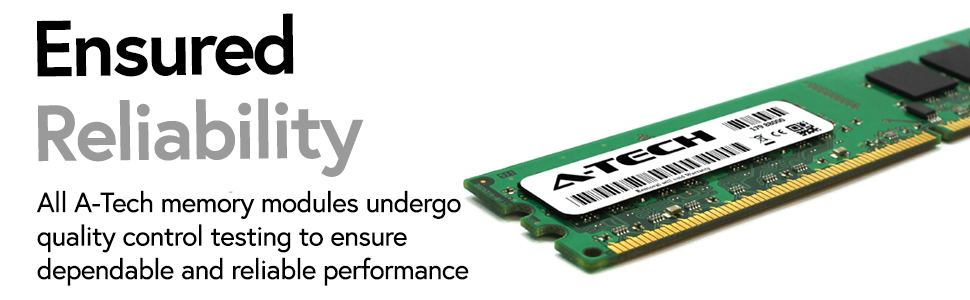
Irudia: Gertutik view of an A-Tech DDR2 RAM module, highlighting the gold contacts and the product label.
- Install the RAM Modules:
- If you are replacing existing RAM, gently push the clips on both ends of the slot outwards to release the old module, then carefully remove it.
- Align the notch on the new A-Tech DDR2 RAM module with the corresponding key in the DIMM slot. DDR2 modules have a specific notch placement to prevent incorrect insertion.
- Place the module into the slot and apply firm, even pressure to both ends of the module until the clips snap into place, securing the module. Do not force the module if it does not seat easily; re-check the alignment.
- Repeat for all four 1GB modules in the kit, ensuring they are installed in the correct slots as per your system's motherboard manual for optimal performance (e.g., matching pairs in specific channels).
- Itxi ordenagailuaren kaxa:
Once all modules are securely installed, reattach the side panel of your computer case and secure it with the screws you removed earlier.
- Reconnect Cables and Power On:
Reconnect all cables to your computer. Plug the power cord back into the wall outlet and power on your system. The system should boot normally.
Funtzionamendua
After successful installation, the A-Tech RAM modules operate automatically. Your operating system should detect the increased memory capacity. To verify the installation:
- Windows: Right-click on 'This PC' or 'My Computer', select 'Properties'. The 'Installed RAM' or 'Memory' section should display the new total memory (e.g., 4.00 GB).
- Linux: Ireki terminal bat eta idatzi
free -horcat /proc/meminfo.
The system will utilize the additional memory to improve multitasking capabilities and overall system responsiveness.
Mantentzea
RAM modules generally require minimal maintenance. However, consider the following to ensure longevity and optimal performance:
- Hautsa kentzea: Periodically clean the interior of your computer case to prevent dust buildup, which can impede airflow and lead to overheating. Use compressed air to gently clear dust from around the RAM modules and slots.
- Ingurumen-baldintzak: Operate your computer in a cool, dry environment. Avoid extreme temperatures and high humidity.
- Manipulazio fisikoa: Avoid unnecessary removal or re-insertion of RAM modules once installed, as this can increase the risk of damage or static discharge.
Arazoak konpontzea
If you encounter issues after installing the A-Tech RAM, refer to the following troubleshooting steps:
- System Does Not Boot / No Display:
- Ziurtatu kable elektriko guztiak ondo konektatuta daudela.
- Re-open the case and verify that each RAM module is fully seated in its slot, with the clips securely locked.
- Try installing only one module at a time to identify if a specific module is faulty.
- Ensure the modules are installed in the correct slots according to your motherboard's manual.
- System Boots, But Memory Not Recognized / Incorrect Amount:
- Egiaztatu zure sistemaren BIOS/UEFI ezarpenak detektatutako memoria baieztatzeko.
- Ensure your operating system is a 64-bit version to fully utilize 4GB or more RAM. 32-bit operating systems can only address approximately 3.5GB of RAM.
- Verify that the RAM modules are compatible with your specific Gateway GT Series model.
- Frequent Crashes / Blue Screens of Death (BSOD):
- Exekutatu memoria diagnostiko tresna bat (adibidez, Windows Memory Diagnostic) erroreak egiaztatzeko.
- Ensure your system's BIOS is up to date.
If these steps do not resolve the issue, contact A-Tech customer support for further assistance.
Zehaztapenak
| Ezaugarri | Zehaztapena |
|---|---|
| Produktuaren izena | A-Tech 4GB KIT (4 x 1GB) DDR2 RAM Memory |
| Modelo zenbakia | AM048727 |
| Memoria Mota | DDR2 DIMM |
| Edukiera | 4GB (4 x 1GB Modules) |
| Abiadura | 667MHz (PC2-5300) |
| Akatsen zuzenketa | NON-ECC |
| Buffering | Bufferrik gabe |
| Forma-faktorea | 240-Pin DIMM |
| liburukiatage | 1.8V (Standard for DDR2) |
| Neurriak | 6.7 x 3.6 x 0.8 hazbete (Produktuaren neurriak) |
| Elementuaren pisua | 3.6 ontza |
Bermea
A-Tech memory products are backed by a Bizi osorako bermea. This warranty covers defects in materials and workmanship for the life of the product. For detailed warranty terms and conditions, please refer to the official A-Tech webwebgunean edo jarri harremanetan bezeroarentzako laguntzarekin.
Laguntza
For technical assistance, compatibility questions, or warranty claims, please visit the official A-Tech webwebgunera edo jarri harremanetan bezeroarentzako arreta-zerbitzuarekin:
- A-Tech Official Webgunea: atechmemory.com
- Ikusi website for contact methods such as email or phone support.


