1. Sarrera
Welcome to your new OMEGA OWLR151U 150 Mbps Wi-Fi Router. This device is designed to provide a reliable and efficient wireless network for your home or small office. It integrates the functions of a router, wireless access point, 4-port switch, and firewall into a single unit. This manual will guide you through the installation, configuration, and maintenance of your router to ensure optimal performance.
2. Produktua amaitu daview
The OMEGA OWLR151U router supports the IEEE 802.11n wireless standard, offering wireless speeds of up to 150 Mbps on the 2.4 GHz frequency band. It features one WAN port for internet connection and four LAN ports for wired devices, along with a fixed 5 dBi antenna for enhanced signal coverage. The integrated firewall provides basic network security.

2.1. irudia: Aurrealdea view of the OMEGA OWLR151U Wi-Fi Router, showing its compact design and single antenna.
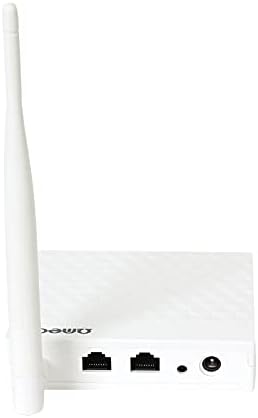
2.2. irudia: Atzekoa view of the OMEGA OWLR151U Wi-Fi Router, highlighting the WAN port, LAN ports, and power input.
3. Konfigurazioa
3.1 Paketearen edukia
- OMEGA OWLR151U Wi-Fi Router
- Elikatze-moldagailua
- Ethernet kablea
- Instalazio Gida Azkarra (barne badago)
3.2 Hardware konexioa
- Potentzia-konexioa: Connect the provided power adapter to the router's power port and then plug it into an electrical outlet. Ensure the power LED on the router illuminates.
- WAN konexioa: Connect an Ethernet cable from your modem (or internet service provider's wall jack) to the WAN ataka bideratzailean.
- LAN konexioa (aukerakoa): To connect a computer or other wired device, use an Ethernet cable to connect it to one of the LAN portuak bideratzailean.
3.3 Hasierako konfigurazioa
- Sarbide bideratzailearen interfazea: Ireki a web browser (e.g., Chrome, Firefox) on a computer or device connected to the router (either via Wi-Fi or Ethernet).
- Sartu IP helbidea: In the browser's address bar, type the router's default IP address (commonly
192.168.1.1or192.168.0.1). Refer to the label on the bottom of your router for the exact IP address and login credentials. - Saioa hasi: Enter the default username and password (e.g.,
admin/adminoradmin/password). - Jarraitu konfigurazio-morroia: Once logged in, you will typically be guided through a Quick Setup Wizard. Follow the on-screen instructions to configure your internet connection and Wi-Fi settings (SSID and password).
- Gorde ezarpenak: After configuring, save your settings and restart the router if prompted.
4. Funtzionamendua
4.1 Gailuak konektatzea
- Wi-Fi konexioa: On your wireless device (smartphone, tablet, laptop), search for available Wi-Fi networks. Select the SSID (network name) you configured during setup and enter the Wi-Fi password.
- Ethernet konexioa: For wired devices, simply connect an Ethernet cable from the device to any of the router's available LAN ports.
4.2 Routerraren ezarpenetara sartzea
To modify advanced settings, such as port forwarding, parental controls, or security options, access the router's web interface using the IP address and login credentials as described in Section 3.3.
5. Mantentzea
5.1 Firmware eguneraketak
Aldian-aldian egiaztatu fabrikatzailearen ofiziala website for available firmware updates. Firmware updates can improve performance, add new features, and enhance security. Follow the instructions provided by the manufacturer for the update process.
5.2 Fabrika berrezarri
If you encounter persistent issues or forget your login credentials, you can perform a factory reset. With the router powered on, use a paperclip or a thin object to press and hold the reset button (usually a small pinhole on the back or bottom) for approximately 5-10 seconds. The router will restart with its factory default settings.
5.3 Garbiketa
Use a soft, dry cloth to clean the exterior of the router. Do not use liquid cleaners, aerosols, or solvents, as these can damage the device.
6. Arazoak
6.1 Interneterako sarbiderik ez
- Egiaztatu konexioak: Ensure all cables (power, WAN, LAN) are securely connected.
- Berrabiarazi gailuak: Power off your modem and router, wait 30 seconds, then power on the modem first. Once the modem is fully online, power on the router.
- Verify WAN Settings: Hasi saioa bideratzailean web interface and check the WAN settings to ensure your internet connection type (e.g., DHCP, PPPoE) is correctly configured.
6.2 Wi-Fi Not Visible or Cannot Connect
- Wi-Fi gaituta: Confirm that the wireless function is enabled in the router's web interfazea.
- Pasahitz zuzena: Double-check that you are entering the correct Wi-Fi password (case-sensitive).
- Kanalen interferentzia: In the router settings, try changing the Wi-Fi channel to a less congested one (e.g., 1, 6, or 11).
6.3 Konexio-abiadura motela
- Routerraren kokapena: Position the router in a central location, away from obstructions and other electronic devices that may cause interference.
- Firmwarea: Ziurtatu zure bideratzailearen firmwarea eguneratuta dagoela.
- Konektatutako gailuak: Too many devices connected simultaneously can reduce speed. Consider limiting usage or upgrading your internet plan.
7. Zehaztapenak
- Eredua: OWLR151U
- Haririk gabeko estandarra: IEEE 802.11n, compatible with 802.11 b/g
- Haririk gabeko abiadura: Gehienez 150 Mbps
- Maiztasun Banda: 2.4 GHz
- WAN ataka: 1 x 10/100 Mbps
- LAN ataka: 4 x 10/100 Mbps
- Antena: 1 x 5 dBi fixed antenna
- Segurtasun-protokoloak: WEP (Note: WEP is an older security protocol. For enhanced network security, consider using WPA2 or WPA3 if supported by your devices and network.)
- Ezaugarri bereziak: Integrated Router, Wireless Access Point, 4-Port Switch, Firewall
- Gailu bateragarriak: Personal Computer, Tablet, Smart Television
- Sistema eragilea: RouterOS (as specified by manufacturer)
8. Bermearen informazioa
Information regarding the product warranty for the OMEGA OWLR151U Wi-Fi Router is not available in the provided details. Please refer to your purchase documentation, the product packaging, or contact the retailer where you purchased the device for specific warranty terms and conditions.
9. Laguntza
For technical assistance, troubleshooting beyond the scope of this manual, or further inquiries, please refer to the contact information provided with your purchase. Specific support contact details for Omega products are not available in the provided information. You may also visit the official Omega product support webgunea eskuragarri badago.