1. Sarrera
This manual provides detailed instructions for the installation, operation, and maintenance of the GeoVision GV-MFD2501-6F 2MP Mini Fixed Dome IP Security Camera. Please read this manual thoroughly before using the product to ensure proper setup and functionality. Keep this manual for future reference.
1.1 Produktua gainditzeaview
The GV-MFD2501-6F is a compact 2-megapixel mini fixed dome IP camera designed for various surveillance applications. It features a 2.3mm lens, super low lux capabilities, and supports network connectivity for remote monitoring.
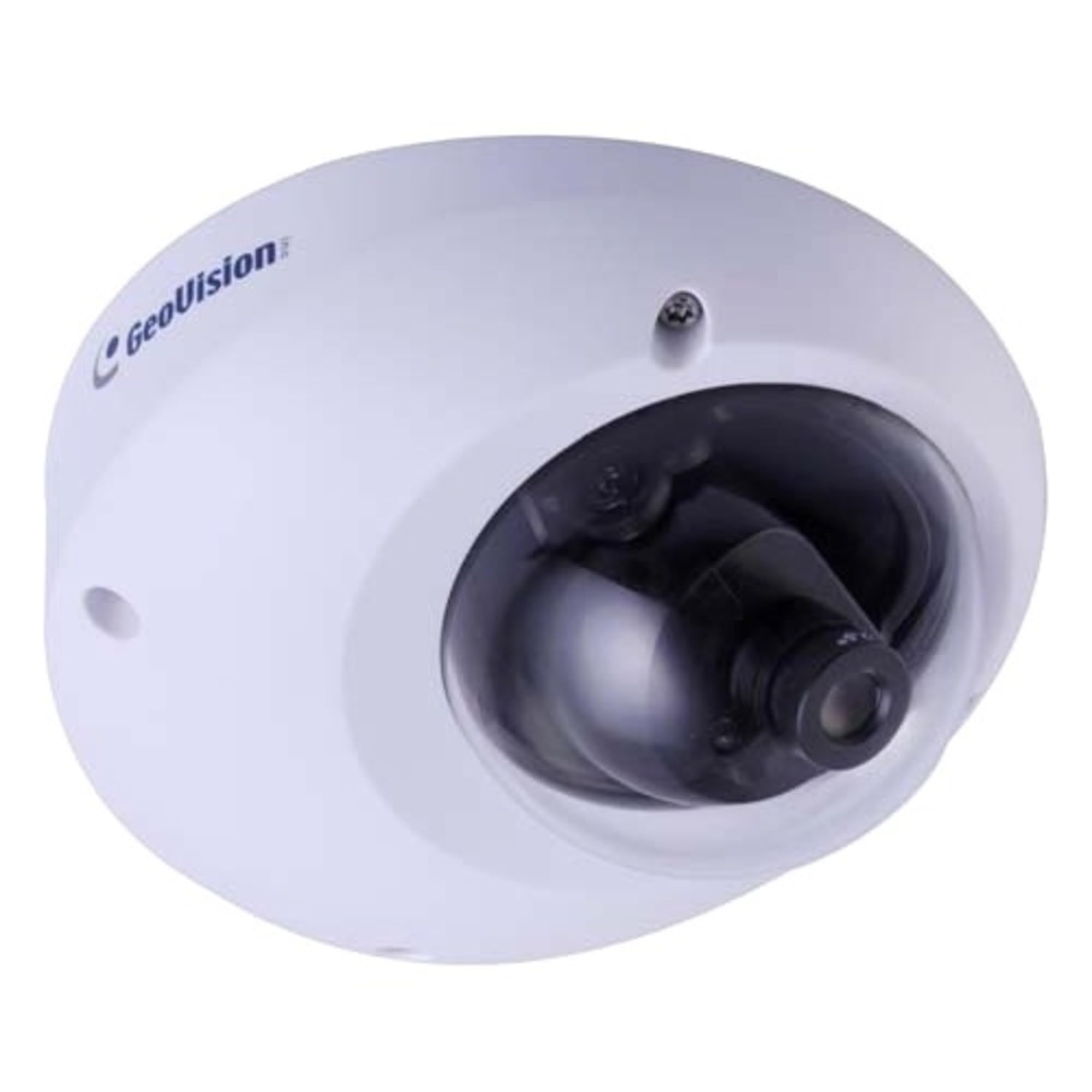
Figure 1.1: GeoVision GV-MFD2501-6F Mini Fixed Dome IP Security Camera. This image shows the compact design of the camera, highlighting its dome shape and lens.
1.2 Paketearen edukia
Verify that all items are present in the package. If any items are missing or damaged, contact your dealer immediately.
- GV-MFD2501-6F IP Camera
- Muntatzeko Torloju Kit
- Instalazio Gida
- Softwarearen CDa (edo deskargatzeko esteka)
- Iragazgaitza den konektorea (aplikagarria bada)
2. Segurtasun informazioa
WARNING: To prevent fire or shock hazard, do not expose this unit to rain or moisture.
- Erabili gailu honetarako zehaztutako energia-egokitzailea soilik.
- Do not open the camera housing. Refer all servicing to qualified personnel.
- Avoid placing the camera in direct sunlight, near heat sources, or in areas with high humidity or dust.
- Ziurtatu kameraren inguruan aireztapen egokia.
- Deskonektatu korrontea garbiketa edo mantentze-lanak egin aurretik.
3. Konfigurazioa
3.1 Instalazio fisikoa
The GV-MFD2501-6F is designed for indoor use. Choose a suitable mounting location that provides the desired field of view and is within reach of network and power cables.
- Prestatu Muntatzeko Azalera: Erabili emandako muntaketa-txantiloia (barne badago) zuloak markatzeko.
- Zulatzeko zuloak: Zulatu zulo pilotuak muntatzeko torlojuetarako.
- Seguru kamera: Lotu kameraren oinarria muntatzeko gainazalera emandako torlojuak erabiliz.
- Egokitu Angelua: Askatu doikuntza-torlojuak kameraren lentea nahi den moduan kokatzeko. viewangelua, eta gero estutu torlojuak finkatzeko.
Figure 3.1: Illustrative diagram of camera mounting. This image would typically show the steps for securing the camera to a ceiling or wall, including screw placement and cable routing.
3.2 Kableatua eta konexioak
Connect the camera to your network and power source.
- Ethernet kablea: Connect an Ethernet cable from your network switch or router to the camera's RJ-45 port. If using Power over Ethernet (PoE), this single cable provides both power and data.
- Energia egokitzailea (PoE erabiltzen ez bada): If PoE is not available, connect a compatible 12V DC power adapter (not included) to the camera's power input port.
Figure 3.2: Diagram showing camera wiring connections. This image would illustrate how to connect the Ethernet cable and, if necessary, the power adapter to the camera's ports.
3.3 Hasierako sare konfigurazioa
After physical installation and connection, configure the camera for network access.
- Piztu: Konektatu kamera korrontera. Kamerak autoproba bat egingo du.
- Ezagutu kamera: Use the GeoVision GV-IP Device Utility (available on the GeoVision website) to discover the camera on your local network. The utility will display the camera's IP address.
- Sarbidea Web Interfazea: Ireki a web browser (e.g., Chrome, Firefox) and enter the camera's IP address in the address bar.
- Saioa hasi: Enter the default username (e.g., "admin") and password (e.g., "admin" or "1234"). You will be prompted to change the password upon first login for security.
- Sarearen ezarpenak: Navigate to the network settings to configure IP address (DHCP or Static), subnet mask, gateway, and DNS settings as required by your network environment.
4. Funtzionamendu-argibideak
Once configured, the camera can be accessed and managed through its web interface or compatible GeoVision VMS software.
4.1 Bizi View
-tik web interfazea, joan "Live" atalera View" section to see the real-time video feed from the camera. You can adjust video stream settings such as resolution, frame rate, and quality here.
4.2 Grabaketa ezarpenak
Configure recording schedules, motion detection recording, and continuous recording options. Recordings can be stored on a network-attached storage (NAS), local storage (if supported), or a GeoVision NVR/VMS.
4.3 Mugimendu-detekzioa
Set up motion detection zones and sensitivity levels. When motion is detected, the camera can trigger recording, send email alerts, or activate other alarm outputs.
4.4 Urruneko sarbidea
To access the camera remotely, ensure your network router is configured for port forwarding (if not using a VPN or cloud service). Refer to your router's manual for port forwarding instructions. GeoVision also offers mobile applications for remote viewing.
5. Mantentzea
5.1 Kamera garbitzea
Garbitu aldizka kameraren lentea eta karkasa irudiaren kalitate optimoa bermatzeko. Erabili zapi leun eta lehor bat. Zikinkeria egoskorra bada, garbitu pixka bat.amp Detergente leun batekin zapi bat erabil daiteke, eta ondoren zapi lehor bat. Ez erabili garbitzaile edo disolbatzaile urratzailerik.
5.2 Firmware eguneraketak
Periodically check the GeoVision webfirmware eguneratzeetarako gunea. Firmware eguneratzeek funtzio berriak, errendimendu hobekuntzak eta segurtasun hobekuntzak ekar ditzakete. Jarraitu arretaz firmware eguneratze paketearekin batera emandako argibideak.
5.3 Pasahitzen kudeaketa
Regularly change your camera's password to a strong, unique password to prevent unauthorized access.
6. Arazoak
| Arazoa | Kausa posiblea | Irtenbidea |
|---|---|---|
| Kamerari ez zaio energiarik ematen | Power adapter unplugged or faulty; PoE not active. | Check power connections. Ensure PoE switch/injector is active. Test with a known good power source. |
| Ez dago bideo-jariorik | Network cable disconnected; incorrect IP address; firewall blocking access. | Verify Ethernet cable connection. Use GV-IP Device Utility to find camera. Check network settings and firewall rules. |
| Ezin da saioa hasi | Incorrect username/password. | Ensure correct credentials. If forgotten, refer to the GeoVision website for password reset procedures (may require physical access). |
| Irudi kalitate eskasa | Dirty lens; improper focus; low light conditions; incorrect video settings. | Clean the lens. Adjust focus if applicable. Ensure adequate lighting. Check resolution, frame rate, and compression settings. |
7. Zehaztapenak
The following are key specifications for the GeoVision GV-MFD2501-6F camera:
- Eredua: 84-MFD2501-6F1U
- Ebazpena: 2 Megapixelekoa
- Lentea: 2.3mm Lente finkoa
- Konektibitatea: Haririk gabekoa Note: While "Wireless" is listed in specifications, this IP camera primarily uses wired Ethernet for reliable data transmission and PoE. Wireless functionality may refer to specific optional modules or control methods.
- Potentzia: PoE (Power over Ethernet) edo 12V DC (egokitzailea ez dago barne)
- Neurriak: Approximately 21 x 18.6 x 9.3 cm (Parcel Dimensions)
- Pisua: Approximately 487 g (Parcel Weight)
- Funtzionamendu-tenperatura: (Information not provided, typical range is -10°C to 50°C)
- Fabrikatzailea: GeoVision
8. Bermea eta Laguntza
8.1 Bermearen informazioa
GeoVision products typically come with a limited warranty. For specific warranty terms and conditions, please refer to the warranty card included with your product or visit the official GeoVision webgunea. Gorde erosketaren egiaztagiria bermearen erreklamazioetarako.
8.2 Laguntza Teknikoa
For technical assistance, product inquiries, or troubleshooting beyond this manual, please contact GeoVision customer support or your authorized GeoVision dealer. Visit the official GeoVision webgunea (www.geovision.com.tw) for support resources, FAQs, and contact information.


