1. Sarrera
Eskerrik asko erosketagatik.asing the ELECOM M-XGM10DBBK Wireless 5-Button BlueLED Mouse. This mouse is designed for comfort and precision, featuring an ergonomic shape that fits naturally in your hand and BlueLED technology for reliable tracking on various surfaces. This manual provides essential information for proper setup, operation, and maintenance of your device.
2. Produktua amaitu daview
The M-XGM10DBBK mouse is part of the "EX-G" series, known for its ergonomic design and comfortable grip. It features five buttons, including dedicated back and forward buttons, to enhance productivity.
Ezaugarri nagusiak:
- Diseinu ergonomikoa: Shaped to fit the hand for ultimate grip comfort.
- BlueLED Sensor: Provides precise tracking on a wide range of surfaces, including glass and fabric.
- 5 botoidun funtzionaltasuna: Includes left, right, scroll wheel, and dedicated back/forward buttons.
- 2.4 GHz haririk gabeko konexioa: Offers a stable connection with a range of approximately 10 meters (3 meters on steel desks).
- Pertsonaliza daitezkeen botoiak: Button functions can be re-assigned using the free "ELECOM Mouse Assistant" software (Windows/Mac only).
- Bateria adierazlea: A lamp indicates remaining battery life.
Osagaiak:
Ezagutu saguaren osagaiak:

2.1. irudia: Goikoa view of the mouse, highlighting the main buttons.
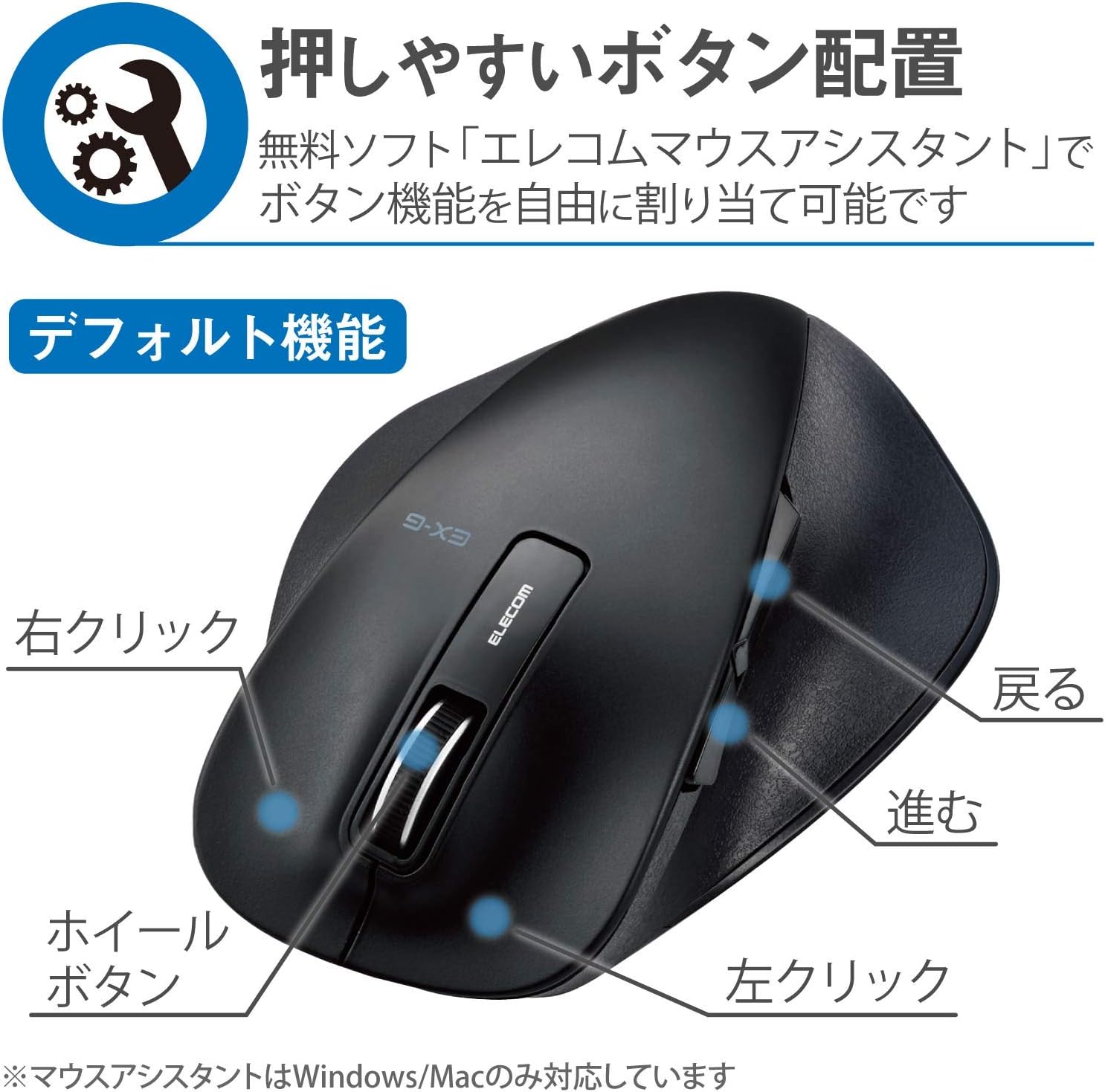
2.2. irudia: Aldea view of the mouse, showing the back and forward buttons.
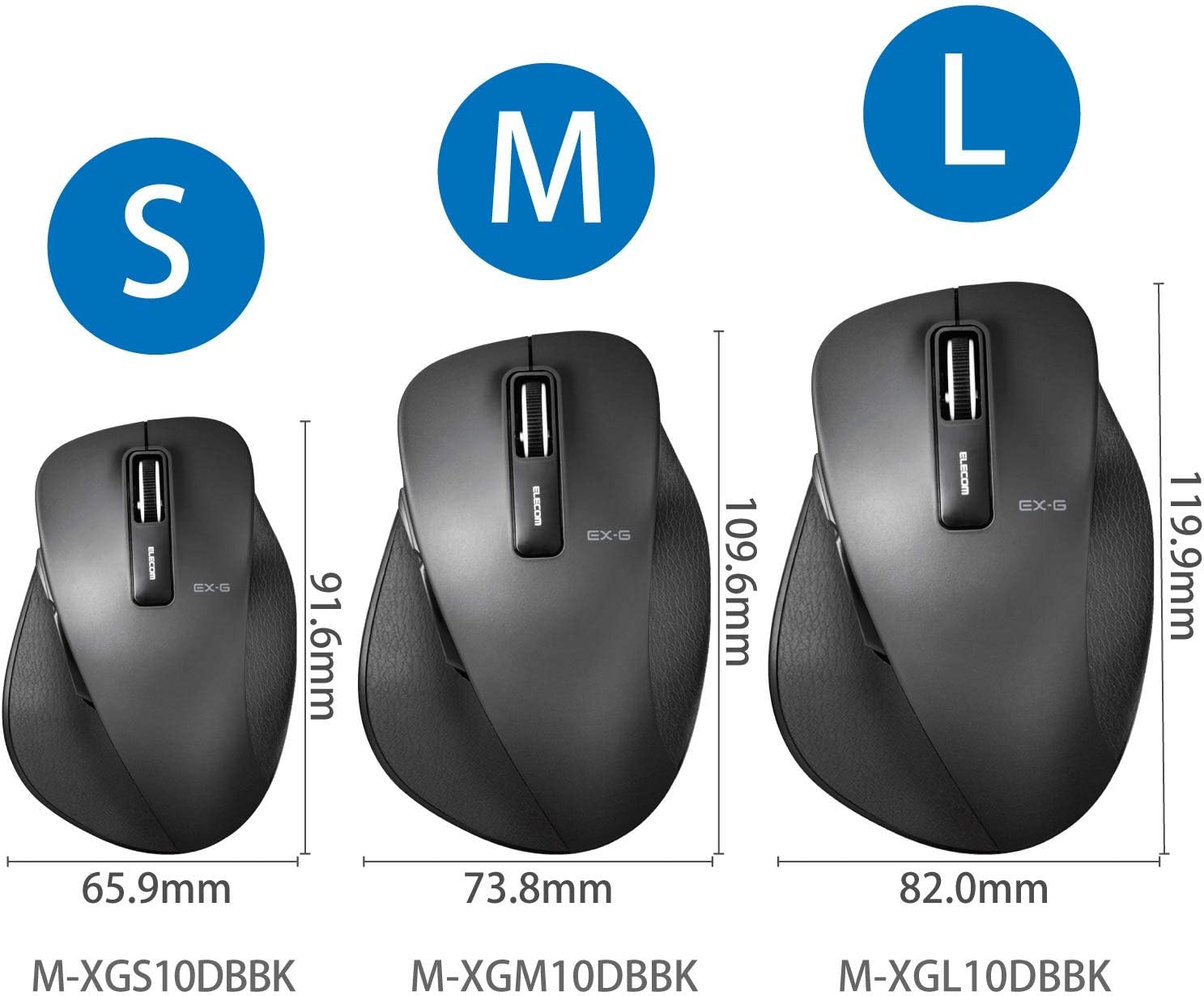
Figure 2.3: Size comparison of EX-G mice (S, M, L). The M-XGM10DBBK is the M size.

2.4. Irudia: Behea view of the mouse, indicating the optical sensor, power switch, and receiver storage compartment.

Figure 2.5: Illustration of the durable Omron switches used for the left and right click buttons.
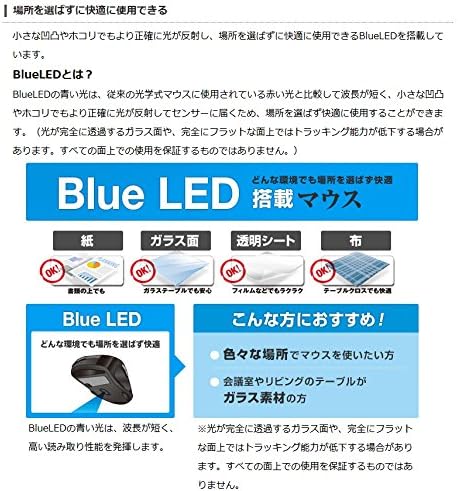
Figure 2.6: Explanation of BlueLED technology, demonstrating its versatility on different surfaces. Note: Tracking performance may decrease on completely transparent or perfectly flat surfaces.

Figure 2.7: Details on 2.4GHz wireless, battery indicator, and 2000 DPI resolution for smooth operation.

Figure 2.8: The ELECOM M-XGM10DBBK mouse is certified to work with Chromebooks.
3. Konfigurazioa
3.1 Bateriaren instalazioa
- Locate the battery cover on the bottom of the mouse.
- Lerratu estalkia ireki.
- Insert one AA alkaline, manganese, or nickel-metal hydride battery, ensuring correct polarity (+/-).
- Itxi bateriaren estalkia ongi.
3.2 Hargailuaren konexioa
- Kendu USB hartzailea saguaren beheko aldean dagoen biltegiratze konpartimentutik.
- Konektatu USB hargailua ordenagailuko USB-A ataka libre batera.
- Zure ordenagailuak automatikoki detektatu eta instalatu beharko lituzke beharrezko kontrolatzaileak. Honek minutu batzuk iraun ditzake.
3.3 Piztea
- Irristatu saguaren beheko aldean dagoen pizteko etengailua "ON" posiziora.
- Sagua erabiltzeko prest dago orain.
4. Funtzionamendu-argibideak
4.1 Oinarrizko funtzioak
- Ezkerreko klik: Lehen mailako hautaketa eta aktibazioa.
- Egin klik eskuineko botoiarekin: Testuinguru-menuak irekitzen ditu.
- Korritzeko gurpila: Dokumentuak korritzen ditu eta web orrialdeak bertikalki. Erdiko klik egiteko funtzionalitatea ere erabil daiteke.
4.2 Back/Forward Buttons
The dedicated back and forward buttons located on the side of the mouse allow for quick navigation in web nabigatzaileak eta file esploratzaileak.
- Sakatu Itzuli button to go to the previous page or folder.
- Sakatu Aurrera button to go to the next page or folder.
4.3 Customizing Buttons (ELECOM Mouse Assistant)
For advanced customization, download the free "ELECOM Mouse Assistant" software from the official ELECOM website. This software allows you to re-assign functions to the mouse buttons according to your preferences. Please note that this software is compatible with Windows and macOS only.
5. Mantentzea
5.1 Garbiketa
Errendimendu eta higiene optimoa mantentzeko, garbitu sagua aldizka:
- Turn off the mouse using the power switch.
- Erabili zapi leun eta lehor bat saguaren gainazala garbitzeko.
- Zikinkeria egoskorrerako, apur bat lehortuampGarbitu oihal bat urarekin edo garbiketa-soluzio leun batekin, eta gero lehortu berehala.
- Saihestu produktu kimiko gogorrak, urratzaileak edo disolbatzaileak erabiltzea.
- Gently clean the optical sensor area on the bottom of the mouse with a cotton swab if tracking issues occur.
5.2 Bateria ordezkatzea
When the battery indicator lamp flashes or the mouse performance degrades, replace the battery:
- Itzali sagua.
- Ireki bateriaren estalkia.
- Kendu bateria zaharra eta bota bertako araudiaren arabera.
- Sartu AA pila berri bat, polaritate zuzena ziurtatuz.
- Close the battery cover and turn the mouse back on.
6. Arazoak
Saguarekin arazoak badituzu, jo ezazu honako arazo eta irtenbide ohikoenei:
| Arazoa | Kausa posiblea | Irtenbidea |
|---|---|---|
| Sagua ez du erantzuten | Low battery; Power switch off; Receiver not connected; Receiver interference. | Replace battery; Turn power switch ON; Ensure receiver is firmly plugged in; Try a different USB port; Move closer to the receiver. |
| Kurtsorearen mugimendu irregularra | Sentsore optiko zikina; Gainazal desegokia; Interferentzia. | Clean optical sensor; Use on a suitable mouse pad or surface; Reduce interference from other wireless devices. |
| Botoiek ez dute funtzionatzen | Software gatazka; Gidariaren arazoa. | Restart computer; Reinstall mouse drivers; Check for conflicting software. |
| Haririk gabeko konexio arazoak | Distance too far; Obstructions; Interference. | Ensure mouse is within range (10m); Remove obstructions between mouse and receiver; Avoid using near other 2.4GHz devices. |
7. Zehaztapenak
| Ezaugarri | Xehetasuna |
|---|---|
| Modelo zenbakia | M-XGM10DBBK |
| Konexio-metodoa | 2.4 GHz haririk gabekoa (USB-A hargailua) |
| Sentsore mota | BlueLED Optical |
| Botoiak | 5 buttons (Left, Right, Scroll Wheel, Back, Forward) |
| Ebazpena | 2000 DPI |
| Neurriak (W x D x H) | 73.8 x 109.6 x 40.8 mm (M Size) |
| Pisua | Gutxi gorabehera. 151.95 g (bateria barne) |
| Energia iturria | 1 x AA battery (Alkaline, Manganese, or Ni-MH) |
| Bateriaren iraupena estimatua | Approx. 722 days (based on typical usage) |
| OS bateragarria | Windows 11, 10, RT8.1, 8.1, 7, Vista; macOS High Sierra 10.13, OS X 10.10; Chrome OS |
| Kolorea | Beltza |
8. Bermea eta Laguntza
8.1 Bermearen informazioa
Produktu hau a 6 hilabeteko bermea erosketa-datatik aurrera. Gorde erosketaren egiaztagiria berme-erreklamazioetarako. Bermeak erabilera normalaren ondoriozko fabrikazio-akatsak estaltzen ditu. Ez ditu estaltzen erabilera okerrak, istripuek, baimenik gabeko aldaketek edo higadura normalak eragindako kalteak.
8.2 Bezeroarentzako laguntza
For technical assistance, troubleshooting, or warranty inquiries, please visit the official ELECOM website or contact ELECOM customer support. Contact details can typically be found on the ELECOM website under the 'Support' or 'Contact Us' section.


