1. Sarrera
This manual provides essential information for the setup, operation, and maintenance of your Epson SureColor P400 Wireless Color Photo Printer. Please read this manual thoroughly before using the printer to ensure optimal performance and longevity.
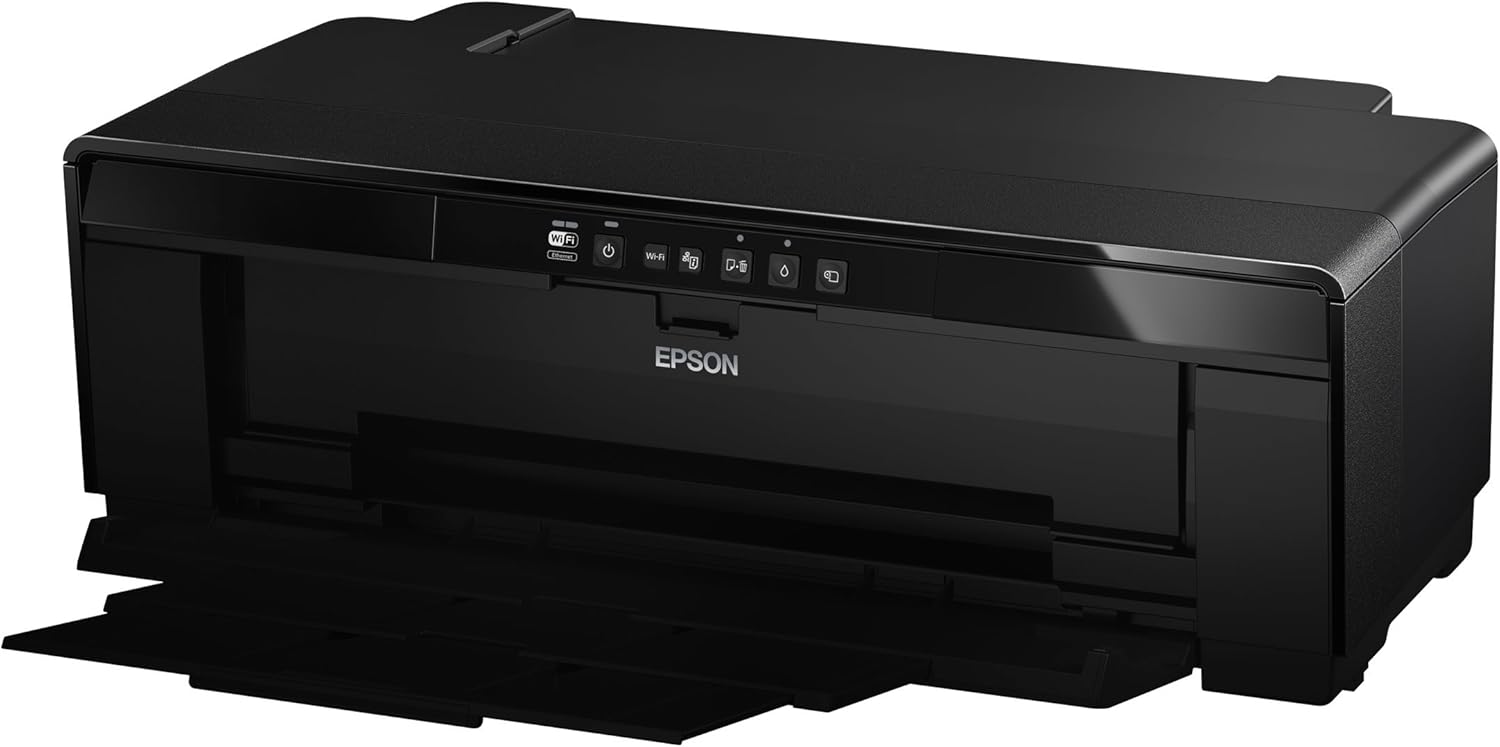
1. irudia: Aurrealdea view of the Epson SureColor P400 Wireless Color Photo Printer.
2. Ezaugarri nagusiak
- UltraChrome HG2 Ink: Utilizes an 8-color pigment ink set, including Red and Orange inks, for vibrant, true-to-life color and deep blacks.
- Gloss Optimizer: Provides a smooth, professional finish to prints.
- Multimedia-kudeaketa polifazetikoa: Supports 13-inch wide cut-sheet and roll paper, fine art paper, and art board up to 1.3 mm thick.
- Konektibitatea: Features Wireless (Wi-Fi), Ethernet, and USB 2.0 for flexible printing options.
- Individual Ink Cartridges: High-capacity 14 mL cartridges allow for replacement of only the color needed.

2. irudia: Amaituview of the Epson SureColor P400 highlighting advanced paper handling, versatile connectivity, and the MicroPiezo printhead.
3. Konfigurazio gida
3.1 Desontziratzea eta kokatzea
- Kendu arretaz inprimagailua ontzitik.
- Jarri inprimagailua gainazal egonkor eta lau batean, funtzionamendurako eta aireztapenerako behar adina lekurekin inguruan.
- Kendu babes-zinta eta ontziratze-material guztiak inprimagailutik.
3.2 Tinta-kartutxoak instalatzea
- Open the printer cover to access the ink cartridge slots.
- Unpack each 14 mL ink cartridge (Cyan, Gloss Optimizer, Magenta, Matte Black, Orange, Photo Black, Red, Yellow).
- Sartu kartutxo bakoitza dagokion kolore-kodetutako zirrikituan klik egin arte.
- Itxi inprimagailuaren estalkia.
Video 1: Official Epson SureColor P400 overview, demonstrating key features and ink installation. This video provides a visual guide to the printer's capabilities and how to manage ink cartridges.
3.3 Energia-konexioa
- Konektatu elikatze-kablea inprimagailura eta gero entxufe batera.
- Sakatu pizteko botoia inprimagailua pizteko.
3.4 Softwarearen instalazioa eta konexioa
- Install the printer software on your computer (PC or Mac) from the provided CD or Epson's official webgunea.
- Follow the on-screen instructions to set up your preferred connection method:
- Haririk gabekoa (Wi-Fi): Konektatu inprimagailua hari gabeko sarera.
- Ethernet: Konektatu Ethernet kable bat inprimagailutik zure bideratzailera edo sare-hub-era.
- USB 2.0: Konektatu USB kable bat (ez dago barne) inprimagailutik ordenagailura.

Image 3: Illustration of the Epson SureColor P400's compatibility and connectivity features, showing various devices and connection types.
4. Funtzionamendu-argibideak
4.1 Papera kargatzea
The SureColor P400 offers multiple paper loading options:
- Auto Sheet Feeder: For photo, matte, and plain papers. Load paper into the top rear slot.
- Rear Single Sheet Fine Art Paper Path: For heavier fine art papers and specialty media.
- Roll Paper Holder: For 8.3-inch or 13-inch wide roll paper, ideal for panoramas up to 129 inches long.
- Front Straight-Through Path: Handles art board up to 1.3 mm thick.

Image 4: Diagram illustrating the three media feed options available on the Epson SureColor P400, including the top-loading auto-sheet feeder, front fine-art media feed, and roll media feed.

Image 5: The Epson SureColor P400 is capable of printing on a wide range of media, including various types of Epson Legacy Papers, Velvet Fine Art, Premium Photo Paper Luster, and Exhibition Canvas Gloss.
4.2 Inprimaketa
- Ensure the printer is powered on and connected to your device.
- Ireki inprimatu nahi duzun dokumentua edo irudia ordenagailuan.
- Hautatu "Inprimatu" zure aplikazioaren menuan.
- Choose the Epson SureColor P400 as your printer.
- Adjust print settings such as paper type, size, and quality in the printer driver dialog box.
- Click "Print" to begin the printing process.
5. Mantentzea
5.1 Tinta-kartutxoak ordezkatzea
- When an ink cartridge is low or empty, a notification may appear on your computer or the printer's indicator light will signal.
- Press the ink droplet button on the printer's control panel to move the print head to the replacement position.
- Ireki tinta-kartutxoaren estalkia.
- Press the tab on the empty cartridge to release it, then pull it straight out.
- Unpack a new genuine Epson ink cartridge and insert it firmly into the correct slot until it clicks.
- Close the ink cartridge cover and press the ink droplet button again to return the print head to its home position.
5.2 Inprimatze-burua garbitzea
If print quality declines or you notice missing lines or incorrect colors, perform a print head cleaning:
- Sartu zure ordenagailuan inprimagailuaren utilitate softwarera.
- Select "Head Cleaning" or "Nozzle Check" to initiate the cleaning cycle.
- Follow the on-screen prompts. Repeat if necessary.
5.3 Cleaning the Paper Path
If you experience streaks on your prints, the paper path may need cleaning. Refer to the user guide for detailed instructions on how to clean the internal components, such as the pad that collects excess ink.
6. Arazoak
- Inprimagailuak ez du erantzuten:
- Egiaztatu konexioa eta ziurtatu inprimagailua piztuta dagoela.
- Egiaztatu sareko edo USB kablearen konexioa.
- Berrabiarazi inprimagailua eta ordenagailua.
- Inprimatze-kalitate eskasa (marrak, kolore-galera):
- Egiaztatu tinta mailak eta ordezkatu kartutxo hutsak.
- Egin inprimatze-burua garbitu eta toberak egiaztatu.
- Ensure you are using appropriate paper settings for your media type.
- Clean the paper path if streaks persist.
- Paper-atalak:
- Itzali inprimagailua eta kontu handiz kendu trabatuta dagoen papera sarrerako edo irteerako erretiluetatik.
- Refer to the user guide for instructions on clearing internal paper jams.
7. Zehaztapenak
| Ezaugarri | Xehetasuna |
|---|---|
| Modelo zenbakia | C11CE85201 |
| Produktuaren neurriak (L x W x H) | 12.8" x 24.5" x 8.6" |
| Elementuaren pisua | 27.1 kilo |
| Inprimatzeko Teknologia | Inkjet (Pigment-based ink) |
| Inprimagailuaren irteera | Kolorea |
| Inprimatze-bereizmen maximoa | 5760 x 1440 ppp |
| Tinta Koloreak | Cyan, Magenta, Yellow, Photo Black, Matte Black, Red, Orange, Gloss Optimizer |
| Konektibitate Teknologia | USB 2.0, Wireless (Wi-Fi), Ethernet |
| Onartutako euskarrien neurriak | Up to 13" x 129" (roll paper), 13" x 19" (sheet) |
| Gehienezko sarrera-orriaren edukiera | 1 (single sheet feed for specialty media) |
| Bi aldeetatik inprimatzea (Duplex) | Bai |
| Energia-kontsumoa | Printing: Approx. 20 W; Sleep mode: Approx. 1.4 W; Power off: Approx. 0.15 W |
| Gailu bateragarriak | PC, Mac |

Image 6: Contents of the Epson SureColor P400 box, including the printer, ink cartridges, power cord, and user guide. Note that the USB cable is not included.
8. Bermearen informazioa
Specific warranty details for the Epson SureColor P400 are not provided in this manual. Please refer to the warranty card included with your product or visit the official Epson webwebgunea bermearen informazio eguneratuena eta osatuena lortzeko.
9. Bezeroarentzako arreta
For technical assistance, troubleshooting, or further inquiries, please visit the official Epson support website or contact Epson customer service. Support resources often include FAQs, driver downloads, and contact information for live assistance.
Bisita dezakezu Epson denda Amazonen produktuari eta osagarriei buruzko informazio gehigarria lortzeko.


