Sarrera
Eskerrik asko erosketagatik.asing the Insignia 10-inch Digital Photo Frame. This device allows you to display your favorite digital photos and videos in a high-quality format. This manual provides detailed instructions for setup, operation, maintenance, and troubleshooting to ensure you get the most out of your new digital photo frame.
Paketearen edukia
Before you begin, please check that all items are present in the package:
- Insignia 10-inch Digital Photo Frame
- Elikatze-moldagailua
- Urruneko Kontrola
- Erabiltzailearen eskuliburua (dokumentu hau)
Konfigurazioa
1. Potentzia konektatzea
Connect the included power adapter to the DC IN 9V port on the back of the digital photo frame. Plug the other end of the adapter into a standard wall outlet. The frame will typically power on automatically or can be turned on using the power switch.
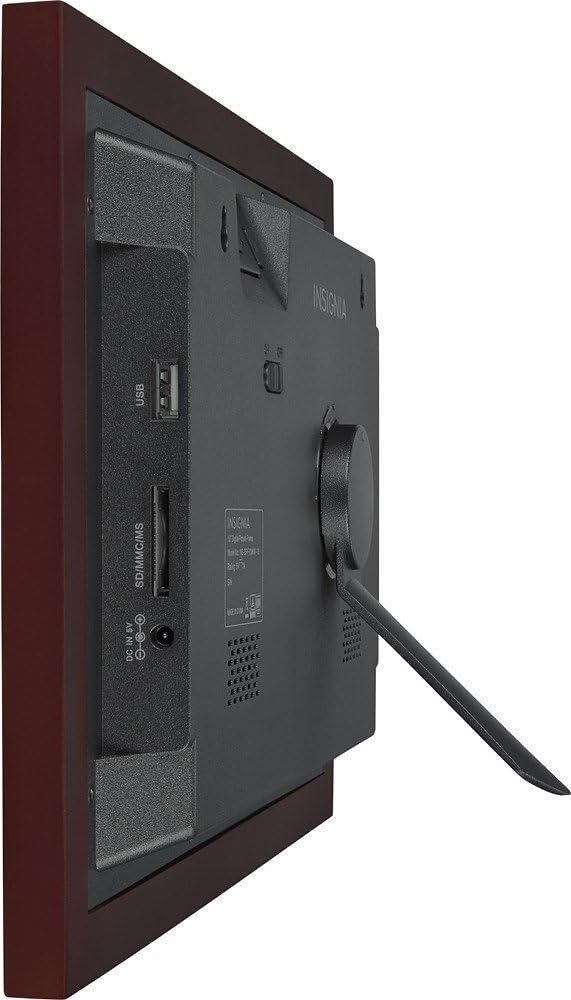
Irudia: Atzealdea view of the digital photo frame, highlighting the USB port, SD/MMC/MS card slot, and DC IN 9V power input.
2. Inserting Memory Cards or USB Drives
The frame supports SD, MMC, and MS memory cards, as well as USB flash drives. Insert your memory card into the appropriate slot or your USB drive into the USB port on the side/back of the frame. Ensure the card or drive is inserted correctly. The frame will automatically detect the storage device.
3. Hasierako ezarpenak
Upon first power-on, you may be prompted to set the language, time, and date. Use the navigation buttons on the frame or the remote control to make your selections and confirm.
Operating the Digital Photo Frame
1. Kontrolakview
Your digital photo frame can be operated using the buttons on the back of the frame or the included remote control.
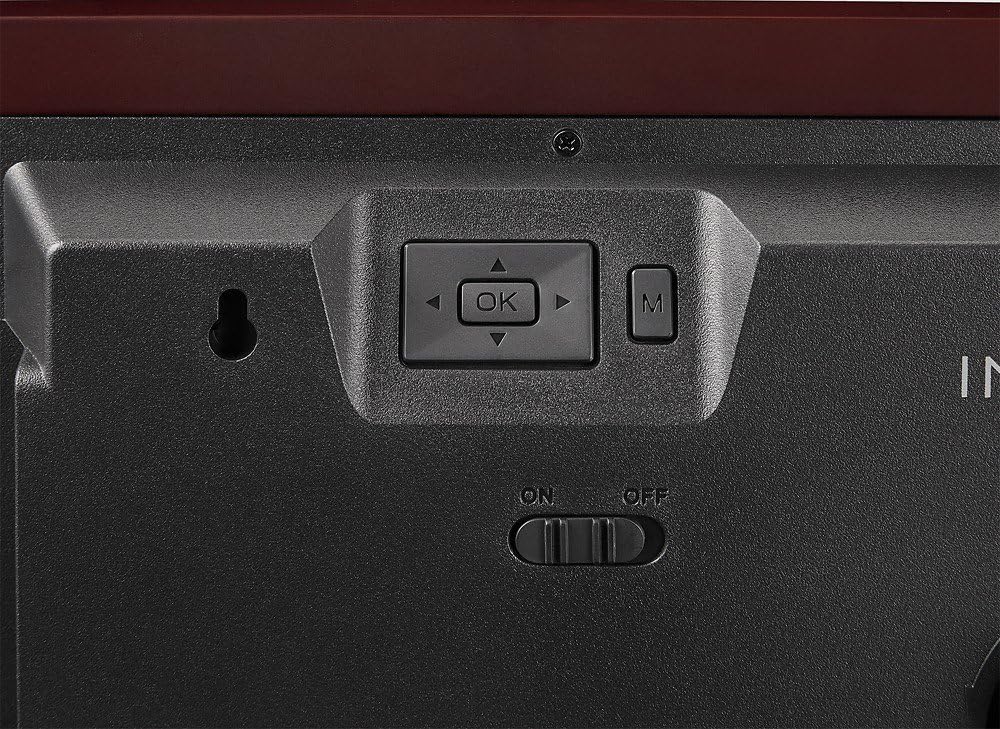
Image: Close-up of the control buttons located on the rear of the digital photo frame. These include directional arrows, an 'OK' button for selection, and an 'M' button for menu access, alongside the power switch.
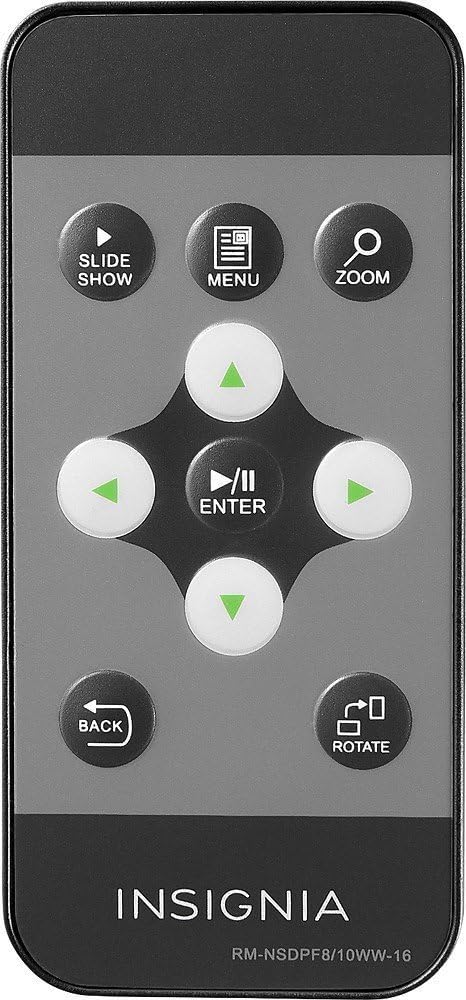
Image: The remote control for the digital photo frame, featuring dedicated buttons for slideshow, menu, zoom, directional navigation, enter, back, and image rotation functions.
2. Menuetan nabigatzea
Sakatu MENUA urrutiko agintearen botoia edo M button on the frame to access the main menu. Use the directional arrows (▲ ▼ ◀ ▶) to navigate through options and press SARTU or OK zure hautaketa berresteko. Sakatu ATZERA to return to the previous screen or exit the menu.
3. ViewArgazkiak eta bideoak
Once a memory card or USB drive is inserted, the frame will typically start a slideshow automatically. You can manually browse files by selecting the "Photo" or "Video" option from the main menu. Use the navigation buttons to select a file eta sakatu SARTU or OK to view hura.
4. Diapositiba-aurkezpenaren ezarpenak
From the main menu, navigate to "Settings" or "Slideshow Settings" to customize your slideshow. Options may include:
- Bistaratzeko modua: Adjust how photos fit the screen (e.g., original, fit to screen, crop).
- Tarte-denbora: Ezarri argazki bakoitza zenbat denbora bistaratzen den.
- Trantsizio efektua: Choose from various transition styles between photos.
- Errepikatu modua: Loop the slideshow continuously.
5. Clock and Calendar
Your frame may include a clock and calendar function. Access these features through the main menu. You can set the time and date in the settings menu.
Mantentzea
Markoa garbitzea
Pantaila garbitzeko, astiro-astiro zapi leun eta pelusik gabeko batekin garbitu. Orban egoskorrak izanez gero, apur bat garbitu.ampen the cloth with water or a non-abrasive screen cleaner. Avoid using harsh chemicals or abrasive materials, as these can damage the screen and frame finish. Ensure the frame is powered off and unplugged before cleaning.
Biltegiratzea
When not in use for extended periods, store the digital photo frame in a cool, dry place, away from direct sunlight and extreme temperatures. It is recommended to keep the original packaging for storage.
Arazoak konpontzea
| Arazoa | Irtenbide posiblea |
|---|---|
| Markoa ez da pizten. |
|
| No photos or videos display. |
|
| Urruneko kontrola ez dabil. |
|
| Images appear distorted or stretched. |
|
Zehaztapenak
| Ezaugarri | Xehetasuna |
|---|---|
| Modelo zenbakia | NS-DPF10WW-16 |
| Pantailaren tamaina | 10 hazbete |
| Ebazpena | WXGA luzapena |
| Produktuaren neurriak | 12.6 x 1.5 x 9 hazbete |
| Elementuaren pisua | 2 kilo |
| Konektibitate Teknologia | USBa |
| Onartutako memoria-txartelak | SD, MMC, MS (Memory Stick) |
| Fabrikatzailea | Insignia |
Bermea eta Laguntza
For warranty information, please refer to the warranty card included with your product or visit the official Insignia website. If you encounter issues not covered in this troubleshooting section, please contact Insignia customer support for assistance.
Lineako laguntza: www.insigniaproducts.com/support