1. Sarrera
This manual provides detailed instructions for the installation, configuration, and operation of your TOTOLINK A3002RU-V2 Dual-Band Gigabit Wireless Router. The A3002RU-V2 is designed to deliver high-speed wireless connectivity and robust network performance for homes and offices. It complies with the latest IEEE 802.11ac Wave 2 standards, supporting simultaneous dual-band operation (2.4 GHz and 5 GHz) for a combined Wi-Fi speed of up to 1167 Mbps. Equipped with full gigabit WAN and LAN ports, it ensures fast wired connections, while its multi-functional USB 2.0 port offers versatile capabilities such as FTP, Samba, and DLNA server functions, as well as device charging.
2. Paketearen edukia
Please verify that all items are present in your package. If any item is missing or damaged, contact your retailer for assistance.
- TOTOLINK A3002RU-V2 Wireless Router
- Elikatze-moldagailua
- Ethernet (RJ-45) Cable
- Instalazio azkarraren gida
3. Produktua amaitu daview
Familiarize yourself with the physical components of your TOTOLINK A3002RU-V2 router.

3.1. irudia: Aurrean eta goian view of the TOTOLINK A3002RU-V2 router, showing the four external antennas and ventilation design.

3.2. irudia: Rear panel of the TOTOLINK A3002RU-V2 router, displaying the power switch, DC input, Reset button, USB 2.0 port, WAN port, and four LAN ports.
3.1. Portuak eta Botoiak
- Piztu/Itzali etengailua: Toggles the router's power.
- DC Sarrera: Emandako energia-egokitzailera konektatzen da.
- RST (Berrezarri) botoia: Press and hold for approximately 5-10 seconds to restore factory default settings.
- USB 2.0 ataka: For connecting USB storage devices to enable FTP, Samba, or DLNA server functions, or for charging compatible devices.
- WAN ataka (horia): Connects to your modem or internet service provider's network.
- LAN atakak (laranja): Connects to wired devices such as computers, smart TVs, or gaming consoles.
4. Konfigurazioa
4.1. Hardware konexioa
- Itzali: Ensure your modem and router are powered off.
- Connect Modem to Router: Connect one end of the Ethernet cable to the LAN port of your modem and the other end to the WAN (yellow) port of the TOTOLINK A3002RU-V2 router.
- Konektatu energia: Connect the power adapter to the DC In port of the router and plug it into a power outlet.
- Piztu: Power on your modem first, then power on the TOTOLINK A3002RU-V2 router using the On/Off switch. Wait for the indicator lights to stabilize, typically indicating a successful connection.
- Konektatu gailuak (aukerakoa): For wired connections, connect your computer or other network devices to any of the LAN (orange) ports using Ethernet cables.
4.2. Hasierako konfigurazioa (Web Interfazea)
To configure your router, you will need to access its weboinarritutako kudeaketa interfazea.
- Konektatu bideratzailera: Connect your computer to the router either via an Ethernet cable to a LAN port or wirelessly using the default Wi-Fi network name (SSID) and password found on the router's label.
- Ireki Web Arakatzailea: Abiarazi a web nabigatzailea (adibidez, Chrome, Firefox, Edge).
- Access Login Page: Helbide-barran, idatzi
http://192.168.1.1(or the IP address specified on the router's label) and press Enter. - Saioa hasi: Enter the default username and password. These are typically
adminfor both, but refer to the router's label or quick installation guide for exact credentials. - Jarraitu konfigurazio-morroia: Upon successful login, you will likely be guided through a Quick Setup Wizard to configure your internet connection type, Wi-Fi network name (SSID), and password. It is highly recommended to change the default Wi-Fi password and router login password for security.
5. Funtzionamendu-argibideak
5.1. Haririk gabeko sarearen konfigurazioa
The A3002RU-V2 operates on two frequency bands simultaneously:
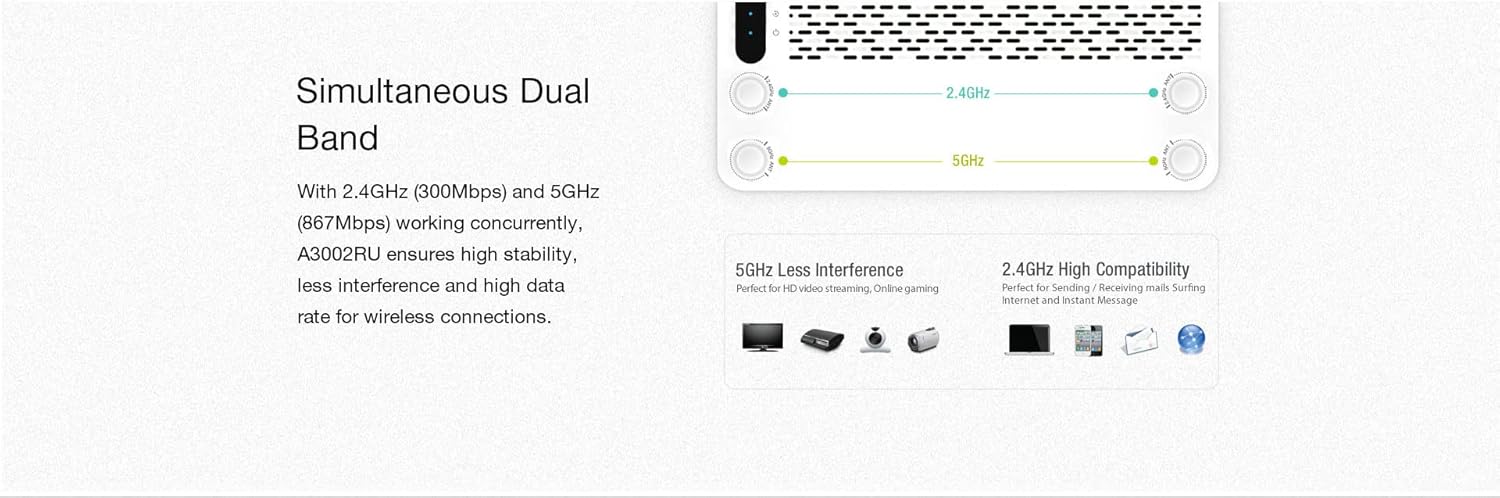
5.1. irudia: Illustration of the router's simultaneous dual-band capability, showing 2.4GHz for wider coverage and 5GHz for higher speed and less interference.
- 2.4 GHz banda: Offers wider coverage and better penetration through walls, suitable for general internet use, browsing, and connecting devices further away.
- 5 GHz banda: Provides faster speeds and less interference, ideal for bandwidth-intensive activities like HD video streaming, online gaming, and connecting devices in closer proximity to the router.
You can configure separate SSIDs and passwords for each band or use a single SSID with band steering enabled (if available in your firmware) through the router's web interface under the Wireless Settings section.
5.2. Multi-functional USB 2.0 Port
The USB 2.0 port on the rear panel offers several functionalities when a USB storage device (e.g., flash drive, external hard drive) is connected.

5.2. irudia: Visual representation of the USB 2.0 port's capabilities, including FTP server, Samba server, DLNA server, and USB charging.
- FTP zerbitzaria: Sartzeko aukera ematen dizu files on the connected USB storage device from anywhere over the internet (requires proper configuration and port forwarding).
- Samba Server (Network Share): Enables local network users to access and share files on the connected USB storage device.
- DLNA Server: Allows compatible media players (e.g., smart TVs, game consoles) to stream multimedia content (photos, music, videos) directly from the connected USB storage device.
- USB kargatzea: The port can also be used to charge compatible smartphones or tablets.
These features can be configured and managed through the router's web interface, typically found under 'USB Application' or 'Storage Sharing' settings.
6. Mantentzea
6.1. Firmware berritzea
Regularly updating the router's firmware can improve performance, add new features, and enhance security. Visit the official TOTOLINK website for the latest firmware version for your A3002RU-V2 model. The upgrade process is typically performed through the router's web interface under 'System Tools' or 'Firmware Upgrade'. Follow the instructions provided with the firmware file arretaz.
6.2. Fabrika berrezarri
A factory reset will revert all router settings to their default values. This can be useful for troubleshooting persistent issues or when preparing to transfer ownership of the router. To perform a factory reset:
- With the router powered on, locate the RST atzeko paneleko botoia.
- Use a paperclip or a thin object to press and hold the RST button for approximately 5-10 seconds until the indicator lights flash.
- Release the button and wait for the router to restart. All settings will be reset.
7. Arazoak
Atal honek zure bideratzailearekin izan ditzakezun arazo ohikoenei buruzko informazioa ematen du.
- Interneterako sarbidea ez:
- Check if the WAN port LED is lit. If not, ensure the Ethernet cable from your modem is securely connected.
- Egiaztatu zure modema behar bezala funtzionatzen duela.
- Hasi saioa bideratzailean web interface and check the WAN status. Ensure your internet connection settings (e.g., PPPoE, Dynamic IP) are correctly configured.
- Berrabiarazi modema eta bideratzailea.
- Ezin da Wi-Fira konektatu:
- Ensure the Wi-Fi LED on the router is lit.
- Verify you are selecting the correct Wi-Fi network name (SSID) and entering the correct password.
- Move closer to the router to check for signal strength issues.
- Berrabiarazi bideratzailea.
- Wi-Fi abiadura motela:
- Ensure your device is connected to the 5 GHz band for optimal speed, especially for close-range use.
- Reduce interference by placing the router away from other electronic devices (microwaves, cordless phones).
- Consider changing the Wi-Fi channel in the router's settings to avoid congestion with neighboring networks.
- Egiaztatu firmware eguneratzeak.
- Forgot Router Login Password:
- Perform a factory reset (refer to Section 6.2) to revert to the default login credentials. Note that this will erase all your custom settings.
8. Zehaztapenak
Below are the technical specifications for the TOTOLINK A3002RU-V2 Dual-Band Gigabit Wireless Router.
| Ezaugarri | Deskribapena |
|---|---|
| Marka | TOTOLINK |
| Ereduaren izena | A3002RU-V2 |
| Haririk gabeko estandarra | IEEE 802.11ac Wave 2, 802.11a/b/g/n |
| Maiztasun Banda | Dual Band (2.4 GHz & 5 GHz) |
| Wi-Fi Abiadura | Up to 1167 Mbps (300 Mbps @ 2.4 GHz, 867 Mbps @ 5 GHz) |
| Antenak | 4 x Omni-directional Antennas |
| WAN ataka | 1 x 10/100/1000 Mbps Gigabit Ethernet |
| LAN Portuak | 4 x 10/100/1000 Mbps Gigabit Ethernet |
| USB ataka | 1 x USB 2.0 (for FTP, Samba, DLNA server, charging) |
| Konektibitate Teknologia | Ethernet, Wi-Fi |
| Gailu bateragarriak | Ordenagailu eramangarria, telefono adimenduna, tableta |
| Kolorea | Beltza |
| Sistema eragilea | RouterOS (firmware based) |
| Elikatze Hornidura | Kanpoko korronte egokitzailea |
9. Bermea eta Laguntza
For warranty information and technical support, please refer to the warranty card included with your product or visit the official TOTOLINK website. Support resources typically include FAQs, troubleshooting guides, and contact information for customer service.


