1. Sarrera
Eskuliburu honek zure konfigurazio, funtzionamendu eta mantentze-lanetarako informazio garrantzitsua eskaintzen du ViewSonic VG2449_H2 24-inch dual pack head-only 1080p LED monitors. These monitors are designed for high performance and easy deployment, particularly in multi-monitor setups for corporate, government, and education environments. The dual pack is supplied without monitor stands, making it ideal for VESA-compatible mounting solutions.
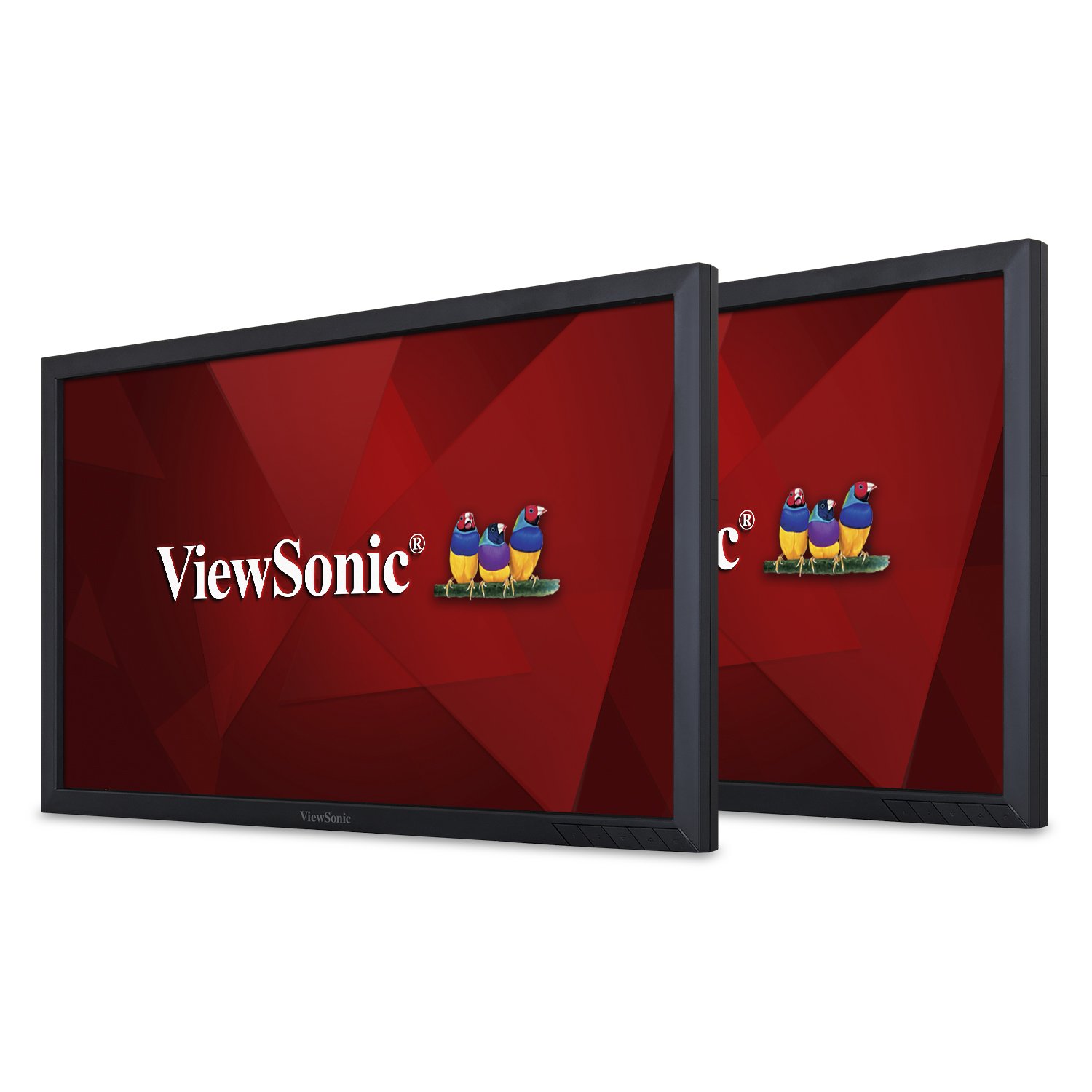
1. irudia: Aurrealdea view ren ViewSonic VG2449_H2 monitor.
2. Zer dago kutxan
Despaketatzean, egiaztatu behean zerrendatutako elementu guztiak daudela:
- Bi (2) ViewSonic VG2449 Monitors
- Two (2) Power Cables (1.8m)
- Two (2) Mini DP to DP Cables (1.8m)
- Two (2) USB 3.0 Upstream Cables (1.8m)
- Hasierako gida bat (1).
3. Konfigurazioa
The VG2449_H2 monitors are designed for VESA-compatible mounting. They do not include monitor stands, making them suitable for custom mounting solutions such as desk mounts or wall mounts. Ensure your mounting solution is compatible with VESA 100x100mm standards.
3.1 Mounting the Monitors
Attach the monitors to your VESA-compatible mount using the provided screws. Refer to your mount's instruction manual for specific installation steps. Ensure the monitors are securely fastened before proceeding with cable connections.

2. Irudia: Atzealdea view monitorearen VESA muntaketa puntuak nabarmenduta.
3.2 Hasierako konexioa
After mounting, connect the power cables to each monitor and then to a power outlet. Connect the video cables (HDMI, DisplayPort, Mini DP, or VGA) from your computer or other video source to the respective input ports on the monitors. For USB functionality, connect the USB 3.0 upstream cable from one monitor to your computer.
For a visual guide on setting up dual monitors and understanding the benefits of ViewSonic Dual Monitor Packs, please watch the video below:
1. bideoa: Amaitu daview of ViewSonic Dual Monitor Packs, demonstrating setup and productivity benefits.
4. Operating the Monitors
4.1 Piztu/Itzali
Press the power button located on the bottom right bezel of each monitor to turn it on or off. The power indicator light will illuminate when the monitor is active.
4.2 Sarrera hautatzea
Use the OSD (On-Screen Display) menu buttons to navigate and select the desired input source (HDMI, DisplayPort, Mini DP, VGA). The monitors will automatically detect an active input, but manual selection may be necessary if multiple sources are connected.
4.3 Pantailaren kalitatea
The VG2449_H2 monitors feature SuperClear MVA panel technology, ensuring consistent and stunning views from wide viewing angles. With a 20M:1 dynamic contrast ratio, images are sharp and colors are vivid across all screens, enhancing productivity and visual experience.
4.4 OS bateragarritasuna
These monitors are compatible with various operating systems, including macOS, Windows, Linux, Ubuntu, Android, and Chrome OS.
5. Konektibitatea
The ViewSonic VG2449_H2 offers a comprehensive range of connectivity options to support various devices and configurations:
- HDMI: Definizio handiko bideo eta audio digitalarentzat.
- DisplayPort (DP): For high-resolution digital video and audio, supporting daisy-chaining.
- Mini DisplayPort (Mini DP): A compact version of DisplayPort.
- VGA: For analog video connections.
- USB 3.0: Multiple USB ports for connecting peripherals and charging devices.
5.1 Daisy-Chaining
The DisplayPort input and output allow for easy, single-cable daisy-chaining of multiple monitors. This feature simplifies cable management and expands your desktop workspace efficiently.

3. irudia: Xehetasuna view monitorearen konexio-ataken.
6. Mantentzea
Proper maintenance ensures the longevity and optimal performance of your monitors.
- Garbiketa: Gently wipe the screen with a soft, lint-free cloth. For stubborn marks, use a screen-specific cleaning solution applied to the cloth, not directly to the screen. Avoid harsh chemicals.
- Manipulazioa: Always handle the monitors by their edges. Avoid applying pressure to the screen.
- Aireztapena: Ensure adequate airflow around the monitors to prevent overheating. Do not block ventilation openings.
- Biltegiratzea: When not in use for extended periods, store the monitors in a cool, dry place, ideally in their original packaging.
7. Arazoak
If you encounter issues with your monitors, refer to the following common troubleshooting steps:
- Potentziarik gabe: Ziurtatu kablea ondo konektatuta dagoela monitoreari eta entxufeari. Egiaztatu entxufea funtzionatzen duen.
- Seinalerik ez: Verify that the video cable is correctly connected to both the monitor and the computer/video source. Ensure the correct input source is selected via the OSD menu.
- Irudi keinukaria/distortsionatua: Egiaztatu bideo-kablea kaltetuta edo konexio solterik dagoen. Saiatu beste bideo-kable edo ataka batekin. Ziurtatu zure grafiko-txartelaren kontrolatzaileak eguneratuta daudela.
- Bereizmen okerra: Adjust the display resolution settings in your operating system to the monitor's native resolution (1920x1080).
- USB atakak ez dira funtzionatzen: Ensure the USB 3.0 upstream cable is connected from the monitor to your computer. Check your computer's device manager for any USB driver issues.
For more complex issues, consult the full user manual available on the ViewSonic webgunea edo kontaktua ViewSonic bezeroarentzako laguntza.
8. Zehaztapenak
Jarraian, honako zehaztapen tekniko nagusiak daude ViewSonic VG2449_H2 monitors:
| Ezaugarri | Zehaztapena |
|---|---|
| Pantaila zutik bistaratzeko tamaina | 24 hazbete |
| Pantailaren bereizmena | 1920x1080 (HD osoa) |
| Gehienezko pantailaren bereizmena | 1920 x 1080 pixel |
| Marka | ViewSonic |
| Seriea | VG2449_H2 |
| Elementuaren eredu-zenbakia | VG2449_H2 |
| Elementuaren pisua | 15.84 pounds (per monitor) |
| Produktuaren neurriak | 2.33 x 22.06 x 13.1 hazbete |
| Kolorea | Beltza |
| liburukiatage | 240 voltio (AC) |
| Aspektu-erlazioa | 16:9 |
| Pantailaren gainazalaren deskribapena | Distiratsua |
9. Bermea eta Laguntza
ViewSonic products are manufactured to the highest standards and deliver high-quality performance. For detailed warranty information, please refer to the warranty card included with your product or visit the official ViewSonic website. For technical support, product registration, or to download the full user manual, please visit www.viewsonic.com.


