1. Sarrera
This manual provides detailed instructions for the Gembird MUSG-04 USB Optical Gaming Mouse. It covers product features, setup procedures, operational guidelines, maintenance tips, and troubleshooting information to ensure optimal use of your device.

Image 1.1: The Gembird MUSG-04 Gaming Mouse presented in its retail packaging, highlighting the product's design and branding.
2. Produktuaren ezaugarriak
The Gembird MUSG-04 is designed for gaming, offering a range of features for enhanced control and customization:
- Programmable 8-Button Design: Provides extensive customization options for various in-game actions.
- DPI erregulagarria: Quick DPI button allows on-the-fly sensitivity adjustments from 1200 to 3200 DPI.
- Makro programazioa: Dedicated software enables creation and assignment of complex macro commands to buttons.
- Illuminated Elements: Features an illuminated scroll wheel, logo, and side accents for visual feedback and aesthetic appeal.
- Ergonomic Right-Handed Design: Shaped for comfortable use during extended gaming sessions.
- USB konexioa: Standard USB interface for broad compatibility.
- Kable iraunkorra: 1.5-meter braided cable for reliable connection and longevity.
- Sistema eragilearen laguntza zabala: Compatible with Windows 10 and other recent Windows operating systems.

2.1. irudia: Alde bat view of the Gembird MUSG-04 mouse, showcasing its ergonomic contours and button placement designed for right-handed users.
3. Paketearen edukia
Egiaztatu zure paketeak elementu hauek dituela:
- Gembird MUSG-04 USB Optical Gaming Mouse
- Erabiltzailearen eskuliburua (dokumentu hau)
- Macro Programming Software (typically available via download or included on a mini-CD)

Image 3.1: The side of the Gembird MUSG-04 retail box, displaying key features and specifications of the gaming mouse.
4. Konfiguratzeko argibideak
4.1. Hardware konexioa
- Bilatu erabilgarri dagoen USB ataka zure ordenagailuan.
- Plug the USB connector of the Gembird MUSG-04 mouse into the USB port.
- Your operating system will typically detect the mouse automatically and install the necessary drivers. This process may take a few moments.
4.2. Software Installation (Optional for Macro Programming)
To utilize the programmable buttons and macro features, install the dedicated software:
- If a mini-CD is included, insert it into your computer's optical drive and follow the on-screen instructions.
- Alternatively, download the latest software from the official Gembird support webgunea.
- Run the installer and follow the prompts to complete the software installation.
- Berrabiarazi ordenagailua eskatzen bazaizu.
5. Sagua erabiltzea
5.1. Botoiaren funtzioak
The Gembird MUSG-04 features 8 buttons with default functions:
- Ezkerreko botoia: Klik egiteko funtzio nagusia.
- Eskuineko botoia: Bigarren mailako klik funtzioa (testuinguru menua).
- Korritzeko gurpila: Scrolls content up/down. Pressing it acts as a middle click.
- DPI botoia: Cycles through preset DPI sensitivity levels (e.g., 1200, 1600, 2400, 3200 DPI).
- Aurrera/Atzera botoiak: Nabigatu web orrialdeak edo karpetak.
- Su botoia: Often used for rapid-fire actions in games.
- Makro-botoiak: Customizable via software for specific commands or macros.
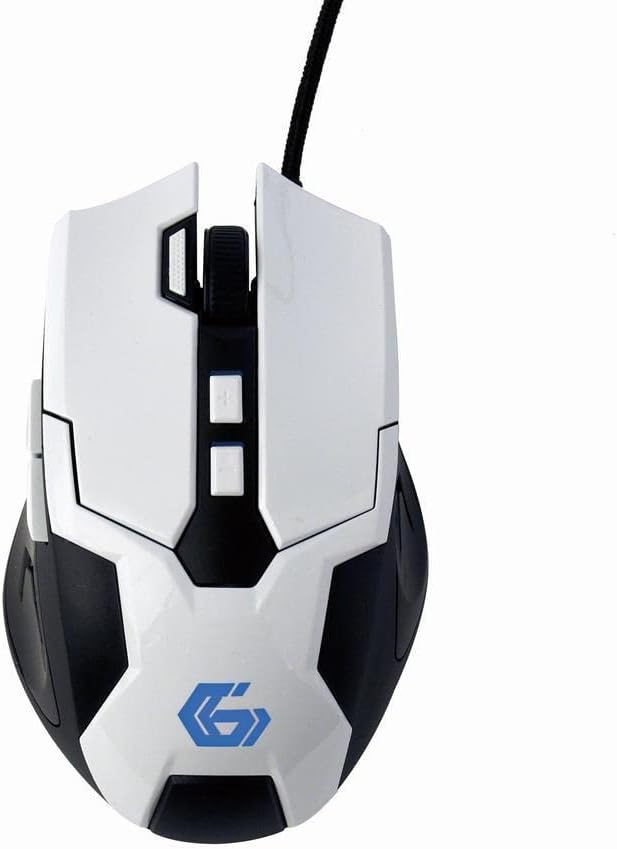
5.1. irudia: Goitik behera view of the Gembird MUSG-04 mouse, illustrating the placement of its various buttons, including the left, right, scroll wheel, DPI, and side buttons. The Gembird logo is illuminated in blue.
5.2. Adjusting DPI
Sakatu DPI botoia (usually located behind the scroll wheel) to cycle through the available sensitivity settings. Each press will switch to the next DPI level, indicated by a change in the mouse's illumination color or pattern (if supported).
5.3. Makro Programazioa
The included macro programming software allows you to customize button functions and create complex sequences of commands. Refer to the software's built-in help or the Gembird support webmakroak sortzeko eta esleitzeko argibide zehatzak lortzeko gunea.
5.4. Argiztapena
The mouse features dynamic illumination on its scroll wheel, logo, and side accents. These lights may change color based on the selected DPI setting or can be customized via the macro programming software.

Image 5.2: The Gembird MUSG-04 mouse with its logo and side accents illuminated in green, demonstrating the customizable lighting feature.
6. Mantentzea
To ensure the longevity and optimal performance of your Gembird MUSG-04 mouse, follow these maintenance guidelines:
- Garbiketa: Erabili zapi leun, lehor eta lihorik gabeko bat saguaren gainazala garbitzeko. Zikinkeria egoskorra bada, garbitu pixka batampGarbitu zapi bat urarekin edo garbiketa-soluzio leun batekin. Saihestu produktu kimiko gogorrak edo material urratzaileak.
- Sentsore optikoa: Periodically clean the optical sensor area on the underside of the mouse with a cotton swab to prevent tracking issues.
- Kableen zainketa: Saihestu USB kablea bortizki tolestea edo bihurritzea. Gorde sagua kablearen konexioan tentsioa saihesteko moduan.
- Biltegiratzea: Denbora luzez erabiltzen ez duzunean, gorde sagua leku garbi eta lehor batean, eguzki-argitik eta muturreko tenperaturetatik urrun.
7. Arazoak
If you encounter issues with your Gembird MUSG-04 mouse, refer to the following common problems and solutions:
- Saguak ez du erantzuten:
- Ziurtatu USB kablea ondo konektatuta dagoela funtzionatzen duen USB ataka batera.
- Saiatu sagua ordenagailuko beste USB ataka batera konektatzen.
- Probatu sagua beste ordenagailu batean arazoa saguarekin edo ordenagailuarekin den zehazteko.
- Berrabiarazi ordenagailua.
- Kurtsorearen mugimendu irregularra:
- Garbitu saguaren azpialdeko sentsore optikoa.
- Ziurtatu sagua gainazal egoki batean erabiltzen ari zarela (adibidez, sagu-alfonbra batean). Saihestu gainazal oso islatzaileak edo gardenak.
- Check for any software conflicts or outdated drivers.
- Buttons Not Working/Macros Not Activating:
- Verify that the macro programming software is correctly installed and running.
- Check the button assignments within the software.
- Ziurtatu software profesionala delafile aktibo dago.
- Argiztapena ez dabil:
- Check software settings for illumination control.
- Ensure the mouse is receiving sufficient power from the USB port.
8. Zehaztapenak
| Ezaugarri | Zehaztapena |
|---|---|
| Marka | Gebirda |
| Eredua | MUSG-04 |
| Konektibitate Teknologia | USBa |
| Mugimenduak detektatzeko teknologia | Optikoa |
| DPI sentikortasuna | Adjustable (1200-3200 DPI) |
| Botoi kopurua | 8 (Programagarria) |
| Kablearen luzera | 1.5 metro |
| Sistema eragilearen euskarria | Windows 10 eta berriagoa |
| Produktuaren neurriak (LxWxH) | 4.96 x 3.19 x 1.61 hazbete (12.6 x 8.1 x 4.1 cm) |
| Elementuaren pisua | 8.3 ontza (235 gramo) |
9. Bermea eta Laguntza
For warranty information, please refer to the documentation provided with your purchase or visit the official Gembird website. Technical support and driver downloads can also be found on the Gembird support portal.
For further assistance, please contact Gembird customer service through their official channels.


