1. Sarrera
This manual provides detailed instructions for the setup, operation, and maintenance of your OMBAR Gaming Keyboard, Model OM-K617. Please read this manual thoroughly before using the product to ensure proper functionality and longevity.
2. Paketearen edukia
Egiaztatu behean zerrendatutako elementu guztiak zure paketean sartuta daudela:
- OMBAR Gaming Keyboard (Model OM-K617)
- USB kable integratua
3. Konfigurazioa
The OMBAR Gaming Keyboard is a plug-and-play device, requiring no additional driver installation for basic functionality.
- Connect the integrated USB cable from the keyboard to an available USB port on your computer.
- Sistema eragileak automatikoki detektatu eta instalatuko ditu beharrezko kontrolatzaileak.
- The keyboard's LED backlighting will illuminate upon successful connection.
4. Ezaugarriak
4.1. Ezaugarri nagusiak
- 104 Anti-Ghosting teklak: Hainbat tekla-sakatzeak aldi berean zehatz-mehatz erregistratzen ditu, jokoetarako ezinbestekoa dena.
- 8 Multimedia laster-teklak: Dedicated keys for quick access to common functions.
- Ergonomic Wrist Rest: Integrated design to provide comfort during extended use.
- LED atzeko argia: Customizable backlighting with multiple colors and modes.
- Eraikuntza iraunkorra: Made from ABS plastic for durability.
- Etengailu mekanikoak: Provides tactile feedback for precise key presses.
4.2. Teklen diseinua eta funtzioak
The keyboard features a standard 104-key layout with several enhancements for user convenience.
- Enlarged Enter Key: Designed for easier access.
- Extended Spacebar: Contributes to reduced hand fatigue during prolonged typing or gaming.
Dedicated Multimedia Hotkeys:
Located above the function keys, these hotkeys provide instant control over various applications and media playback.
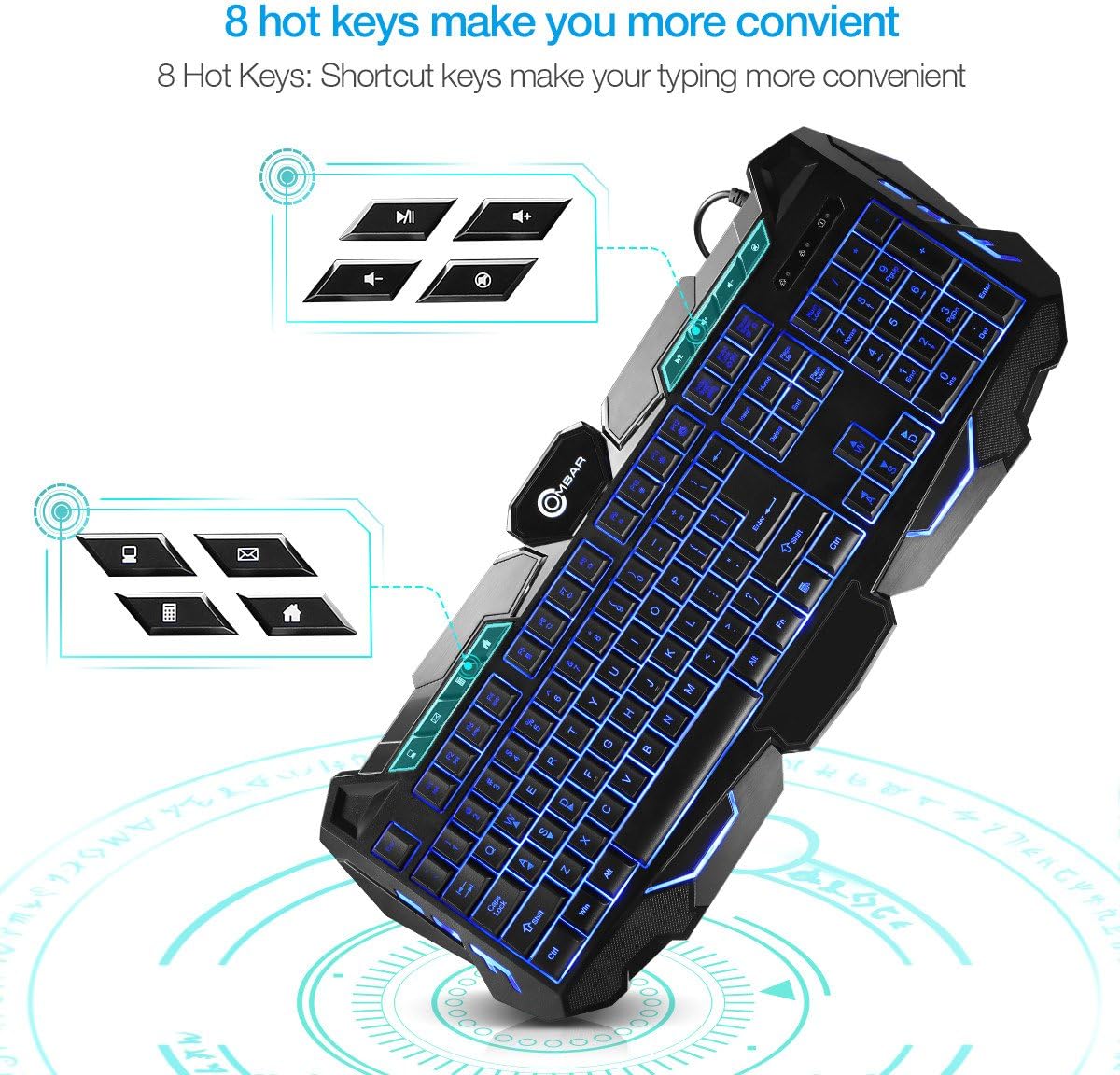
Image: Close-up of the OMBAR Gaming Keyboard highlighting the dedicated multimedia hotkeys. These keys allow quick access to functions like opening file explorer, email, calculator, web browser, controlling media playback (play/pause, volume up/down), and muting audio.
- File Esploratzailea: Opens your computer's file arakatzailea.
- Posta elektronikoa: Launches your default email client.
- Kalkulagailua: Opens the system calculator.
- Web Arakatzailea: Opens your default internet browser.
- Erreproduzitu/Pausatu: Multimedia erreprodukzioa kontrolatzen du.
- Bolumena igo/behera: Sistemaren bolumena doitzen du.
- Ezkutatu: Toggles audio mute.
Function (Fn) Key Combinations:
Eutsi Fn key and press the corresponding F tekla for additional functions:
- Fn+F1: Aurreko Pista
- Fn+F2: Hurrengo Pista
- Fn+F3: Decrease Report Rate (RPS-)
- Fn+F4: Increase Report Rate (RPS+)
- Fn+F5: Ireki Kalkulagailua
- Fn+F6: Freskatu orria
- Fn+F7: Back Page (Web Arakatzailea)
- Fn+F8: Forward Page (Web Arakatzailea)
- Fn+F9: Set Backlight Brightness to 20%
- Fn+F10: Set Backlight Brightness to 60%
- Fn+F11: Set Backlight Brightness to 100%
- Fn+F12: Activate Gaming Mode (disables Windows key to prevent accidental interruptions during gameplay).

Image: The OMBAR Gaming Keyboard with blue backlighting, illustrating the Fn key and the Print Screen key, which when pressed together activate Gaming Mode.
5. Funtzionamendu-argibideak
5.1. LED Backlighting Control
The keyboard features three backlight colors (Red, Blue, Purple) and two lighting modes (Static and Breathing).

Image: A visual representation of the OMBAR Gaming Keyboard's three available LED backlight colors: red, blue, and purple.
- Koloreak aldatzea: Sakatu Bonbilla key (usually located near the F12 key or Scroll Lock) to cycle through Red, Blue, and Purple backlight colors.
- Moduak aldatzen: Sakatu Fn + Light Bulb key to switch between Static (constant light) and Breathing (pulsating light) modes.
- Distira doitzea: Erabili Fn + F9 (%20), Fn + F10 (60%), and Fn + F11 (100%) to adjust backlight intensity.
- Turning Off Backlighting: Continue cycling through brightness levels or modes until the lights turn off, or use a specific Fn combination if available.
5.2. Erabilera orokorra
The keyboard is designed for both gaming and general office tasks. Its anti-ghosting feature ensures that all key presses are registered accurately, even during intense gaming sessions.
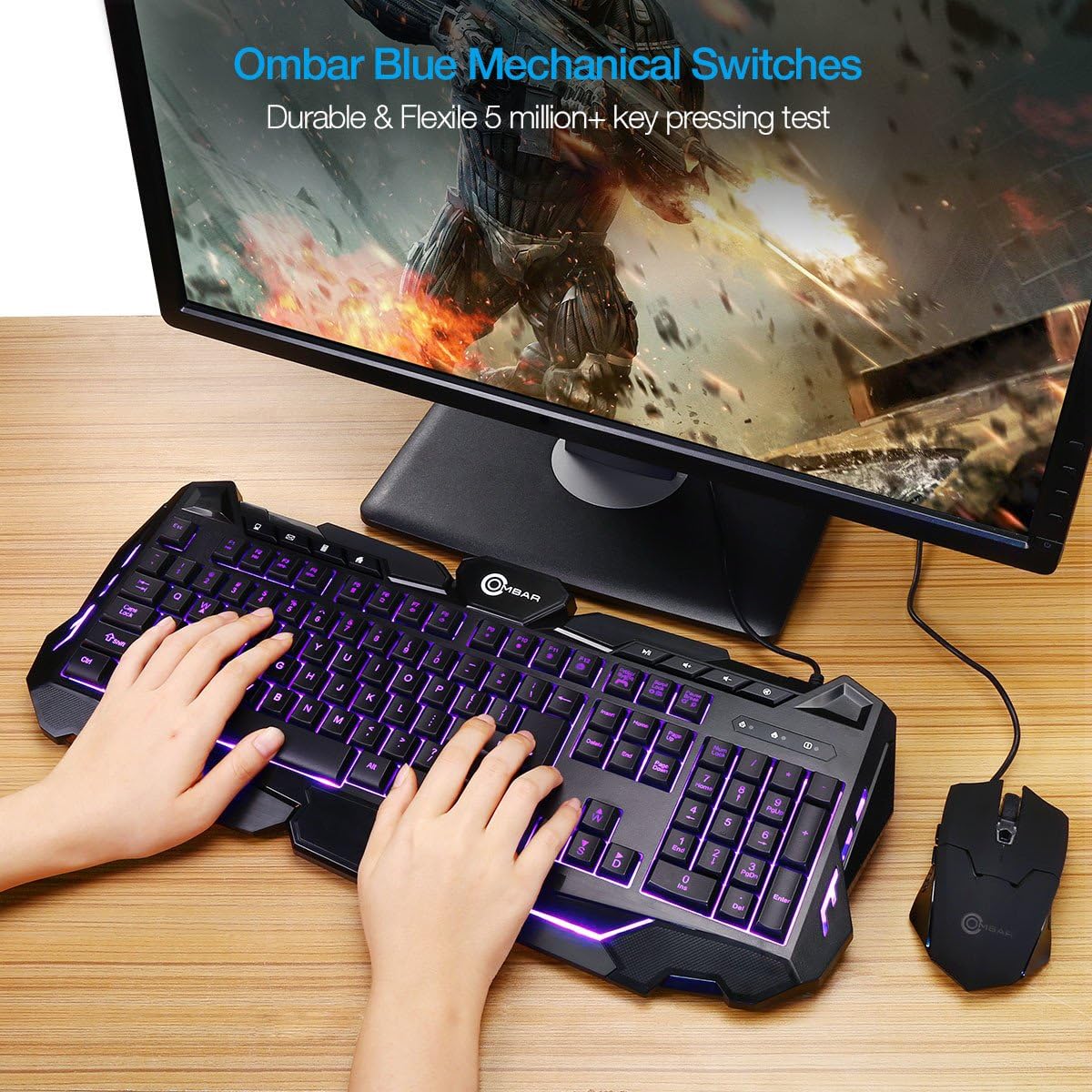
Image: A user actively typing on the OMBAR Gaming Keyboard, showcasing its purple LED backlighting in a typical desktop setup with a monitor and mouse.
For optimal performance, ensure the keyboard is connected directly to a USB port on your computer rather than through a USB hub, especially for gaming.
6. Mantentzea
- Garbiketa: Use a soft, dry cloth to wipe the surface of the keyboard. For deeper cleaning, use compressed air to remove dust and debris from between the keys. Avoid using harsh chemicals or abrasive materials.
- Isurketak: In case of liquid spills, immediately disconnect the keyboard from your computer. Turn it upside down to drain any liquid and allow it to dry completely before reconnecting.
- Biltegiratzea: Gorde teklatua leku fresko eta lehor batean, eguzki-argitik eta muturreko tenperaturetatik babestuta, denbora luzez erabiltzen ez duzunean.
7. Arazoak
If you encounter any issues with your OMBAR Gaming Keyboard, please refer to the following common solutions:
- Teklatuak ez du erantzuten:
- Ziurtatu USB kablea ondo konektatuta dagoela bai teklatura bai ordenagailura.
- Saiatu teklatua ordenagailuko beste USB ataka batera konektatzen.
- Berrabiarazi ordenagailua.
- Atzeko argiztapena ez dabil:
- Sakatu Bonbilla key to cycle through colors and modes.
- Erabili Fn + F9/F10/F11 distira doitzeko.
- Keys Not Registering or Repeating:
- Clean the affected keys with compressed air to remove any debris.
- Ziurtatu software gatazkarik ez dagoela.
- Compatibility with KVM Switches:
Note that this keyboard may not function correctly when connected through certain KVM (Keyboard, Video, Mouse) switches. For optimal performance, especially in gaming, direct connection to the PC is recommended.
8. Zehaztapenak
| Marka | OMBAR |
| Modelo zenbakia | OM-K617 |
| Konektibitate Teknologia | USBa |
| Teklatuaren deskribapena | Jolasa |
| Ezaugarri bereziak | Backlit, Ergonomic, Wrist Rest |
| Materiala | Plastikoa (ABS) |
| Elementuaren pisua | 2.2 kilo |
| Paketearen neurriak | 19.8 x 9.25 x 1.5 hazbete |
| Gailu bateragarriak | Joko-kontsola, ordenagailua |
| Aldatu mota | Mekanikoa |
9. Produktuaren bideo ofiziala
Video: An official product video demonstrating the OMBAR Gaming Keyboard's features, including its build quality, key layout, multimedia hotkeys, LED backlighting options (red, blue, purple, static, breathing), and performance during gameplay. The video also provides a sound test of the keys.
10. Bermea eta Laguntza
For warranty information or technical support, please refer to the documentation provided with your purchase or contact OMBAR customer service through their official webgunea. Gorde erosketa-agiria berme-erreklamazioetarako.