Sarrera
The Techly IDATA DP-KVM2 is a 2x1 DisplayPort and USB KVM switch designed to allow two computers to share a single DisplayPort monitor, USB keyboard, and USB mouse. This device supports resolutions up to 3840x2160@30Hz and includes additional USB 2.0 ports for peripheral sharing. It also supports audio and microphone sharing, and features a durable metal housing.
Segurtasun informazio garrantzitsua
- Ensure the device is used indoors only and in a dry environment.
- Avoid exposing the KVM switch to water, moisture, or extreme temperatures.
- Do not attempt to open or service the unit. Refer all servicing to qualified personnel.
- Erabili emandako korronte-egokigailua soilik.
- Ziurtatu gailuaren inguruan aireztapen egokia dagoela gehiegi berotzea saihesteko.
Paketearen edukia
Please verify that the following items are included in your package. If any items are missing or damaged, please contact your vendor.
- Techly IDATA DP-KVM2 KVM Switch Unit
- 5V DC korronte egokitzailea
- USB Type A to Type B Cables (x2)
- Erabiltzailearen eskuliburua (dokumentu hau)
Produktua amaituview
The Techly IDATA DP-KVM2 KVM switch features a robust design with clearly labeled ports and indicators for ease of use.
Aurrealdeko panela
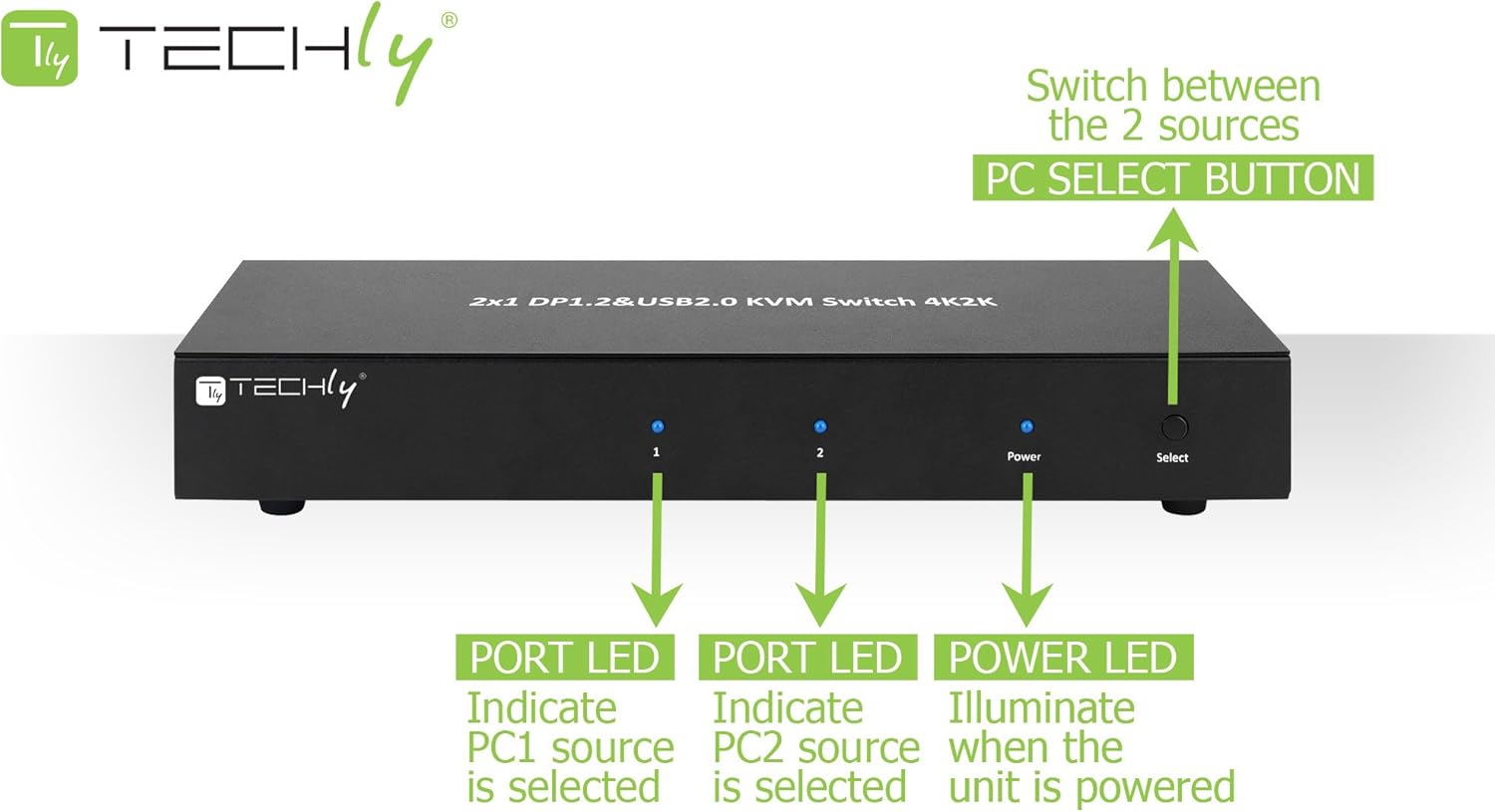
The front panel includes indicators for power and active PC selection, along with a button for manual switching.
- Power LED: Unitatea pizten denean pizten da.
- Port LED (1, 2): Indicates which PC source (PC1 or PC2) is currently selected.
- Hautatu botoia: Press to switch between connected computers (PC1 and PC2).
Atzeko panela

The rear panel provides all necessary connection ports for computers, monitors, and peripherals.
- 5 V DC: Power input jack for the included 5V DC adapter.
- Audio irteera: 3.5mm jack for connecting speakers or headphones.
- mic: 3.5 mm-ko jack-a mikrofonoa konektatzeko.
- Console DisplayPort 1 & 2: Outputs for connecting to your DisplayPort monitors.
- Console USB Ports: USB 2.0 ports for connecting keyboard, mouse, and other USB peripherals.
- PC1/PC2 DisplayPort 1 & 2: Inputs for connecting DisplayPort cables from PC1 and PC2.
- PC1/PC2 USB (Type B): USB 2.0 Type B inputs for connecting USB cables from PC1 and PC2.
- PC1/PC2 Audio In/Out: 3.5mm jacks for audio and microphone connections from PC1 and PC2.
Instalazioa eta Konexioa
Follow these steps to properly set up your Techly IDATA DP-KVM2 KVM switch:
- Ensure all devices (KVM switch, computers, monitors) are powered off before making any connections.
- Connect your DisplayPort monitors to the 'Console DisplayPort 1' and 'Console DisplayPort 2' outputs on the KVM switch.
- Connect your USB keyboard and mouse to the 'Console USB' ports on the KVM switch.
- If using external speakers/headphones and a microphone, connect them to the 'Audio Out' and 'Mic' jacks on the KVM switch.
- For PC1: Connect DisplayPort cables from PC1's graphics card to the 'PC1 DisplayPort 1' and 'PC1 DisplayPort 2' inputs on the KVM switch. Connect a USB Type B cable from PC1 to the 'PC1 USB' input on the KVM switch. Connect audio cables if desired.
- For PC2: Repeat the previous step, connecting PC2 to the 'PC2 DisplayPort 1', 'PC2 DisplayPort 2', and 'PC2 USB' inputs, along with audio cables if desired.
- Connect the provided 5V DC power adapter to the 'DC 5V' jack on the KVM switch and then to a power outlet.
- Power on the KVM switch, then power on your monitors and computers.

This diagram illustrates a typical connection setup for the KVM switch, showing how two computers share two monitors and various USB and audio peripherals.
Funtzionamendu-argibideak
The Techly IDATA DP-KVM2 KVM switch offers two methods for switching between connected computers:
Front Panel Button Switching
- Press the 'Select' button on the front panel of the KVM switch to cycle between PC1 and PC2. The corresponding Port LED (1 or 2) will illuminate to indicate the active computer.
Laster-tekla aldatzea
- Switch to PC1: Press [Scroll Lock] + [Scroll Lock] + [1]
- Switch to PC2: Press [Scroll Lock] + [Scroll Lock] + [2]
- Oharra: Hotkey functionality requires the keyboard to be connected to the dedicated USB keyboard port on the KVM switch.
Zainketa eta Mantentzea
- Keep the device in a cool, dry, and well-ventilated area.
- Saihestu gailua muturreko tenperatura, hezetasun edo eguzki-argia zuzenaren eraginpean jartzea.
- Garbitu gailua zapi leun eta lehor batekin. Ez erabili garbitzaile likido edo aerosolik.
- Ziurtatu aireztapen egokia unitatearen inguruan, gehiegi berotzea saihesteko.
Arazoak konpontzea
- No video output or flickering display.
- Ensure all DisplayPort cables are securely connected. Verify that the KVM switch is powered on and the correct PC is selected. Try restarting the connected computers and monitors.
- Teklatuak edo saguak ez du erantzuten.
- Ensure the USB cables from the computers to the KVM switch are connected correctly. Try reconnecting the keyboard and mouse to the console USB ports. Some specialized keyboards/mice may require direct connection to the computer or may not be fully supported by KVM hotkeys.
- Audio issues.
- Check all audio cable connections. Ensure the correct audio output is selected on your computer. Verify that the volume is not muted on the computer or the connected audio devices.
- KVM switch does not power on.
- Verify the power adapter is securely connected to the KVM switch and a working power outlet.
Zehaztapen Teknikoak
| Ezaugarri | Zehaztapena |
|---|---|
| Modelo zenbakia | IDATA DP-KVM2 |
| DisplayPort bertsioa | 1.2 |
| Bideo Ebazpena | Up to 3840x2160@30Hz |
| Video Link Rate | Gehienez 21.6 Gbps |
| USB atakak | USB 2.0 (Console: 4x Type A, PC: 2x Type B) |
| Audio euskarria | Dolby True HD, DTS HD Master Audio |
| Aldaketa-metodoak | Front Push Button, Hotkey |
| Etxebizitza Materiala | Metala |
| Kolorea | Beltza |
| Sistema eragileen bateragarritasuna | Windows, Mac OS, Linux |
| Elementuaren pisua | 6.7 ontza |
| liburukiatage | 5 Volt |
| Fabrikatzailea | Teknologiaz |
Bermea eta Bezeroarentzako Arreta
For warranty information or technical support, please refer to the official Techly website or contact your local distributor. Please have your product model number (IDATA DP-KVM2) and purchase details ready when seeking support.


