1. Sarrera
This manual provides essential information for the installation, operation, maintenance, and troubleshooting of your Juniper Networks EX3400-48P Ethernet Switch. The EX3400-48P is designed to deliver a high-performance, flexible, and cost-effective solution for demanding data, voice, and video enterprise access environments. It supports Juniper Networks Virtual Chassis technology for simplified network operations.
2. Segurtasun informazioa
Please read and understand all safety instructions before installing or operating the device. Failure to follow these guidelines may result in injury or damage to the equipment.
- Ziurtatu ekipamenduaren lurrerako egokia.
- Ez erabili etengailua bustita edo lehorrean.amp baldintzak.
- Use only the power supply provided or approved by Juniper Networks.
- Saihestu aireztapen-zuloak blokeatzea gehiegi berotzeko.
- Refer to qualified service personnel for any servicing not described in this manual.
3. Produktua amaitu daview
The Juniper Networks EX3400-48P is a 48-port Power over Ethernet (PoE+) capable Ethernet switch. It features a compact design suitable for rack mounting and offers various connectivity options.
3.1. Osagai fisikoak
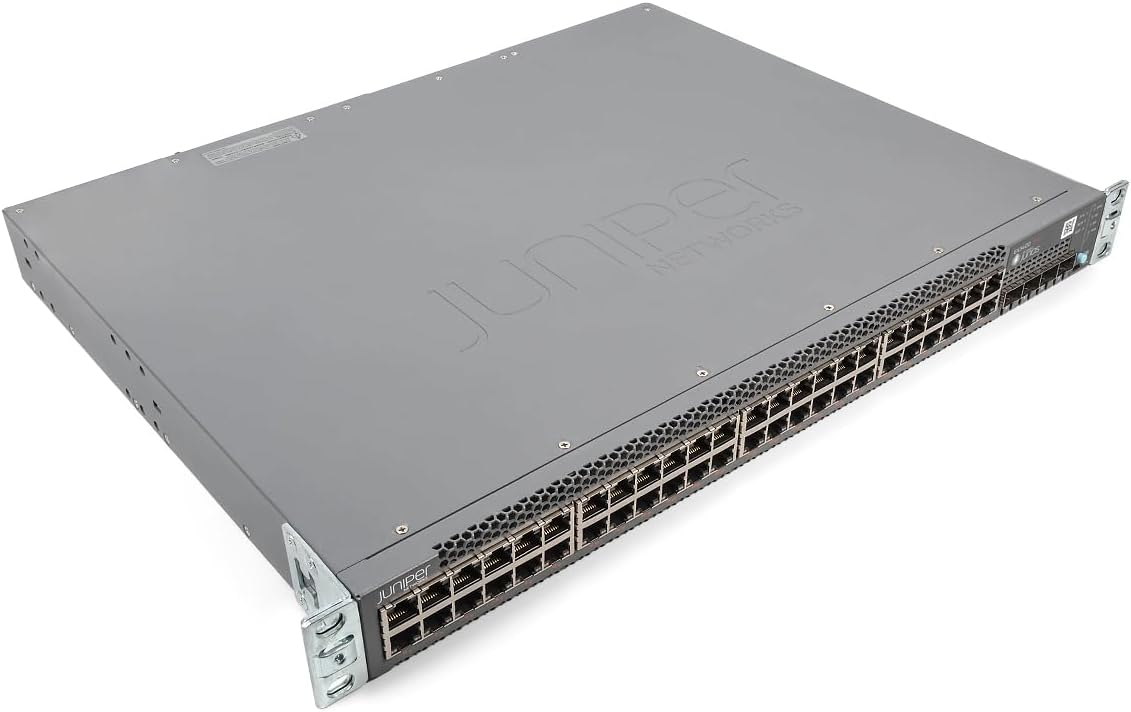
1. irudia: Angelukoa view of the Juniper EX3400-48P Ethernet Switch, showing the top and front panels with the Juniper Networks logo.

2. irudia: Aurrealdea view of the EX3400-48P switch, highlighting the 48 Ethernet ports, uplink ports, and status LEDs.

3. irudia: Atzekoa view of the EX3400-48P, displaying the modular power supply bay, fan modules, management (MGMT) port, and console (CON) port.

4. irudia: Atzealde angeluatua view of the EX3400-48P, showing the power supply unit partially extracted, illustrating its modular design.
3.2. Aurrealdeko panelaren Ezaugarriak
- 48 x 10/100/1000BASE-T Ethernet atakak: Sareko gailuak konektatzeko.
- Goranzko esteka portuak: SFP/SFP+ ports for high-speed connections to other switches or routers.
- Egoera LEDak: Indicators for system status, port activity, and PoE status.
3.3. Atzeko panelaren ezaugarriak
- Power Supply Bay: Houses the modular power supply unit.
- Fan moduluak: Hozte-sistema eman.
- Management (MGMT) Port: An out-of-band Ethernet port for device management.
- Console (CON) Port: For local serial console access.
4. Konfigurazioa
4.1. Desontziratzea eta ikuskatzea
Carefully remove the switch from its packaging. Inspect the device for any signs of physical damage. Report any damage to your supplier immediately.
4.2. Rack Muntatzea
The EX3400-48P is designed for standard 19-inch rack installation. Use the provided rack-mount brackets and screws to secure the switch in the rack. Ensure adequate space for airflow around the unit.
4.3. Energia-konexioa
- Ziurtatu atzeko paneleko etengailua OFF posizioan dagoela.
- Connect the power cord to the power supply unit on the rear of the switch.
- Entxufatu elikatze-kablearen beste muturra lurrera konektatutako korronte alternoko entxufe batera.
- Flip the power switch to the ON position. The system status LED should illuminate.
4.4. Hasierako Konfigurazioa
For initial configuration, connect a console cable from your computer to the console port on the rear of the switch. Use a terminal emulation program (e.g., PuTTY, Tera Term) with the following settings:
- Baud-tasa: 9600
- Datu-bitak: 8
- Parekidetasuna: bat ere ez
- Gelditzeko bits: 1
- Emaria kontrola: bat ere ez
Follow the on-screen prompts to set up basic network parameters such as IP address, subnet mask, and default gateway.
5. Funtzionamendua
5.1. Piztu/Itzaltzea
- Piztu: After connecting the power cord, press the power switch to the ON position. The switch will perform a power-on self-test (POST).
- Itzali: To power off, press the power switch to the OFF position. For a controlled shutdown, it is recommended to save the configuration and issue a shutdown command via the command-line interface (CLI) before physically powering off.
5.2. LED adierazleak
The front panel LEDs provide visual status of the switch's operation:
- SYS LED: Sistemaren egoera orokorra adierazten du (adibidez, berdea funtzionamendu normala bada, anbarra abisua bada, gorria errore kritikoa bada).
- ALM LED: Alarma egoera adierazten du.
- PoE LED: Ethernet bidezko energiaren egoera adierazten du.
- Portuko LEDak: Adierazi Ethernet ataka bakoitzaren estekaren egoera eta jarduera.
5.3. Sarearen konfigurazioa
The EX3400-48P can be configured via its command-line interface (CLI) or a web-based graphical user interface (GUI) if enabled. Common configurations include:
- VLAN creation and assignment.
- Port security settings.
- Routing protocols.
- Quality of Service (QoS) settings.
- Spanning Tree Protocol (STP) configuration.
Refer to the Juniper Networks documentation for detailed configuration guides specific to Junos OS.
6. Mantentzea
6.1. Firmware eguneraketak
Regularly check the Juniper Networks support website for the latest Junos OS firmware updates. Keeping the firmware up-to-date ensures optimal performance, security, and access to new features. Follow the instructions provided with the firmware package for the update procedure.
6.2. Garbiketa
Keep the switch clean and free of dust. Use a soft, dry cloth to wipe the exterior. For ventilation openings, use compressed air to remove dust buildup. Ensure the switch is powered off before cleaning.
6.3. Modular Component Replacement
The EX3400-48P features modular power supplies and fan trays. If a component fails, it can be replaced without powering down the entire switch (hot-swappable). Refer to the Juniper Networks hardware guide for specific replacement procedures.
7. Arazoak
Atal honek aurki ditzakezun arazo ohikoenei irtenbideak eskaintzen ditu.
7.1. Botererik ez
- Egiaztatu elikatze-kablea ondo konektatuta dagoela bai etengailura bai entxufera.
- Egiaztatu korronte-hartunea funtzionala den.
- Ziurtatu atzeko paneleko etengailua ON posizioan dagoela.
- Inspect the power supply unit for any fault indicators.
7.2. Ez dago loturarik portuan
- Egiaztatu Ethernet kablearen konexioa bi muturretan.
- Ziurtatu konektatutako gailua piztuta dagoela eta behar bezala funtzionatzen duela.
- Try a different port on the switch.
- Verify the cable is not damaged and meets specifications (e.g., Cat5e or higher).
7.3. Sarearen konexio arazoak
- Verify IP address, subnet mask, and gateway settings on the switch and connected devices.
- Check VLAN configurations if applicable.
- Use diagnostic tools like
pingetatraceroutefrom the switch CLI. - Consult system logs for error messages.
8. Zehaztapenak
The following table outlines the technical specifications for the Juniper Networks EX3400-48P Ethernet Switch:
| Ezaugarri | Zehaztapena |
|---|---|
| Modelo zenbakia | EX3400-48P |
| Portu kopurua | 48 |
| Interfaze mota | SFP/SFP+ |
| Datuen transferentzia-tasa | 336 Gigabit segundoko |
| liburukiatage | 48 voltio (DC) |
| Kasu Materiala | Metala |
| Goiko Tenperaturaren Balorazioa | 50 gradu Celsius |
| Produktuaren neurriak | 17.2 x 13.78 x 1.73 hazbete |
| Elementuaren pisua | 12.65 kilo |
| Fabrikatzailea | Ipurua |
| UPC | 832938071001 |
9. Bermea eta Laguntza
9.1. Produktuen bermea
This product is typically covered by a manufacturer's warranty. Please refer to the specific warranty terms provided at the time of purchase or on the official Juniper Networks website. A 30-day return policy may apply depending on the vendor.
9.2. Laguntza Teknikoa
For technical assistance, documentation, software downloads, and further support, please visit the official Juniper Networks support website. You may also contact your authorized Juniper Networks reseller for local support options.


