1. Sarrera
This manual provides essential information for the installation, configuration, operation, and maintenance of the MOXA AWK-1137C-US-T 802.11n Wireless AP Client. This device is designed for industrial wireless applications, offering reliable 802.11n connectivity in challenging environments with a wide operating temperature range.
2. Segurtasun informazioa
- Always disconnect power before cleaning or servicing the device.
- Ziurtatu lurrerako egokia den arrisku elektrikoak saihesteko.
- Erabili gailua zehaztutako tenperatura eta hezetasun tarteetan.
- Ez jarri gailua hezetasun edo muturreko tenperaturetara.
- Langile kualifikatuak bakarrik egin behar ditu instalazioak eta mantentze lanak.
3. Paketearen edukia
Egiaztatu zure paketeak elementu hauek dituela:
- MOXA AWK-1137C-US-T Wireless AP Client unit
- Instalazio azkarraren gida
- Dokumentazio CDa (edo lineako baliabideetarako esteka)
- Mounting kit (if applicable)
- Power adapter or terminal block (if applicable)
Elementuren bat falta bada edo hondatuta badago, jarri harremanetan zure saltzailearekin berehala.
4. Hardwarea amaitu daview
The AWK-1137C-US-T features robust industrial design. Key components typically include:
- Ethernet portuak: Sare kable bidezko konexioetarako.
- Antena konektoreak: For external antennas to optimize wireless signal.
- Potentzia sarrera: Terminal block for DC power input.
- LED adierazleak: Provide status information for power, WLAN, and Ethernet activity.
- Berrezarri botoia: For restoring factory default settings.
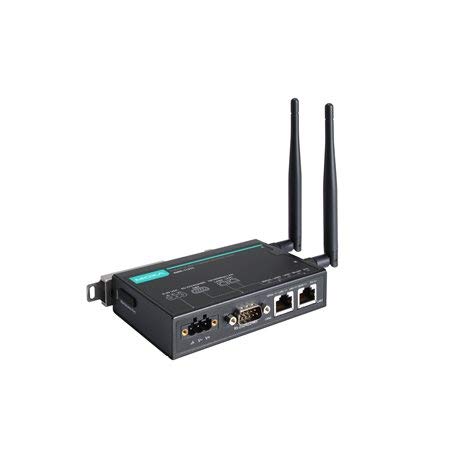
Figure 1: MOXA AWK-1137C-US-T Wireless AP Client. This image shows the compact industrial design of the device, typically featuring antenna ports, Ethernet connections, and power input.
5. Konfigurazioa
5.1 Muntaketa
The AWK-1137C-US-T supports DIN-rail mounting. Attach the DIN-rail kit to the device and snap it onto a standard DIN-rail. Ensure the device is securely fastened to prevent vibration or accidental dislodgement.
5.2 Energia-konexioa
- Connect a suitable DC power source (e.g., 12-48 VDC) to the device's power input terminal block.
- Ensure correct polarity (+ and -) as indicated on the device.
- Tighten the screws on the terminal block to secure the power wires.
5.3 Sareko konexioa
- Connect an Ethernet cable from your network switch or router to the Ethernet port on the AWK-1137C-US-T.
- Attach appropriate antennas to the antenna connectors. Ensure they are securely tightened.
5.4 Hasierako konfigurazioa
Gailura sartzeko webOinarritutako kudeaketa interfazea:
- Connect a computer directly to the device's Ethernet port or ensure it is on the same network segment.
- Configure your computer's IP address to be in the same subnet as the device's default IP address (refer to the Quick Installation Guide for the default IP).
- Ireki a web browser and enter the device's default IP address.
- Log in using the default username and password (refer to the Quick Installation Guide).
- Change the default password immediately for security.
6. Funtzionamendua
6.1 Funtzionamendu moduak
The AWK-1137C-US-T can operate in various modes, including Access Point (AP) and Client mode. Select the appropriate mode based on your network requirements.
- Sarbide puntua (AP) modua: The device acts as a central hub for wireless clients to connect.
- Bezero modua: The device connects to an existing Access Point, extending wired network connectivity wirelessly.
6.2 Hari gabeko ezarpenak
Configure the following wireless parameters via the web interfazea:
- SSID: The name of your wireless network.
- Kanala: Select an appropriate wireless channel to avoid interference.
- Banda: Configure for 2.4 GHz or 5 GHz operation, depending on the model and environment.
- Transmisio potentzia: Adjust the output power for optimal coverage and compliance.
6.3 Segurtasun ezarpenak
Implement strong wireless security to protect your network:
- Enkriptatzea: Use WPA2/WPA3-PSK or Enterprise for robust security.
- Password/Passphrase: Choose a strong, unique password.
- MAC Helbideen Iragazkia: Optionally restrict access to specific devices.
7. Mantentzea
7.1 Firmware eguneraketak
Regularly check the MOXA website for the latest firmware updates. Firmware updates can provide new features, performance improvements, and security patches. Follow the instructions provided with the firmware package for a safe update process.
7.2 Garbiketa
Clean the device periodically with a soft, dry cloth. Do not use liquid or aerosol cleaners. Ensure the device is powered off before cleaning.
7.3 Ingurumen-gogoetak
Ensure the operating environment remains within the specified temperature and humidity limits (-40 to 75°C). Avoid placing the device near heat sources or in direct sunlight.
8. Arazoak
8.1 Potentziarik gabe
- Check the power cable connection and ensure the power source is active.
- Egiaztatu elikadura-iturri boltage is within the device's specified range.
- Inspect the power input terminal block for loose connections.
8.2 Sare konexiorik ez
- Check Ethernet cable connections and ensure they are properly seated.
- Verify that the network switch or router is functioning correctly.
- For wireless connections, ensure the SSID, security settings, and channel match the connected AP/client.
- Check the LED indicators for network activity.
8.3 Haririk gabeko abiadura motela
- Ensure antennas are properly connected and positioned for optimal signal.
- Check for sources of interference (e.g., other wireless devices, microwave ovens).
- Adjust the wireless channel to a less congested one.
- Verify that the device is operating in 802.11n mode and not a slower standard.
8.4 Fabrika lehenetsitako ezarpenetara berrezartzea
If configuration issues persist, you may need to reset the device to its factory default settings. Locate the reset button (often recessed) and press and hold it for approximately 5-10 seconds while the device is powered on. The device will reboot with default settings.
9. Zehaztapenak
| Ezaugarri | Zehaztapena |
|---|---|
| Modelo zenbakia | AWK-1137C-US-T |
| Haririk gabeko estandarra | 802.11n |
| Banda eragilea | US Band |
| Funtzionamendu-tenperatura | -40 eta 75 °C artean |
| Paketearen neurriak | 7.87 x 6.57 x 1.97 hazbete |
| Elementuaren pisua | 1.15 kilo |
| Fabrikatzailea | MOXA |
| Eskuragarri dagoen lehen data | 30ko apirilaren 2018a |
10. Bermea eta Laguntza
10.1 Bermearen informazioa
MOXA products typically come with a standard warranty. For detailed warranty terms and conditions, please refer to the official MOXA webwebgunean edo produktuarekin batera datorren berme-txartelean. Gorde erosketaren frogagiria berme-erreklamazioetarako.
10.2 Laguntza Teknikoa
For technical assistance, product documentation, or driver downloads, please visit the official MOXA support website. You can also contact MOXA's customer support team directly through the contact information provided on their webgunea.


