1. Sarrera
The ATEN CL3700NW is a 19-inch Ultra Short Depth Wide Screen LCD Console designed for efficient system management in server rooms and data centers. This console integrates an 18.5-inch TFT active matrix display, keyboard, and touchpad into a 1U rack-mountable sliding housing. It supports HDMI and USB connectivity, offering a compact and convenient solution for accessing and controlling connected computers.
2. Produktuaren ezaugarriak
- Pantaila: 18.5-inch TFT active matrix with FHD 1080p (1920 x 1080) resolution.
- ViewAngelua: 178 degrees (horizontal and vertical).
- Konektibitatea: HDMI and USB interfaces.
- Kontraste-erlazioa: 1000:1 (calculated based on luminance of 350 cd/m²).
- Kolorea: Akabera beltza.
- Energia-kontsumoa: 100-240 Watt.
- Pisua: Approximately 4 kilograms (8.82 pounds).
3. Produktua amaitu daview
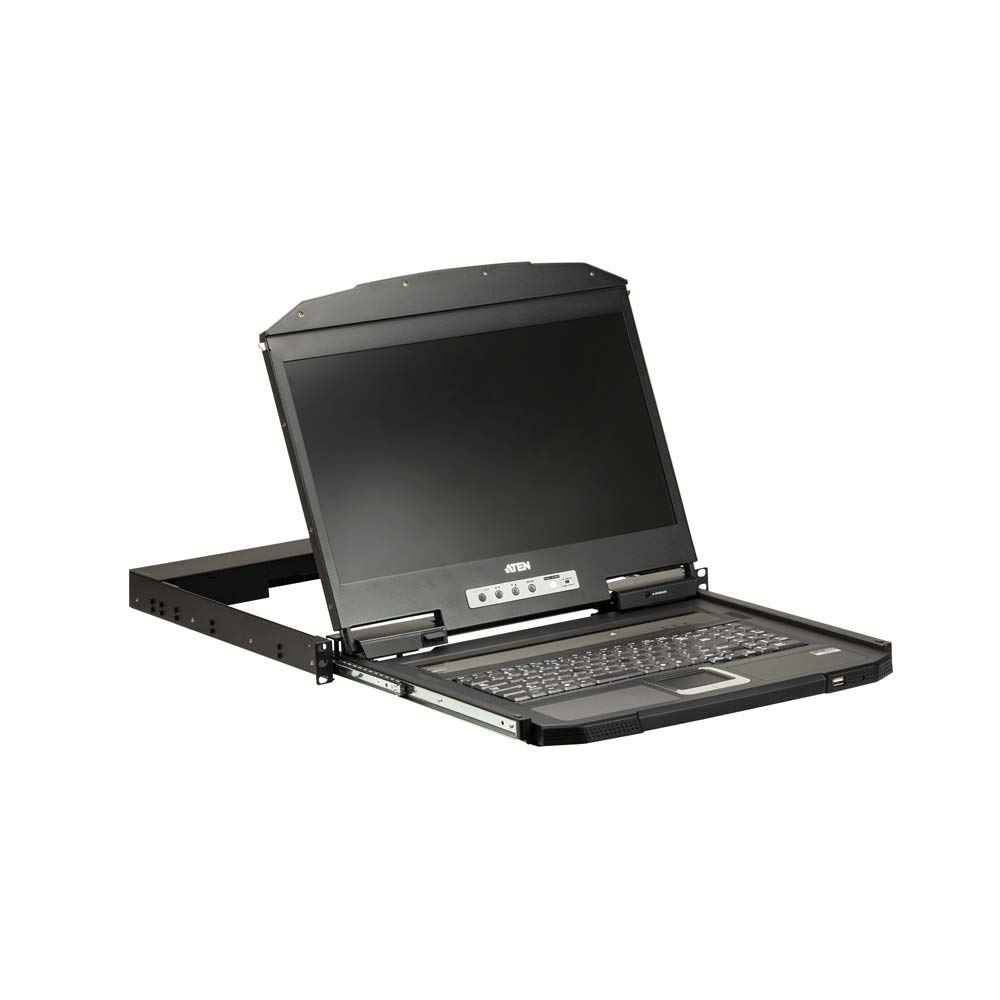
1. irudia: hurbileko planoa view of the ATEN CL3700NW LCD console screen.

2. irudia: Aurrealdea view of the ATEN CL3700NW LCD console, showing the closed unit.

Figure 3: The ATEN CL3700NW console with the keyboard and touchpad tray extended for use.
4. Konfigurazioa eta instalazioa
- Rack muntatzea: Install the CL3700NW console into a standard 1U rack space using the provided mounting kit. Ensure secure fastening to prevent movement.
- Konektatu bideo-kablea: Connect an HDMI cable from the console's HDMI input port to the HDMI output port of the computer or KVM switch.
- Konektatu USB kablea: Connect a USB cable from the console's USB port to a USB port on the computer or KVM switch. This provides keyboard and mouse functionality.
- Konektatu energia: Connect the power adapter to the console's power input and then plug it into an AC power source.
- Piztu: Press the power button on the console. The LCD display should illuminate, and the system will begin to boot.
5. Funtzionamendua
- Kontsola irekitzea: Gently pull the console tray out from the rack until it locks into place. Lift the LCD panel to the desired viewangelua.
- Teklatua eta ukipen-panela: Use the integrated keyboard and touchpad for input. Standard keyboard shortcuts and mouse gestures apply.
- Pantailaren ezarpenak doitzea: Use the OSD (On-Screen Display) buttons, typically located near the screen, to adjust brightness, contrast, and other display parameters. Refer to the OSD menu for specific options.
- Kontsola ixtea: Lower the LCD panel, then push the console tray back into the rack until it clicks into its locked position.
6. Mantentzea
- Pantaila garbitzea: Erabili lipurrik gabeko zapi leun bat dampPantaila-garbitzaile ez-urratzaile batekin garbitu. Ez ihinztatu garbitzailea zuzenean pantailan.
- Cleaning the Keyboard/Touchpad: Use a soft brush or compressed air to remove dust and debris. A slightly damp cloth can be used for surface cleaning.
- Aireztapena: Ensure that the console's ventilation openings are clear of obstructions to prevent overheating.
- Kableen kudeaketa: Aldian-aldian egiaztatu konektatutako kable guztiak konexio sendoak eta higadura zantzurik duten.
7. Arazoak
- Ez dago pantailarik:
- Ensure the console is powered on and the power adapter is securely connected.
- Verify the HDMI cable is correctly connected to both the console and the computer/KVM.
- Check the computer/KVM video output settings.
- No Keyboard/Mouse Input:
- Ensure the USB cable is securely connected to both the console and the computer/KVM.
- Try connecting the USB cable to a different USB port on the computer/KVM.
- Restart the connected computer.
- Pantaila keinuka edo distortsionatua:
- Check the HDMI cable for damage or loose connections.
- Adjust the display resolution and refresh rate on the connected computer to match the console's specifications.
8. Zehaztapenak
| Ezaugarri | Zehaztapena |
|---|---|
| Ereduaren izena | CL3700NW |
| Pantailaren tamaina | 18.5 hazbete |
| Pantailaren bereizmena | 1920 x 1080 (FHD 1080p) |
| Bistaratzeko mota | TFT Matrize Aktiboa |
| Viewangelua | 178 degrees (Horizontal/Vertical) |
| Kontraste-erlazioa | 1000:1 |
| Konektibitate Teknologia | HDMI, USB |
| Kolorea | Beltza |
| Elementuaren pisua | 19.82 libra (gutxi gorabehera 8.99 kg) |
| Produktuaren neurriak (LxWxH) | 18.78 x 1.69 x 18.92 hazbete |
| Energia-kontsumoa | 100-240 Watt |
| Prozesadorearen marka | NVIDIA (CPU compatibility) |
9. Bermea eta Laguntza
ATEN is committed to providing reliable products and support. For assistance with your CL3700NW console, please refer to the following information:
- Laguntza teknikoa: ATEN offers free technical support. Responses to customer inquiries are typically provided within 4 hours.
- Berme Zerbitzua: Extended warranty service and variable value-added service packages are available.
- Konponketa zerbitzuak: Localized repair centers are available for RMA (Return Merchandise Authorization) services.

4 Irudia: Gainetikview of ATEN's support services, including localized repair, extended warranty, and free technical support.
For detailed warranty terms and to access support resources, please visit the official ATEN website or contact your local ATEN representative.