1. Sarrera
This manual provides detailed instructions for the setup, operation, and maintenance of your Tera Wireless Barcode Scanner, Model 8541733886. Please read this manual thoroughly before using the device to ensure proper functionality and to prevent damage.
The Tera Wireless Barcode Scanner offers versatile connectivity and efficient scanning capabilities for various barcode types, both printed and digital.
2. Produktua amaitu daview
2.1 Osagaiak
Paketeak normalean barne hartzen ditu:
- Tera Wireless Barcode Scanner
- Hands-Free Stand
- 2.4 GHz-ko haririk gabeko USB dongle-a
- USB kargatzeko/datuen kablea
- Argibide eskuliburua (dokumentu hau)

Image: Tera Wireless Barcode Scanner, showing the scanner unit, flexible stand, 2.4GHz USB dongle, and USB cable.
2.2 Ezaugarri nagusiak
- 3 Konexio Modu: Supports Bluetooth, 2.4GHz wireless, and USB 2.0 wired connections.
- Bateragarritasun zabala: Works with POS systems, iOS, Android, Windows, Mac OS, and Linux. Supports Bluetooth HID, SPP, and BLE protocols.
- Eskaneatze azkarra eta zehatza: Equipped with an ARM32Bit Cortex CPU and a Japan-manufactured scanner head, achieving decoding speeds up to 500 scans per second.
- Dual Upload Modes:
- Berehalako kargatzeko modua: Barcodes are transmitted to your device immediately upon scanning.
- Offline Storage Mode: Stores up to 50,000 barcodes internally when out of range, allowing for later upload.
- Multi-Language Barcode Support: Capable of scanning barcodes in English, Spanish, German, French, Italian, and Japanese. Ensure your keyboard language matches the selected language for correct input.
- Versatile Barcode Symbologies:
- 1D: UPC-A, UPC-E, EAN-8, EAN-13, Code 128, Code 39, Code 93, Code 11, Interleaved 2 of 5, Matrix 2 of 5, Standard 2 of 5, Coda bar, MSI Plessey, RSS, etc.
- 2D: QR Code, Data Matrix, PDF417, Aztec code, Maxicode, etc.
- Iraunkortasuna: Designed to withstand impacts from drops of up to 1.5 meters (5 feet) onto concrete.
- Bateriaren iraupen luzea: Built-in 2200mAh battery supports approximately 57,000 scans on a full charge, with up to 15 days of standby time.
3. Konfigurazioa
3.1 Eskanerra kargatzea
Lehenengo aldiz erabili aurretik, kargatu eskanerra guztiz. Konektatu USB kargatzeko kablea eskanerraren kargatzeko atakara eta USB energia iturri batera (adibidez, ordenagailuko USB ataka, USB hormako egokitzailea). Adierazle-argiak kargatzeko egoera erakutsiko du.

Image: Illustration showing the scanner's 2200mAh battery capacity and its ability to withstand a 1.5-meter drop.
3.2 Konexio moduak
Eskanerrak hiru konexio metodo onartzen ditu:

Image: Visual representation of the three connection modes: Bluetooth, 2.4G Wireless via USB dongle, and USB Wired connection.
3.2.1 USB Wired Mode (Plug & Play)
- Konektatu eskanerra zuzenean ordenagailura emandako USB kablea erabiliz.
- The computer will typically recognize the device automatically without requiring driver installation.
- Eskanerra erabiltzeko prest dago.

Image: The scanner connected to a laptop, illustrating its plug-and-play functionality and compatibility with various operating systems including Windows, Mac OS, Linux, and Android.
3.2.2 2.4GHz Haririk gabeko Modua
- Insert the 2.4GHz USB dongle into an available USB port on your computer or device.
- Piztu barra-kode eskanerra. Automatikoki parekatu beharko litzateke donglearekin.
- Konexio arrakastatsua normalean eskanerrean soinu edo argi espezifiko batek adierazten du.
3.2.3 Bluetooth modua
- Ensure your device (smartphone, tablet, computer) has Bluetooth enabled.
- Put the scanner into Bluetooth pairing mode (refer to the scanner's quick start guide for specific instructions, usually by scanning a special barcode).
- On your device, search for available Bluetooth devices and select "Tera Barcode Scanner" (or similar name).
- Berretsi parekatzea eskatzen bazaizu.
Oharra: Wireless range varies. Indoors with obstacles, Bluetooth range is approximately 33ft, and 2.4GHz wireless is approximately 98ft. Outdoors in barrier-free environments, Bluetooth range is approximately 65ft, and 2.4GHz wireless is approximately 328ft.
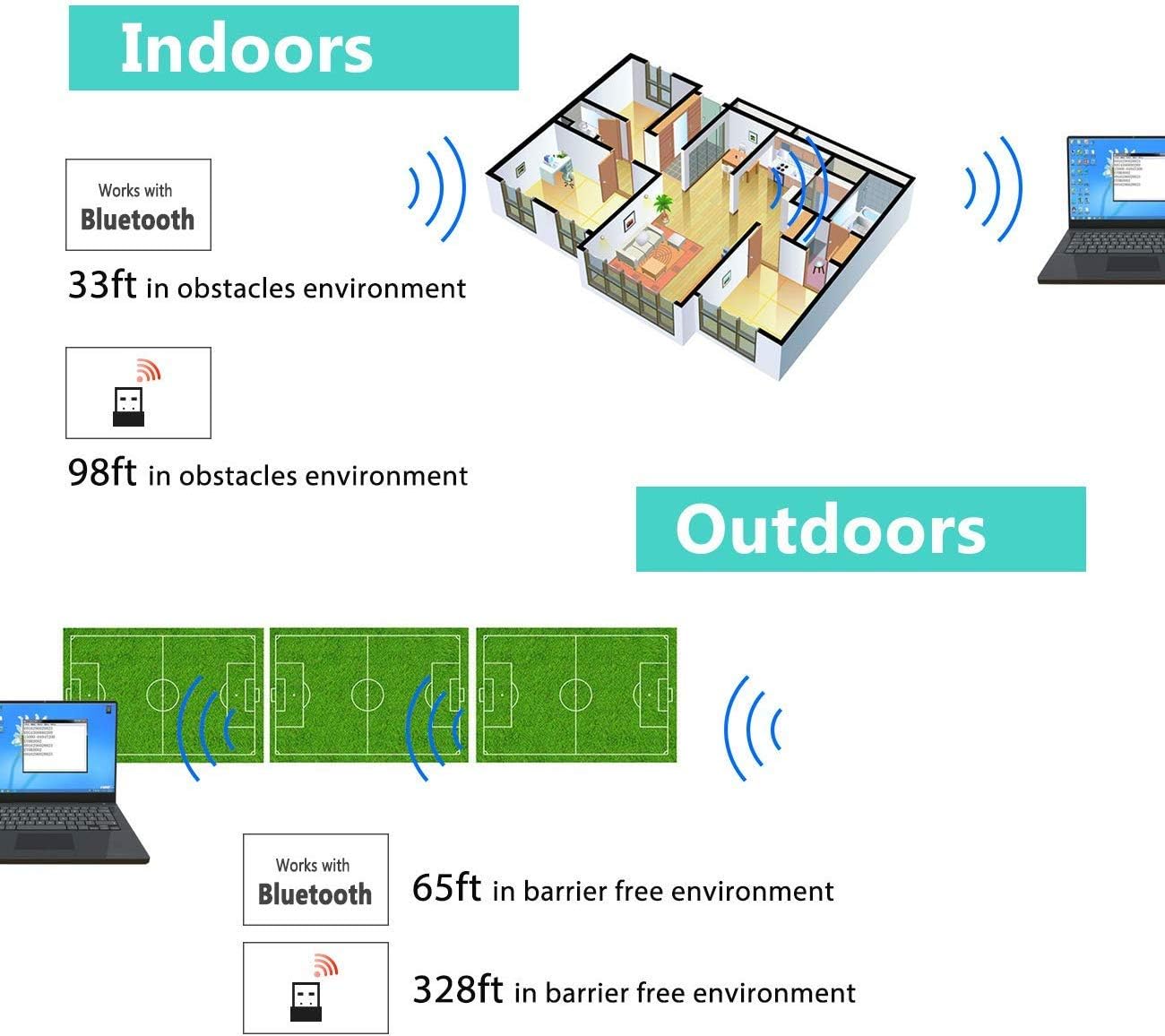
Image: Diagram illustrating the effective wireless range of the scanner in both indoor (with obstacles) and outdoor (barrier-free) environments for Bluetooth and 2.4GHz connections.
4. Funtzionamendu-argibideak
4.1 Barra-kodeak eskaneatzea
The scanner can read both 1D and 2D barcodes, including QR codes, from printed materials and digital screens.
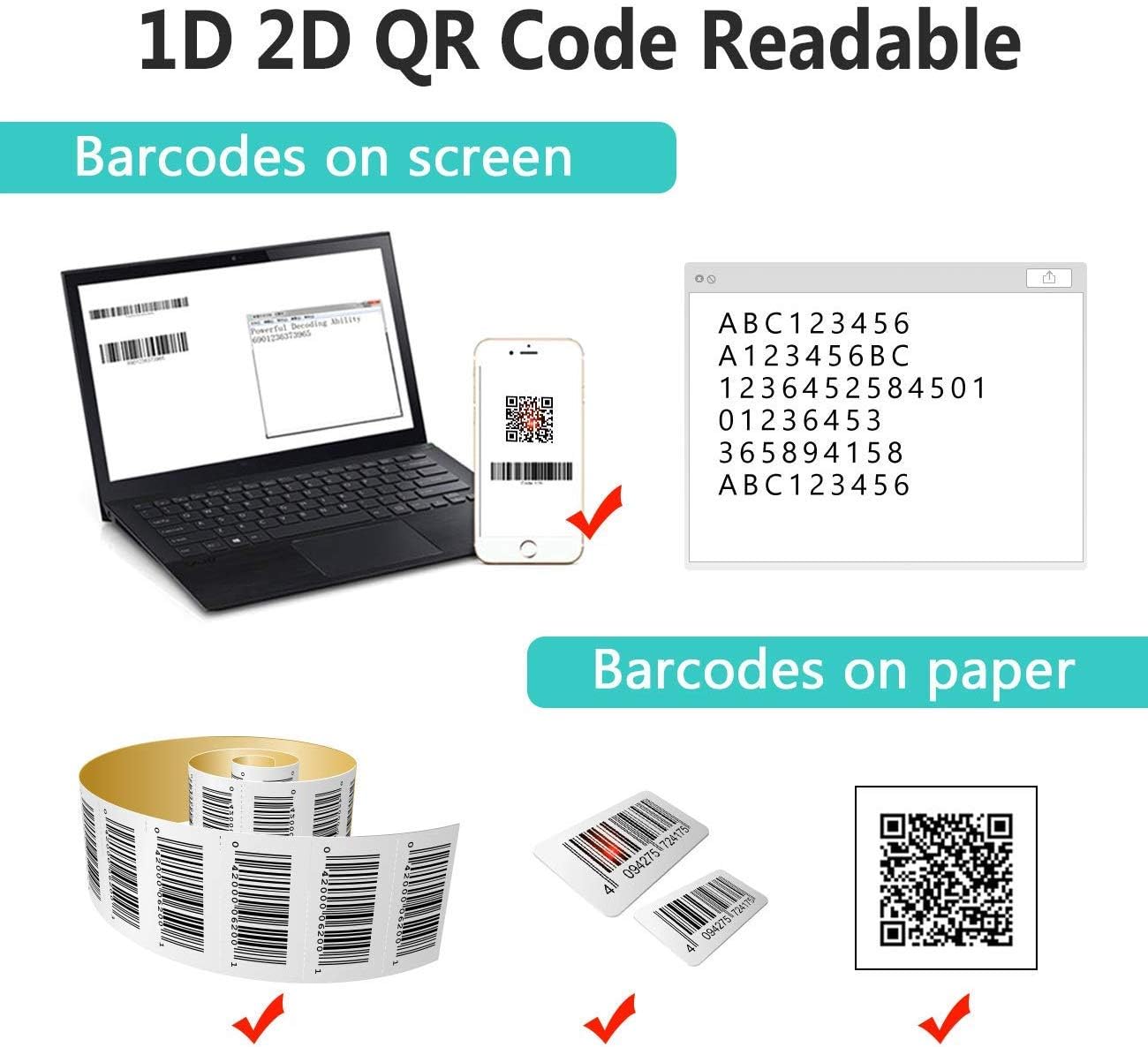
Image: The scanner demonstrating its ability to read 1D and 2D barcodes from both digital screens (laptop, smartphone) and physical printed labels.
Barra-kode bat eskaneatzeko:
- Point the scanner's window at the barcode.
- Press the trigger button (or allow the sensor to activate in automatic modes).
- A successful scan is indicated by a beep and/or a green light.
4.2 Eskaneatze moduak
Eskanerrak hiru eskaneatze modu nagusi onartzen ditu:

Image: The barcode scanner mounted on its stand, highlighting its 360-degree rotation capability and the three available scanning modes: Key Trigger Mode, Sensor Activated Mode, and Continuous Scan Mode.
- Gako abiarazte modua: Scan by manually pressing the trigger button for each barcode.
- Sensor Activated Mode: Eskanerra automatikoki aktibatzen da barra-kode bat bere eremuan detektatzen denean. view.
- Etengabeko eskaneatu modua: The scanner continuously emits a scan beam, reading any barcode that passes through it.
Refer to the quick start guide or programming barcodes for instructions on how to switch between these modes.
4.3 Datuak kargatzeko moduak
Eskanerrak bi metodo eskaintzen ditu eskaneatutako datuak kargatzeko:
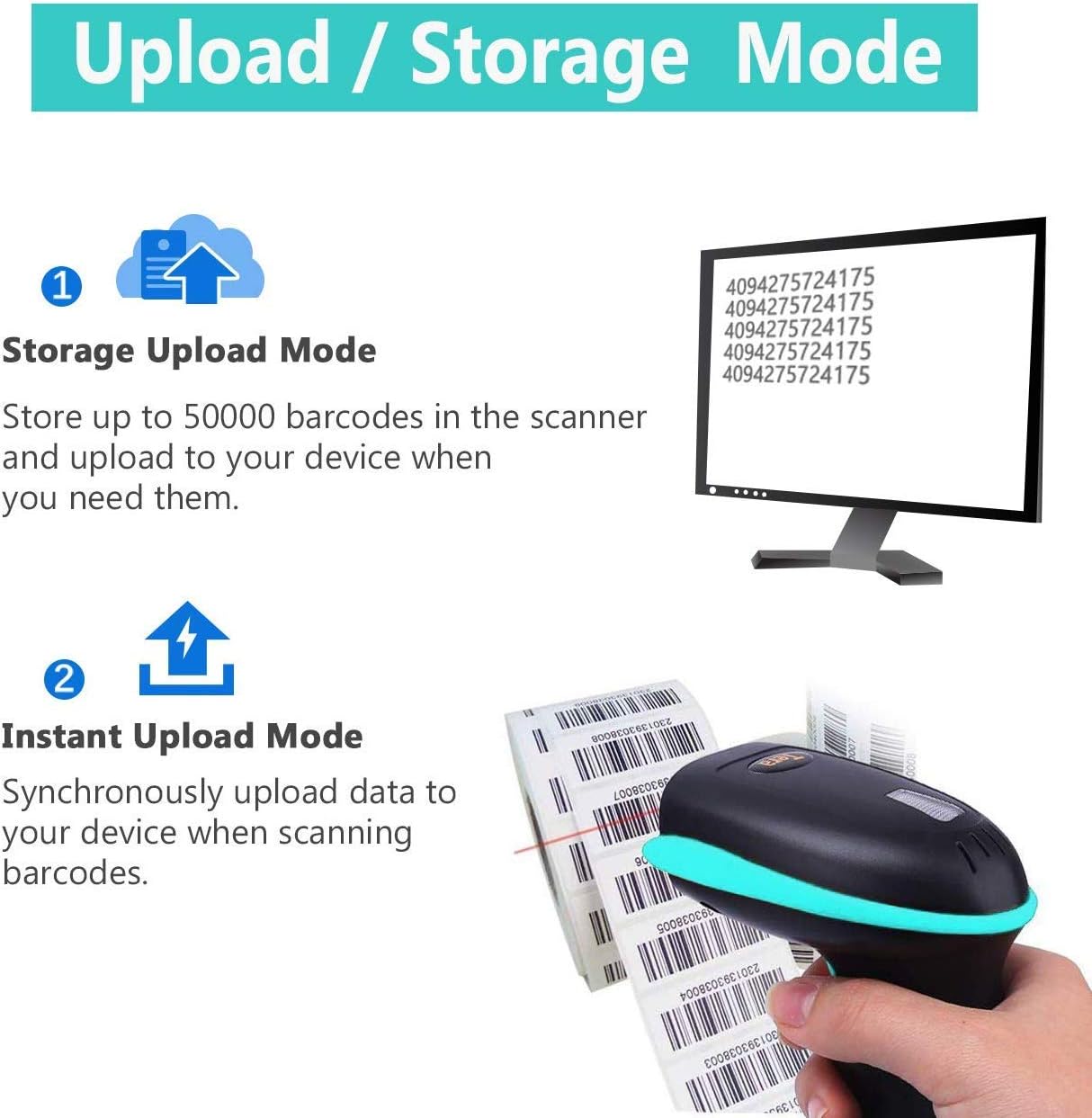
Image: Illustration of the two data upload modes: Storage Upload Mode, where barcodes are stored internally and uploaded later, and Instant Upload Mode, where data is transmitted immediately.
- Berehalako kargatzeko modua: Barcodes are sent to your connected device immediately after scanning. This is suitable for real-time data entry.
- Offline Storage Mode: If the scanner is out of range or not connected, it will store scanned barcodes internally. Up to 50,000 barcodes can be stored. Once reconnected, you can upload the stored data to your device.
To switch between upload modes, scan the appropriate programming barcode found in the quick start guide.
5. Mantentzea
5.1 Garbiketa
- Erabili oihal leun eta garbi bat, apur bat bustitaampened with water or a mild cleaning solution to wipe the scanner's exterior.
- Do not use abrasive cleaners, solvents, or excessive liquid, as these can damage the device.
- Keep the scanning window clean and free of dust or smudges to ensure optimal reading performance.
5.2 Bateria zaintzea
- Kargatu eskanerra aldizka, batez ere denbora luzez gordeko bada.
- Saihestu bateria maiz erabat deskargatzea, horrek bere iraupena laburtu baitezake.
- Gorde eskanerra leku fresko eta lehor batean erabiltzen ez duzunean.
5.3 Biltegiratzea
When not in use, store the scanner in a safe place to prevent physical damage. The included stand can be used for convenient storage and hands-free operation.
6. Arazoak
| Arazoa | Kausa posiblea | Irtenbidea |
|---|---|---|
| Eskanerra ez da pizten. | Bateria baxua. | Kargatu eskanerra gutxienez 2-3 orduz. |
| Eskanerrak ez ditu barra-kodeak irakurtzen. |
|
|
| No data transmitted to device. |
|
|
| Scanner beeps continuously or behaves erratically. | Configuration error or internal issue. | Perform a factory reset (refer to the quick start guide for the reset barcode). If the issue persists, contact support. |
7. Zehaztapenak
- Modelo zenbakia: 8541733886
- Produktuaren neurriak: 6.1 x 2.55 x 3.54 hazbete
- Elementuaren pisua: 1.05 kilo
- Bateria: 1 Lithium Ion battery (2200mAh)
- Konektibitatea: Bluetooth, 2.4GHz Wireless, USB 2.0 Wired
- Gailu bateragarriak: Desktop, Laptop, Smartphone (POS, iOS, Android, Windows, Mac OS, Linux)
- Energia iturria: Hari elektrikoa (kargatzeko)
- Fabrikatzailea: Tera
- Lehenengo eskuragarri: 7ko maiatzaren 2019a
8. Bermea eta Laguntza
8.1 Bermearen informazioa
For specific warranty details, please refer to the warranty card included with your product or visit the official Tera webgunea. Gorde erosketa-agiria erosketaren frogagiri gisa berme-erreklamazioetarako.
8.2 Bezeroarentzako laguntza
If you encounter any issues not covered in this manual or require further assistance, please contact Tera customer support. Contact information can typically be found on the product packaging, the official Tera webgunea, edo zure dendariaren bidez.
Laguntzarekin harremanetan jartzean, izan zure produktuaren modelo zenbakia (8541733886) eta erosketaren xehetasunak prest.


Image: Illustrations representing customer service and technical support teams available to assist users.


