1. Sarrera
This manual provides essential instructions for setting up, operating, and maintaining your PRITOM K7 7-inch Kids Tablet. Please read this guide thoroughly to ensure proper use and to maximize your child's learning and entertainment experience.
2. Zer dago kutxan
- 1 x PRITOM 7-inch Tablet PC
- 1 x Kargagailua
- 1 x Erabiltzailearen eskuliburua
- 1 x USB kablea
- 1 x OTG Cable
- 1 x Screen Film
- 1 x Silicone Kid-Proof Case
3. Gailua amaitu daview
The PRITOM K7 tablet is designed with a durable, kid-friendly silicone case that includes a built-in stand and handles for easy carrying and viewing. It features a 7-inch IPS HD display and dual cameras.
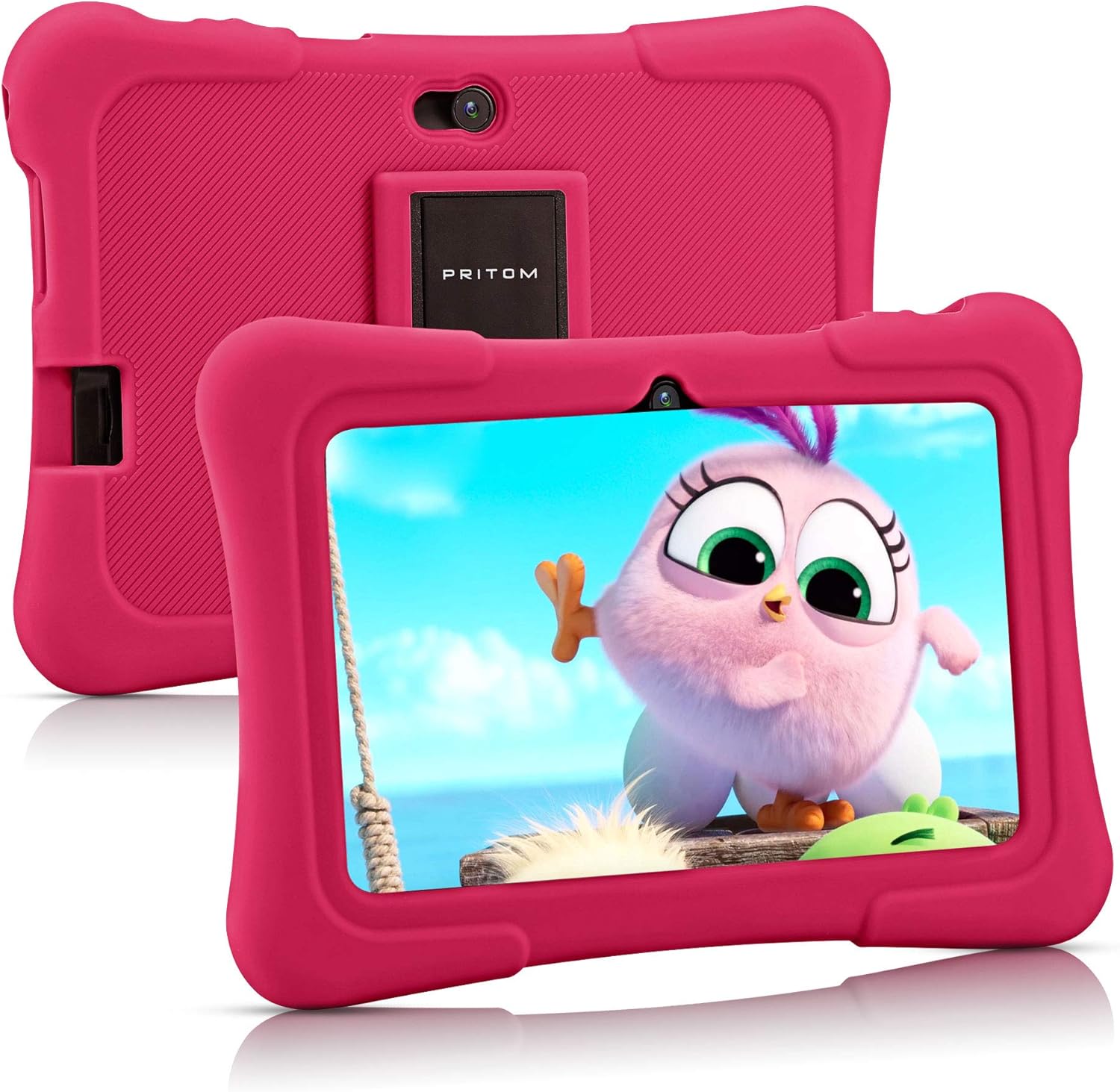
Image: PRITOM K7 7-inch Kids Tablet in its protective pink silicone case.

Image: Diagram illustrating the location of the power button, DC jack, Micro USB port, mic, 3.5mm earphone jack, volume buttons, Micro SD card slot, front camera, rear camera, and speaker.
4. Konfigurazioa
4.1 Hasierako piztea
- Eduki sakatuta Pizteko botoia (located on the top edge) for a few seconds until the screen lights up.
- Jarraitu pantailan agertzen diren argibideei zure hizkuntza eta eskualdea hautatzeko.
4.2 Wi-Fira konektatzea
- From the home screen, tap the Ezarpenak ikonoa.
- Hautatu Sarea eta Internet, orduan Wi-Fi.
- Wi-Fia aktibatu/desaktibatu On.
- Hautatu nahi duzun Wi-Fi sarea zerrendatik.
- Eskatzen bazaizu, idatzi pasahitza eta sakatu Konektatu.
4.3 Setting Up Parental Controls (iWawa Kids Software)
The PRITOM K7 comes with pre-installed iWawa Kid's software, offering a safe and controlled environment for children.
- Bilatu eta sakatu iWawa app icon on the home screen.
- Jarraitu pantailan agertzen diren argibideei haur profesional bat sortzeko.file. This typically involves setting up a password for parental access, defining screen time limits, and selecting age-appropriate content.
- Within the iWawa app, you can manage applications, set content filters, and monitor usage.

Image: The iWawa Kids Software interface, showing pre-installed educational and game applications.
5. Tabletaren erabilera
5.1 Nabigazioa
- Ukipen-pantaila: Navigate by tapping, swiping, and pinching on the screen.
- Hasierako botoia: Hasierako pantaila nagusira itzultzen da.
- Atzera botoia: Aurreko pantailara itzultzen da.
- Azken aplikazioen botoia: Erabilitako azken aplikazioak bistaratzen ditu.
5.2 Downloading Apps
Beyond the pre-installed iWawa apps, you can download additional applications from the Google Play Store.
- Exit the iWawa app (if active) by entering the parental password.
- Bilatu eta sakatu Google Play Store icon on the main Android home screen.
- Bilatu desired apps and follow the on-screen instructions to download and install them.
5.3ko kameraren funtzionaltasuna
The tablet features a front-facing and rear-facing camera for photos and videos.
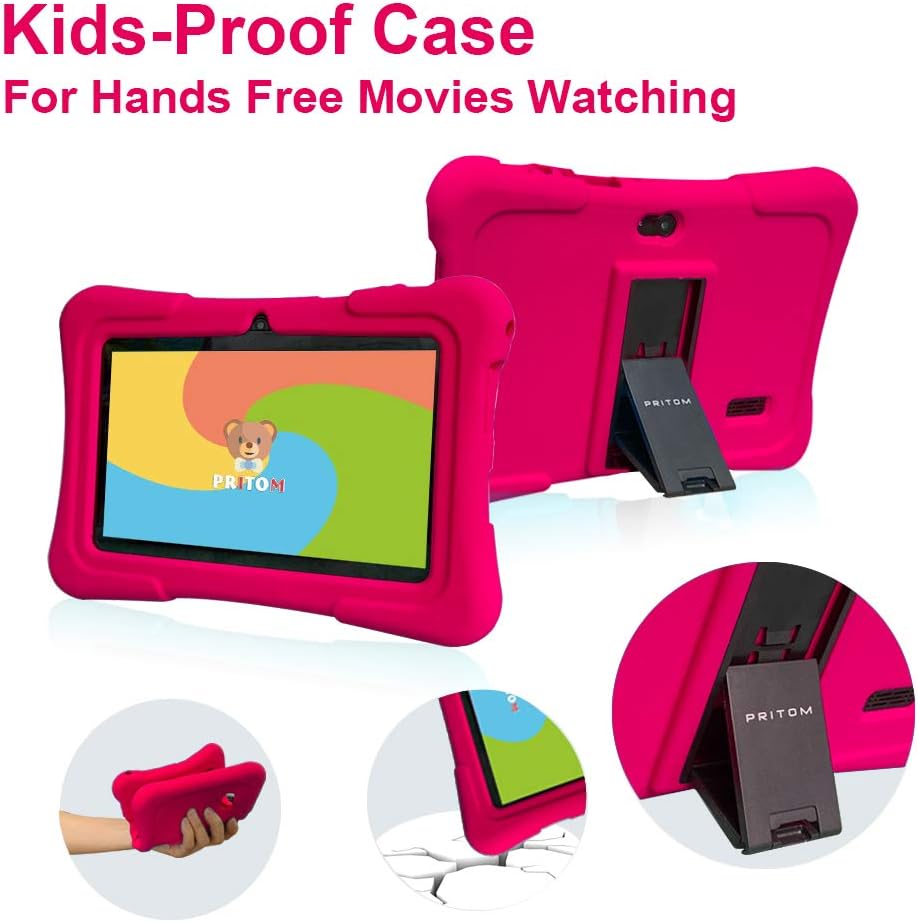
Image: The PRITOM K7 tablet displaying a family photo, highlighting its 7-inch IPS screen and camera capabilities.
- Sakatu Kamera aplikazioaren ikonoa.
- Select between the front and rear camera using the toggle icon.
- Sakatu obturadorearen botoia argazki bat ateratzeko edo bideo grabaketa hasteko/gelditzeko.
5.4 Multimedia erreprodukzioa
The tablet supports various media formats for videos, music, and photos.
- Bideoa: Use the pre-installed video player or download a third-party app from the Google Play Store.
- Musika: Use the Music app to play audio files.
- Argazkiak: View images in the Gallery app.
Bideoa: Amaiera batview of the PRITOM 7-inch Kids Tablet, demonstrating its features and functionality, including the user interface and protective case.
Video: A short demonstration of the kids tablet, showcasing its design and some interactive elements.
Video: A brief look at the PRITOM Kids Tablet, highlighting its 7-inch screen and 32GB storage capacity.
6. Mantentzea
6.1 Bateria kargatzea
Connect the provided charger to the tablet's DC jack or Micro USB port and plug it into a power outlet. The battery indicator on the screen will show charging status.
6.2 Biltegiratze kudeaketa
The tablet has 32 GB of internal storage, expandable up to 512 GB using a Micro SD card.
- Locate the Micro SD card slot (refer to Device Overview diagrama).
- Gently insert a compatible Micro SD card until it clicks into place.
- Biltegiratzea kudeatzeko, joan honera Ezarpenak > Biltegiratzea.
6.3 Garbiketa
Use a soft, dry, lint-free cloth to clean the screen and exterior of the tablet. Avoid using harsh chemicals or abrasive materials.

Image: The PRITOM K7 tablet secured in its pink kid-proof silicone case, featuring a functional kickstand for hands-free viewing.
7. Arazoak
- Tableta ez da pizten: Ziurtatu bateria kargatuta dagoela. Konektatu kargagailua eta saiatu berriro.
- Pantailak ez du erantzuten: Berrezarri leun bat pizteko botoia 10-15 segundoz sakatuta edukiz.
- Wi-Fi konexio arazoak: Egiaztatu Wi-Fia gaituta dagoen ezarpenetan. Berrabiarazi bideratzailea eta tableta.
- Aplikazioak huts egiten ari dira: Clear the app's cache (Settings > Apps > [App Name] > Storage > Clear Cache) or reinstall the app.
- Parental control issues: Verify the parental password and check settings within the iWawa app.
8. Zehaztapenak
| Ezaugarri | Xehetasuna |
|---|---|
| Pantailaren tamaina | 7 hazbete |
| Pantailaren bereizmena | 1024x600 pixel (IPS HD) |
| Sistema eragilea | Android 13 |
| Prozesadorea | Quad-Core (1.5 GHz Unisoc) |
| RAM | 2 GB SDRAM DDR3 |
| Barne Biltegiratzea | 32 GB (expandable up to 512 GB via Micro SD) |
| Kamerak | Aurrean 2MP, Atzeko 0.3MP |
| Konektibitatea | WiFi (802.11bgn), Bluetooth |
| Bateriaren iraupena | Average 3 years (device lifespan) |
| Elementuaren pisua | 1.15 kilo |
| Produktuaren neurriak | 8.3 x 5.9 x 0.7 hazbete |
9. Bermea eta Laguntza
For warranty information and customer support, please refer to the documentation included with your purchase or visit the official PRITOM webgunea. Gorde erosketaren egiaztagiria berme-erreklamazioetarako.


