1. Sarrera
The Zenec Z-E1010 is an advanced 10.1-inch infotainment system designed for vehicle integration. This system provides a wide range of features including digital radio (DAB+), FM radio, Bluetooth connectivity, USB media playback, and smartphone integration capabilities. It is part of the ZENEC E>GO CORE series, offering a large display and intuitive operation for an enhanced in-car experience. This manual provides essential information for the proper installation, operation, and maintenance of your Z-E1010 unit.
2. Segurtasun informazioa
- Irakurri arretaz argibide guztiak instalatu eta martxan jarri aurretik.
- Installation should be performed by a qualified professional to prevent damage to the unit or vehicle.
- Ez erabili gailua gidatzeari arreta galarazten dizun moduan. Eman beti lehentasuna errepideko segurtasunari.
- Saihestu unitatea tenperatura altuen, eguzki-argiaren eraginpean denbora luzez edo hezetasun gehiegizkoaren eraginpean jartzea.
- Use only approved accessories and parts with the Z-E1010.
3. Paketearen edukia
Egiaztatu elementu guztiak paketean daudela:
- Zenec Z-E1010 Infotainment Unit
- Kableatu-harnes nagusia
- USB Extension Cables (2x)
- GPS antena
- Mikrofonoa
- Erabiltzailearen eskuliburua (dokumentu hau)
- Note: Vehicle-specific mounting kits and DAB+ antenna are optional and sold separately.
4. Konfigurazioa eta instalazioa
The Z-E1010 is designed for integration into specific vehicle models using dedicated installation kits. These kits typically include mounting frames and necessary components for vehicle connection.
4.1. Instalazioaren aurreko egiaztapenak
- Ensure the vehicle's ignition is off and the battery is disconnected before starting installation.
- Confirm compatibility with your vehicle model and that you have the correct vehicle-specific mounting kit.
4.2. Kableatu konexioak
Connect the main wiring harness to the vehicle's electrical system. The Z-E1010 features an integrated CAN BUS adapter for automatic vehicle model detection and simplified connection. Connect the GPS antenna, microphone, and USB extension cables to the designated ports on the unit.
4.3. Unitatea muntatzea
Follow the instructions provided with your vehicle-specific mounting kit to securely install the Z-E1010 into the dashboard. Ensure all cables are routed safely and do not interfere with vehicle operation.
5. Funtzionamendu-argibideak
The Zenec Z-E1010 features a 10.1-inch capacitive touchscreen for intuitive control. The main interface provides access to various functions via distinct icons.
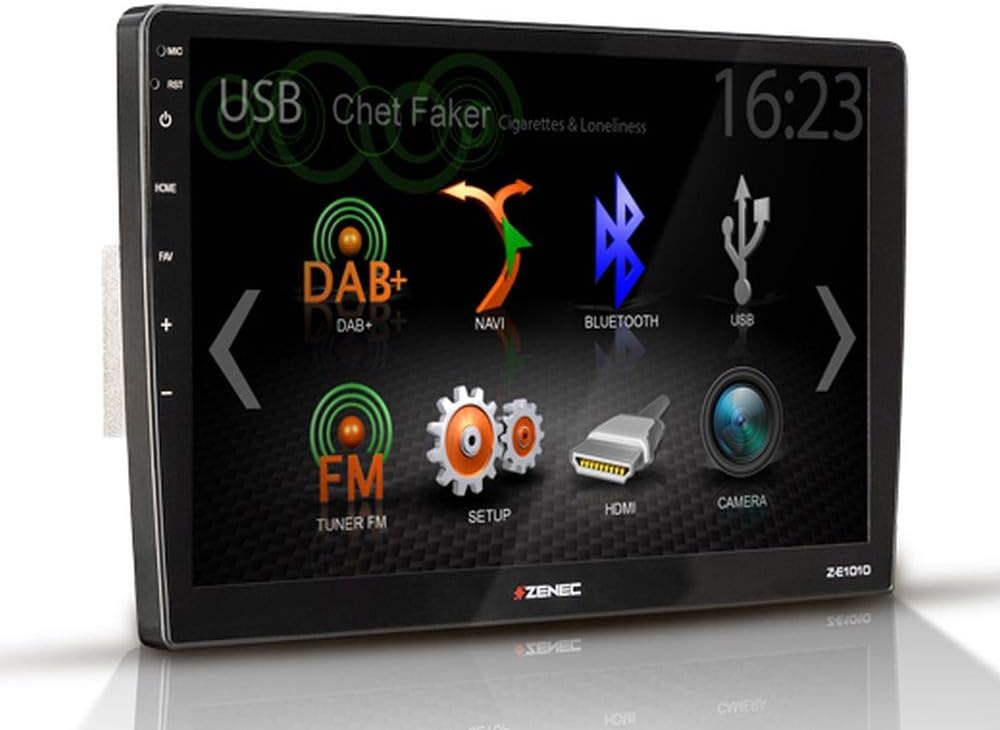
5.1. irudia: Zenec Z-E1010 Infotainment System main screen. This image illustrates the primary user interface of the Zenec Z-E1010 Infotainment System. The screen shows various selectable icons for core functions such as USB media playback, DAB+ digital radio, navigation, Bluetooth connectivity, FM radio, system setup, HDMI input, and camera view. The current time '16:23' is visible in the top right corner, and 'Chet Faker - Cigarettes & Loneliness' is displayed as the currently playing track via USB.
5.1. Funtzionamendu Orokorra
- Piztu/Itzali: Press and hold the power button (usually on the left side) to turn the unit on or off. A short press may mute audio or switch modes.
- Ukipen-pantaila: Navigate through menus and select functions by tapping the corresponding icons on the capacitive touchscreen.
- Bolumen kontrola: Use the physical volume buttons or on-screen controls to adjust audio levels.
5.2. Audio Ezaugarriak
- DAB+ Tuner: Select the 'DAB+' icon to access digital radio. Features include service following, MOT Slideshow, DLS (Dynamic Label Segment), and DLS text. The tuner provides clear digital radio reception.
- FM sintonizadorea: Select the 'FM Tuner' icon for analog radio. It supports RDS (Radio Data System) functions.
- USB erreprodukzioa: Connect USB storage devices to the two USB 2.0 ports for audio and video file erreprodukzioa.
- Equalizer: The unit includes a 3-band equalizer for audio customization.
5.3. Konektibitatea
- Bluetooth 4.1: Access the 'Bluetooth' function for hands-free calling with good voice quality and A2DP music streaming. Pair your smartphone via the Bluetooth settings menu.
- SmartLink: This feature allows direct connection for Apple CarPlay and Android Auto, making smartphone applications available on the infotainment screen.
- WebEsteka 2.0: Extends integration of online content such as YouTube, ShoutCast, and various audio/video players, controllable via the Z-E1010.
5.4. Nabigazioa
The Z-E1010 can be upgraded to a fully equipped GPS receiver with the optional Z-EMAP-CORE navigation package. Once installed, select the 'NAVI' icon to access navigation functions.
5.5. RealDash Application
The RealDash application provides a virtual dashboard display. This feature requires an optional OBDII dongle to connect to your vehicle's diagnostic port and display various vehicle data on the Z-E1010 screen.
5.6. System Settings ('SETUP')
Access the 'SETUP' menu to configure various system parameters, including audio settings, display preferences, Bluetooth pairing, and general device settings.
5.7. Camera Function
Atzeko bateragarria badaview camera is connected, select the 'CAMERA' icon to view the camera feed. This function is typically activated automatically when the vehicle is put into reverse gear.
6. Mantentzea
- Pantaila garbitzea: Use a soft, lint-free cloth to gently wipe the touchscreen. For stubborn marks, slightly dampGarbitu zapi bat urarekin edo pantaila garbitzeko soluzio batekin. Saihestu produktu kimiko gogorrak edo material urratzaileak.
- Garbiketa orokorra: Keep the unit free from dust and debris. Use a soft brush or compressed air to clean crevices.
- Software eguneraketak: Periodically check the Zenec official webwebgunea eskuragarri dauden software eguneratzeetarako, errendimendu optimoa eta funtzio berrietarako sarbidea bermatzeko.
7. Arazoak
This section addresses common issues you might encounter with your Z-E1010 unit.
- Potentziarik gabe: Check all power connections and vehicle fuses. Ensure the ignition is on.
- Audiorik ez: Verify volume settings, check speaker connections, and ensure the correct audio source is selected.
- Bluetooth parekatzearen arazoak: Ensure Bluetooth is enabled on both the Z-E1010 and your smartphone. Delete previous pairings and attempt to pair again.
- Ukipen-pantailak ez du erantzuten: Try restarting the unit. If the issue persists, a factory reset might be necessary (refer to the 'SETUP' menu).
- DAB+ Reception Poor: Ensure the DAB+ antenna is correctly installed and positioned. Check for signal strength in your area.
If you experience persistent issues not covered here, please contact Zenec customer support or a qualified service technician.
8. Zehaztapenak
| Ezaugarri | Zehaztapena |
|---|---|
| Marka | zenec |
| Modelo zenbakia | Z-E1010 |
| Pantailaren tamaina | 10.1 hazbete (25.7 cm) |
| Pantailaren bereizmena | 1024 x 600 pixel |
| Bistaratzeko mota | Ukipen-pantaila capacitiboa |
| Konektibitatea | USB (2x), Bluetooth 4.1 |
| Ezaugarri bereziak | DAB+, RDS, SmartLink (Apple CarPlay, Android Auto), WebLink 2.0, RealDash App, Integrated CAN BUS Adapter |
| Gailu bateragarriak | Smartphoneak |
| Audio irteera modua | Estereoa |
| Inguruko soinuaren konfigurazioa | 4.0 |
| HDMI portuak guztira | 1 |
| Potentzia Irteera | 4 x 50 W |
9. Bermea eta Laguntza
For detailed warranty information, please refer to the warranty card included with your product or visit the official Zenec website. For technical support, troubleshooting assistance beyond this manual, or inquiries about spare parts, please contact your authorized Zenec dealer or Zenec customer service directly. Keep your proof of purchase for warranty claims.


