Sarrera
The Logitech K400 Plus Wireless Touch Keyboard is designed for comfortable control of your entertainment from a distance. Featuring a full-size keyboard layout and a large, integrated touchpad, it offers seamless navigation for your PC-connected TV, media center, or other compatible devices. This manual provides essential information for setting up, operating, and maintaining your keyboard.
Konfigurazioa
1. Bateriaren instalazioa
The Logitech K400 Plus requires two AAA batteries (included). To install them:
- Bilatu bateriaren konpartimentuaren estalkia teklatuaren azpialdean.
- Lerratu estalkia ireki.
- Sartu bi AAA pila, polaritate zuzena ziurtatuz (+/-).
- Itxi bateriaren konpartimenduaren estalkia ondo.
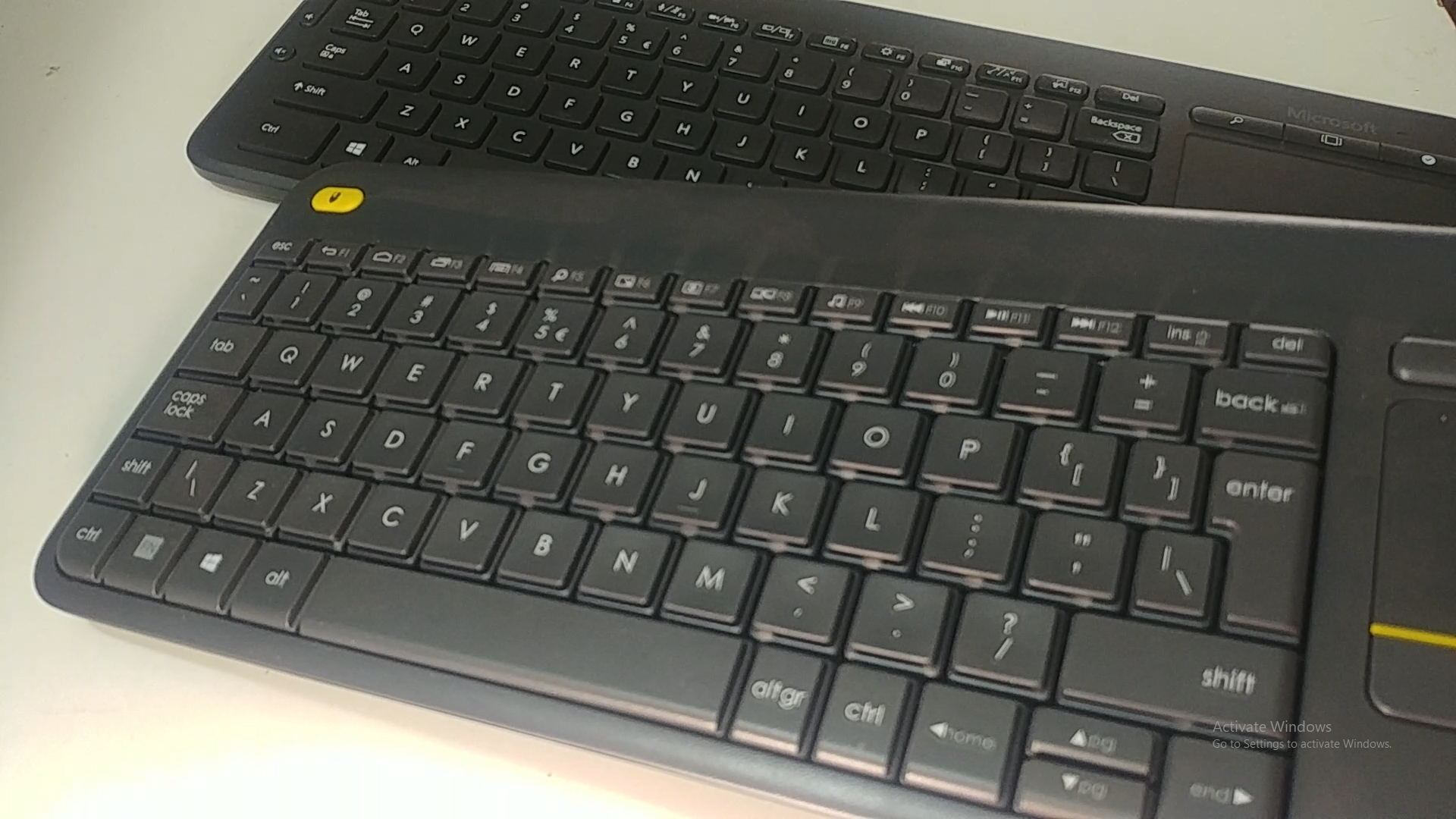
Image: Underside of the Logitech K400 Plus keyboard with the battery compartment open, showing two AAA batteries.
2. Connecting the Keyboard (USB Unifying Receiver)
The K400 Plus connects wirelessly via a small USB Unifying receiver. This receiver is typically stored inside the battery compartment for safekeeping.
- Open the battery compartment cover and remove the USB Unifying receiver.
- Plug the USB Unifying receiver into an available USB port on your PC, smart TV, or other compatible device.
- Turn on the keyboard using the On/Off switch located on the top right edge of the keyboard. A green indicator light will appear.
- Your keyboard should automatically connect. If not, refer to the troubleshooting section or visit the Logitech support website for the Unifying software.

Image: The Logitech K400 Plus Wireless Touch Keyboard, showing its compact design with integrated touchpad.
Funtzionamendu-argibideak
Teklatuaren diseinua
The K400 Plus features a standard QWERTY layout with additional function keys and an integrated touchpad.
Irudia: Xehetasun zehatza view of the Logitech K400 Plus keyboard keys, highlighting the QWERTY layout.
Touchpad erabilera
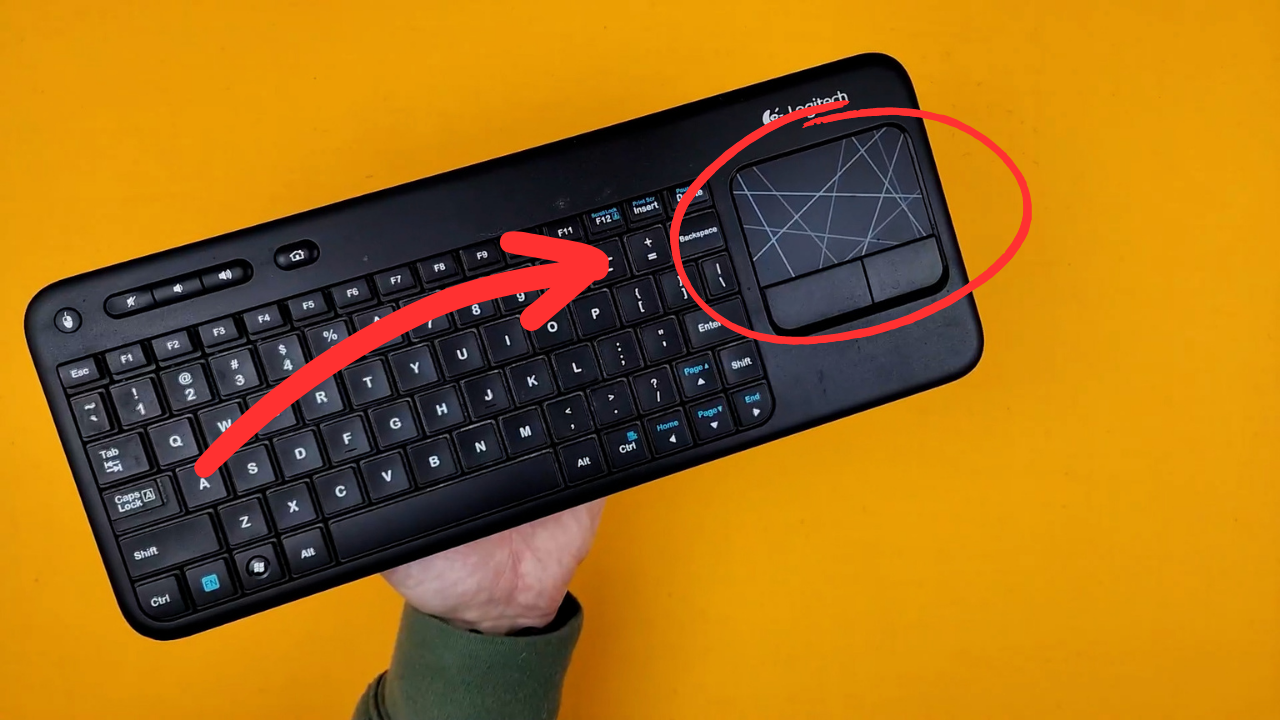
The large 3.5-inch touchpad allows for intuitive navigation. It supports multi-touch gestures for enhanced control.
- Hatz bakarreko ukitu: Egin klik ezkerreko botoiarekin.
- Bi hatzekin ukitzea: Egin klik eskuineko botoiarekin.
- Bi hatzekin korritzea: Scroll vertically or horizontally.
- Atximurkatu Zooma egiteko: Zoom in or out (if supported by the application).
- Dedicated left and right-click buttons are located below the touchpad for traditional mouse button functionality.
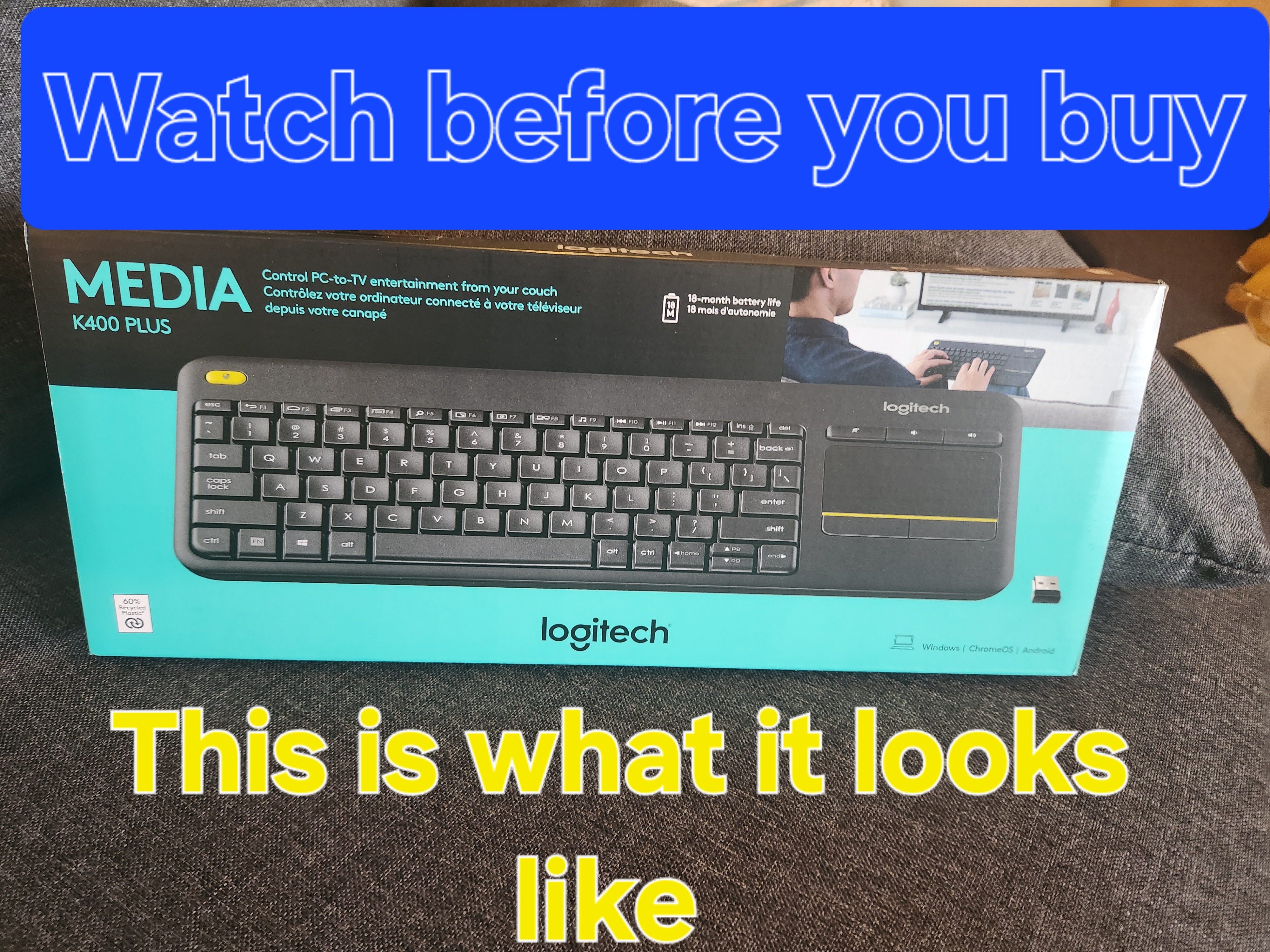
Image: A hand demonstrating the use of the integrated touchpad on the Logitech K400 Plus.
Multimedia eta funtzio teklak
The top row of keys includes dedicated multimedia controls and function keys (F1-F12) with secondary actions. To activate the secondary actions (indicated by blue icons), press and hold the Fn key (located near the left Ctrl key) while pressing the desired function key.
- Bolumen kontrolak: Dedicated buttons for mute, volume down, and volume up are located above the touchpad.
- Hasierako botoia: Access your device's home screen or browser home page.
- Page Up/Down, End: Nabigatu dokumentuak eta web orrialdeak.
- Left Mouse Button (top left): An additional left-click button is located on the top left corner of the keyboard for convenient two-hand operation.
Mantentzea
Garbiketa
Zure teklatua garbitzeko:
- Itzali teklatua pizteko/itzaltzeko etengailua erabiliz.
- Erabili lipurrik gabeko zapi leun bat dampurarekin edo garbiketa-soluzio leun batekin jarri.
- Avoid excessive moisture and do not immerse the keyboard in liquid.
- For stubborn dirt between keys, use compressed air.
Bateria ordezkatzea
When the battery indicator light (usually located near the On/Off switch) turns red or the keyboard becomes unresponsive, it's time to replace the batteries. Follow the "Battery Installation" steps in the Setup section to replace the two AAA batteries.
Arazoak konpontzea
Teklatuak ez du erantzuten
- Egiaztatu potentzia: Ensure the keyboard is turned on and the battery indicator light is green. Replace batteries if necessary.
- Hartzailea egiaztatu: Make sure the USB Unifying receiver is securely plugged into a working USB port on your device. Try a different USB port.
- Distantzia: Ensure the keyboard is within the operating range (up to 10 meters or 33 feet) of the USB receiver.
- Interferentzia: Mugitu teklatua eta hargailua interferentziak sor ditzaketen beste haririk gabeko gailu edo metalezko objektu handietatik urrun.
- Parekatu berriro: If issues persist, you may need to re-pair the keyboard with the Unifying receiver using the Logitech Unifying software, available for download from the official Logitech support webgunea.
Touchpad Not Working Correctly
- Azalera garbia: Ziurtatu ukipen-panelaren gainazala garbi eta hondakinik gabe dagoela.
- Gidariaren eguneratzea: Check your device's operating system for updated drivers for the Logitech Unifying receiver or touchpad.
- Ezarpenak: Verify touchpad settings in your device's control panel or system preferences.
Zehaztapenak
| Marka | Logitech |
| Modelo zenbakia | 920-009280 |
| Konektibitate Teknologia | Wireless (2.4 GHz via USB Unifying Receiver) |
| Wireless Range | Gehienez 10 metro (33 oin) |
| Pilak | 2 x AAA bateria (barne) |
| Bateriaren iraupena | 18 hilabete arte (erabileraren arabera alda daiteke) |
| Ukipen-panela integratua | 3.5-inch multi-touch touchpad |
| Gailu bateragarriak | PC (Windows 7, 8, 10 or later), Android TV, Chrome OS |
| Neurriak (L x W x H) | Gutxi gorabehera 13.9 x 5.5 x 0.9 hazbete (354 x 139.9 x 23.5 mm) |
| Pisua | Approximately 13.76 oz (390 g) with batteries |
Bermea eta Laguntza
Logitech provides a limited hardware warranty for this product. For detailed warranty information, technical support, and driver downloads, please visit the official Logitech support webgunea:
You can also find FAQs and community forums for additional assistance.


