1. Sarrera
This manual provides essential information for setting up, operating, and maintaining your Acer Aspire 5 Slim Laptop, Model A515-54-59W2. Designed for everyday computing, this laptop combines a 15.6-inch Full HD IPS display with a 10th Generation Intel Core i5 processor, 8GB of DDR4 RAM, and a fast 256GB PCIe NVMe SSD. It features Intel Wi-Fi 6 for reliable connectivity, a fingerprint reader for secure access, and a backlit keyboard for comfortable typing in various lighting conditions.
2. Konfigurazioa
2.1. Unboxing eta Hasierako Ikuskapena
Kontu handiz atera elementu guztiak paketetik. Ziurtatu osagai hauek daudela:
- Acer Aspire 5 Slim Laptop (Model A515-54-59W2)
- AC egokigailua
- Elikatze kablea
Inspect the laptop and accessories for any signs of damage. If any items are missing or damaged, contact your retailer or Acer support immediately.
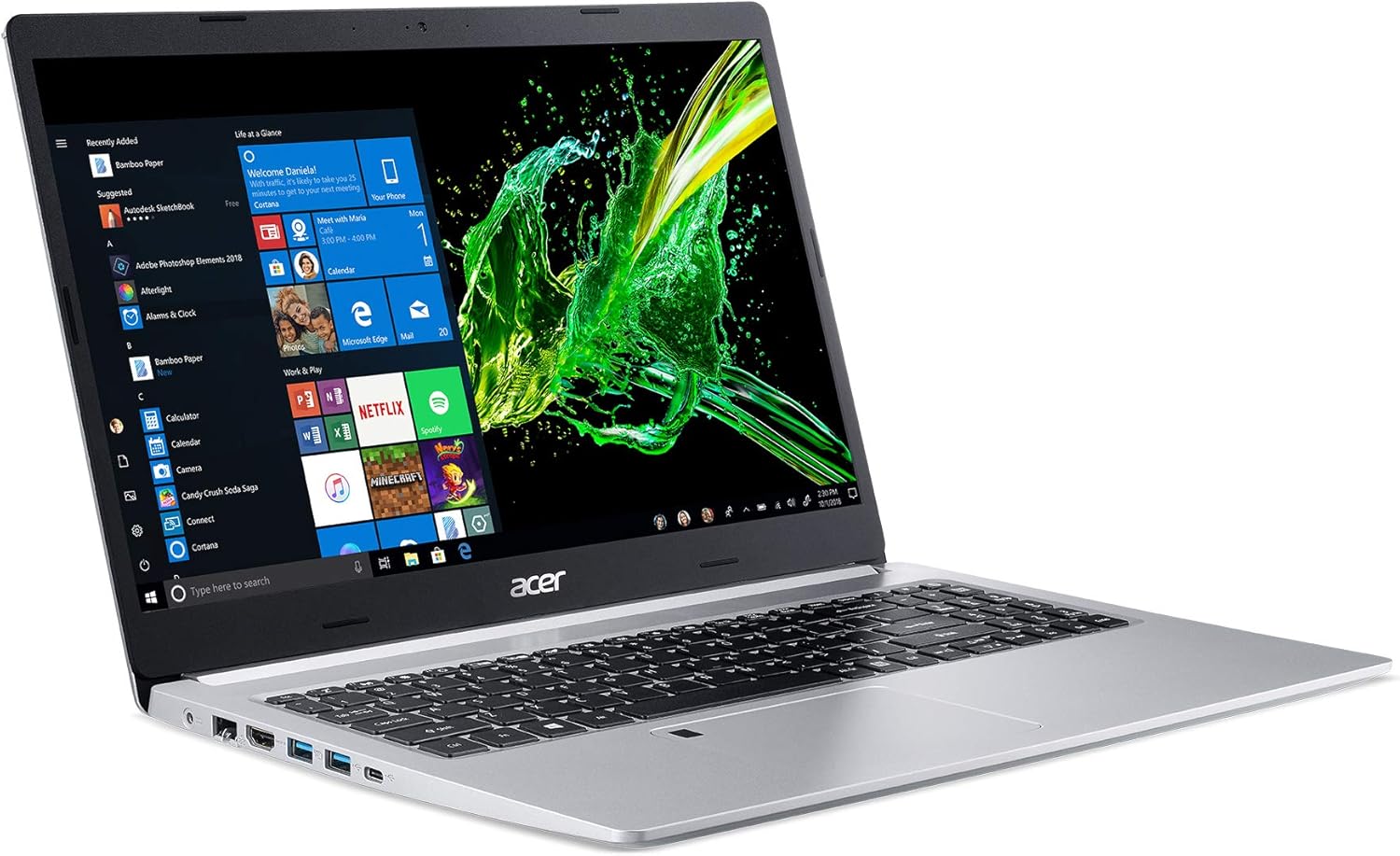
Figure 1: Acer Aspire 5 Slim Laptop
2.2. Initial Power-On and Operating System Setup
- Connect the AC adapter to the laptop's power port and then plug the power cord into an electrical outlet.
- Open the laptop lid. The laptop may power on automatically, or you may need to press the power button located on the keyboard.
- Jarraitu pantailan agertzen diren argibideei Windows 10 Home konfigurazio prozesua osatzeko. Honek normalean zure eskualdea eta hizkuntza hautatzea, Wi-Fi sare batera konektatzea eta erabiltzaile kontu bat sortzea barne hartzen ditu.
3. Ezaugarriak
3.1. Pantaila
The Acer Aspire 5 features a vibrant 15.6-inch Full HD (1920 x 1080) widescreen LED-backlit IPS display. This display technology provides wide viewing angles and accurate color reproduction, enhancing your visual experience for work and entertainment.

2. irudia: Pantailaren ezaugarriak
3.2. Errendimendua
Equipped with a 10th Generation Intel Core i5-10210U Processor, 8GB of DDR4 memory, and a 256GB PCIe NVMe SSD, the laptop delivers responsive performance for multitasking, productivity applications, and web browsing. The SSD ensures fast boot times and quick application loading.

Figure 3: Intel Core i5 10th Generation Processor
3.3. Konektibitatea
Ordenagailu eramangarriak konexio aukera zabalak eskaintzen ditu:
- Haririk gabekoa: Intel Wireless Wi-Fi 6 AX201 (802.11ax) Dual-Band (2.4GHz and 5GHz) with 2x2 MU-MIMO technology, Bluetooth 4.2
- Sare: 10/100/1000 Gigabit Ethernet LAN (RJ-45 ataka)
- USB atakak: 1 x USB 3.1 (Type-C) port (Gen 1 up to 5 Gbps), 2 x USB 3.1 Gen 1 Ports (one with Power-off Charging), 1 x USB 2.0 Port
- Bideo irteera: 1 x HDMI ataka HDCP euskarriarekin

Figure 4: Extensive Connectivity Options
3.4. Bateriaren iraupena
Enjoy extended productivity with up to 9.5 hours of battery life, allowing you to work or stream on the go without frequent recharging.

5. irudia: Bateriaren iraupena 9.5 ordu arte
3.5. Teklatua eta ukipen-panela
The laptop features a backlit keyboard for comfortable typing in dimly lit environments. The precision touchpad supports multi-gesture input, and an integrated Acer Fingerprint Reader provides secure and convenient login via Windows Hello.

Figure 6: Backlit Keyboard and Fingerprint Reader
3.6. 360 Degree View
Observe the design and port placement of the Acer Aspire 5 from various angles.
Video 1: Acer Aspire 5 A515-54 360 Degree View. This short video provides a comprehensive look at the laptop's exterior, showcasing bere Slim Profile eta portu kokapenak.
4. Funtzionamendu-argibideak
4.1. Piztu/Itzali
- Pizteko: Open the lid or press the power button.
- Itzateko: Egin klik Windows Hasi botoian, eta ondoren hautatu Pizteko > Itzali.
- Berrabiarazteko: Egin klik Windows Hasi botoian, eta ondoren hautatu Energia > Berrabiarazi.
- Lo egiteko: Itxi tapa edo egin klik Windows Hasi botoian, eta ondoren hautatu Energia > Lo.
4.2. Teklatua eta ukipen-panela erabiltzea
- The backlit keyboard can be toggled on/off or adjusted using the dedicated function keys (Fn + F8, for example, depending on model configuration).
- The touchpad supports standard mouse functions (tap to click, two-finger scroll, pinch to zoom) and Windows gestures.
- The fingerprint reader, integrated into the touchpad, allows for quick and secure login. Follow Windows Hello setup instructions to configure.
4.3. Periferikoak konektatzea
Utilize the various ports (USB, HDMI) to connect external devices such as mice, keyboards, external drives, or external monitors. For optimal performance, use USB 3.1 ports for high-speed devices.

7. irudia: Ezkerreko atakak

8. irudia: Eskuineko atakak
4.4. Using Wi-Fi and Bluetooth
- Wi-Fi: Haririk gabeko sare batera konektatzeko, egin klik ataza-barran dagoen Wi-Fi ikonoan, hautatu nahi duzun sarea eta idatzi pasahitza eskatzen bazaizu.
- Bluetootha: To pair a Bluetooth device, go to Windows Settings > Devices > Bluetooth & other devices, turn on Bluetooth, and select 'Add Bluetooth or other device'.
4.5. Pantailaren ezarpenak doitzea
Right-click on the desktop and select 'Display settings' to adjust resolution, scale, and orientation. For color optimization, Acer Color Intelligence technology is pre-configured.
5. Mantentzea
5.1. Garbiketa
- Use a soft, lint-free cloth to clean the screen and exterior surfaces. Avoid harsh chemicals.
- Regularly clean the keyboard and touchpad to remove dust and debris.
- Ensure ventilation vents are clear of obstructions to prevent overheating.
5.2. Software eguneraketak
Keep your operating system and drivers updated to ensure optimal performance and security. Windows Update can be accessed via Settings > Update & Security > Windows Update.
5.3. Bateria zaintzea
Bateriaren iraupena luzatzeko, saihestu bateria guztiz maiz deskargatzea. Gorde ordenagailu eramangarria leku fresko eta lehor batean denbora luzez erabiltzen ez duzunean.
6. Arazoak
- Ordenagailu eramangarria ez da pizten: Ziurtatu korronte-egokitzailea ondo konektatuta dagoela eta entxufea funtzionatzen duela. Saiatu beste entxufe batekin.
- Errendimendu motela: Close unnecessary applications, check for background updates, or restart the laptop.
- Wi-Fi konexio arazoak: Restart your router and modem. Ensure Wi-Fi is enabled on the laptop and drivers are updated.
- Pantailaren arazoak: Adjust display settings. If the screen remains blank or distorted, contact support.
7. Zehaztapenak
| Ezaugarri | Xehetasuna |
|---|---|
| Ereduaren izena | A515-54-59W2 |
| Pantailaren tamaina | 15.6 hazbete |
| Pantailaren bereizmena | 1920 x 1080 pixel (Full HD IPS) |
| Prozesadorea | 10th Gen Intel Core i5-10210U (up to 4.2 GHz) |
| RAM | 8 GB DDR4 |
| Biltegiratzea | 256 GB-ko PCIe NVMe SSD |
| Grafikoak | Intel UHD Graphics 620 integratua |
| Sistema eragilea | Windows 10 Home |
| Haririk gabeko konexioa | Intel Wi-Fi 6 AX201 (802.11ax), Bluetooth 4.2 |
| Portuak | 1x USB 3.1 Type-C, 2x USB 3.1 Gen 1, 1x USB 2.0, 1x HDMI, 1x RJ-45 Ethernet |
| Bateriaren iraupena | Gehienez 9.5 ordu |
| Pisua | 3.97 libra (1.8 kg) |
| Neurriak (LxWxH) | 14.31 x 9.86 x 0.71 hazbete |
| Kolorea | Zilarrezkoa |
| Ezaugarri Berezia | Numeric Keypad, Fingerprint Reader, Backlit Keyboard |
8. Bermea eta Laguntza
Bermeari buruzko informazioa eta laguntza teknikoa lortzeko, kontsultatu zure produktuarekin batera datorren dokumentazioa edo bisitatu Acerren laguntza ofiziala. webgunea. Gorde erosketaren egiaztagiria bermearen erreklamazioetarako.


