Sarrera
This manual provides detailed instructions for the proper setup, operation, and maintenance of your Supvan TP76E Black & White Label Printer. Please read this manual thoroughly before using the device to ensure optimal performance and longevity. The Supvan TP76E is designed for efficient label printing, offering monochrome output at speeds up to 25 labels per minute.
Paketearen edukia
Before beginning, verify that all items are present in the package:
- Supvan TP76E Label Printer
- Elikatze-moldagailua
- USB kablea
- Sample Label Roll
- Erabiltzailearen eskuliburua (dokumentu hau)
Konfigurazioa
1. Desontziratzea eta kokatzea
Carefully remove the printer from its packaging. Place the printer on a stable, flat surface with adequate ventilation. Ensure there is enough space around the printer for easy access to ports and for label output.

Figure 1: Supvan TP76E Label Printer (Side View)
This image displays the Supvan TP76E label printer from a side angle, highlighting its integrated keyboard, the transparent cover over the label compartment, and the overall compact design. The handle on the right side is also visible.
2. Energia-konexioa
- Connect the power adapter to the power input port on the printer.
- Entxufatu korronte-egokitzailearen beste muturra entxufe elektriko estandar batera.
- Press the power button to turn on the printer. The display should illuminate.
3. Loading Label Roll
The TP76E uses thermal label rolls. Follow these steps to load a new roll:
- Open the transparent cover of the label compartment located at the top of the printer.
- Place the label roll onto the spindle, ensuring the labels feed from the bottom of the roll towards the print head.
- Feed the leading edge of the label through the guide until it is positioned under the print head.
- Itxi estalki gardena ondo.
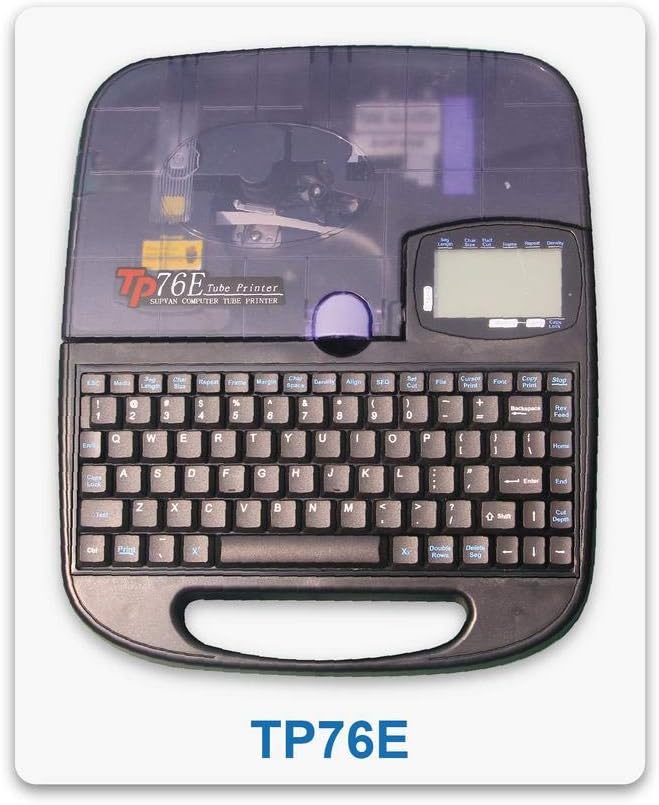
Figure 2: Supvan TP76E Label Printer (Top View)
Irudi honek goitik beherako irudia eskaintzen du view of the Supvan TP76E, clearly showing the full QWERTY keyboard layout, the LCD display, and the transparent cover of the label roll compartment. This perspective is useful for understanding the user interface.
4. Ordenagailu batera konektatzea (aukerakoa)
The TP76E supports USB connectivity for printing from a computer.
- Connect one end of the provided USB cable to the USB port on the printer.
- Konektatu USB kablearen beste muturra ordenagailuko USB ataka erabilgarri batera.
- Install the necessary drivers and software from the official Supvan website or the included installation media (if applicable).
Funtzionamendu-argibideak
1. Oinarrizko etiketa sortzea
- Piztu inprimagailua.
- Use the integrated QWERTY keyboard to type your desired text. The text will appear on the LCD display.
- Utilize the navigation keys to move the cursor and edit text.
- Sakatu Inprimatu botoia etiketa inprimatzeko.
2. Formatting Options
The TP76E offers various formatting options accessible via dedicated keys or menu functions:
- Letra-tamaina: Adjust the size of the text to fit your label requirements.
- Bold/Italic: Apply bold or italic styling to your text for emphasis.
- Azpimarratu: Add an underline to text.
- Markoa: Add decorative frames around your text.
- Lerrokatzea: Choose left, center, or right alignment for your text.
3. Saving and Recalling Labels
The printer allows you to save frequently used label designs for quick recall:
- Etiketa bat sortu ondoren, joan hona: Gorde function (refer to the display menu).
- Select an empty memory slot to store the label.
- To recall a saved label, navigate to the Gogoratu or Ireki function and select the desired label from the list.
Mantentzea
1. Inprimatze-burua garbitzea
Regular cleaning of the print head ensures clear and consistent print quality. Clean the print head if you notice faded or incomplete prints.
- Turn off the printer and disconnect the power adapter.
- Ireki etiketa-konpartimentuaren estalkia.
- Gently wipe the print head surface with a cotton swab lightly dampened with isopropyl alcohol. Do not use water or abrasive cleaners.
- Utzi inprimatze-burua guztiz lehortzen estalkia itxi eta berriro korrontea konektatu aurretik.
2. Etiketa-erroiluak ordezkatzea
When the label roll is depleted, replace it as follows:
- Ireki etiketa-konpartimentuaren estalkia.
- Remove the empty label roll core.
- Insert a new label roll as described in the Konfigurazioa atala.
- Itxi estalkia.
Arazoak konpontzea
This section addresses common issues you might encounter with your Supvan TP76E printer.
| Arazoa | Kausa posiblea | Irtenbidea |
|---|---|---|
| Inprimagailua ez da pizten | No power supply; Power adapter faulty | Ensure power adapter is securely connected to printer and outlet. Try a different outlet. |
| No labels are printing | Label roll empty; Labels incorrectly loaded; Print head dirty | Replace label roll. Re-load labels correctly. Clean the print head as per maintenance instructions. |
| Print quality is poor/faded | Print head dirty; Low quality labels | Clean the print head. Ensure you are using high-quality thermal labels. |
| Inprimagailua ez da ordenagailuak ezagutzen | USB cable faulty; Drivers not installed or outdated | Try a different USB cable or port. Install or update printer drivers from the Supvan webgunea. |
Zehaztapenak
Key technical specifications for the Supvan TP76E Label Printer:
- Modelo zenbakia: Supvan TP76E
- Inprimagailuaren irteera: Monokromoa (Zuri-beltza)
- Inprimatzeko teknologia: Termikoak
- Konektibitatea: USBa
- Inprimatutako euskarriak: Etiketak
- Gehienezko sarrera-orriaren edukiera: 25 (labels per minute)
- Alde biko inprimaketa: Ez
- Beharrezko bateriak: Ez
Bermea eta Laguntza
For warranty information, technical support, or to purchase accessories and replacement parts, please contact Supvan customer service or visit their official webgunea.
Informazio gehiago eta laguntza baliabideak aurki ditzakezu webgune ofizialean SUPVAN Store on Amazon.
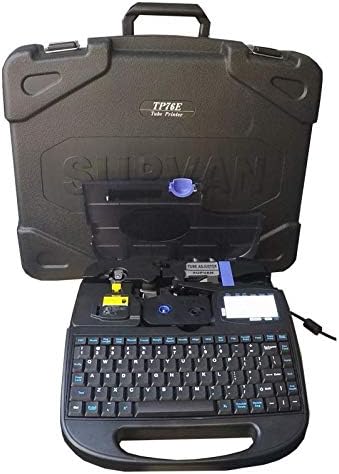
Figure 3: Supvan TP76E Label Printer in Carrying Case
This image shows the Supvan TP76E label printer neatly stored within its custom-fitted protective carrying case, emphasizing its portability and secure storage solution.


