Sarrera
The Renkforce USB-C RF-DKS-650 is a versatile universal docking station designed to expand the connectivity of your laptop, convertible, or tablet equipped with a USB-C port. It enables multitasking by supporting up to four monitors simultaneously and offers a wide array of ports for various peripherals. The docking station is powered by the included AC/DC power adapter, ensuring stable performance for all connected devices.
To optimize cable management and maintain a tidy workspace, the 15 available ports are thoughtfully distributed across the front and rear panels. Thicker cables for monitors and power are typically connected to the rear, while frequently accessed devices like headsets, USB drives, or smartphones can be conveniently plugged into the front.
This docking station also includes a practical charging function for smartphones and other small devices. Please note that for charging your laptop via USB-C, a separate power supply with sufficient wattage (not included) is required.
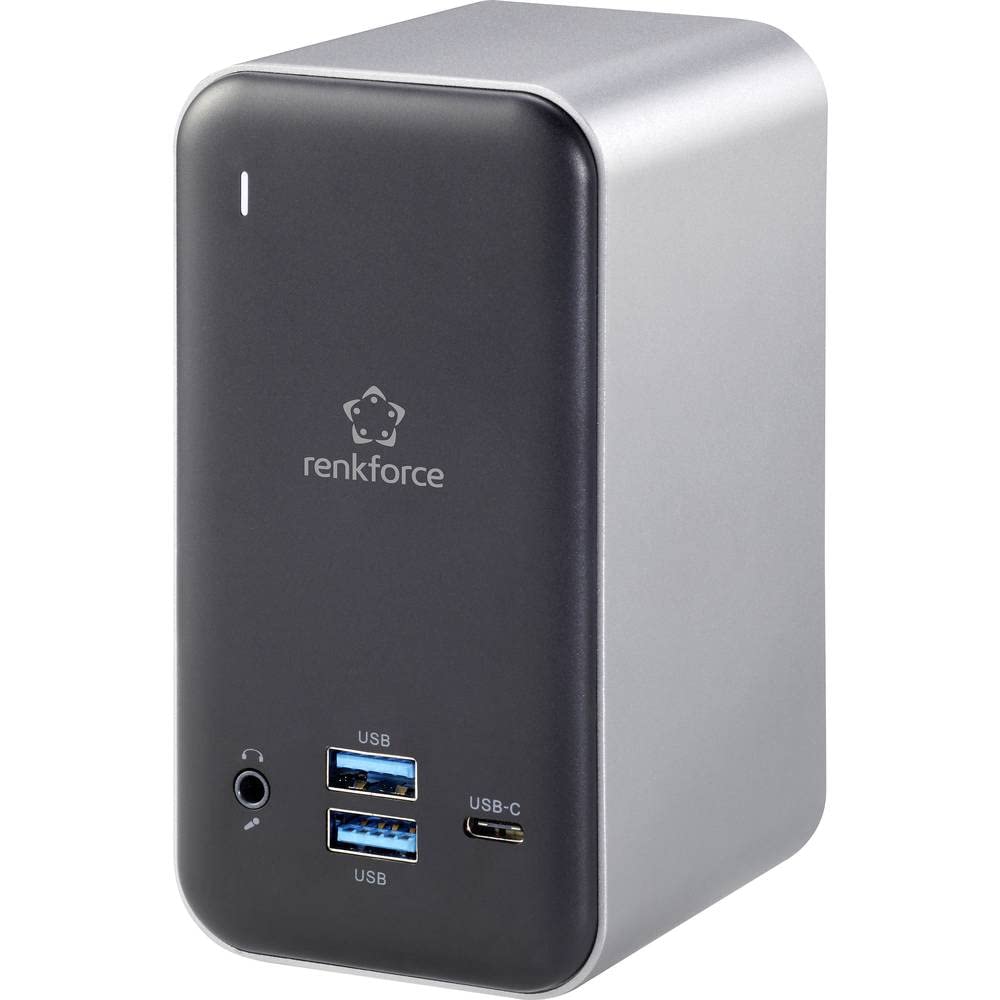
Figure 1: Renkforce USB-C RF-DKS-650 Universal Laptop Docking Station - Overall View
Konfigurazio Argibideak
Follow these steps to set up your Renkforce RF-DKS-650 docking station:
- Konektatu energia: Plug the supplied AC/DC power adapter (12V 3A @36W) into the 'POWER' port on the rear of the docking station and then into a wall outlet.
- Konektatu ostalari gailura: Use a USB-C cable to connect your laptop, convertible, or tablet to the 'HOST' USB-C port on the docking station.
- Konektatu monitoreak: Connect your monitors to the available HDMI (3 ports) and/or VGA (1 port) outputs on the docking station. The rear panel is ideal for these connections.
- Konektatu periferikoak: Connect your USB devices (e.g., keyboard, mouse, external drives) to the USB-A (USB 3.0) ports or additional USB-C ports. For audio, connect your headset or speakers to the 3.5mm microphone/audio jack.
- Konektatu sarea (aukerakoa): For a wired network connection, plug an Ethernet cable into the LAN port on the docking station.
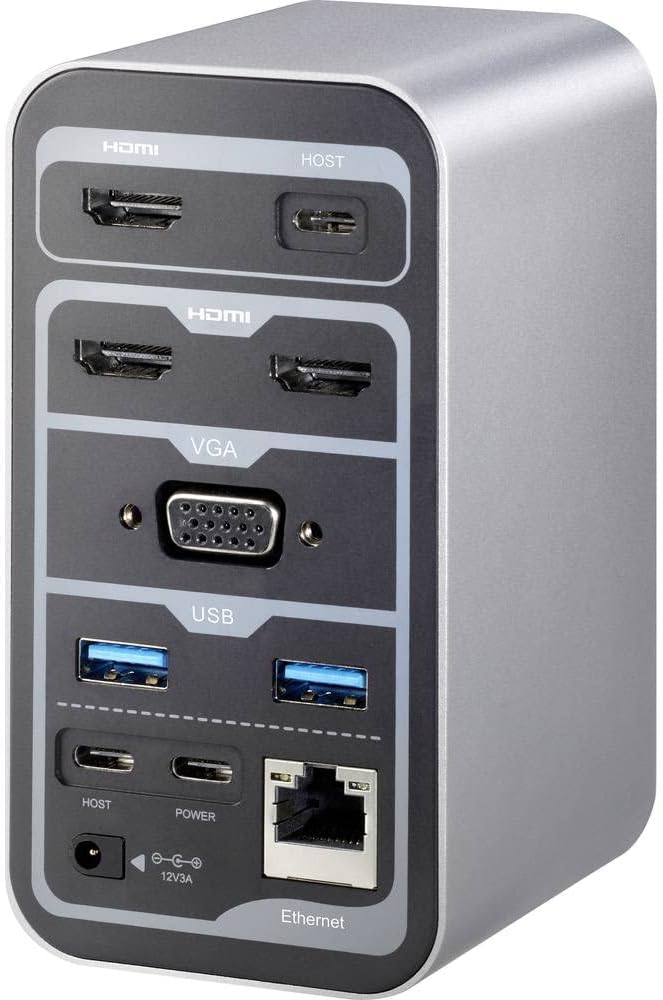
Figure 2: Rear Panel Connections (HDMI, VGA, USB, Ethernet, Power Input)

Figure 3: Front Panel Connections (USB, USB-C, Audio Jack)
Funtzionamendu-argibideak
Multi-Monitor Display
The RF-DKS-650 supports various multi-monitor configurations depending on your operating system:
- Windows 8 edo berriagoa: Supports 1 or 3 simultaneous display outputs. Mirroring and extension modes are supported.
- MAC OS 10.12 or higher: Supports up to 4 simultaneous display outputs. Mirroring and extension modes are supported. For Intel and M1 chips, specific configurations like HDMI1 or HDMI2+HDMI3+VGA are possible.
- iPad OS 13 or higher: Supports 1 or 3 simultaneous display outputs. Mirroring is supported, but extension mode is not.
- Android sistema eragilea: Supports 1 or 3 simultaneous display outputs. Mirroring is supported, but extension mode is not.
Adjust display settings (resolution, arrangement, mirroring/extension) through your operating system's display settings menu.
Gailua kargatzea
The docking station provides a convenient charging function for smartphones and other small USB-powered devices through its USB ports. Simply connect your device to an available USB-A or USB-C port.
Ohar garrantzitsua: While the docking station can charge small devices, it does not provide sufficient power to charge your laptop via its USB-C connection. For laptop charging, you must use your laptop's original power adapter or a separate, sufficiently powerful USB-C PD (Power Delivery) charger (not included).
Mantentzea
To ensure the longevity and optimal performance of your Renkforce RF-DKS-650 docking station, follow these simple maintenance guidelines:
- Garbiketa: Disconnect the docking station from power and all devices before cleaning. Use a soft, dry, lint-free cloth to wipe the exterior. Avoid using liquid cleaners, aerosols, or solvents, as these can damage the finish or internal components.
- Kableen kudeaketa: Utilize the strategic port placement to keep cables organized. Regularly check cable connections to ensure they are secure and free from kinks or damage.
- Aireztapena: Ziurtatu kargatzeko estazioa ondo aireztatutako leku batean dagoela gehiegi berotzea saihesteko. Ez blokeatu aireztapen-irekidurak.
- Biltegiratzea: Denbora luzez erabiltzen ez baduzu, gorde kargatzeko estazioa leku fresko eta lehor batean, eguzki-argitik eta muturreko tenperaturetatik babestuta.
Arazoak konpontzea
If you encounter issues with your Renkforce RF-DKS-650 docking station, refer to the following common problems and solutions:
- Ez dago pantailan pantailan:
- Ziurtatu kargatzeko estazioa piztuta dagoela eta korronte-egokitzailea ondo konektatuta dagoela.
- Verify that the USB-C cable connecting the docking station to your host device is properly seated.
- Check that the HDMI/VGA cables are securely connected to both the docking station and the monitors.
- Confirm that your monitor is set to the correct input source (e.g., HDMI 1, VGA).
- Saiatu zure ostalari gailua berrabiarazten.
- Update your graphics drivers on your host device.
- Ez dira ezagutzen USB gailuak:
- Ensure the docking station is properly connected to your host device via USB-C.
- Saiatu USB gailua kargatzeko estazioaren beste ataka batera konektatzen.
- Konektatu USB gailua zuzenean zure ostalari gailura funtzionatzen duela baieztatzeko.
- Berrabiarazi zure ostalari gailua.
- Sareko konexio arazoak:
- Egiaztatu Ethernet kablea ondo konektatuta dagoela bai kargatzeko estaziora bai zure bideratzailera/modemara.
- Egiaztatu zure sareko ezarpenak zure ostalari gailuan.
- Try connecting your host device directly to the router/modem to isolate the issue.
- Charging Function Not Working for Laptop:
- As noted, the docking station does not provide power to charge your laptop. Use your laptop's dedicated power adapter or a separate USB-C PD charger.
Zehaztapen Teknikoak
| Marka | Renkforce |
| Elementuaren eredu-zenbakia | RF-4499452 |
| ASIN | B08DJ112NF |
| Kolorea | Hainbat |
| Connectivity / Interface Types | HDMI, USB |
| Gailu bateragarriak | Laptops, Convertibles, Tablets with USB-C, iPad |
| Number of Display Outputs | 4 |
| HDMI ataka kopurua | 3 |
| Number of VGA Ports | 1 |
| Gehieneko Ebazpena | 3840 x 2160 pixel |
| Potentzia Sarrera | AC/DC 12V 3A (36W) |
| Sistema eragileen bateragarritasuna | Windows 8 or higher, MAC OS 10.12 or higher, iPad OS 13 or higher, Android OS |
| Lehenengo data Amazon.com.be-n eskuragarri | 18ko maiatzaren 2022a |
Bermea eta Laguntza
The Renkforce RF-DKS-650 Universal Laptop Docking Station comes with a 1-year spare parts availability guarantee from the manufacturer.
For technical support, warranty claims, or further assistance, please contact Renkforce customer service or refer to the official Renkforce webharremanetarako informazioa lortzeko gunea.


