1. Sarrera
This manual provides comprehensive instructions for the installation, operation, and maintenance of your AZZA CSAZ-340F CELESTA ATX Mid Tower Gaming Case. Please read this manual thoroughly before beginning installation to ensure proper setup and to maximize the performance and longevity of your system components.

1. irudia: The AZZA CSAZ-340F CELESTA Mid Tower ATX Case, showcasinbere diseinua eta forma-faktorea kontuan hartuta.
2. Segurtasun informazioa
- Always disconnect the power supply from the wall outlet before installing or removing any components inside the case.
- Handle all components with care to prevent damage from electrostatic discharge (ESD). Consider using an anti-static wrist strap.
- Keep the case and components away from liquids and excessive moisture.
- Berotu gehiegizko tenperatura saihesteko, ziurtatu kaxa inguruan aireztapen egokia dagoela.
- Do not attempt to modify the case structure or components, as this may void your warranty and pose safety risks.
- Keep small parts and packaging materials out of reach of children.
3. Paketearen edukia
Egiaztatu behean zerrendatutako elementu guztiak zure paketean daudela:
- AZZA CSAZ-340F CELESTA ATX Mid Tower Gaming Case
- Osagarrien kutxa (torlojuak, euskarri-euskarriak, kable-bridak, etab. dituena)
- Erabiltzailearen eskuliburua (dokumentu hau)
4. Zehaztapenak
The following table details the technical specifications of the AZZA CSAZ-340F CELESTA case:
| Ezaugarri | Zehaztapena |
|---|---|
| Marka | AZZA |
| Ereduaren izena | CSAZ-340F CELESTA |
| Kasu mota | Mid dorrea |
| Plaka amaren bateragarritasuna | ATX, Mikro-ATX, Mini-ITX |
| Kolorea | Beltza |
| Materiala | Metala |
| Elikatze-iturriaren muntaketa mota | Beheko mendia |
| Hozteko metodoa | Airea |
| Fan Size (Included/Supported) | 120mm (Rear included), Supports 120mm/140mm |
| GPUaren gehienezko luzera | 320 mm |
| CPU hozgailuaren gehienezko altuera | 165 mm |
| PSUaren gehienezko luzera | 160 mm |
| 3.5" HDD Support | 2 |
| 2.5" SSD Support | 4/6 (depending on configuration) |
| Aurrealdeko Fan euskarria | 3 x 120 mm edo 3 x 140 mm |
| Top Fan Support | 2 x 120 mm edo 2 x 140 mm |
| Rear Fan Support | 1 x 120 mm |
| Aurreko erradiadorearen euskarria | Up to 280mm/360mm |
| Goiko erradiadorearen euskarria | 2 x 120mm (from image) |
| Atzeko erradiadorearen euskarria | 1 x 120mm (from image) |
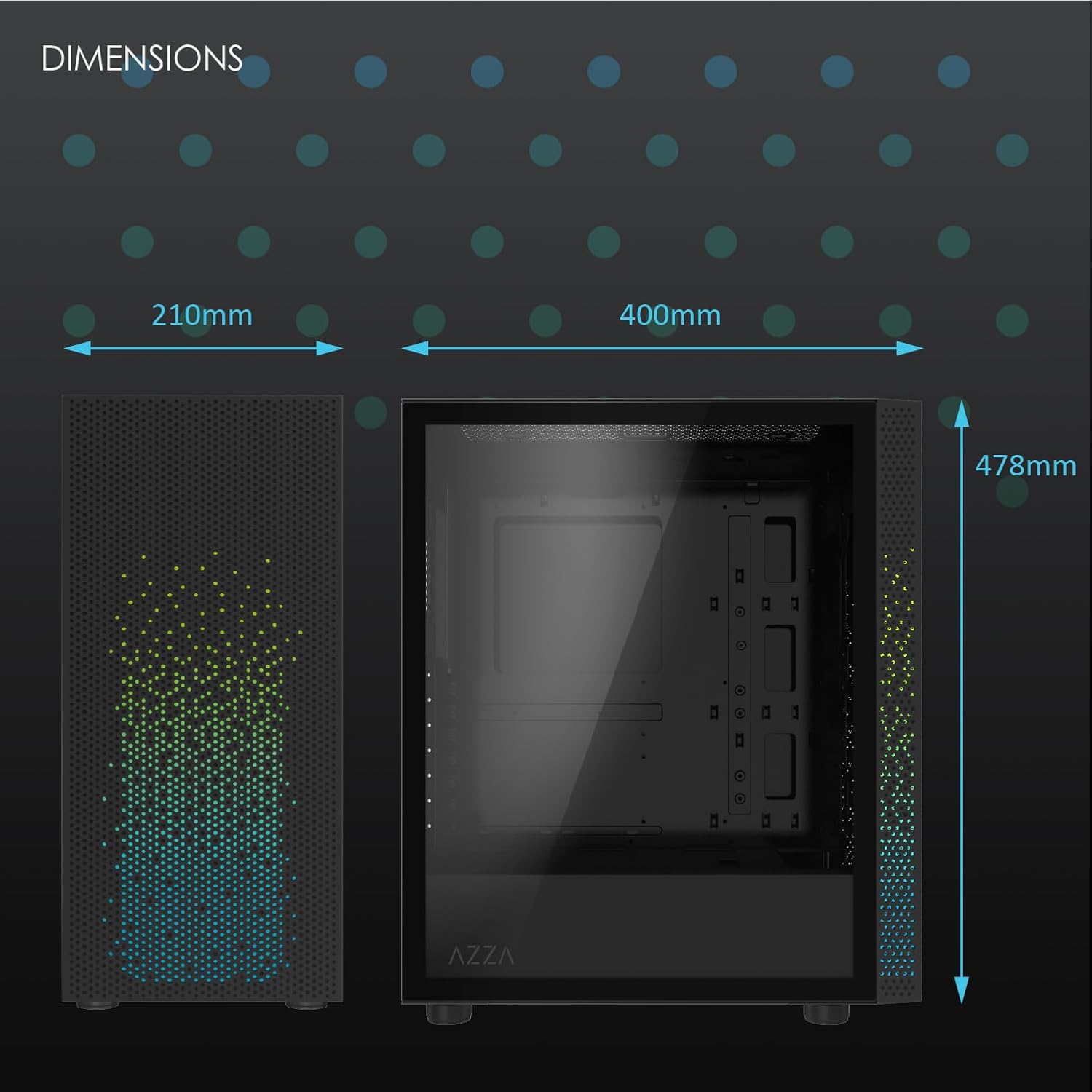
2. irudia: Physical dimensions of the AZZA CSAZ-340F CELESTA case: 210mm (width), 400mm (depth), 478mm (height).

3. irudia: Diagram illustrating fan and radiator mounting options for the AZZA CSAZ-340F CELESTA case, including front, top, and rear configurations.

4. irudia: Internal component support diagram for the AZZA CSAZ-340F CELESTA, showing maximum dimensions for CPU cooler, GPU, and PSU, along with drive bay locations.
5. Konfigurazioa eta instalazioa
Follow these steps to install your components into the AZZA CSAZ-340F CELESTA case.
5.1 Kasua prestatzea
- Jarri zorroa gainazal lau eta egonkor batean.
- Remove the side panels. Typically, these are secured with thumbscrews at the rear of the case.
5.2 Plaka amaierako instalazioa
- Install the I/O shield (if not pre-installed) into the rear opening of the case.
- Ensure the correct standoffs are installed for your ATX, Micro-ATX, or Mini-ITX motherboard. Adjust or add standoffs as needed using the provided tools.
- Kontu handiz jarri plaka basea euskarrien gainean, torloju-zuloak lerrokatuz.
- Secure the motherboard with the appropriate screws from the accessory box. Do not overtighten.
5.3 Energia hornitzeko unitatea (PSU) instalatzea
- Position the PSU in the bottom rear compartment of the case, ensuring the fan faces downwards (if there's a filtered vent) or upwards.
- Secure the PSU to the case with the provided screws from the rear.
- Pasa beharrezko elikatze-kableak kableen kudeaketarako ebakiduretatik.
5.4 Biltegiratze Unitatearen Instalazioa (HDD/SSD)
- 3.5 hazbeteko HDDak: Locate the drive cage. Slide the 3.5" HDDs into the drive trays and secure them, often tool-less or with screws.
- 2.5 hazbeteko SSDak: Mount 2.5" SSDs to the dedicated mounting points on the motherboard tray or drive cage using screws.
- Connect SATA data and power cables to the installed drives.
5.5 Txartel grafikoaren (GPU) instalazioa
- Kendu beharrezko PCIe zirrikituen estalkiak kaxaren atzealdetik.
- Carefully insert your graphics card into the appropriate PCIe slot on the motherboard until it clicks into place.
- Lotu txartel grafikoa kaxari torlojuekin.
- Connect any required PCIe power cables from the PSU to the graphics card.
5.6 CPU Cooler Installation
Install your CPU cooler according to its specific manufacturer instructions. Ensure it does not exceed the maximum height of 165mm.
5.7 Haizagailuaren eta erradiadorearen instalazioa
Kaxak hainbat haizagailu eta erradiadore konfigurazio onartzen ditu:
- Aurrealdea: Up to 3 x 120mm or 3 x 140mm fans, or radiators up to 280mm/360mm.
- Goia: Up to 2 x 120mm or 2 x 140mm fans, or 2 x 120mm radiators.
- Atzekoa: 1 x 120mm fan (pre-installed) or 1 x 120mm radiator.
Mount fans and radiators using the appropriate screws and ensure proper airflow direction.
5.8 Kableen kudeaketa
Erabili plaka basearen atzean dauden kableen kudeaketarako ebakiak eta lotura puntuak kableak bideratzeko eta finkatzeko. Horrek aire-fluxua eta estetika hobetzen ditu.
5.9 Azken Batzarra
- Double-check all connections and ensure no cables are obstructing fans.
- Reattach the side panels.
- Connect external peripherals (monitor, keyboard, mouse, etc.) and the power cable.
6. Zure sistemaren funtzionamendua
Once all components are installed and connected, you can power on your system. The front panel features power and reset buttons, along with USB and audio ports for convenient access.

5. irudia: Close-up of the AZZA CSAZ-340F CELESTA's front panel, highlighting the integrated lighting effects.
7. Mantentzea
- Hauts-iragazkiak: Regularly clean the dust filters (if present) to maintain optimal airflow and cooling performance.
- Barruko garbiketa: Periodically open the case and use compressed air to remove dust from components and fans. Ensure the system is powered off and unplugged before cleaning.
- Kanpoko garbiketa: Garbitu kanpoko gainazalak leun batekin, damp oihal. Saihestu produktu kimiko gogorrak.
8. Arazoak
Arazoak badituzu, kontuan hartu arazoak konpontzeko ohiko urrats hauek:
- Sistemak ez du pizten:
- Ziurtatu elikatze-kablea ondo konektatuta dagoela bai elikatze-iturrira bai hormako entxufera.
- Check that the PSU switch is in the "ON" position.
- Verify all internal power connections (24-pin ATX, 8-pin CPU, PCIe power) are seated correctly.
- Confirm front panel power button cables are correctly connected to the motherboard.
- Ez dago pantaila-irteerarik:
- Ensure your monitor is connected to the graphics card (not the motherboard's integrated graphics ports, unless you are using integrated graphics).
- Berriro sartu grafiko txartela bere PCIe zirrikituan.
- Check monitor input selection.
- Gehiegizko berotzea:
- Verify all case fans are spinning and oriented correctly for airflow.
- Garbitu hauts-iragazkiak eta barneko osagaiak.
- Ensure CPU cooler is properly seated and making good contact with the CPU.
9. Bermea eta Laguntza
For warranty information and technical support, please refer to the official AZZA website or contact AZZA customer service directly. Keep your proof of purchase for warranty claims.
AZZA Official Webgunea: www.azza.com