1. Sarrera
The i-tec USB-C Quattro Docking Station is designed to expand the connectivity of your USB-C enabled laptop or tablet, allowing for connection of up to four external displays, multiple USB peripherals, Gigabit Ethernet, and audio devices. It also provides up to 85W Power Delivery to charge your host device. This manual provides detailed instructions for setting up, operating, and maintaining your docking station.
2. Paketearen edukia
Mesedez, egiaztatu behean zerrendatutako elementu guztiak zure paketean daudela:
- i-tec USB-C Quattro Docking Station
- Elikatze-moldagailua
- Elikatze-kablea
- USB-C USB-C kablea
- Hasierako gida azkarra

2.1. irudia: Package Contents. The image displays the docking station, its power adapter, a power cable, and a quick setup guide.
3. Produktua amaitu daview
Familiarize yourself with the ports and indicators on your i-tec USB-C Quattro Docking Station.
3.1 Aurreko panela

3.1. irudia: Front Panel. This image shows the front of the docking station with a power button, microphone input jack, headphone output jack, one USB-C data port, and one USB 3.0 port.
- Pizteko botoia: To power on/off the docking station.
- Mikrofonoaren jack-a (3.5 mm): Konektatu mikrofono bat.
- Aurikularretarako Jack (3.5 mm): Konektatu entzungailuak edo bozgorailuak.
- USB-C datu ataka: USB-C periferikoak konektatzeko.
- USB 3.0 ataka: For connecting USB 3.0/2.0 peripherals.
3.2 Atzeko panela

3.2. irudia: Rear Panel. This image displays the rear of the docking station, featuring the DC 20V power input, USB-C PD host connection, two DisplayPort outputs, two HDMI outputs, a Gigabit Ethernet (LAN) port, and four additional USB 3.0 ports.
- DC 20V potentzia sarrera: Konektatu barneko korronte-egokigailua.
- USB-C PD Host Port: Connect to your laptop/tablet for data, video, and power delivery.
- 2x DisplayPort: Connect external monitors via DisplayPort cables.
- 2 x HDMI: Connect external monitors via HDMI cables.
- GLAN (RJ-45) Port: Konektatu kablezko sare batera.
- 4x USB 3.0 ataka: Connect USB 3.0/2.0 peripherals.
4. Konfiguratzeko argibideak
Follow these steps to set up your i-tec USB-C Quattro Docking Station:
- Konektatu energia: Connect the power adapter to the DC 20V input on the rear of the docking station, then plug the power cable into a wall outlet.
- Konektatu ostalari gailura: Use the provided USB-C to USB-C cable to connect the docking station's USB-C PD Host Port to your laptop's USB-C port. Ensure your laptop's USB-C port supports DisplayPort Alternate Mode and Power Delivery for full functionality.
- Kanpoko pantailak konektatu: Connect your monitors to the DisplayPort and/or HDMI ports on the rear of the docking station. You can connect up to four displays simultaneously.
- Konektatu periferikoak: Plug your USB devices (keyboard, mouse, external drives) into the available USB 3.0 or USB-C data ports. Connect an Ethernet cable to the GLAN port for wired network access. Connect headphones/speakers and a microphone to the respective audio jacks on the front panel.
- Piztu: Press the power button on the front of the docking station. Your operating system should automatically detect the connected devices.
- Gidariaren instalazioa (beharrezkoa bada): For optimal performance or specific features, visit www.i-tec.cz/setup to download and install any required drivers for your operating system.
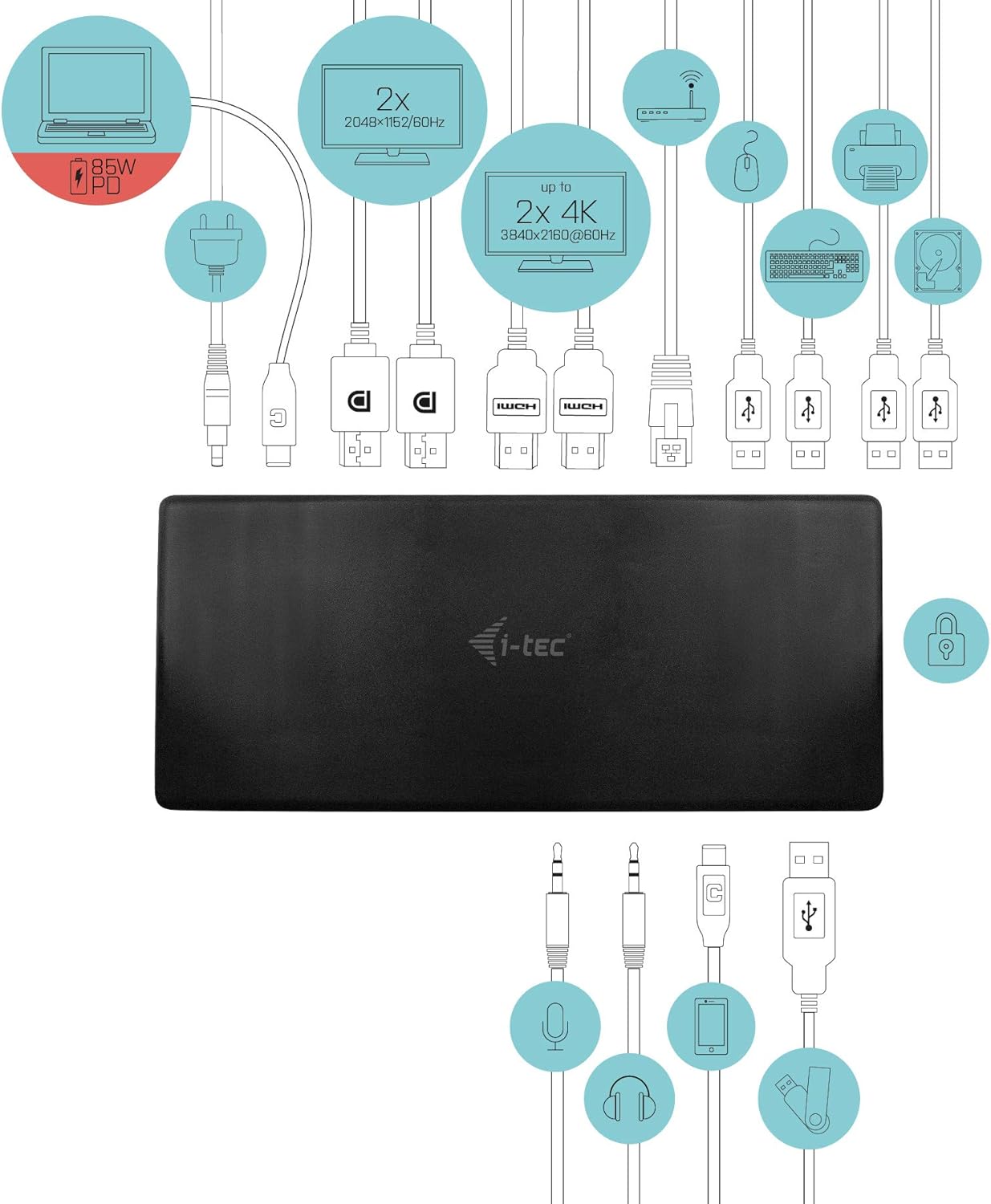
4.1. irudia: Connection Diagram. This diagram shows the various connections to the docking station, including power, host laptop, multiple monitors (DisplayPort and HDMI), Ethernet, and USB peripherals like a mouse, keyboard, and external storage.
5. Funtzionamendu-argibideak
Once set up, your docking station provides enhanced functionality for your workspace.
5.1 Pantaila anitzeko konfigurazioa
The docking station supports up to four external displays. You can configure these displays in various modes (extended, mirrored) through your operating system's display settings.
- Ebazpenak: Supports up to 2x 2048x1152@60Hz and 2x 4K/60Hz, depending on your host device's capabilities and display connections.
- Windows: Right-click on the desktop, select 'Display settings' to arrange and configure your monitors.
- MacOS: Go to 'System Preferences' > 'Displays' to adjust settings.

5.1. irudia: Four-Display Setup Example. This image illustrates a workstation with a laptop connected to the docking station, driving four external monitors simultaneously, showcasing a multi-tasking environment.
5.2 Energia-banaketa
The USB-C PD Host Port provides up to 85W of power to charge your connected laptop or tablet, eliminating the need for a separate power adapter for your host device.
5.3 USB konexioa
Utilize the 5x USB 3.0 ports and 1x USB-C data port for connecting various peripherals such as external hard drives, USB flash drives, keyboards, mice, and printers. USB 3.0 ports offer high-speed data transfer.
5.4 Gigabit Ethernet
The GLAN RJ-45 port provides a stable and high-speed wired internet connection (10/100/1000 Mbps), which is often more reliable than Wi-Fi.
5.5 Audio funtzionalitatea
Connect your headphones, speakers, or microphone to the 3.5mm audio jacks on the front panel for integrated audio input and output.

5.2. irudia: Productivity Setup. This image shows a professional desk environment where the docking station facilitates a multi-monitor setup for enhanced productivity, displaying various applications and data across four screens.
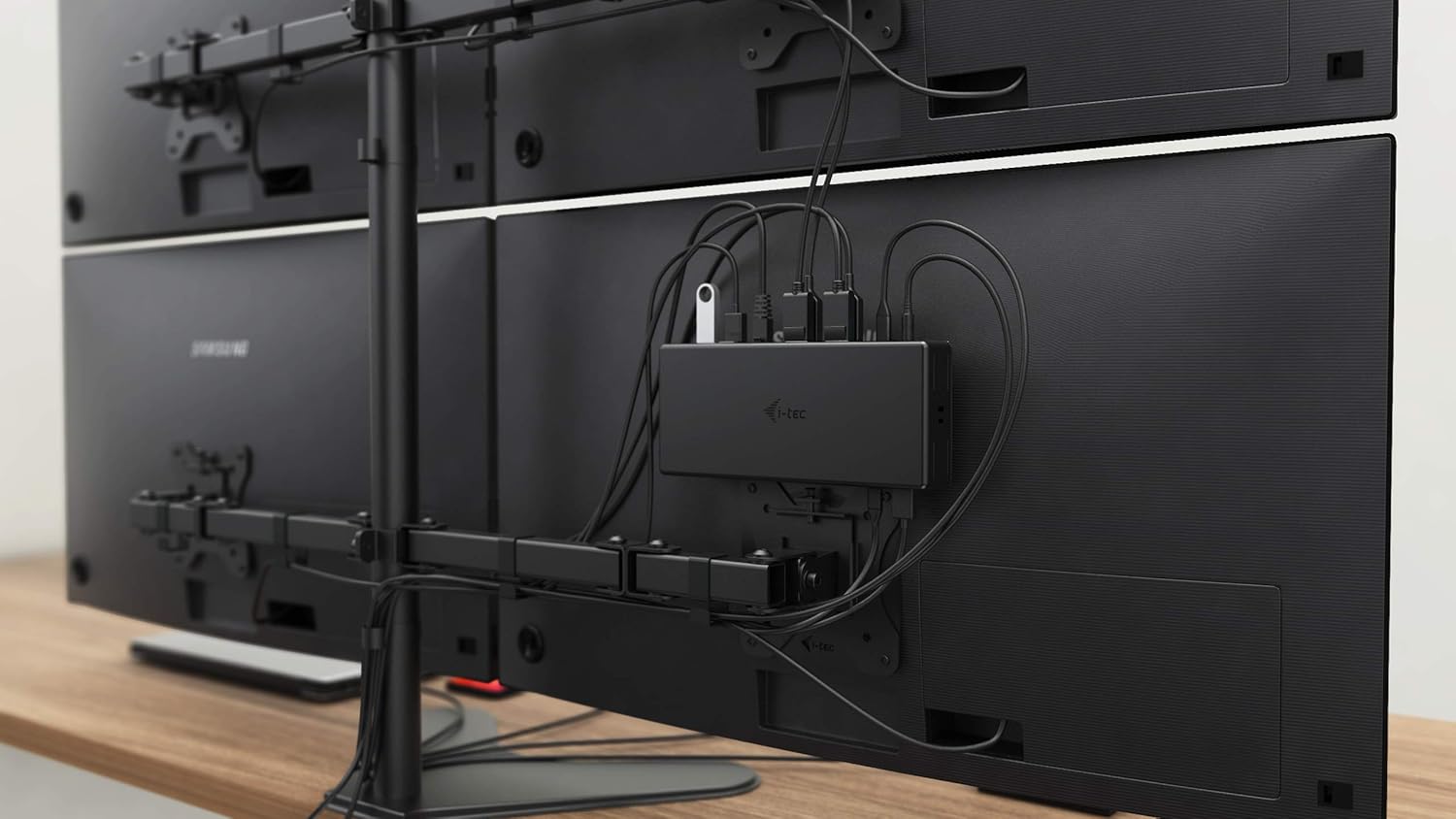
5.3. irudia: VESA Mounting. The docking station is shown mounted vertically on the back of a VESA-compatible monitor, demonstrating its space-saving installation capability and organized cable routing.

5.4. irudia: Connected Workstation. This image provides a close-up of the docking station on a desk, connected to a laptop via USB-C, and featuring various peripherals plugged into its front ports, including a USB drive and audio devices.
6. Mantentzea
Zure kargatzeko estazioaren iraupena eta errendimendu optimoa bermatzeko, jarraitu mantentze-jarraibide hauek:
- Garbiketa: Erabili zapi leun eta lehor bat kargatzeko estazioaren kanpoaldea garbitzeko. Ez erabili garbitzaile likidorik edo aerosolik.
- Aireztapena: Ziurtatu kargatzeko estazioa ondo aireztatutako leku batean dagoela gehiegi berotzea saihesteko. Ez blokeatu aireztapen-irekidurak.
- Manipulazioa: Saihestu kargatzeko estazioa erortzea edo kolpe gogorren eraginpean jartzea.
- Ingurumena: Mantendu gailua muturreko tenperatura, hezetasun eta eguzki-argitik urrun.
- Kableen kudeaketa: Ensure cables are not excessively bent or strained to prevent damage to ports and cables.
7. Arazoak
Zure kargatzeko estazioaren arazoekin arazoak badituzu, jo ezazu honako arazo eta irtenbide ohikoenei:
7.1 Ez dago pantaila-irteerarik
- Egiaztatu konexioak: Ensure all display cables (HDMI/DisplayPort) are securely connected to both the docking station and the monitors.
- Ostalari konexioa: Verify the USB-C cable from the docking station is firmly connected to your laptop's USB-C port.
- Potentzia: Confirm the docking station is powered on and receiving power from the adapter.
- Ordenagailu eramangarrien bateragarritasuna: Ziurtatu zure ordenagailu eramangarriaren USB-C atakak DisplayPort modu alternatiboa onartzen duela.
- Gidariak: Install the latest drivers from www.i-tec.cz/setup.
- Pantailaren ezarpenak: Adjust your operating system's display settings to detect and extend/mirror displays.
7.2 USB Devices Not Working
- Berriro konektatu: Disconnect and reconnect the USB device to a different port on the docking station.
- Potentzia: Ziurtatu kargatzeko estazioa piztuta dagoela.
- Ostalari konexioa: Verify the USB-C connection to your laptop.
- Energia-kontsumoa: If connecting high-power USB devices, ensure the docking station's power adapter is correctly connected and providing sufficient power.
7.3 No Network Connection (GLAN)
- Kablearen egiaztapena: Ziurtatu Ethernet kablea ondo konektatuta dagoela bai kargatzeko estaziora bai zure bideratzailera/modemara.
- Bideratzailea/Modema: Verify your router/modem is working correctly.
- Gidariak: Ensure the latest network drivers are installed for the docking station.
7.4 Laptop Not Charging (Power Delivery)
- Elikadura egokitzailea: Confirm the docking station's power adapter is correctly connected and functioning.
- USB-C kablea: Ensure the USB-C cable connecting the dock to your laptop supports Power Delivery.
- Ordenagailu eramangarrien bateragarritasuna: Verify your laptop's USB-C port supports Power Delivery input.
8. Zehaztapenak
| Ezaugarri | Xehetasuna |
|---|---|
| Modelo zenbakia | C31QUATTRODOCKPDUK |
| Marka | i-tek |
| Produktuaren neurriak | 10 x 2 x 2.7 hazbete (25.4 x 5.08 x 6.86 cm) |
| Elementuaren pisua | 10.2 ontza (0.29 kg) |
| Hardware interfazea | DisplayPort, Ethernet, HDMI, USB, USB 3.0, USB Type C |
| Gailu bateragarriak | Laptop, Monitor, Tablet with USB-C (DisplayPort Alt Mode & Power Delivery support recommended) |
| USB portuak guztira | 6 (5x USB 3.0, 1x USB-C Data) |
| HDMI portuak guztira | 2 |
| DisplayPort osoa | 2 |
| Ethernet | Gigabit Ethernet (RJ-45) |
| Audio Jackak | 1x Microphone (3.5mm), 1x Headphone (3.5mm) |
| Potentzia Entrega | Up to 85W to host device |
| Kolorea | Beltza |
| Sistema Eragileak | Windows 10, macOS, Android, Linux |
9. Bermearen informazioa
The i-tec USB-C Quattro Docking Station is covered by a manufacturer's warranty. Please refer to the warranty card included in your package or visit the official i-tec webwebgunean bermearen baldintza zehatzak ikusteko. Gorde erosketaren frogagiria bermearen erreklamazioetarako.
10. Bezeroarentzako arreta
For further assistance, technical support, or to download the latest drivers and firmware, please visit the official i-tec support webgunea:
You may also find helpful resources and FAQs on the product's dedicated setup page: www.i-tec.cz/setup


