1. Sarrera
This manual provides comprehensive instructions for the setup, operation, and maintenance of your LG 27UK670-B 27-inch UHD (3840 x 2160) IPS Display. This monitor is designed to deliver a high-quality visual experience with its sRGB 99% Color Gamut, HDR10 support, and a 3-Side Virtually Borderless Design. It also offers flexible connectivity including USB Type-C with 40W Power Delivery and an adjustable stand for ergonomic comfort.

1. irudia: Aurrealdea view of the LG 27UK670-B monitor.
2. Paketearen edukia
Konfigurazioarekin jarraitu aurretik, egiaztatu elementu guztiak paketean daudela.
- Monitor Display Panel
- Monitorearen euskarria (oinarria eta lepoa)
- Elikatze kablea
- USB motako kablea
- HDMI kablea
- DisplayPort kablea
- Erabiltzailearen eskuliburua (dokumentu hau)
3. Konfigurazioa
3.1 Standa muntatzea
- Carefully place the monitor display panel face down on a soft, clean surface to prevent scratches.
- Lotu euskarriaren lepoa monitorearen panelaren atzealdean. Ziurtatu ondo sartzen dela klik eginez.
- Konektatu euskarriaren oinarria euskarriaren lepoari. Estutu oinarriaren beheko aldean dagoen torlojua finkatzeko.
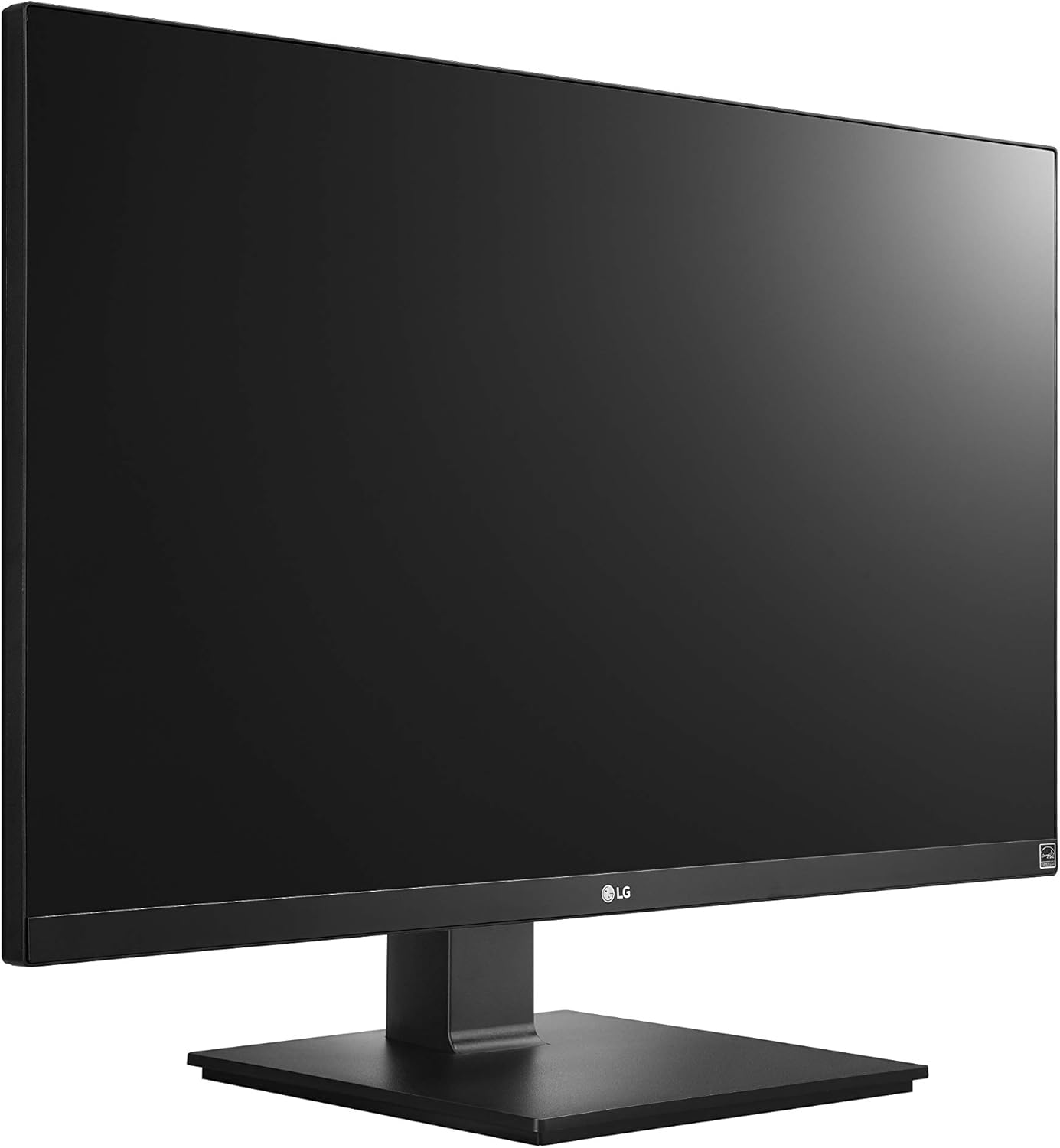
Figure 2: Assembled LG 27UK670-B monitor.
3.2 Ordenagailu batera konektatzea
The LG 27UK670-B monitor offers multiple connectivity options.
- USB C motako konexioa: Connect one end of the USB Type-C cable to the USB-C port on the monitor and the other end to your computer's USB-C port. This connection supports video, data transfer, and power delivery (up to 40W) to your connected device.
- HDMI konexioa: Use an HDMI cable to connect the monitor to your computer's HDMI output.
- DisplayPort konexioa: Use a DisplayPort cable to connect the monitor to your computer's DisplayPort output.
- Potentzia-konexioa: Konektatu elikatze-kablea monitorearen elikatze-sarrerara eta gero hormako entxufe batera.

3. Irudia: Atzealdea view monitorearen ataka konexioak dituena.
3.3 Adjusting the Stand
Monitorearen euskarriak hainbat doikuntza ergonomiko ahalbidetzen ditu:
- Altuera doitzea: Gently push or pull the monitor up or down to achieve your desired viewing altuera.
- Inklinazio doikuntza: Tilt the monitor screen forward or backward to optimize your viewangelua.
- Pibotaren doikuntza: Biratu monitorearen pantaila 90 gradu horizontalaren eta bertikalaren orientazioaren artean aldatzeko.
- Birako doikuntza: Rotate the monitor left or right on its base to share your screen or adjust your viewposizioa.
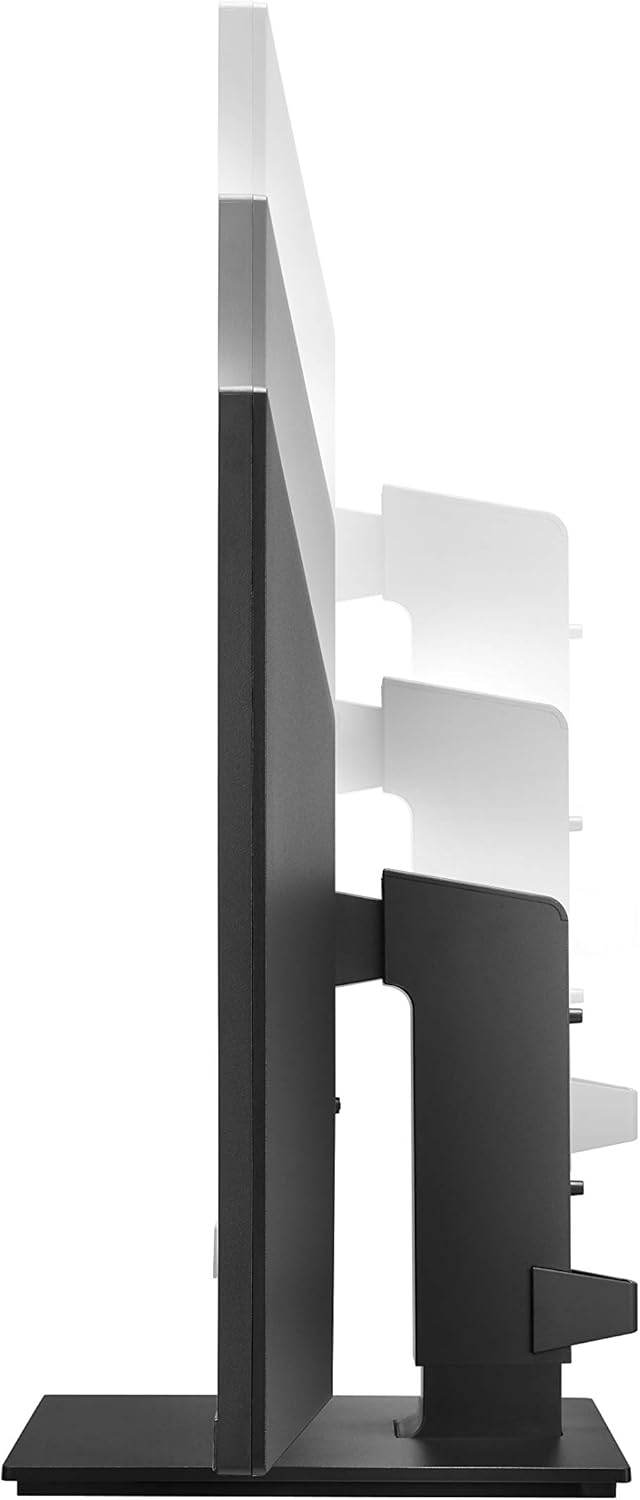
4. irudia: Monitorearen altueraren doikuntza.

Figure 5: Monitor in portrait orientation (pivot feature).
4. Monitorea funtzionatzea
4.1 Piztu/Itzali
Press the power button, usually located on the bottom center or rear of the monitor, to turn the display on or off.
4.2 Pantailan bistaratzeko (OSD) menua
The OSD menu allows you to adjust various display settings. Access it by pressing the joystick button (often located on the bottom center of the monitor). Navigate through the menu using the joystick to control brightness, contrast, color modes, input selection, and other advanced features.
4.3 Ezaugarri nagusiak
- UHD (3840 x 2160) Resolution: Provides sharp, detailed images.
- IPS pantaila: Eskaintzak zabalak viewangeluak eta koloreen erreprodukzio koherentea.
- sRGB % 99ko kolore gama: Ensures accurate and vibrant colors, suitable for creative professionals.
- HDR10: Enhances dynamic range for brighter whites and deeper blacks.
- AMD FreeSync Teknologia: Reduces screen tearing and stuttering for smoother gaming and video playback.
5. Mantentzea
5.1 Monitorea garbitzea
- Itzali beti monitorearen energia eta deskonektatu elikatze-kablea garbitu aurretik.
- Erabili lipurrik gabeko zapi leun bat dampUrarekin edo pantaila-garbitzaile espezializatu batekin garbitu.
- Ez ihinztatu garbitzailea zuzenean pantailan. Aplikatu lehenik oihalaren gainean.
- Avoid using abrasive cleaners, waxes, or solvents as they can damage the screen surface.
5.2 Arreta orokorra
- Mantendu monitoreak eguzki-argitik, bero-iturrietatik eta hauts gehiegizkotik urrun.
- Ziurtatu aireztapen egokia monitorearen inguruan, gehiegi berotu ez dadin.
- Saihestu objektu astunak monitorearen edo haren kableen gainean jartzea.
6. Arazoak
Monitorearekin arazoak badituzu, jo ezazu honako arazo eta irtenbide ohikoenei:
- Potentziarik gabe:
- Ziurtatu elikatze-kablea ondo konektatuta dagoela monitorera eta funtzionatzen duen entxufe elektriko batera.
- Check if the power button on the monitor is pressed.
- Seinalerik ez/Pantaila hutsa:
- Verify that the video cable (USB-C, HDMI, or DisplayPort) is securely connected to both the monitor and your computer.
- Ziurtatu sarrera-iturri zuzena hautatuta dagoela monitorearen OSD menuan.
- Egiaztatu zure ordenagailua piztuta dagoen eta lo moduan ez dagoen.
- Image Quality Issues (e.g., blurry, distorted):
- Doitu ordenagailuaren bereizmen-ezarpenak monitorearen jatorrizko bereizmenarekin bat etor daitezen (3840 x 2160).
- Reset the monitor's display settings to factory defaults via the OSD menu.
- Ziurtatu bideo-kablea ez dagoela hondatuta.
For further assistance, please consult the official LG support webwebgunean edo jarri harremanetan bezeroarentzako zerbitzuarekin.
7. Zehaztapenak
| Ezaugarri | Xehetasuna |
|---|---|
| Marka | LG |
| Modelo zenbakia | 27UK670-B |
| Pantailaren tamaina | 27 hazbete |
| Ebazpena | UHD (3840 x 2160) |
| Panel mota | IPS |
| Kolore gama | sRGB% 99 |
| HDR euskarria | HDR10 |
| Konektibitatea | USB Type-C (with 40W PD), 2x HDMI, DisplayPort, 2x USB 3.0, 3x USB 2.0 |
| Stand egokitzapenak | Tilt, Height, Pivot, Swivel |
| Elementuaren pisua | 15.4 kilo |
| Produktuaren neurriak (LxWxH) | 24.1 x 9.9 x 20.4 hazbete |
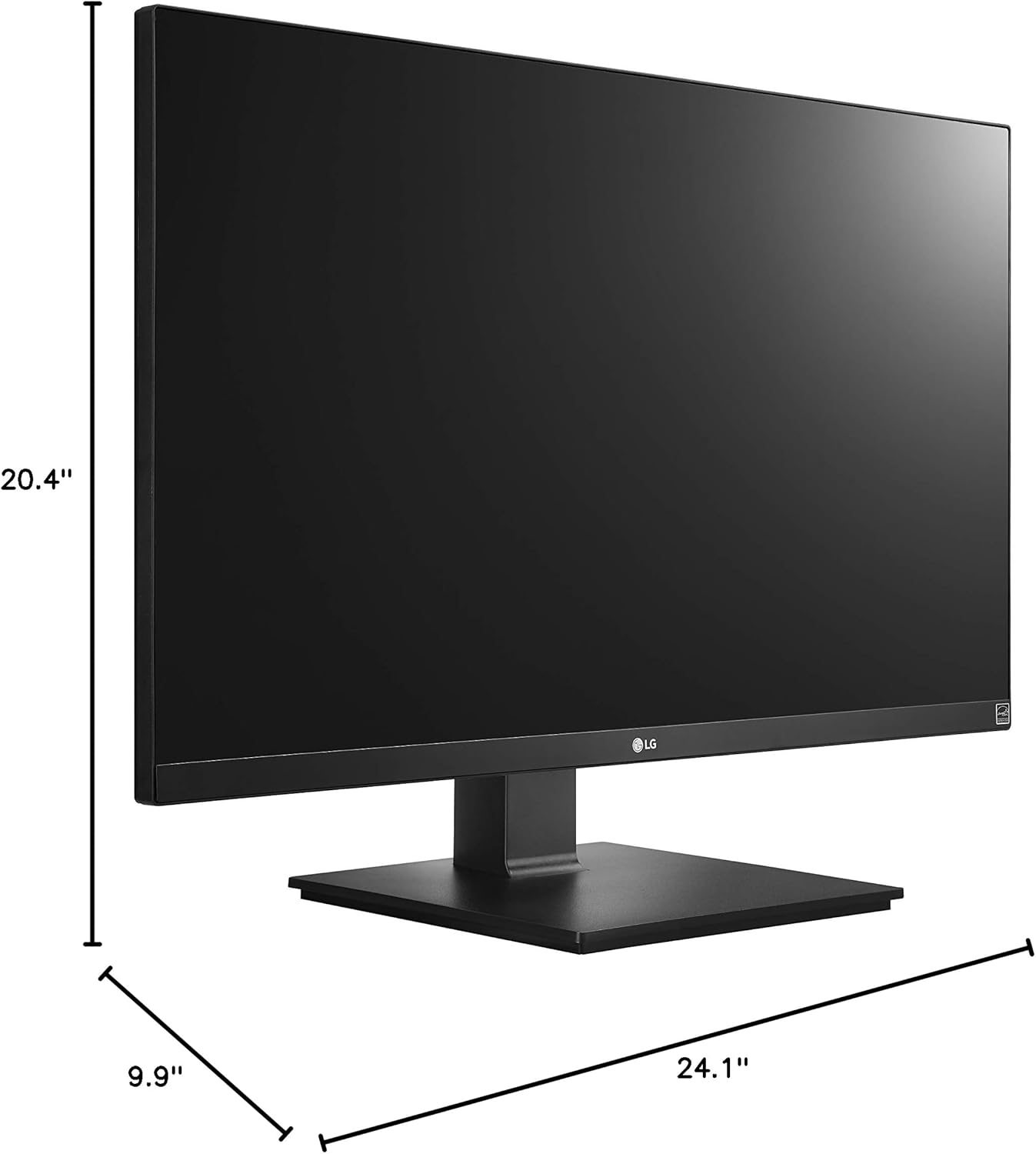
6 irudia: Monitorearen neurriak.
8. Bermea eta Laguntza
Your LG 27UK670-B monitor is covered by a manufacturer's warranty. For detailed information regarding warranty terms, conditions, and registration, please refer to the warranty card included in your product packaging or visit the official LG Electronics webgunea.
For technical support, service inquiries, or to download the latest drivers and software, please visit the LG support portal or contact LG customer service directly.
Lineako laguntza: www.lg.com/us/support