1. Sarrera
This manual provides detailed instructions for the installation, operation, and maintenance of your Mars Gaming MC500 ATX PC Case. Please read this guide thoroughly before beginning assembly or use to ensure proper functionality and safety. The MC500 is designed for high-performance computing, featuring exceptional cooling capabilities and a stylish FRGB lighting system.

Figure 1: Mars Gaming MC500 PC Case with tempered glass design.
2. Paketearen edukia
Egiaztatu osagai guztiak paketean daudela:
- Mars Gaming MC500 ATX PC Case
- Accessory box (screws, standoffs, cable ties)
- Erabiltzailearen eskuliburua (dokumentu hau)
3. Konfigurazioa eta instalazioa
Follow these steps for proper assembly of your PC components within the MC500 case.
3.1 Kasua prestatzea
- Kontu handiz atera zorroa bere paketetik.
- Jarri zorroa gainazal egonkor eta lau batean.
- Remove the tempered glass side panel by unscrewing the thumb screws at the rear of the case.
3.2 Plaka amaierako instalazioa
- Install the I/O shield into the motherboard tray opening.
- Align the motherboard with the pre-installed standoffs. Ensure the standoffs match your motherboard's form factor (ATX, Micro-ATX, Mini-ITX).
- Lotu plaka nagusia emandako torlojuekin.
3.3 Biltegiratze unitatearen instalazioa
The MC500 supports up to 4 x 2.5" SSDs or 2 x 3.5" HDDs.
- For 2.5" SSDs: Locate the dedicated mounting points on the motherboard tray or drive cages. Secure the SSDs with screws.
- For 3.5" HDDs: Utilize the drive cages located in the dual chamber design. Slide the HDDs into the trays and secure them.

Figure 2: Internal layout showing storage drive mounting locations.
3.4 Energia hornitzeko unitatea (PSU) instalatzea
- Install the PSU into the dedicated compartment at the bottom rear of the case.
- Lotu PSUa kaxaren atzealdeko torlojuekin.
3.5 Graphics Card and Expansion Card Installation
- Kendu beharrezko PCIe zirrikituen estalkiak kaxaren atzealdetik.
- Sartu zure grafiko-txartela edo beste hedapen-txartelak plaka baseko PCIe zirrikitu egokietan.
- Txartelak torlojuekin finkatu.
3.6 Kableen kudeaketa
Erabili plaka basearen atzean dauden kableen bideratze-ebakiak eta lotzeko puntuak kableak kudeatzeko. Horrek aire-fluxua eta estetika hobetzen ditu.
4. Funtzionamendu-argibideak
4.1 Piztea
After all components are installed and connected, close the side panel. Connect your monitor, keyboard, mouse, and power cable. Press the power button on the top I/O panel to start your system.
4.2 Haizagailuaren funtzionamendua
The MC500 comes with two pre-installed 18cm XXL FRGB fans at the front, providing excellent airflow. These fans operate automatically once the system is powered on, drawing cool air into the case.
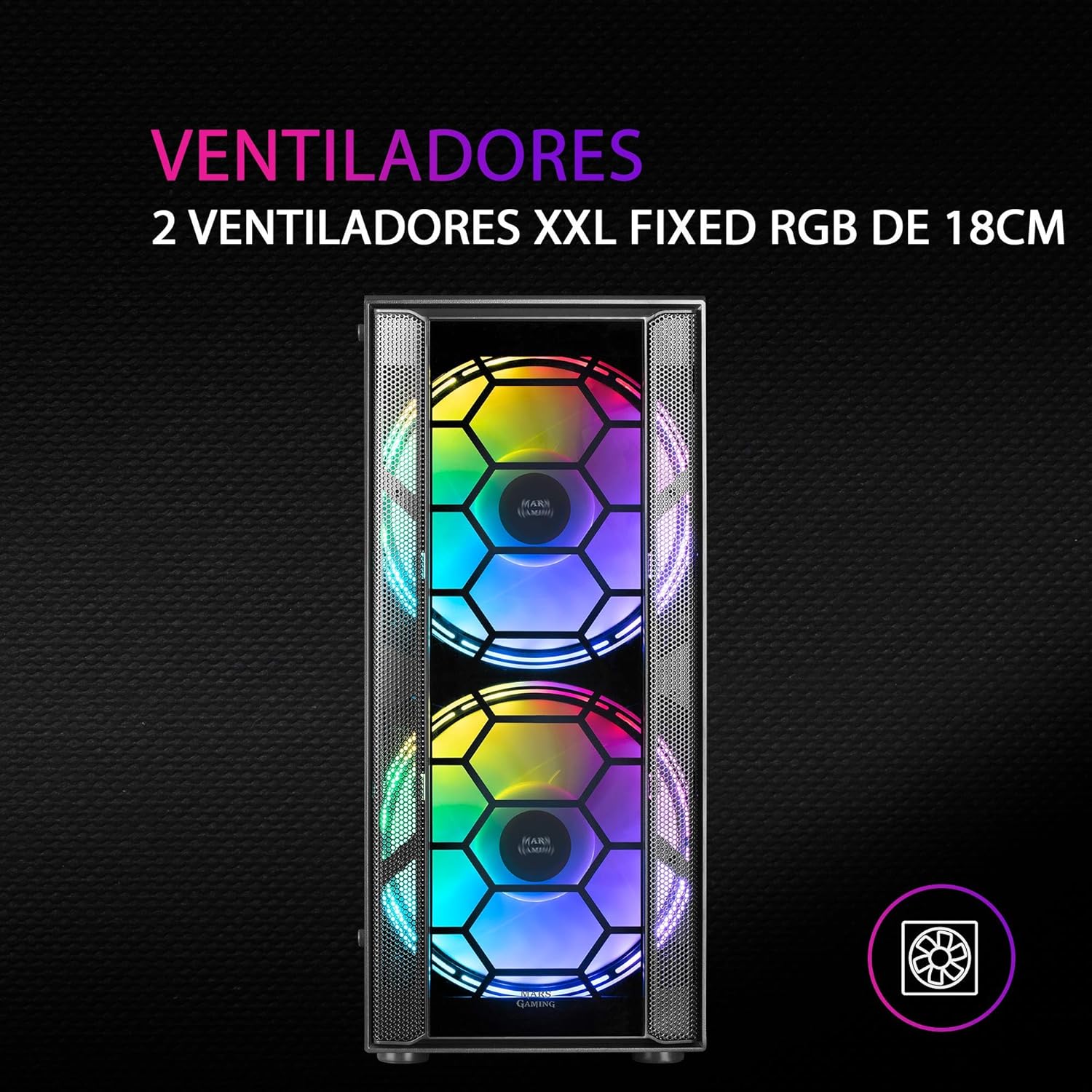
3. irudia: Aurrealdea view highlighting the two 18cm XXL FRGB fans.
4.3 FRGB Lighting
The front fans feature Fixed RGB (FRGB) lighting. This lighting system provides a constant stream of colors and activates automatically when the fans receive power. No additional software or controller is required for its operation.
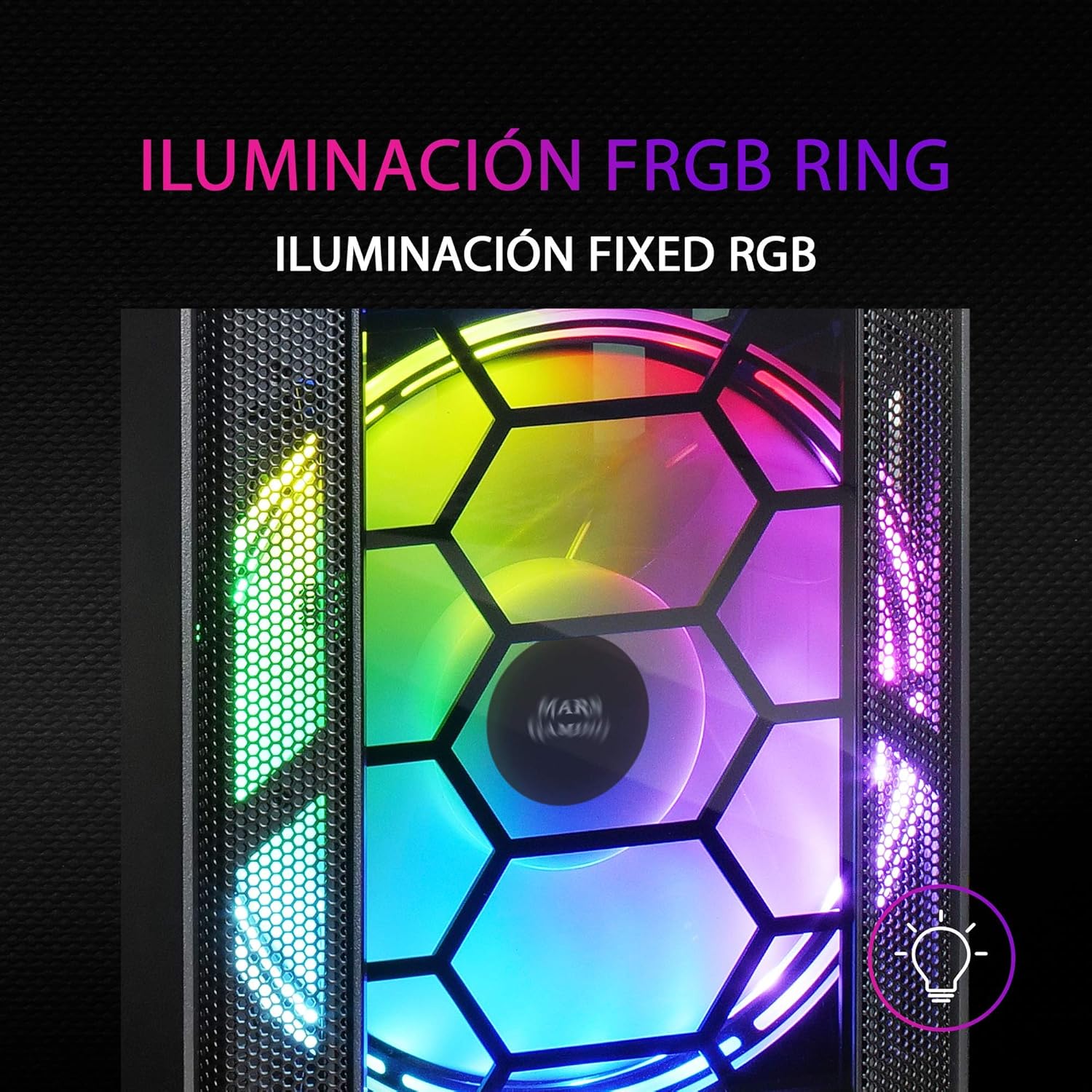
Figure 4: Detail of the FRGB ring lighting on the fans.
5. Mantentzea
Mantentze-lan erregularrak zure ordenagailuaren kaxaren errendimendu optimoa eta iraupena bermatzen ditu.
5.1 Hauts-iragazkiaren garbiketa
The MC500 is equipped with two removable dust filters to prevent dust buildup inside the case. It is recommended to clean these filters periodically (e.g., monthly) depending on your environment.
- Power off your computer and disconnect the power cable.
- Gently remove the dust filters (typically located on the top and bottom/front of the case).
- Clean the filters using compressed air or by rinsing them with water. If using water, ensure they are completely dry before re-installing.
- Re-install the dust filters.

Figure 5: Removable dust filter for easy cleaning.
5.2 Garbiketa orokorra
Garbitu kaxaren kanpoaldea zapi leun batekin,amp oihal. Saihestu beira tenplatuaren akabera edo kalte egin diezaioketen produktu kimiko gogorrak edo material urratzaileak erabiltzea.
6. Arazoak
If you encounter issues with your MC500 PC case, consider the following common solutions:
- Sistemak ez du pizten: Ensure all power cables (24-pin ATX, 8-pin CPU, GPU power) are securely connected to the motherboard and components. Verify the PSU switch is in the 'ON' position. Check front panel header connections to the motherboard.
- Haizagailuak ez dira biratzen: Confirm that the fan power cables are correctly connected to the motherboard fan headers or a fan controller. Check BIOS settings for fan speed control.
- FRGB Lighting Not Working: Since the FRGB lighting is fixed and powered by the fans, ensure the fans are spinning and receiving power.
- Aire-fluxu eskasa/gehiegi berotzea: Ensure all case fans are oriented correctly (intake/exhaust). Clean dust filters regularly. Verify no cables are obstructing airflow.
- Osagai solteak: If you hear rattling, check that all screws for the motherboard, drives, and expansion cards are tightened.
For persistent issues, consult the documentation for your individual PC components (motherboard, PSU, etc.) or contact Mars Gaming support.
7. Zehaztapenak
| Ezaugarri | Zehaztapena |
|---|---|
| Marka | Mars Gaming |
| Eredua | MC500 |
| Produktuaren neurriak | 37.5 x 44.8 x 20.2 cm |
| Elementuaren pisua | 5.1 kg |
| Forma-faktorea | ATX |
| Plaka amaren bateragarritasuna | ATX, Mikro-ATX, Mini-ITX |
| Kasu mota | Dorrea |
| Materiala | Beira |
| Zaleak barne | 2 x 18cm XXL FRGB Fans (Front) |
| Likidoa hozteko euskarria | 240/120mm (Top), 120mm (Rear) |
| Biltegiratze-badiak | Up to 4 x 2.5" SSDs or 2 x 3.5" HDDs |
| Hauts-iragazkiak | 2 (Kendu daiteke) |
| Kolorea | Beltza |
8. Bermea eta Laguntza
8.1 Bermearen informazioa
For detailed warranty information regarding your Mars Gaming MC500 PC Case, please refer to the official Mars Gaming webwebgunean edo erosketarekin batera datorren berme-txartelean. Bermearen baldintzak eta zehaztapenak eskualdearen arabera alda daitezke.
8.2 Laguntza Teknikoa
If you require technical assistance or have questions not covered in this manual, please visit the official Mars Gaming support page or contact their customer service directly. Contact information can typically be found on their webgunea.


