1. Sarrera
The MOKiN USB C Docking Station (Model MUC0219US) is a versatile 13-in-1 hub designed to expand the connectivity of your USB-C enabled laptop. This device allows for triple display output on Windows systems, high-speed data transfer, fast power charging, and reliable network connectivity, making it suitable for various computing environments.
Eskuliburu honek zure kargatzeko estazioa konfiguratzeko, erabiltzeko eta mantentzeko argibide zehatzak eskaintzen ditu, errendimendu optimoa bermatzeko.
2. Produktuaren ezaugarriak
- 13-in-1 Konexioa: Expands your laptop's capabilities with 2x 4K HDMI ports, 1x DisplayPort (DP), 1x Gigabit Ethernet port, 1x 3.5mm Audio port, 1x USB-C Power Delivery (PD) port, 1x SD card reader, 1x TF card reader, 3x USB 3.0 ports, and 2x USB 2.0 ports.
- Triple Display Support (Windows Only): Supports triple display configurations on Windows systems. Under Extended Mode, you can achieve four multiple displays (2x HDMI, 1x DP, and laptop screen). For Collage Mode, it supports triple display (1x HDMI, 1x HDMI+DP, and laptop screen). Note: Mac OS does not support triple display.
- Reliable Data Syncing: Features 3x USB 3.0 ports for 5Gbps high-speed data transfer and 2x USB 2.0 ports for broader compatibility.
- Gigabit-Ethernet: Provides a stable and fast 1000Mbps Gigabit RJ45 Ethernet connection.
- SD/TF txartelen irakurgailuak: Built-in SD and TF slots allow simultaneous access to files from both standard SD and Micro SD memory cards.
- Fast Power Charging: The USB-C PD charging port supports up to 100W power input, delivering up to 87W for charging your Type-C devices or MacBook. Ensure your device supports the PD protocol.
- Audio konexioa: Includes a 3.5mm audio port for connecting speakers or a microphone.
- Plug and Play: No additional drivers are required for most functions, ensuring ease of use.
3. Bateragarritasun-eskakizunak
To ensure full functionality of the MOKiN USB C Docking Station, your laptop's USB-C port must support data transfer, display output (Display Alt Mode), and charging (Power Delivery). Please verify your laptop's USB-C port capabilities before use.
Compatible with laptops featuring Thunderbolt 3 port or USB 3.1 Type C Gen2 port. Examples include Dell XPS13/15, Lenovo Yoga 720/910/920/930, Microsoft Surface Book 2/Surface Go/Surface Laptop 3, Dell Latitude 13 7000/Latitude 13 E7370, and many other Type-C laptops.

Figure 1: USB-C Port Compatibility Guide. Ensure your laptop's USB-C port supports Full Function (Data Transfer + Display Alt + Charging) or Thunderbolt 3 for optimal performance.
4. Konfigurazio gida
Follow these steps to set up your MOKiN USB C Docking Station:
- Connect the Docking Station to your Laptop: Plug the integrated USB-C cable from the docking station into a compatible USB-C port on your laptop.
- Konektatu energia (aukerakoa baina gomendagarria): For stable operation and charging your laptop, connect a USB-C Power Delivery charger to the PD port on the docking station.
- Kanpoko pantailak konektatu:
- For HDMI displays, connect HDMI cables from your monitors to the HDMI ports on the docking station.
- For DisplayPort displays, connect a DP cable from your monitor to the DP port on the docking station.
- Konektatu periferikoak: Plug in your USB devices (keyboard, mouse, external hard drives, etc.) into the available USB 3.0 and USB 2.0 ports.
- Konektatu sareko kablea: For a wired internet connection, plug an Ethernet cable into the RJ45 Gigabit Ethernet port.
- Konektatu audio gailuak: If desired, connect headphones or speakers to the 3.5mm audio jack.
- Txertatu SD/TF txartelak: If needed, insert your SD or TF memory cards into the corresponding slots.

2 Irudia: Gainetikview of the MOKiN 13-in-1 USB C Docking Station with labeled ports.


Figure 3: Power Delivery and High-Speed Data Transfer via USB 3.0 ports.


Figure 4: Gigabit Ethernet and SD/TF Card Reader functionality.
5. Funtzionamendu-argibideak
5.1 Windows Display Configuration
For Windows operating systems, the docking station supports various display modes including Mirror Mode and Extend Mode across multiple monitors.
- Connect your external monitors to the HDMI and/or DisplayPort outputs on the docking station.
- Right-click on your desktop and select "Display settings" or navigate to Ezarpenak > Sistema > Pantaila.
- Under "Multiple displays", you can detect and arrange your monitors.
- Select each display (1, 2, 3, etc.) and choose your preferred display option:
- Bikoiztu pantaila hauek: Shows the same content on all connected screens.
- Zabaldu pantaila hauek: Expands your desktop across all connected screens, allowing for more workspace.
- Show only on 1/2/3: Uses only the selected display.
- Adjust resolution and orientation (Landscape/Portrait) as needed for each display. For optimal performance, ensure refresh rates are set correctly (e.g., 60Hz for 4K displays if supported by your laptop and monitor).

Figure 5: Windows Triple Display Modes.
Video 1: PC Connection Docking Station Tutorial. This video demonstrates how to configure display settings on a Windows PC using the docking station.
5.2 Mac OS Display Configuration
Mac OS supports Mirror Mode and Extended Display Mode with the docking station. However, Mac OS does ez support Multi-Stream Transport (MST) for triple independent displays. Therefore, all external monitors will mirror each other or extend as a single combined display.
- Connect your external monitors to the HDMI and/or DisplayPort outputs on the docking station.
- Joan zaitez Sistemaren ezarpenak > Pantailak.
- You will see your built-in display and the connected external display(s).
- To extend your desktop, ensure "Extended display" is selected. To mirror your display, select "Mirror for Built-in Display".
- Adjust resolution and refresh rate as needed. Note that refresh rates for 4K displays on Mac OS might be limited to 30Hz depending on the specific Mac model and port capabilities.
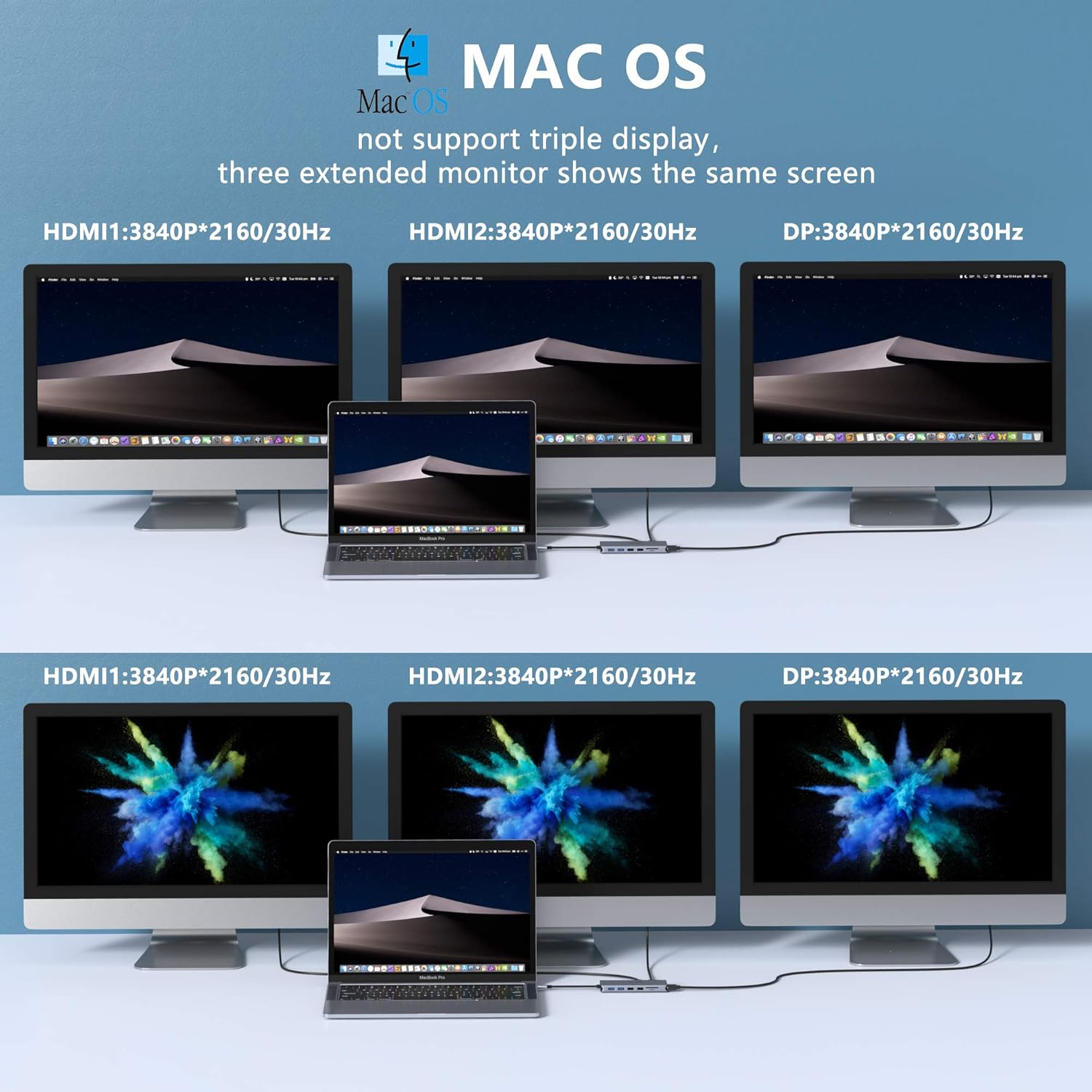
Figure 6: Mac OS Display Modes.

Figure 7: Mac OS Display Limitations with DP1.4.
6. Zehaztapenak
| Ezaugarri | Xehetasuna |
|---|---|
| Modelo zenbakia | MUC0219US |
| Produktuaren neurriak | 7 x 3 x 0.6 hazbete |
| Elementuaren pisua | 3.87 ontza |
| Hardware interfazea | USB C mota |
| Bideo Irteera | 2x HDMI (4K), 1x DisplayPort (DP) |
| USB atakak | 3x USB 3.0, 2x USB 2.0 |
| Ethernet | Gigabit RJ45 (10/100/1000Mbps) |
| Txartel irakurgailuak | SD, TF (supports simultaneous reading) |
| Audio-portua | 3.5 mm-ko audioa/mikrofonoa |
| Potentzia Entrega | USB-C PD (100W input, 87W output) |
| Ezaugarri Berezia | Plug and Play |
| Fabrikatzailea | MOKiN |
7. Arazoak
- Ez dago pantaila-irteerarik:
- Ensure your laptop's USB-C port supports Display Alt Mode. Refer to the "Compatibility Requirements" section.
- Egiaztatu kable guztien konexioak (USB-C ordenagailu eramangarrira, HDMI/DP monitoreetara).
- Verify display settings on your operating system (Windows/Mac OS) to ensure monitors are detected and configured for "Extend" or "Duplicate" mode.
- Try restarting your laptop and reconnecting the docking station.
- Ensure external monitors are powered on and set to the correct input source.
- Intermittent Display Blackouts:
- This can sometimes occur after screen time-outs or sleep mode. Try unplugging and replugging the cables in sequence: 1. Laptop to Hub, 2. Power to Hub (if applicable), 3. HDMI/DP to Hub.
- Ziurtatu kable guztiak ondo konektatuta daudela.
- Check for updated graphics drivers for your laptop.
- Energia-banaketa/kargatzerik ez:
- Ziurtatu zure ordenagailu eramangarriaren USB-C atakak Power Delivery onartzen duela.
- Verify that the power adapter connected to the docking station's PD port is functional and provides sufficient wattage (up to 100W input).
- Check the USB-C cable connecting the power adapter to the docking station.
- Ez dira ezagutzen USB gailuak:
- Ensure the docking station is securely connected to your laptop.
- Try connecting the USB device directly to your laptop to confirm it's functional.
- If using a high-power USB device, ensure the docking station is connected to an external power source.
- Ethernet konexio arazoak:
- Egiaztatu Ethernet kablearen konexioa bai kargatzeko estaziora bai zure bideratzailera/modemara.
- Egiaztatu sareko ezarpenak zure ordenagailu eramangarrian.
- Ziurtatu zure Interneteko zerbitzua aktibo dagoela.
8. Mantentzea
To ensure the longevity and optimal performance of your MOKiN USB C Docking Station, follow these maintenance guidelines:
- Garbiketa: Erabili oihal leun eta lehor bat kargatzeko estazioaren kanpoaldea garbitzeko. Saihestu garbitzaile likidoak edo material urratzaileak.
- Biltegiratzea: Gorde kargatzeko estazioa leku fresko eta lehor batean, eguzki-argitik eta muturreko tenperaturetatik babestuta.
- Manipulazioa: Avoid dropping or subjecting the device to strong impacts. Do not bend or pull the integrated USB-C cable excessively.
- Aireztapena: Ensure the docking station has adequate ventilation to prevent overheating, especially during prolonged use with multiple connected devices.
9. Bermea eta Laguntza
For warranty information, technical support, or further assistance with your MOKiN USB C Docking Station, please refer to the official MOKiN website or contact MOKiN customer service directly. Contact details can typically be found on the product packaging or the manufacturer's official support page.
MOKiN is committed to providing high-quality products and professional after-sales service.


