1. Sarrera
This manual provides detailed instructions for the installation, configuration, and operation of your MERCUSYS MW306R 300 Mbps Wireless N Router. Please read this manual carefully before using the device to ensure proper setup and optimal performance. Keep this manual for future reference.
2. Produktua amaitu daview
2.1 Paketearen edukia
- MERCUSYS MW306R Wireless N Router
- Elikatze-moldagailua
- Ethernet kablea
- Instalazio Gida Azkarra (eskuliburu hau)
2.2 Hardwarearen Ezaugarriak
The MW306R router features three 5dBi antennas for enhanced wireless signal strength and stability. It supports 300 Mbps wireless speed, suitable for HD streaming, online gaming, and large file deskarga.
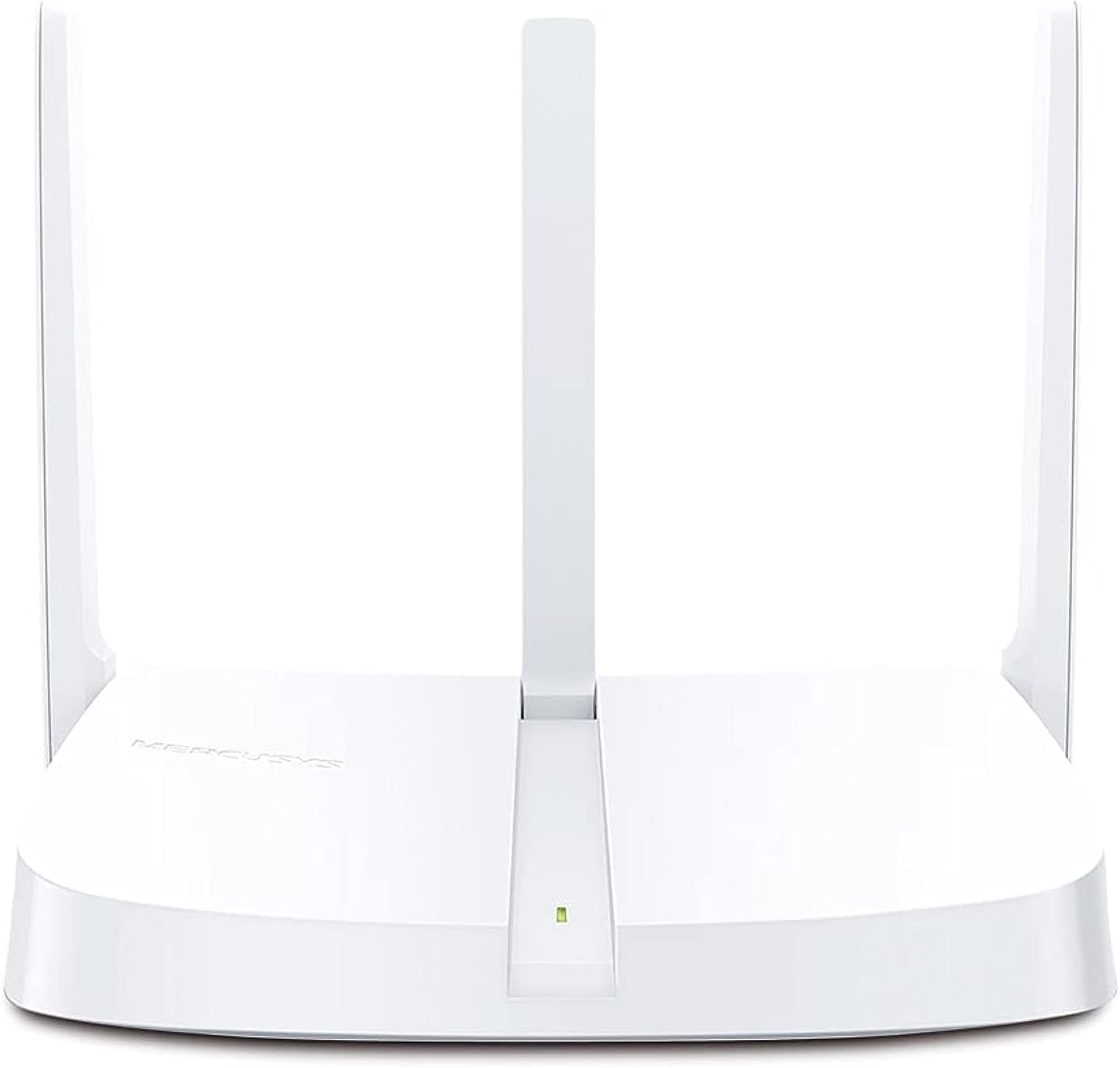
2.2.1. irudia: Aurrealdea view of the MW306R Router. Shows the device with its three fixed antennas and a status LED.

2.2.2. irudia: Atzekoa view of the MW306R Router. Displays the WAN port (orange), three LAN ports (yellow), power input, and the Reset/WPS button.
2.3 LED adierazleak
- Sistema LED: Routerraren funtzionamendu-egoera adierazten du.
2.4 Ataka eta botoiak
- WAN ataka: Connects to your modem or the internet.
- LAN atakak (x3): Connects to wired devices like computers or gaming consoles.
- Potentzia ataka: Emandako energia-egokitzailera konektatzen da.
- Berrezarri/WPS botoia: Press and hold for 5 seconds to reset the router to factory defaults. Press briefly to activate WPS (Wi-Fi Protected Setup).
3. Konfigurazio gida
3.1 Hardware konexioa
- Itzali: Deskonektatu modema eta bideratzailea (hala badagokio).
- Konektatu WAN sarera: Connect the Ethernet cable from your modem's LAN port to the MW306R's orange WAN port.
- Connect LAN (Optional): If you have wired devices, connect them to the yellow LAN ports on the MW306R using Ethernet cables.
- Piztu: Connect the power adapter to the MW306R's power port and plug it into a power outlet. Power on your modem.
- Itxaron: Wait for the router's System LED to turn solid green, indicating it is ready.
3.2 Hasierako konfigurazioa
The MW306R features an intuitive webpage for quick setup.
- Konektatu bideratzailera: Connect your computer or mobile device to the router's Wi-Fi network (SSID and password are on the label at the bottom of the router) or via an Ethernet cable to a LAN port.
- Sarbidea Web Interfazea: Ireki a web arakatzailea eta idatzi
mwlogin.netor192.168.1.1helbide-barran sartu. Sakatu Sartu. - Sortu saioa hasteko pasahitza: You will be prompted to create a login password for the router's management page.
- Jarraitu konfigurazio-morroia: The intuitive setup wizard will guide you through configuring your internet connection type and wireless settings (Wi-Fi name and password).
- Gorde ezarpenak: Once completed, save your settings. Your router is now configured.

3.2.1. irudia: Example of the intuitive web-based setup interface for the MW306R.
4. Funtzionamendu moduak
The MERCUSYS MW306R supports multiple operating modes to suit various network requirements.

4.0.1. irudia: Multi-Mode functionality of the MW306R Router.
4.1 Bideratzaile modua
This is the default mode. The router connects to the internet via a modem and shares the internet connection wirelessly or through its LAN ports to multiple devices.
4.2 Irismen-hedatzaile modua
In this mode, the MW306R extends the coverage of an existing wireless network. It connects wirelessly to your main router and rebroadcasts the signal, eliminating Wi-Fi dead zones.
4.3 Sarbide puntu modua
The router transforms into a wireless access point, converting a wired network connection into a wireless one. It connects to an existing wired router via an Ethernet cable and provides Wi-Fi access.
4.4 WISP modua
Wireless Internet Service Provider (WISP) mode allows the router to connect wirelessly to a WISP access point and share the internet connection with local wired and wireless clients.
To change operating modes, access the router's web management interface and navigate to the operating mode settings.
5. Mantentzea
5.1 Firmware eguneratzea
Aldian-aldian egiaztatu MERCUSYS ofiziala website for firmware updates. Updating the firmware can improve performance, add new features, and fix bugs. Download the latest firmware for your MW306R model and follow the instructions provided on the website for a safe update process.
5.2 Routerraren berrezarpena
If the router is not functioning correctly, or if you forget your login password, you may need to reset it to factory default settings. With the router powered on, press and hold the Reset/WPS button on the back panel for approximately 5 seconds until the System LED blinks rapidly. Release the button and wait for the router to restart.
5.3 Security Practices
- Change the default login password for the router's web kudeaketa interfazea.
- Use a strong, unique password for your Wi-Fi network.
- Enable WPA2-PSK (AES) encryption for your wireless network.
- Consider disabling WPS if not actively used.
6. Arazoak
6.1 Interneterako sarbiderik ez
- Check all cable connections. Ensure the WAN port is securely connected to the modem.
- Egiaztatu zure modema behar bezala funtzionatzen duela eta Interneteko konexio aktiboa duela.
- Restart both your modem and the MW306R router.
- Hasi saioa bideratzailearen web management page and check the WAN status. Ensure your internet connection type is correctly configured.
6.2 Weak Wi-Fi Signal or Dropped Connections
- Mugitu bideratzailea kokapen zentral batera, oztopoetatik eta interferentzia iturrietatik urrun (adibidez, haririk gabeko telefonoak, mikrouhin-labeak).
- Ziurtatu bideratzailearen antenak bertikalki kokatuta daudela seinale optimoa lortzeko.
- Update the wireless adapter drivers on your devices.
- Consider adjusting the wireless channel in the router's settings to avoid interference from neighboring networks.
6.3 Ezin da bideratzaileetara sartu Web Kudeaketa Orria
- Ziurtatu zure gailua bideratzailearen sarera konektatuta dagoela (kable bidez edo haririk gabe).
- Egiaztatu helbide zuzena idazten ari zarela (
mwlogin.netor192.168.1.1) zure arakatzailean. - Garbitu arakatzailearen cachea eta cookieak, edo saiatu beste arakatzaile bat erabiltzen.
- Desgaitu aldi baterako zure ordenagailuan dauden suebaki edo birusen aurkako software guztiak.
- Saioa hasteko pasahitza ahaztu baduzu, berrezarri fabrika-baldintzak (ikusi 5.2 atala).
7. Zehaztapenak
| Ezaugarri | Xehetasuna |
|---|---|
| Produktuaren neurriak | 11.5 x 14.7 x 3.4 cm |
| Elementuaren pisua | 150 g |
| Fabrikatzailea | MERKATARIAK |
| Elementuaren eredu-zenbakia | MW306R |
| Marka Izena | MERKATARIAK |
| Ereduaren izena | 306r |
| Ezaugarri bereziak | Haririk gabekoa |
| Maiztasun Banda Klasea | Banda bakarrekoa (2.4 GHz) |
| Haririk gabeko komunikazio estandarra | 802.11b, 802.11g, 802.11n |
| Gailu bateragarriak | Gaming Console, Personal Computer, Smartphone, Tablet, TV |
| Produkturako gomendatutako erabilerak | Hasiera |
| Dakarten osagaiak | Router, Manual |
| Konektibitate Teknologia | Ethernet, Wi-Fi |
| Kolorea | Zuria |
8. Bermea eta Laguntza
8.1 Bermearen informazioa
For detailed warranty information, please refer to the warranty card included with your product or visit the official MERCUSYS webgunea. Bermearen baldintzak eta zehaztapenak eskualdearen arabera alda daitezke.
8.2 Laguntza Teknikoa
If you encounter any issues that cannot be resolved using this manual, please visit the MERCUSYS support website for FAQs, firmware downloads, and contact information for technical assistance.
Ofiziala Webgunea: www.mercusys.com


