1. Sarrera
This manual provides instructions for the installation, operation, and troubleshooting of your ARRIS Touchstone TM804G DOCSIS 3.0 Telephone Modem. The TM804G is designed to provide high-speed data access and up to four lines of Voice over IP (VoIP) telephone service over your cable network. It features DOCSIS 3.0 technology for enhanced internet speeds and reliability.
2. Ezaugarri nagusiak
- DOCSIS 3.0 compliant for high-speed internet.
- Four (4) dedicated VoIP telephone ports.
- Supports download speeds up to 343 Mbps.
- Two independent 96MHz RF tuners.
- Ethernet connectivity for network devices.
3. Paketearen edukia
Egiaztatu zure paketeak elementu hauek dituela:
- ARRIS Touchstone TM804G Telephone Modem
- Elikatze-moldagailua
- Ethernet kablea
- Dokumentazioa (Hasierako Gida Azkarra, Segurtasun Informazioa)
Note: A backup battery is sold separately and is not included in the standard package.
4. Ezaugarri fisikoak
4.1 Aurrealdeko panelen adierazleak
The front panel of the TM804G modem features several LED indicators that provide status information.

1. irudia: Aurrealdea view of the ARRIS Touchstone TM804G Telephone Modem. This image shows the modem's black casing with ventilation holes on top and a row of green LED indicator lights on the right side of the front panel.
| Adierazlea | Egoera | Deskribapena |
|---|---|---|
| BOTEREA | Berde Solidoa | Modema piztuta dago. |
| DS (behean) | Berde Solidoa | Downstream channel is connected. |
| AEB (Upstream) | Berde Solidoa | Upstream channel is connected. |
| ONLINE | Berde Solidoa | The modem is registered and online. |
| LOTURA | Berde Solidoa | An Ethernet device is connected. |
| TEL1-4 | Berde Solidoa | Telephone line is active. |
4.2 Atzeko paneleko atakak
Atzeko panelak modemerako beharrezko konexio-ataka guztiak eskaintzen ditu.
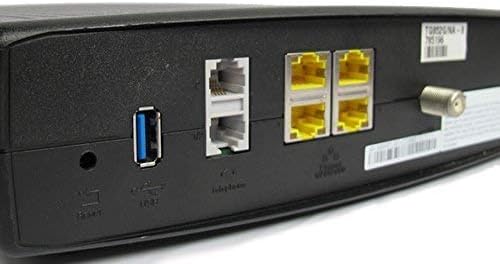
2. irudia: Atzekoa view of the ARRIS Touchstone TM804G Telephone Modem. This image displays the back of the modem, featuring a coaxial cable connector, four yellow Ethernet ports, two grey telephone ports (RJ-11), a USB port, a reset button, and the power input.
- KOAXIALA: Connects to the cable wall outlet.
- ETHERNET (LAN): Four (4) RJ-45 ports for connecting to a computer or router.
- TEL1-4 (RJ-11): Four (4) telephone ports for connecting to telephones or a home telephone wiring system.
- USBa: (Functionality may vary or be disabled by your service provider).
- RESET Recessed button to reset the modem to factory defaults (use with caution).
- POTENTZIA: Korronte-egokigailura konektatzen da.
5. Konfigurazioa eta instalazioa
Follow these steps to install your ARRIS Touchstone TM804G modem.
- Konektatu kable coaxiala: Connect one end of a coaxial cable to the COAXIAL port on the modem and the other end to a cable wall outlet. Ensure the connection is finger-tight.
- Konektatu Ethernet kablea: Connect one end of the Ethernet cable to one of the ETHERNET ports on the modem and the other end to your computer's network port or your wireless router's WAN/Internet port.
- Connect Telephone Lines: If using telephone service, connect your telephone(s) or home telephone wiring to the TEL1, TEL2, TEL3, or TEL4 ports on the modem using standard RJ-11 telephone cables.
- Konektatu korronte egokitzailea: Connect the power adapter to the POWER port on the modem and then plug the adapter into an electrical outlet.
- Piztu: The modem will automatically power on. Observe the front panel indicator lights. The POWER, DS, US, and ONLINE lights should eventually turn solid green, indicating a successful connection to the cable network and internet. The TEL lights will illuminate when telephone lines are active.
- Zerbitzua aktibatu: Contact your Internet Service Provider (ISP) to activate the modem. You will need to provide them with the MAC address and serial number, typically found on a label on the bottom or back of the modem.
Important: Do not connect the modem to a power outlet until all other connections are made.
6. Funtzionamendu-argibideak
Once the modem is successfully installed and activated, it operates automatically.
- Interneterako sarbidea: Any device connected via Ethernet to the modem (or through a connected router) should have internet access once the ONLINE light is solid green.
- Telefono Zerbitzua: If your service plan includes VoIP, connected telephones will have dial tone and function once the corresponding TEL lights are solid green.
- Jarraipen egoera: Refer to the front panel LED indicators (Section 4.1) to monitor the modem's operational status.
7. Mantentzea
- Garbiketa: Keep the modem clean and free of dust. Use a soft, dry cloth to wipe the exterior. Do not use liquid cleaners or aerosols.
- Aireztapena: Ziurtatu modema ondo aireztatutako leku batean dagoela gehiegi berotzea saihesteko. Ez blokeatu aireztapen-zuloak.
- Firmware eguneraketak: Firmware updates are typically managed automatically by your Internet Service Provider. Do not attempt to manually update the firmware unless instructed by your ISP.
- Restarting the Modem: If you experience connectivity issues, try restarting the modem by unplugging the power adapter for 10-15 seconds and then plugging it back in.
- Fabrikaren berrezarpena: The recessed RESET button on the rear panel can be used to restore factory default settings. This should only be done if instructed by your ISP, as it will erase all custom configurations. To perform a factory reset, use a paperclip to press and hold the RESET button for at least 10 seconds.
8. Arazoak
If you encounter problems with your modem, refer to the following common issues and solutions.
| Arazoa | Kausa posiblea | Irtenbidea |
|---|---|---|
| Botererik ez | Korronte-egokitzailea ez dago konektatuta edo entxufea akastuna da. | Ensure power adapter is securely connected to the modem and a working electrical outlet. Check the POWER LED. |
| Ez dago Interneteko sarbidea | Coaxial cable loose, modem not activated, or ISP outage. |
|
| No Dial Tone on Phone | Telephone cable loose, TEL light off, or service issue. |
|
| Interneteko abiadura motela | Network congestion, old router, or ISP issue. |
|
For further assistance, contact your Internet Service Provider's technical support.
9. Zehaztapenak
| Modelo zenbakia | TM804G |
| DOCSIS estandarra | DOCSIS 3.0 |
| Internet Download Speed | Up to 343 Mbps (ISP dependent) |
| VoIP portuak | 4 (RJ-11) |
| Ethernet Portuak | 4 (RJ-45) |
| Konektibitate Teknologia | Ethernet |
| Neurriak (L x W x H) | 11.81 x 9.13 x 2.56 hazbete inguru |
| Pisua | 2.16 kilo inguru |
| ISP bateragarriak | Optimum, Mediacom (and others, check with your provider) |
10. Bermea eta Laguntza
Produktu hau Amazon Renewed elementu gisa eskaintzen da. Amazon Renewed produktuak profesionalki ikuskatu eta probatu egiten dira funtziona dezaten eta berriak diruditela ziurtatzeko. Amazon Renewed Bermearen arabera ordezkatu edo dirua itzuli ahal izango zaie erosketarekin pozik ez bazaude.
For technical support, troubleshooting, or service-related inquiries, please contact your Internet Service Provider (ISP) directly. Your ISP is responsible for the activation, configuration, and ongoing support of the modem on their network.


