1. Sarrera
This manual provides essential instructions for the safe and efficient use of your Epson EcoTank L3156 multifunction printer. It covers initial setup, operational procedures for printing, scanning, and copying, routine maintenance, and troubleshooting common issues. Please read this manual thoroughly before using the product and retain it for future reference.
2. Produktua amaitu daview
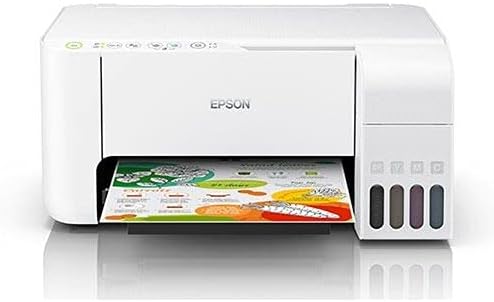
The Epson EcoTank L3156 is a 3-in-1 inkjet printer designed for home and small office use, offering print, scan, and copy functionalities. It features an integrated ink tank system for ultra-low-cost printing and supports wireless connectivity via Wi-Fi and Wi-Fi Direct.
Ezaugarri nagusiak:
- Integrated Ink Tank System: Designed for high-volume, low-cost printing, eliminating the need for traditional cartridges.
- Funtzio anitzekoa: Capable of printing, scanning, and copying documents and photos.
- Haririk gabeko konektagarritasuna: Supports Wi-Fi and Wi-Fi Direct for printing from various devices, including smartphones and tablets.
- Orriaren etekin handia: Delivers a high number of pages per ink refill, reducing operational costs.
- Mugarik gabeko argazki inprimaketa: Supports printing borderless photos up to 10x15cm.
Produktuaren osagaiak:


3. Konfigurazioa
3.1 Desontziratzea eta hasierako kokapena
- Kendu arretaz inprimagailua ontzitik.
- Kendu babes-zinta eta ontziratze-material guztiak inprimagailuaren kanpoaldetik eta barrualdetik.
- Place the printer on a flat, stable surface with adequate space around it for operation and ventilation.
3.2 Tinta-tangak betetzea
The EcoTank system uses ink bottles for refilling. Ensure you use genuine Epson ink bottles designed for your model to prevent damage and ensure optimal print quality.
- Ireki tinta-deposituaren unitatearen estalkia inprimagailuaren eskuinaldean.
- Open the cap for the ink tank you wish to fill (Black, Cyan, Magenta, Yellow).
- Uncap the corresponding ink bottle and insert it into the filling port. The bottle is designed to prevent overfilling and ensure the correct color is used.
- Utzi tinta deposituan sartzen. Ez estutu botila.
- Once the tank is full, remove the bottle and securely close the ink tank cap and the unit cover.
- Errepikatu kolore guztietarako.
3.3 Power Connection and Initial Ink Charge
- Konektatu elikatze-kablea inprimagailura eta gero entxufe elektriko batera.
- Sakatu pizteko botoia inprimagailua pizteko.
- Follow the on-screen instructions on the printer's control panel (if applicable) or refer to the quick start guide for initiating the initial ink charge. This process primes the print head and can take several minutes. Do not turn off the printer during this process.
3.4 Software-instalazioa
- Insert the software CD-ROM into your computer's CD/DVD drive, or download the latest drivers and software from the official Epson support webgunea.
- Jarraitu pantailan agertzen diren argibideei inprimagailuaren kontrolatzaileak eta utilitate softwarea instalatzeko.
- During installation, you will be prompted to choose a connection method (USB, Wi-Fi).
4. Inprimagailuaren funtzionamendua
4.1 Papera kargatzea
- Ireki paper-euskarria eta atera irteerako erretilua.
- Irristatu ertzeko gidak kanpokoenera.
- Load paper print-side up into the rear paper feed slot.
- Slide the edge guides against the sides of the paper, ensuring the paper is straight.
4.2 Inprimaketa
- Ensure the printer is turned on and connected to your computer or network.
- Ireki inprimatu nahi duzun dokumentua edo irudia ordenagailuan.
- Hautatu "Inprimatu" aplikazioaren menuan (adibidez, File > Inprimatu).
- Choose "Epson L3156 Series" as your printer.
- Adjust print settings such as paper size, type, orientation, and quality as needed.
- Egin klik "Inprimatu" aukeran.
4.3 Eskaneatzea
- Jarri dokumentua edo argazkia aurpegia behera eskaner-kristalean, izkinako markarekin lerrokatuz.
- Itxi eskaneraren tapa astiro.
- Zure ordenagailuan, ireki Epson Scan softwarea edo eskaneatze aplikazio bateragarri bat.
- Select your scanner (Epson L3156 Series) and choose your scanning mode (e.g., Home Mode, Professional Mode).
- Adjust settings such as resolution, document type, and destination folder.
- Egin klik "Eskaneatu" aukeran.
4.4 Kopiatzea
- Jarri jatorrizko dokumentua aurpegia behera eskaneraren beiraren gainean.
- Itxi eskanerraren tapa.
- Inprimagailuaren kontrol-panelean, sakatu Zuri-beltzeko kopia botoia edo Koloretako kopia botoia, nahi duzun emaitzaren arabera.
- To make multiple copies, press the respective copy button multiple times for the desired number of copies.
4.5 Wireless Connectivity (Wi-Fi / Wi-Fi Direct)
The Epson L3156 supports connecting to a wireless network (Wi-Fi) or directly to a device (Wi-Fi Direct).
Wi-Fi sare batera konektatzea:
- Ensure your wireless router is on and functioning.
- Use the printer's control panel to navigate to the Wi-Fi setup menu.
- Select "Wi-Fi Setup Wizard" and follow the on-screen prompts to select your network and enter the password.
- Alternatively, use the WPS (Wi-Fi Protected Setup) button on your router and the printer for a simpler connection.
Using Wi-Fi Direct:
- Enable Wi-Fi Direct on your printer via the control panel.
- On your mobile device (smartphone or tablet), go to Wi-Fi settings and select the printer's Wi-Fi Direct network (e.g., DIRECT-xx-EpsonL3156).
- Enter the password displayed on the printer's control panel.
- You can now print directly from your mobile device using the Epson iPrint app or other compatible printing applications.
5. Mantentzea
5.1 Tinta mailak egiaztatzea eta berriz betetzea
Regularly check the ink levels in the transparent ink tanks. When an ink tank is low, refill it promptly using genuine Epson ink bottles. Refer to Section 3.2 for detailed ink refilling instructions.
5.2 Inprimatze-buruaren garbiketa
If print quality declines (e.g., missing lines, faded prints), perform a print head cleaning. This can be done through the printer's utility software on your computer or via the printer's control panel. This process clears clogged nozzles.
5.3 Inprimatze-buruaren lerrokatzea
If prints appear blurry or misaligned, perform a print head alignment. This adjusts the print head position to ensure proper vertical and horizontal alignment. This function is typically accessed through the printer's utility software.
5.4 Inprimagailua garbitzea
- Kanpoaldea: Garbitu inprimagailuaren kanpoaldea oihal leun eta lehor batekinamp, oihal lihorik gabekoa. Saihestu garbitzaile edo disolbatzaile urratzaileak erabiltzea.
- Eskanerraren beira: Gently clean the scanner glass with a soft, lint-free cloth moistened with a small amount of glass cleaner. Do not spray cleaner directly onto the glass.
6. Arazoak
Atal honek zure Epson EcoTank L3156 inprimagailuarekin izan ditzakezun arazo ohikoenei buruzko informazioa ematen du.
6.1 Inprimagailuak ez du erantzuten
- Ziurtatu inprimagailua piztuta dagoela eta kablea ondo konektatuta dagoela.
- Check the USB cable connection (if using USB) or Wi-Fi connection status.
- Berrabiarazi inprimagailua eta ordenagailua.
- Egiaztatu aplikazioaren inprimatze-elkarrizketan inprimagailu zuzena hautatuta dagoela.
6.2 Inprimatze-kalitate eskasa
- Egiaztatu tinta mailak eta bete betegarri bat tinta gutxiko deposituetan.
- Garbitu inprimatze-burua (ikusi 5.2 atala).
- Perform a print head alignment (refer to Section 5.3).
- Ensure you are using appropriate paper settings for your media type.
6.3 Paper-jazarpenak
- Itzali inprimagailua eta deskonektatu korronte-kablea.
- Carefully remove any jammed paper from the input tray, output tray, or inside the printer. Pull paper slowly to avoid tearing.
- Ziurtatu papera behar bezala kargatuta dagoela eta gehienezko edukiera ez gainditzen duela.
- Remove any small pieces of torn paper.
- Reconnect power and turn on the printer.
6.4 Wi-Fi konexio arazoak
- Ensure your wireless router is powered on and broadcasting.
- Check that the printer is within range of your wireless router.
- Egiaztatu sartutako Wi-Fi pasahitza zuzena dela.
- Restart your router, printer, and computer/mobile device.
- Try re-running the Wi-Fi setup wizard on the printer.
7. Zehaztapenak
| Ezaugarri | Zehaztapena |
|---|---|
| Modelo zenbakia | C11CG86414 |
| Inprimagailu mota | Inkjet Multifunction (Print, Scan, Copy) |
| Konektibitatea | USB, Wi-Fi, Wi-Fi Direct |
| Kolorea | Zuria |
| Gailu bateragarriak | Computers, Smartphones (Android, iOS) |
| Inprimatutako euskarriak | Plain paper, Glossy photo paper |
| Elementuaren pisua | 5.66 kilogramo |
| Paketearen neurriak | 42.2 x 40.4 x 23.8 cm |
| EAN-13 | 8715946667522 |
8. Bermea eta Laguntza
For information regarding your product's warranty, please refer to the warranty card included with your printer or visit the official Epson support webzure eskualdeko gunea. webGuneak gidariak, maiz egiten diren galderak eta laguntza teknikorako harremanetarako informazioa ere eskaintzen ditu.
Epson Official Support: www.epson.com/support


