1. Sarrera
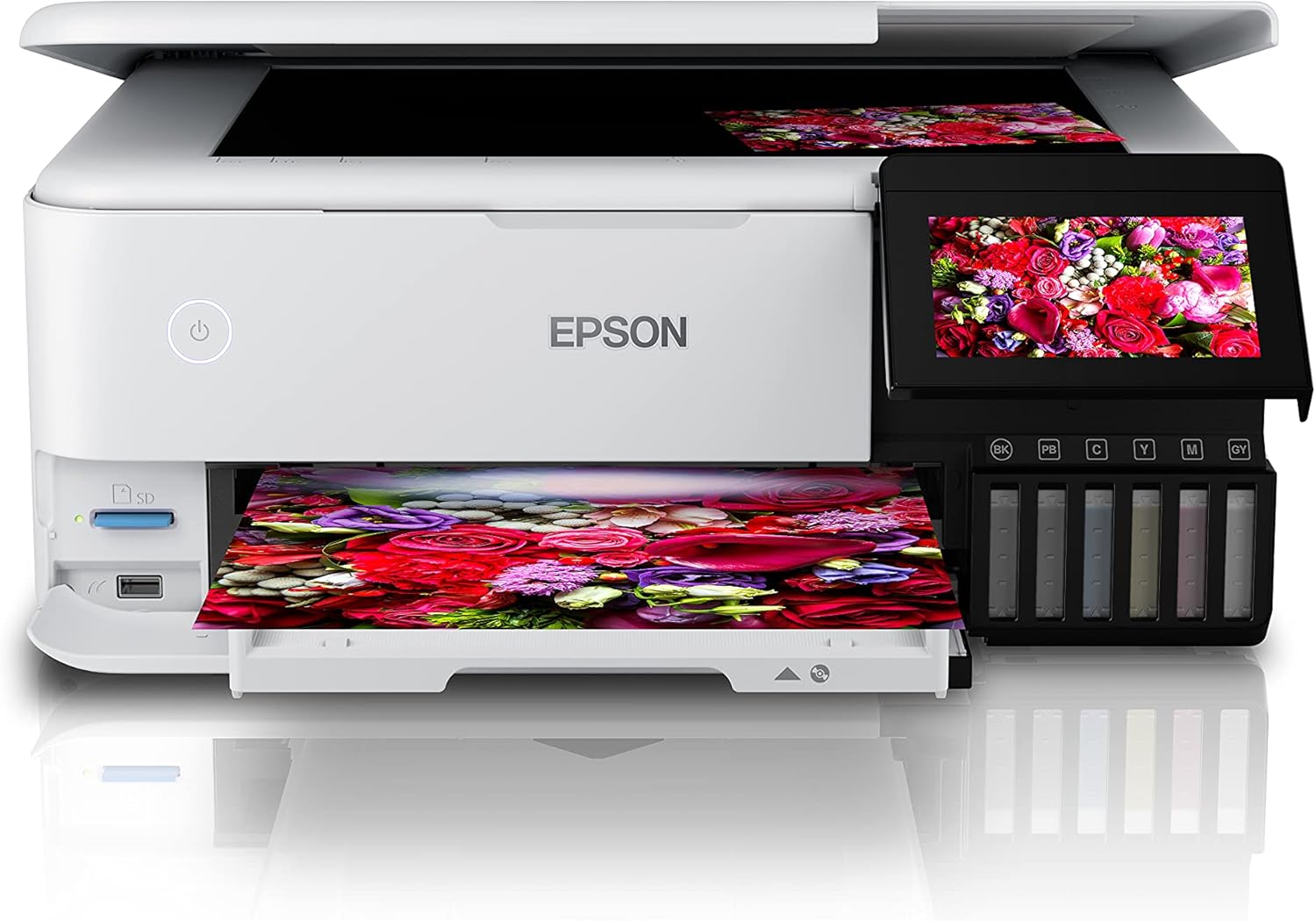
The Epson EcoTank L8160 is a high-performance, low-cost A4 photo printer designed for both photos and documents. This multifunction inkjet printer features a 6-color Epson Claria ET Premium ink system, allowing for borderless A4 color photos and stunning black and white prints. With its integrated ink tank system, it offers ultra-low-cost printing, capable of producing up to 2300 high-quality photos with replacement ink bottles.
The L8160 provides modern connectivity options including Wi-Fi, Wi-Fi Direct, Ethernet, and Apple AirPrint, ensuring seamless integration into your home or office network. It supports versatile paper handling with dedicated A4 and photo paper trays, plus two rear feeds for thicker media. Additionally, it offers convenient duplex printing for clear text on A4 documents using pigment black ink.

1.1. irudia: Epson EcoTank L8160 printer with key features labeled, including the 10.9cm touchscreen, 6-color ink system, and wireless connectivity.
2. Segurtasun informazioa
Please read all safety instructions before using the printer to prevent injury or damage to the device. Keep this manual for future reference.
- Energia iturria: Use only the power cable supplied with the printer. Connect to a grounded outlet.
- Lekua: Place the printer on a stable, level surface. Avoid locations with excessive dust, humidity, or direct sunlight. Ensure adequate ventilation around the printer.
- Tinta maneiatzea: Handle ink bottles carefully to avoid spills. If ink comes into contact with skin, wash thoroughly with soap and water. Keep ink out of reach of children.
- Inprimagailua mugitzea: Before moving the printer, ensure all ink tank caps are securely closed and the printer is powered off and unplugged.
- Ez desmuntatu: Do not attempt to disassemble or repair the printer yourself. Refer to qualified service personnel for repairs.
3. Paketearen edukia
Egiaztatu elementu guztiak paketean sartuta daudela:
- Epson EcoTank L8160 inprimagailua
- Full set of ink bottles (6 colors)
- Elikatze-kablea
- User Guide / Setup Guide
- CD/DVD erretilua
4. Konfigurazioa
4.1 Kutxatik ateratzea eta kokapena
- Atera inprimagailua bere paketetik eta kendu babes-zinta eta material guztiak.
- Jarri inprimagailua gainazal lau eta egonkor batean, entxufe baten ondoan.
4.2 Tinta-tangak betetzea
The EcoTank L8160 uses an integrated ink tank system. Follow these steps to fill the tanks:
- Ireki inprimagailuaren alboan dagoen tinta-deposituaren unitatearen estalkia.
- Uncap the ink bottle for the corresponding color. The bottles are designed to fit only the correct tank to prevent accidental filling errors.
- Sartu tinta botila deposituaren betetze-atakan. Tinta automatikoki hasiko da depositua betetzen. Ez estutu botila.
- Depositua beteta dagoenean, tinta-fluxua automatikoki geldituko da. Kendu botila eta jarri berriro tapoia.
- Errepikatu kolore guztiekin. Itxi tinta-deposituaren estalkia.
4.1. irudia: Filling the ink tanks on the Epson EcoTank L8160.
4.3 Energia konexioa eta hasierako konfigurazioa
- Connect the power cable to the printer and a wall outlet.
- Sakatu pizteko botoia inprimagailua pizteko.
- Follow the on-screen instructions on the 10.9 cm touchscreen display to select your language, date, and time.
- The printer will then initiate the ink charging process, which may take several minutes. Do not turn off the printer during this process.
4.4 Softwarearen instalazioa eta sareko konexioa
To use all printer features, install the necessary software and drivers on your computer or connect via a smart device.
- Ordenagailurako: Bisitatu Epsonen laguntza website for the L8160 model to download the latest drivers and software. Follow the on-screen instructions for installation.
- Wi-Fi konexioa: On the printer's touchscreen, navigate to the Wi-Fi setup menu. Select your network from the list and enter the password.
- Wi-Fi Zuzena: This allows direct connection from a device without a router. Refer to the printer's display for Wi-Fi Direct setup instructions and credentials.
- Ethernet konexioa: Connect an Ethernet cable from your router to the printer's Ethernet port. The printer should automatically connect to the network.
- Apple AirPrint: For Apple devices, ensure your device and printer are on the same Wi-Fi network. AirPrint functionality is typically automatic.
5. Funtzionamendu-argibideak
5.1 Papera kargatzea
The L8160 features multiple paper input options:
- Front Paper Cassette (A4): Pull out the front paper cassette. Load A4 plain paper print-side down. Adjust the side guides to fit the paper size.
- Photo Paper Tray: A dedicated tray for photo paper is available. Load photo paper print-side down.
- Rear Feed Slots: Two rear feed slots are available for thicker media or specialty papers. Open the rear paper support and load paper one sheet at a time, print-side up.

5.1. irudia: Loading paper into the Epson EcoTank L8160.
5.2 Dokumentuak eta argazkiak inprimatzea
- Ensure the printer is powered on and connected to your device.
- Open the document or photo you wish to print on your computer or smart device.
- Hautatu inprimatzeko aukera zure aplikaziotik.
- Choose the Epson EcoTank L8160 as your printer.
- Adjust print settings such as paper size, media type, print quality, and color options. For duplex printing, select the two-sided printing option.
- Egin klik Inprimatu.
5.3 Printing from Smart Devices
Epson Smart Panel aplikazioak zure telefonotik edo tabletetik zuzenean inprimatzeko, eskaneatzeko eta kopiatzeko aukera ematen dizu.
- Deskargatu eta instalatu Epson Smart Panel aplikazioa zure gailuaren aplikazio dendatik.
- Ensure your smart device and printer are connected to the same Wi-Fi network.
- Open the app and follow the on-screen instructions to connect to your L8160 printer.
- You can now select photos or documents from your device to print directly.

5.2. irudia: Printing from a smart device using the Epson Smart Panel app.
5.4 CD/DVD Printing
The printer supports direct printing onto compatible inkjet-printable CDs/DVDs.
- Design your CD/DVD label using compatible software.
- Place the printable CD/DVD onto the included CD/DVD tray.
- Insert the CD/DVD tray into the designated slot on the printer.
- Follow the software prompts to print your design.
6. Mantentzea
6.1 Tinta mailak egiaztatzea eta berriz betetzea
Regularly check the ink levels through the transparent ink tanks or on the printer's display. When a tank is low, refill it using genuine Epson replacement ink bottles as described in Section 4.2.
6.2 Inprimatze-buruaren garbiketa
If print quality declines (e.g., missing lines, streaking), perform a print head cleaning. This can be done from the printer's control panel or through the printer utility software on your computer.
- Inprimagailuaren ukipen-pantailan, joan honera: Mantentzea or Konfigurazioa.
- Hautatu Inprimatu buruaren garbiketa.
- Follow the on-screen instructions. A nozzle check pattern will be printed to verify improvement.
6.3 Garbiketa orokorra
Garbitu inprimagailuaren kanpoaldea oihal leun eta lehor batekinamp, lint-free cloth. Do not use abrasive cleaners or solvents. Regularly remove dust from paper trays and vents.
7. Arazoak
Atal honek aurki ditzakezun arazo ohikoenei heltzen die.
| Arazoa | Kausa posiblea | Irtenbidea |
|---|---|---|
| Inprimagailua ez da pizten | Kable elektrikoa ez dago konektatuta; entxufea akastuna | Ensure power cable is securely connected to printer and a working outlet. Try a different outlet. |
| Inprimatze-kalitate eskasa (marrak, kolore desagertzen direnak) | Low ink levels; clogged print nozzles; incorrect paper type settings | Check ink levels and refill if necessary. Perform a print head cleaning and nozzle check. Ensure paper type settings match the loaded paper. |
| Paper ataskatzea | Incorrectly loaded paper; too much paper loaded; foreign object in paper path | Remove all paper from trays. Carefully open covers and remove any jammed paper. Ensure paper is loaded correctly and not over the maximum capacity. |
| Ezin da wifira konektatu | Incorrect password; printer too far from router; network issues | Verify Wi-Fi password. Move printer closer to the router. Restart your router and printer. Reconfigure Wi-Fi settings on the printer. |
8. Zehaztapenak
Detailed technical specifications for the Epson EcoTank L8160 printer.
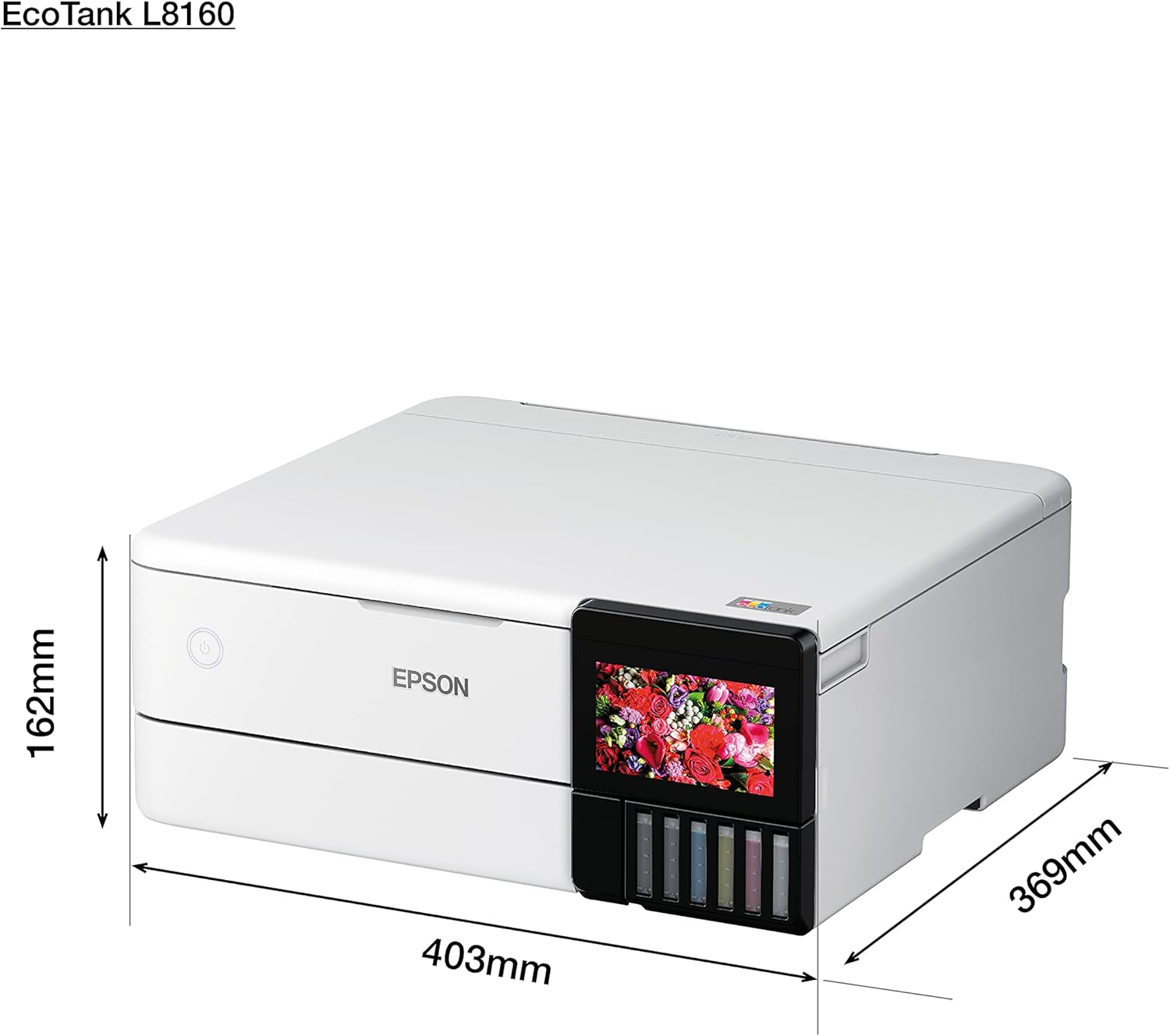
8.1. irudia: Physical dimensions of the Epson EcoTank L8160.
| Ezaugarri | Xehetasuna |
|---|---|
| Marka | Epson |
| Ereduaren izena | L8160 |
| Elementuaren eredu-zenbakia | L8160 |
| Inprimagailuaren teknologia | Inkjet |
| Inprimagailuaren irteera | Funtzio anitzekoa |
| Konektibitate Teknologia | Wi-Fi |
| Ezaugarri bereziak | Sareko prest |
| Kolorea | Zuria |
| Produktuaren neurriak (Sakonera x Zabalera x Altuera) | 36.9S x 40.3Z x 16.2A cm |
| Gehienezko euskarriaren tamaina | 8.5 x 11 hazbete |
| Dakarten osagaiak | Paper trays, power cable, user guide |
| Inprimatutako euskarriak | Envelopes, Paper (plain), Glossy photo paper |
| Eskaner mota | Argazkia |
| Paperaren edukiera maximoa | 100 fitxa |
| Gehienezko zuri-beltzeko inprimatze-abiadura | 32 orrialde minutuko |
| Gailu bateragarriak | Smartphoneak |
| Gehienezko koloretako inprimatze-bereizmena | 600 x 600 ppp |
| Paper Tamaina | A4 |
| Gehienezko zuri-beltzeko inprimatze-bereizmena | 600 x 600 ppp |
| Duplex Inprimaketa | Bai |
| Fabrikatzailea | Epson |
| Forma-faktorea | Bat-batean |
| Bistaratzeko pantailaren tamaina | 10.9 zentimetro |
| Elementuaren pisua | 11.3 Kilograms (11.27 Kilograms) |
| ASIN | B09G35WQDW |
| Bezeroaren Reviews | 4.0 5 izarretik (125 balorazioak) |
| Salduenen sailkapena | #18,311 in Electronics, #14 in Ink Tank Printers |
| Eskuragarri dagoen lehen data | 11ko urtarrilaren 2022a |
| Maximum Color Print Speed (Color) | 32 orrialde minutuko |
| Maximum Black & White Print Speed (B&W) | 32 orrialde minutuko |
9. Bermea eta Laguntza
9.1 Bermearen informazioa
The Epson EcoTank L8160 comes with a 3-year promotional warranty. Please refer to the warranty card included in your package or visit the official Epson webwebgunean bermearen estaldurari eta erregistroari buruzko baldintza zehatzak ikusteko.
9.2 Bezeroarentzako laguntza
For further assistance, technical support, or service inquiries, please contact Epson customer support through their official website or the contact information provided in your product documentation. Have your printer model number (L8160) and serial number ready when contacting support.


