Sarrera
This manual provides detailed instructions for the installation, operation, and maintenance of your AXAGON ADSA-ST USB 3.0 Docking Station. This device is designed to connect 2.5" and 3.5" SATA SSDs and HDDs to your computer via a USB 3.0 interface, offering fast data transfer speeds.
Please read this manual thoroughly before using the product to ensure proper functionality and to prevent damage.
Paketearen edukia
Egiaztatu osagai guztiak paketean daudela:
- AXAGON ADSA-ST Docking Station
- USB 3.0 Type-A to Micro-B cable
- Elikatze-moldagailua
- Erabiltzailearen eskuliburua (dokumentu hau)

Image: The AXAGON ADSA-ST Docking Station shown alongside its retail packaging, illustrating the product and its box.
Ezaugarri nagusiak
- Supports 2.5" and 3.5" SATA I/II/III SSDs and HDDs.
- USB 3.0 (USB 3.2 Gen 1) interface with up to 5 Gbps transfer speed.
- SATA 6G (SATA III) support.
- UASP (USB Attached SCSI Protocol) support for enhanced performance.
- TRIM support for SSDs.
- HDD Auto Spindown function.
- LED indication for power and activity.
- Compact design with aluminum body.

Irudia: A view of the AXAGON ADSA-ST Docking Station highlighting its 5 Gbps USB 3.2 Gen 1 speed and compact size.
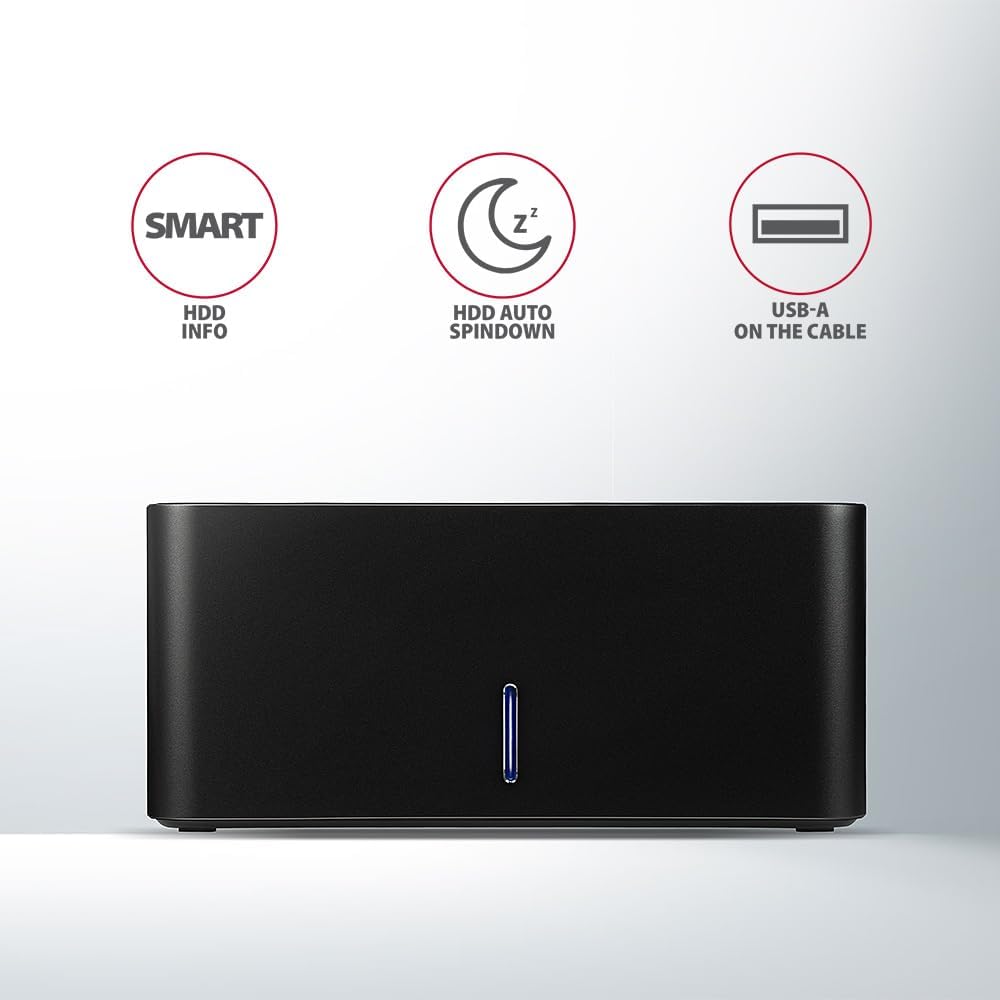
Image: The docking station from the front, indicating features like SMART HDD info, automatic HDD spindown, and USB-A connectivity.
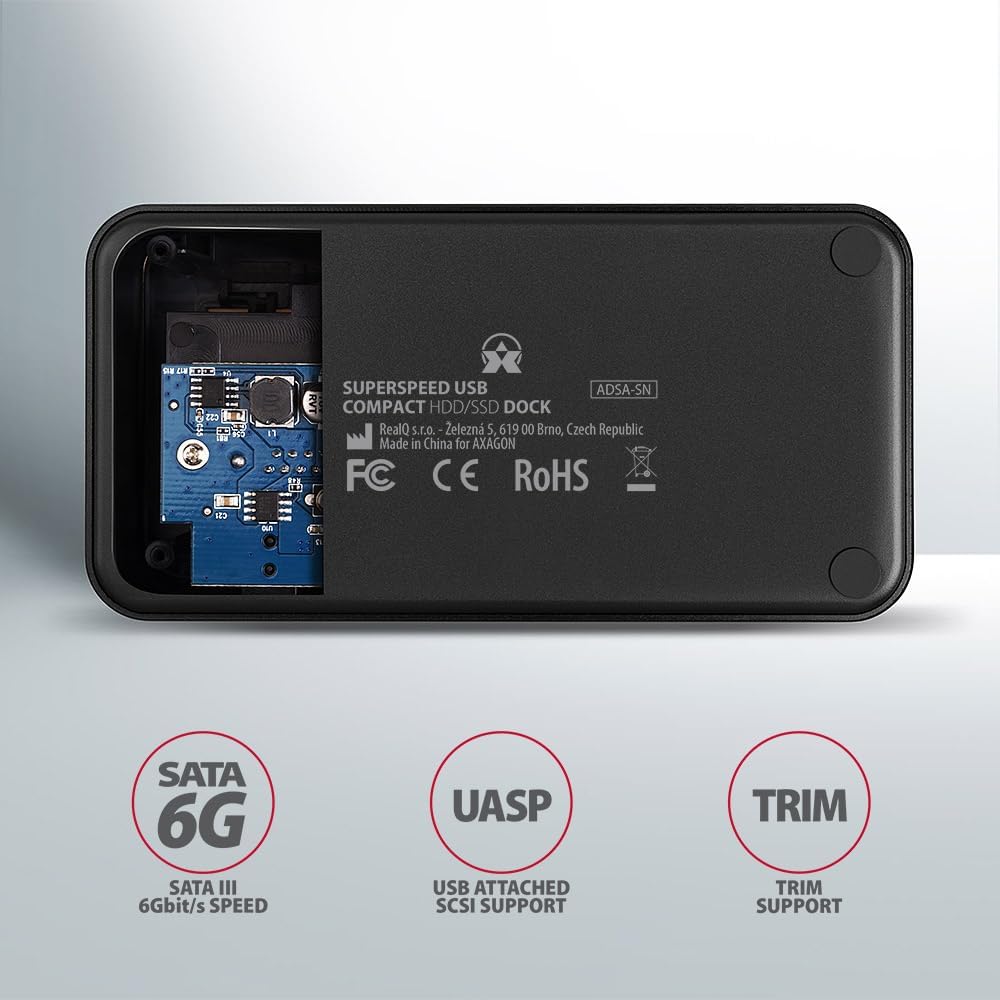
Image: The underside of the docking station, showing internal components and highlighting SATA 6G, UASP, and TRIM support.
Konfigurazio Argibideak
- Konektatu korronte egokitzailea: Plug the included power adapter into the DC IN port on the back of the docking station and then into a power outlet.
- Konektatu ordenagailura: Connect the USB 3.0 cable from the docking station's Micro-B port to an available USB 3.0 (or higher) port on your computer.
- Txertatu HDD/SSD:
- For 2.5" SSD/HDD: Gently slide the 2.5" drive into the slot until it connects firmly with the SATA connector.
- For 3.5" HDD: Gently slide the 3.5" drive into the slot until it connects firmly with the SATA connector.
Ensure the drive is inserted correctly with the SATA connector facing the correct direction. Do not force the drive.

Image: A 2.5-inch SSD being inserted into the docking station, demonstrating compatibility with smaller drives.
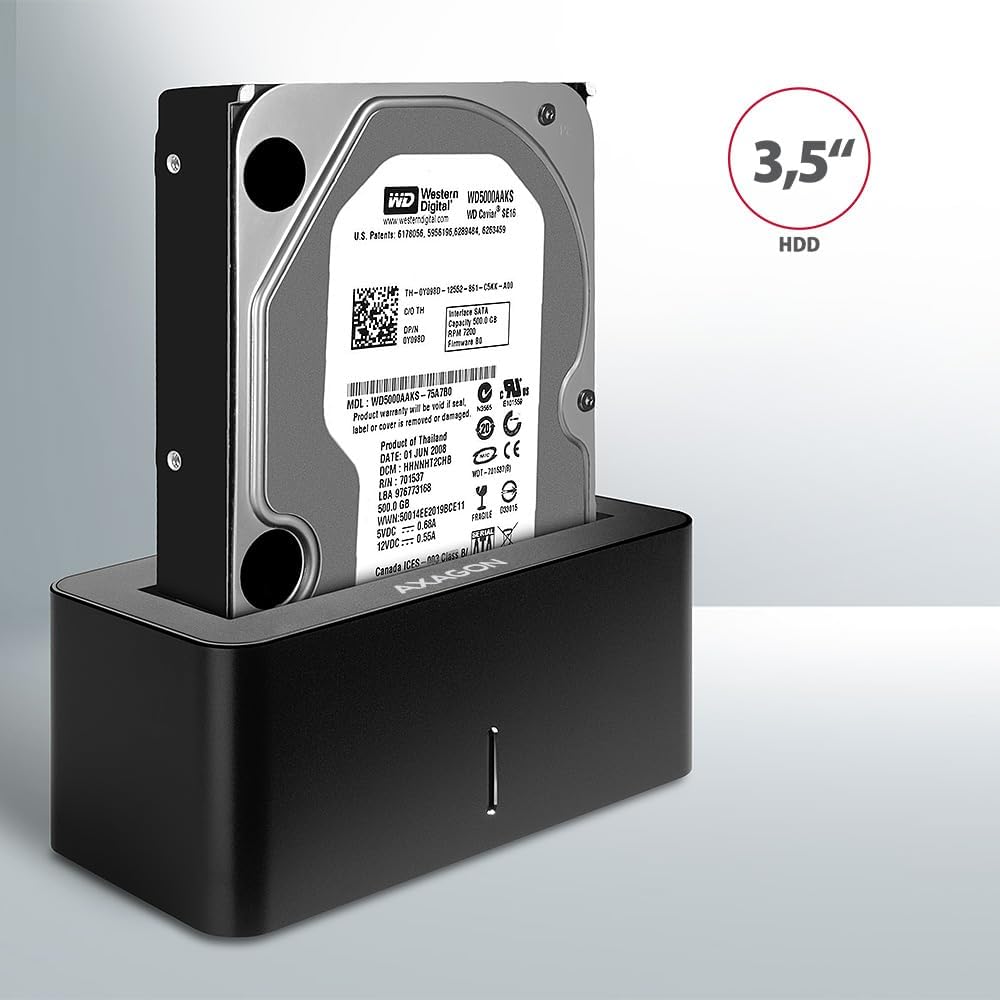
Image: A 3.5-inch HDD being inserted into the docking station, demonstrating compatibility with larger drives.
- Piztu: Press the power button located on the back of the docking station. The LED indicator on the front will illuminate.
Image: The rear panel of the docking station, showing the power button, USB Micro-B port, and power input for connection.
Funtzionamendu-argibideak
Drive Recognition
Once powered on and connected, your operating system should automatically detect the inserted drive. If it's a new drive, you may need to initialize and format it through Disk Management (Windows) or Disk Utility (macOS) before it appears in File Explorer/Finder.
LED adierazlea
The LED indicator on the front of the docking station provides status information:
- Urdin trinkoa: Power on, drive idle.
- Urdin keinukaria: Drive activity (reading or writing data).
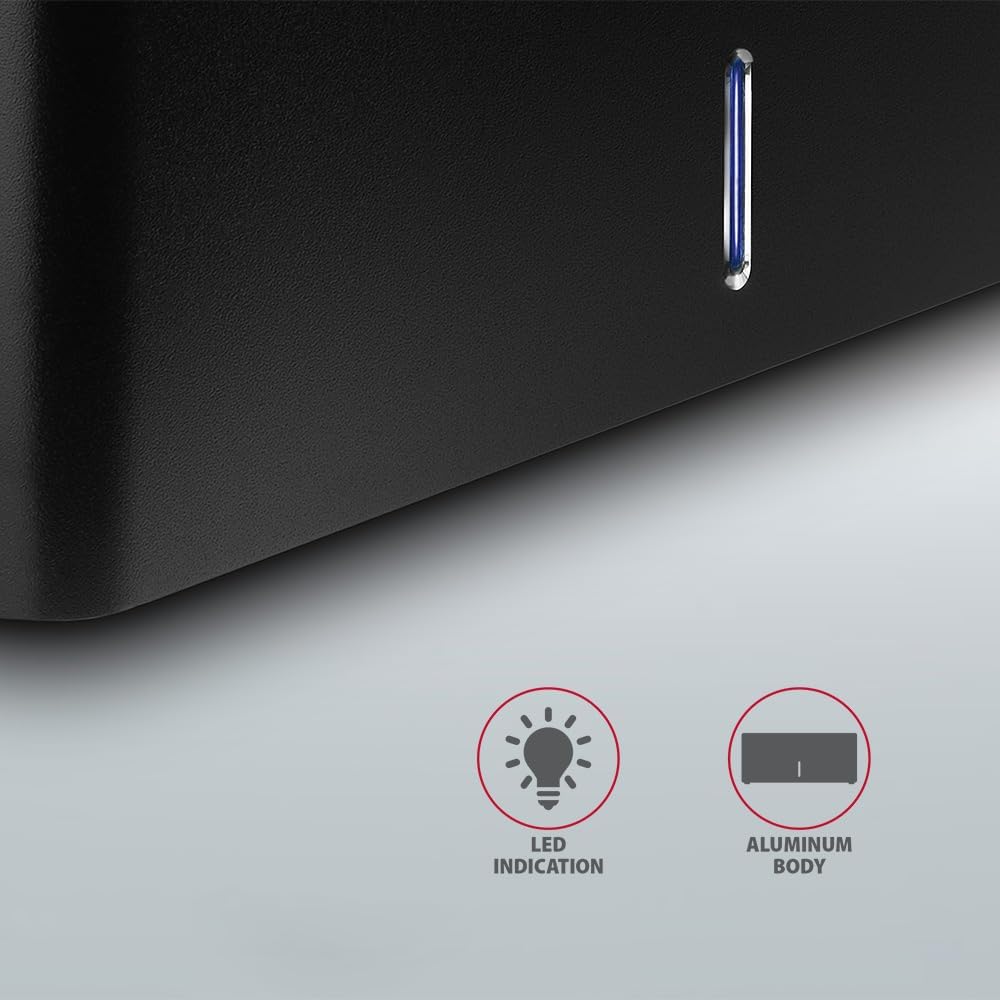
Irudia: Gertutik view of the docking station's front panel, highlighting the LED indicator light.
Removing a Drive
Before removing a drive, always safely eject it from your operating system to prevent data corruption. After ejection, gently pull the drive straight out of the docking station slot.
HDD Auto Spindown
The docking station supports automatic spindown of the HDD when it is idle for a certain period, conserving power and extending drive lifespan. This feature is managed by the operating system or the drive itself.
Mantentzea
- Mantendu kargatzeko estazioa garbi eta hautsik gabe. Erabili zapi leun eta lehor bat garbitzeko.
- Saihestu gailua muturreko tenperatura, hezetasun edo eguzki-argia zuzenaren eraginpean jartzea.
- Ez saiatu gailua zeuk desmuntatzen edo konpontzen. Jarri harremanetan zerbitzu-langile kualifikatuekin.
- Ziurtatu kargatzeko estazioaren inguruan aireztapen egokia dagoela funtzionamenduan zehar.
Arazoak konpontzea
- Unitatea ez da detektatu:
- Ziurtatu korronte-egokitzailea ondo konektatuta dagoela eta kargatzeko estazioa piztuta dagoela.
- Verify the USB cable is properly connected to both the docking station and the computer.
- Probatu beste USB ataka bat zure ordenagailuan.
- Ensure the HDD/SSD is fully seated in the docking station's slot.
- Check Disk Management (Windows) or Disk Utility (macOS) to see if the drive is recognized but uninitialized/unformatted.
- Test with a different HDD/SSD to rule out a drive issue.
- Transferentzia-abiadura motelak:
- Ensure the docking station is connected to a USB 3.0 (or higher) port on your computer. USB 2.0 ports will limit speeds.
- Egiaztatu zure sistema eragilea eta gidariak eguneratuta daudela.
- The actual speed depends on the drive's performance and your computer's USB controller.
- Drive disconnects randomly:
- Egiaztatu kable-konexio guztiak.
- Ziurtatu energia-egokitzaileak energia egonkorra ematen duela.
- Disable USB power saving features in your computer's operating system settings.
Zehaztapen Teknikoak
| Ezaugarri | Xehetasuna |
|---|---|
| Marka | AXAGON |
| Modelo zenbakia | ADSA-SN |
| Hardware Plataforma | PC |
| Gailu bateragarriak | Ordenagailu eramangarria, mahaigaineko ordenagailua |
| Drive bateragarritasuna | 2.5" / 3.5" SATA I/II/III SSD/HDD |
| Interfazea | USB 3.0 (USB 3.2 1. belaunaldia) |
| Datuen transferentzia-tasa | Up to 5 Gbps (USB 3.0), 6 Gbps (SATA III) |
| USB portuak guztira | 1 (Micro-B) |
| Drive-bao kopurua | 1 |
| Kolorea | Beltza |
| Elementuaren pisua | 2.2 libra (gutxi gorabehera 1 kg) |
| Paketearen neurriak | 3.94 x 0.79 x 0.39 hazbete (gutxi gorabehera 10 x 2 x 1 cm) |
| Eskuragarri dagoen lehen data | 30ko martxoaren 2021a |
Bermea eta Laguntza
For warranty information and technical support, please refer to the official AXAGON webwebgunera edo jarri harremanetan zure tokiko banatzailearekin. Gorde erosketaren frogagiria berme-erreklamazioetarako.


