Sarrera
The SUPVAN E10 Bluetooth Label Maker Machine is a versatile and portable device designed for efficient organization in various environments, including home, office, and school. This inkless thermal printer offers a user-friendly experience through its dedicated mobile application, allowing for extensive customization of labels. Its durable, waterproof labels are suitable for a wide range of applications, from identifying storage containers to organizing cables.
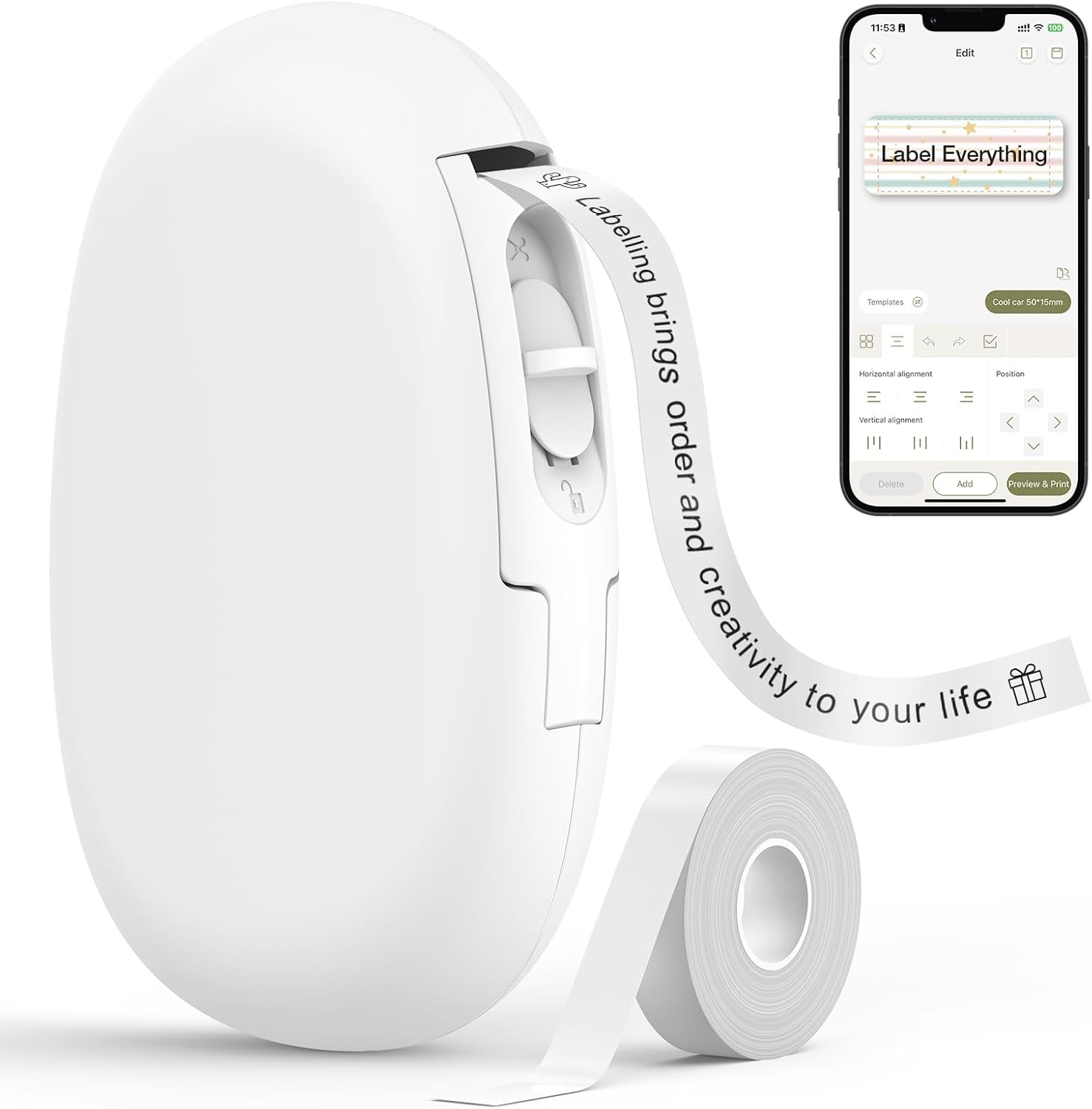
Image: The SUPVAN E10 label maker, a compact white device, shown alongside a roll of white label tape and a smartphone screen demonstrating its app interface for label creation.
Kutxan dagoena
- Label Maker Machine (White)
- White Continuous Label Tape [Size: 0.59 in x 19.68 ft]
- USB kargatzeko kablea
- Erabiltzailearen eskuliburua
Konfigurazioa
Hasierako konfigurazioa eta kargatzea
Before first use, ensure the label maker is fully charged using the provided USB charging cable. The device features a rechargeable battery designed to last approximately one month on a single charge. When the red indicator light turns on, it signifies that charging is required.
To prepare the label tape for printing, gently pull out the existing tape from the machine. Remove any protective plastic film around the tape roll to ensure proper feeding and printing. Once the film is removed, reinsert the tape roll securely into its compartment.
Video: An unboxing and product introduction of the SUPVAN E10 label maker, demonstrating how to prepare the device for first use, including tape installation and charging.
App Download and Bluetooth Connection
The SUPVAN E10 operates via a dedicated mobile application, available for both iOS and Android devices. Bilatu "Katasymbol" in your device's app store to download and install the application. No fees or registration are required to use the app.
Once the app is installed, turn on your SUPVAN E10 label maker by pressing and holding the power button. The green indicator light will illuminate, signifying it is ready for connection. Open the Katasymbol app on your smartphone or tablet. The app will automatically detect the E10 printer via Bluetooth. Tap "Connect" to establish the connection. Once connected, you are ready to begin creating and printing labels.

Image: The SUPVAN E10 label maker and a smartphone screen illustrating the simple Bluetooth connection process within the app for fast printing.
Funtzionamendu-argibideak
Creating and Customizing Labels
The Katasymbol app provides extensive customization options for your labels. After connecting your device, tap the "+" icon to start a new label. You can input text, choose from over 40 fonts, adjust font size, and apply styles such as bold, italic, or underline. The app also offers a library of over 450 icons and 30 frames to enhance your labels. You can even import images or draw custom designs.
Video: A demonstration of the SUPVAN E10 label maker's app features, showcasing easy connection, customization options for text, fonts, and icons, and the printing process.

Image: A smartphone displaying the app's interface for personalizing labels, including options for sketching and adding text, highlighting the creative possibilities.
Etiketak inprimatzea
Once your label design is complete, tap the "Print" button within the app. You can adjust the number of copies and print density in the print settings. Confirm your selections and tap "Print" again to send the label data to your E10 label maker. The label will print quickly from the device's output slot.
Etiketak ebakitzea
The SUPVAN E10 features a built-in cutter for convenient and precise label separation. After a label has printed, simply slide the cutter button located on the side of the device upwards to cleanly cut the label from the roll. This allows for custom label lengths with continuous tape.

Image: A visual comparison demonstrating the continuous label tape feature of the SUPVAN E10, allowing users to cut labels at any desired length, unlike fixed-size labels.
Replacing Label Tape
To replace an empty label tape roll, open the tape compartment by sliding the side button. Remove the used roll and insert a new SUPVAN label tape roll, ensuring the tape feeds correctly through the printer mechanism. Close the compartment securely. The E10 supports both continuous and fixed-size label tapes.
Ezaugarri nagusiak
- Tintarik gabeko inprimaketa termikoa: The E10 utilizes thermal printing technology, eliminating the need for ink or toner cartridges, making it cost-effective and maintenance-free.
- Continuous and Fixed-Size Labels: Offers flexibility with continuous label tape for custom lengths and fixed-size labels for batch printing.
- Etiketa iraunkorrak: Labels are waterproof, oil-proof, anti-scratch, and heat-resistant, ensuring longevity and no residue upon removal.
- Diseinu eramangarria eta trinkoa: Its small and lightweight form factor makes it easy to carry and use anywhere.
- Aplikazio polifazetikoa: Ideal for organizing items in the home (kitchen, storage), office (files, cables), and school (supplies, name tags).

Image: A visual representation highlighting the inkless thermal printing and waterproof features of the SUPVAN E10, showing a label remaining intact on a glass being washed.

Image: Multiple examples of labels created with the SUPVAN E10, applied to kitchen items like olive oil bottles and spice jars, as well as storage bins, demonstrating its versatility for home organization.
Mantentzea
To ensure optimal performance and longevity of your SUPVAN E10 label maker, keep the device clean and free from dust and debris. Use a soft, dry cloth to wipe the exterior. Avoid using abrasive cleaners or solvents. Store the device in a cool, dry place away from direct sunlight and extreme temperatures. Ensure the label tape compartment is free of any obstructions.
Arazoak konpontzea
| Arazoa | Kausa posiblea | Irtenbidea |
|---|---|---|
| Gailua ez da pizten | Bateria baxua | Kargatu gailua USB kablea erabiliz. |
| Ezin da Bluetooth bidez konektatu | Bluetooth off on phone; device not in pairing mode; app issue | Ensure Bluetooth is enabled on your phone. Restart the label maker and the app. Try reconnecting. |
| Inprimatze-kalitate eskasa | Low print density; dirty print head; incorrect tape installation | Increase print density in app settings. Gently clean the print head with a soft cloth. Reinstall tape correctly. |
| Label not feeding/cutting properly | Tape jammed; cutter obstruction; protective film not removed | Check for tape jams and clear any obstructions. Ensure protective film is fully removed from the tape roll. |
Zehaztapenak
- Produktuaren neurriak: 1.1" L x 3.07" W x 5.12" H
- Elementuaren pisua: 7.1 ontza (200 gramo)
- Konektibitate Teknologia: Bluetootha
- Inprimatzeko teknologia: Termikoak
- Gehienezko inprimatze-abiadura (monokromoa): 25 ppm
- Gehienezko euskarriaren tamaina: 0.59 in x 19.68 ft
- Zuri-beltzean inprimatzeko gehienezko bereizmena: 203 puntu hazbeteko
- Energia-kontsumoa: 0.23 Watt
- Pilak: 1 litio metalezko bateria behar da (barne)
- Kontrol-metodoa: Aplikazioa (iOS, Android)
- Ezaugarri bereziak: Portable, Waterproof, Lightweight, High Clarity, Inkless
Bermea eta Laguntza
The SUPVAN E10 Bluetooth Label Maker Machine comes with a limited warranty. For detailed warranty information, please refer to the User Guide included in your product packaging. For further assistance, troubleshooting, or product inquiries, please visit the official SUPVAN store on Amazon or refer to the comprehensive User Guide (PDF) available online.


