1. Produktua amaitu daview
The AZZA CSAZ-280B Spectra Black is an ATX Mid Tower gaming case designed to house various computer components. It features a tempered glass side panel and a steel right panel. This manual provides instructions for the proper installation and maintenance of your computer components within this case.

1.1 irudia: Aurrealde-ezkerrean view of the AZZA CSAZ-280B Spectra Black case, showcasing the tempered glass side panel and the front panel design with integrated RGB lighting.
Ezaugarri nagusiak:
- Left Panel: Tempered glass with rubber mounts for secure installation.
- Right Panel: Solid steel panel.
- Motherboard Compatibility: Supports ATX, Micro-ATX, and ITX motherboards.
- Drive Bays: Up to three 2.5" drive bays and up to two 3.5" drive bays.
- Maximum CPU Cooler Height: Up to 170 mm.
- Maximum Video Card Length: Up to 290 mm.
2. Setup and Component Installation
Follow these steps for proper installation of your computer components into the AZZA CSAZ-280B case. Ensure the system is powered off and unplugged before beginning any installation.
2.1 Front I/O Panel Connections
The top panel of the case features various input/output ports and controls for convenient access.

2.1 irudia: Goitik behera view of the case's front I/O panel, indicating the Power button, LED control button, Audio jacks (Mic and Headphone), two USB 2.0 ports, and one USB 3.0 port.
- Pizteko botoia: Press to power on or off the system.
- LED botoia: Controls the RGB lighting effects of the case.
- Audio-konektoreak: Mikrofono eta entzungailuentzako ataka bereiziak.
- USB 2.0 portuak: Two ports for connecting USB 2.0 devices.
- USB 3.0 ataka: One port for connecting USB 3.0 devices, offering faster data transfer speeds.
2.2 Diskoaren instalazioa
The case supports both 3.5" HDDs and 2.5" SSDs. Refer to the images below for drive bay locations.

2.2 irudia: Barnekoa view showing the lower drive cage, capable of holding one 3.5" HDD or one 2.5" SSD, and an additional dedicated 3.5" HDD bay.

2.3 irudia: Barnekoa view showing two dedicated 2.5" SSD mounting brackets located behind the motherboard tray.
- For 3.5" HDDs: Install drives into the designated 3.5" drive cage located at the bottom front of the case. Secure with screws.
- For 2.5" SSDs: Install drives into the dedicated 2.5" mounting brackets behind the motherboard tray or in the lower drive cage. Secure with screws.
2.3 Txartel grafikoaren instalazioa
Kaxak 290 mm-ko luzera duten txartel grafikoak onartzen ditu.

2.4 irudia: Barnekoa view illustrating the maximum supported length for a video card, which is 290mm.
- Remove the necessary PCI-E slot covers from the rear of the case.
- Carefully insert the graphics card into the PCI-E slot on your motherboard.
- Lotu txartel grafikoa kaxari torlojuekin.
2.4 Fan Installation and Airflow
Proper fan placement ensures optimal cooling performance. The case supports various fan configurations:
- Aurrealdea: Supports 3 x 120mm fans or 2 x 140mm fans.
- Goia: 2 x 120 mm-ko haizagailu onartzen ditu.
- Atzekoa: 1 x 120 mm-ko haizagailu bat onartzen du.
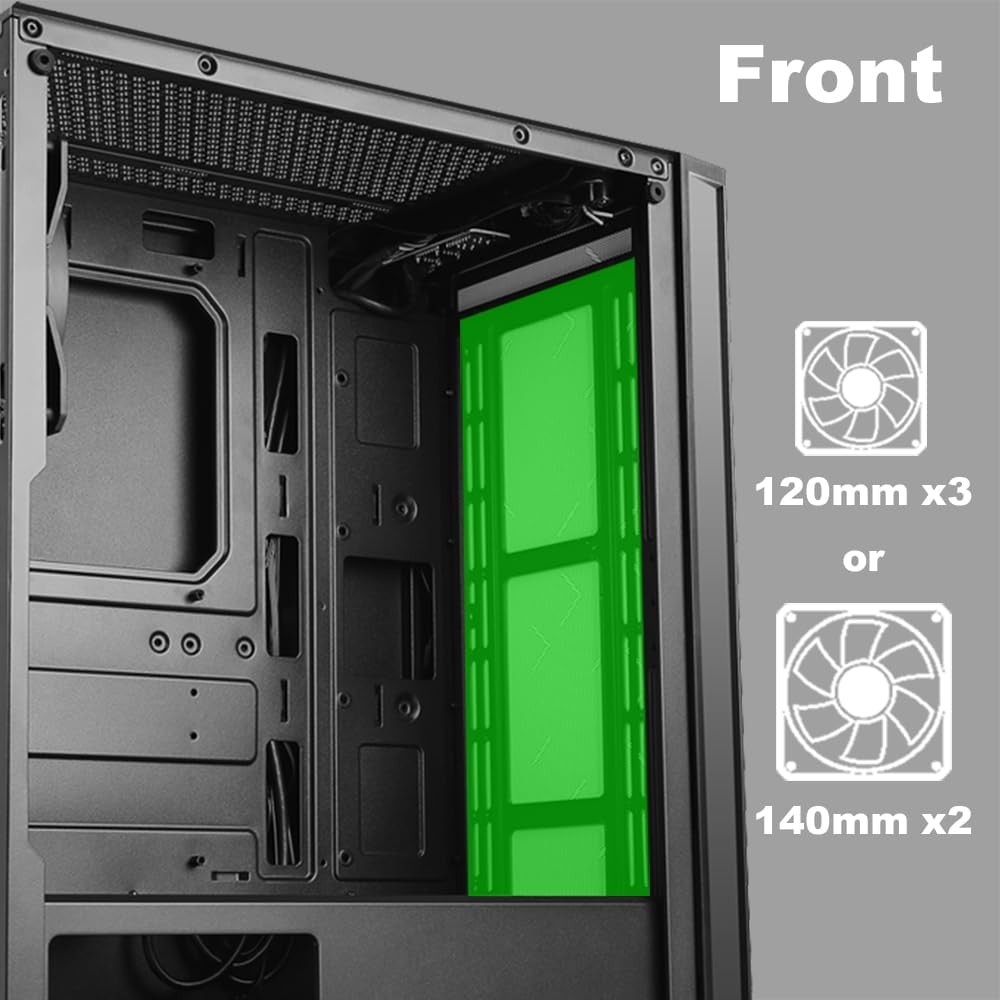
2.5 irudia: Barnekoa view of the front panel, highlighting the mounting locations for up to three 120mm fans or two 140mm fans.

2.6 irudia: Barnekoa view of the top panel, showing the mounting locations for up to two 120mm fans.

2.7 irudia: Barnekoa view of the rear panel, indicating the mounting location for one 120mm fan.
- Identify the desired fan mounting locations (front, top, rear).
- Secure fans to the case using appropriate fan screws.
- Connect fan power cables to the motherboard or a fan controller.
2.5 Energia-iturriaren instalazioa
The power supply unit (PSU) mounts at the bottom of the case.
- Slide the PSU into the designated compartment at the bottom rear of the case.
- Lotu PSUa kaxari atzealdeko torlojuak erabiliz.
- Route power cables through the cable management cutouts to reach your components.
3. Funtzionamendu-argibideak
3.1 Piztu/Itzali
To power on your system, press the power button located on the top I/O panel. To power off, either shut down through your operating system or press and hold the power button for several seconds.
3.2 LED Kontrola
Use the dedicated LED button on the top I/O panel to cycle through various lighting modes and colors for the integrated RGB elements of the case.
4. Mantentzea
Mantentze-lan erregularrak zure ordenagailuaren osagaien errendimendu optimoa eta iraupena bermatzen laguntzen du.
- Hautsa garbitzea: Aldian-aldian garbitu hauts-iragazkiak eta barneko osagaiak aire konprimitua erabiliz. Ziurtatu sistema itzalita eta deskonektatuta dagoela garbitu aurretik.
- Kableen kudeaketa: Ensure cables are neatly routed to prevent obstruction of airflow and to maintain a clean interior.
- Panel Care: Clean the tempered glass panel with a soft, lint-free cloth and a mild glass cleaner. Avoid abrasive materials.
5. Arazoak
Atal honek aurki ditzakezun arazo ohikoenei heltzen die.
- Sistemak ez du pizten:
- Verify all power cables (24-pin ATX, 8-pin CPU, GPU power) are securely connected to the motherboard and components.
- Ziurtatu elikatze-iturriaren etengailua 'ON' posizioan dagoela.
- Egiaztatu aurrealdeko paneleko pizteko botoiaren kablea plaka basearen aurrealdeko paneleko goiburura behar bezala konektatuta dagoela.
- Fans Not Spinning / LEDs Not Lighting Up:
- Confirm fan power cables are properly connected to the motherboard or fan controller.
- Ensure LED cables are correctly connected to the motherboard's RGB header or the case's LED controller.
- Press the LED button on the top I/O panel to cycle through modes or turn on the lighting.
- USB atakak ez dute funtzionatzen:
- Check that the USB 2.0 and USB 3.0 headers from the front panel are correctly plugged into the corresponding ports on your motherboard.
- Audio Jacks Not Working:
- Ensure the HD Audio cable from the front panel is securely connected to the HD Audio header on your motherboard.
6. Zehaztapenak
Detailed technical specifications for the AZZA CSAZ-280B Spectra Black case.
| Ezaugarri | Zehaztapena |
|---|---|
| Ereduaren izena | CSAZ-280B SPECTRA BLACK |
| Kasu mota | Mid dorrea |
| Plaka amaren bateragarritasuna | ATX, Mikro-ATX, ITX |
| Materiala | Plastikoa, beira tenplatua |
| Kolorea | Beltza |
| Neurriak (L x W x H) | 19.69 x 17.32 x 9.84 hazbete |
| Elementuaren pisua | 11 kilo |
| 2.5 hazbeteko unitate-baiek | 3 arte |
| 3.5 hazbeteko unitate-baiek | 2 arte |
| CPU hozgailuaren gehienezko altuera | 170 mm |
| Gehienezko bideo txartelaren luzera | 290 mm |
| Aurreko I / O Portuak | 2 x USB 2.0, 1 x USB 3.0, Audio, Mic, Power, LED Control |
| Aurrealdeko Fan euskarria | 3 x 120 mm edo 2 x 140 mm |
| Top Fan Support | 2 x 120 mm |
| Rear Fan Support | 1 x 120 mm |
| Elikatze iturriaren muntaketa | Beheko mendia |
7. Bermea eta Laguntza
7.1 Itzultzeko politika
Produktu hau 30 eguneko itzulketa-politika baten menpe dago dirua itzultzeko edo ordezkatzeko, saltzailearen baldintzen arabera.
7.2 Laguntza Teknikoa
For technical assistance or inquiries regarding your AZZA product, please visit the official AZZA website or contact their customer support channels. You can find more information and contact details by visiting the AZZA Store on Amazon.