1. Sarrera
This manual provides essential information for the safe and efficient use of your HUAWEI PixLab B5 Multifunction Laser Printer. Please read it thoroughly before operating the device and keep it for future reference.
The HUAWEI PixLab B5 is a versatile 3-in-1 device, offering high-speed printing, copying, and scanning functionalities. It features automatic duplex printing, a user-friendly one-step toner replacement system, and multiple connectivity options including USB, Wi-Fi, and LAN.
2. Segurtasun informazioa
Beti jarraitu oinarrizko segurtasun neurriak produktu hau erabiltzean, sute, deskarga elektriko eta pertsonen lesio arriskua murrizteko.
- Do not place the printer on an unstable cart, stand, or table.
- Do not block or cover the slots and openings in the printer.
- Use only the power cord and power source indicated in this manual.
- Ez saiatu inprimagailua zeuk konpontzen. Konponketa guztiak zerbitzu-langile kualifikatuei eskatu.
- Mantendu inprimagailua uretatik eta hezetasunetik urrun.
- Ziurtatu aireztapen egokia inprimagailuaren inguruan.
3. Paketearen edukia
Egiaztatu elementu guztiak paketean sartuta daudela:
- HUAWEI PixLab B5 Multifunction Laser Printer
- Elikatze-kablea
- USB kablea
- HUAWEI F-1500BZ Toner Cartridge
- HUAWEI X-15000BZ Drum Unit
- Erabiltzailearen eskuliburua (dokumentu hau)
4. Produktua amaitu daview
Familiarize yourself with the main components of your HUAWEI PixLab B5 printer.

4.1. irudia: Aurrealdea view of the HUAWEI PixLab B5 printer, showing the HUAWEI logo on the front panel.

4.2. irudia: Goitik behera view of the HUAWEI PixLab B5 printer, illustrating a document exiting the output tray after printing.
5. Konfigurazioa
5.1 Paketatzea
- Kendu arretaz inprimagailua ontzitik.
- Kendu babes-zinta eta ontziratze-material guztiak inprimagailuaren kanpoaldetik eta barrualdetik.
5.2 Toner eta danbor unitatearen instalazioa
The HUAWEI PixLab B5 features an innovative drawer-type toner cartridge for easy replacement.
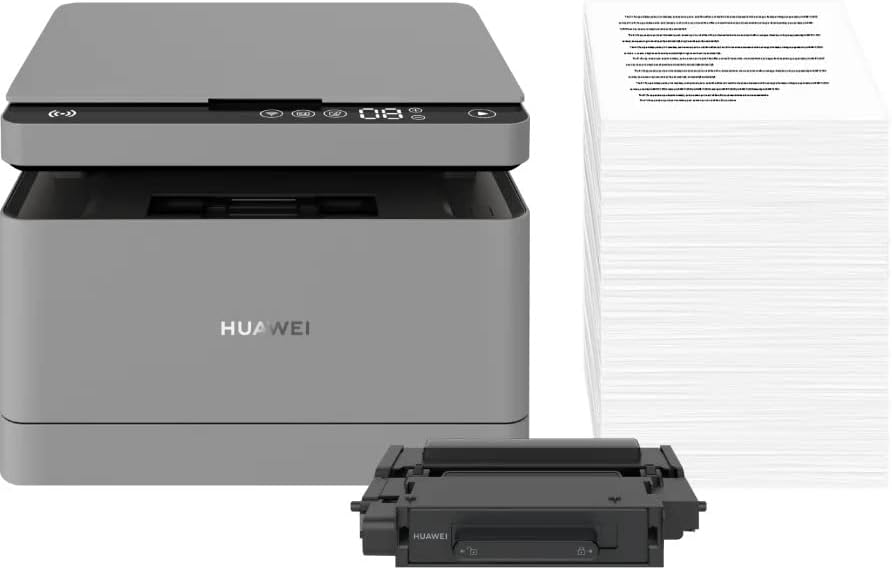
5.1. irudia: The HUAWEI PixLab B5 printer shown alongside a replacement toner cartridge and a stack of paper, highlighting the separate components.

5.2. irudia: A diagram illustrating the toner cartridge detached from the drum unit, demonstrating the modular design for replacement.
- Ireki inprimagailuaren aurrealdeko estalkia.
- Gently pull out the toner cartridge drawer.
- Insert the HUAWEI F-1500BZ toner cartridge into the HUAWEI X-15000BZ drum unit until it clicks into place.
- Slide the assembled toner and drum unit back into the printer until it is securely seated.
- Itxi aurrealdeko estalkia.
5.3 Papera kargatzea
- Ireki paper-erretilua.
- Adjust the paper guides to the correct paper size (e.g., A4).
- Load paper into the tray, ensuring it is not overfilled (maximum capacity: 150 sheets).
- Itxi paper-erretilua.
5.4 Energia-konexioa
- Connect the power cable to the printer's power port.
- Entxufatu kablearen beste muturra lurrera konektatutako entxufe elektriko batera.
- Sakatu pizteko botoia inprimagailua pizteko.
5.5 Softwarearen instalazioa eta konexioa
The HUAWEI PixLab B5 supports multiple connection methods for seamless integration with various devices.
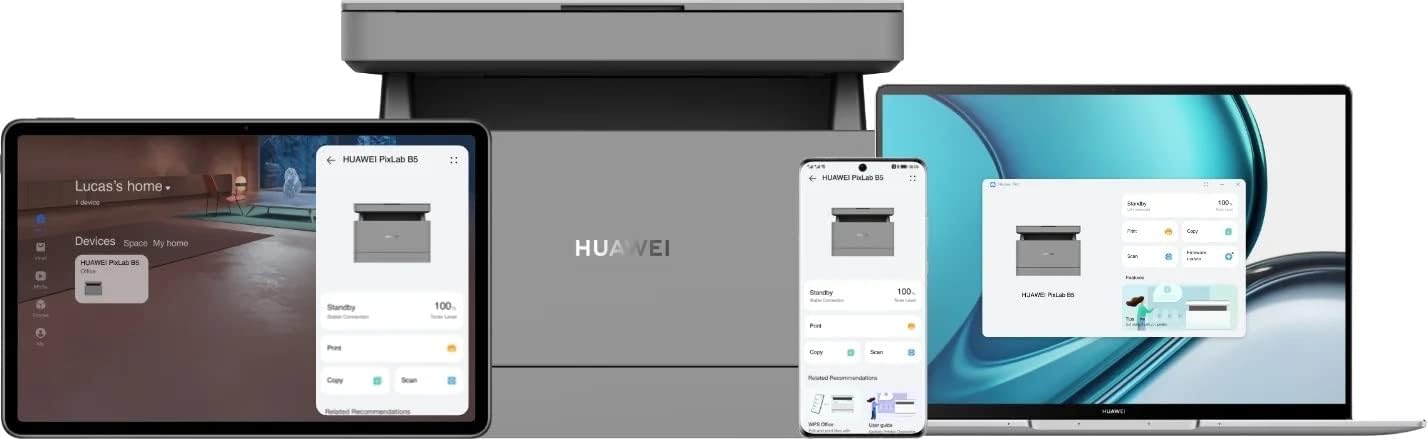
5.3. irudia: The HUAWEI PixLab B5 printer demonstrating its versatile connectivity by being linked to a tablet, a smartphone, and a laptop, all displaying the printer's interface.

5.4. irudia: An illustrative image depicting various devices such as a tablet, smartphone, and laptop connected to the printer, emphasizing multi-device compatibility.


5.5. irudia: Icons representing various connectivity options: USB, LAN, Wi-Fi, and Printer Hotspot.
- USB konexioa: Connect the printer to your computer using the provided USB cable. The necessary drivers should install automatically.
- LAN konexioa: Connect an Ethernet cable from your router or network switch to the LAN port on the printer.
- Wi-Fi konexioa:
- Download and install the HUAWEI AI Life app on your smartphone or tablet.
- Follow the in-app instructions to connect your printer to your Wi-Fi network.
- For PC/laptop, ensure your device is on the same Wi-Fi network as the printer and add the printer through your operating system's printer settings.
- NFC konexioa: For compatible devices, tap your device to the NFC tag on the printer to establish a quick connection.
6. Funtzionamendu-argibideak
6.1 Inprimaketa
The HUAWEI PixLab B5 offers high-speed monochrome printing at up to 30 pages per minute.

6.1. irudia: An image highlighting the printer's capability of printing 30 pages per minute for single-sided documents.
- Open the document you wish to print on your connected device.
- Select the print option (usually File > Inprimatu).
- Choose the HUAWEI PixLab B5 from the list of available printers.
- Adjust print settings as needed:
- Duplex inprimaketa: The printer supports automatic double-sided printing. Select this option in your print settings to save paper.
- Kalitatea: The printer uses Q14 grayscale for clear and layered black and white prints.
- Egin klik 'Inprimatu' aukeran.
6.2 Kopiatzea
The printer can make up to 100 copies in a single series.

6.2. irudia: A person placing a smart card on the scanner bed of the HUAWEI PixLab B5, demonstrating the Smart Card Copy function.

6.3. irudia: An image showing a user placing a card on the scanner glass, indicating the process for copying or scanning small items like ID cards.
- Place the document face down on the scanner glass or face up in the automatic document feeder (if available).
- On the printer's control panel, select the 'Copy' function.
- Adjust settings such as number of copies, darkness, or paper size.
- Smart Card Copy: This feature automatically corrects the position and orientation of cards for perfect copies, even if not perfectly aligned.
- Sakatu 'Hasi' botoia kopiatzen hasteko.
6.3 Eskaneatzea
The HUAWEI PixLab B5 functions as a photo and sheet-fed scanner.
- Jarri dokumentua eskaneraren beiraren gainean edo dokumentu-elikagailuan.
- On your connected computer or mobile device, open the scanning software (e.g., HUAWEI AI Life app or your operating system's scanning utility).
- Select the HUAWEI PixLab B5 as your scanner.
- Choose scan settings such as resolution, color mode (monochrome), and destination folder.
- Hasi eskaneatzea.
6.4 Remote Printing
The HUAWEI AI Life app allows for flexible remote printing.

6.4. irudia: The HUAWEI PixLab B5 printer positioned on a desk next to a computer monitor, which displays the printer's software interface, indicating remote management capabilities.
- Ensure your HUAWEI PixLab B5 is connected to the internet via Wi-Fi or LAN.
- Open the HUAWEI AI Life app on your smartphone or tablet.
- Select your PixLab B5 printer from the device list.
- You can now send print jobs to your printer remotely, even when you are away from your office.
7. Mantentzea
7.1 Toner kartutxoaren ordezkapena
The HUAWEI PixLab B5 uses separate toner and drum units, allowing for independent replacement and cost savings.

7.1. irudia: An image displaying the maximum page yield for the drum cartridge (15,000 pages) and the toner cartridge (1,500 pages).
- When the toner low indicator appears, prepare a new HUAWEI F-1500BZ toner cartridge.
- Ireki inprimagailuaren aurrealdeko estalkia.
- Pull out the toner cartridge drawer.
- Remove the empty toner cartridge from the drum unit.
- Unpack the new toner cartridge and insert it into the drum unit until it clicks.
- Slide the assembled unit back into the printer and close the front cover.
7.2 Drum Unit Replacement
The HUAWEI X-15000BZ drum unit has a yield of up to 15,000 pages.
- When the drum unit needs replacement, open the front cover of the printer.
- Pull out the toner cartridge drawer, which contains the drum unit.
- Remove the toner cartridge from the old drum unit.
- Insert the toner cartridge into the new HUAWEI X-15000BZ drum unit.
- Slide the new assembled unit back into the printer and close the front cover.
7.3 Garbiketa
- Itzali inprimagailua eta deskonektatu korronte-kablea.
- Erabili lipurrik gabeko zapi leun bat dampened with water to wipe the exterior of the printer.
- For the scanner glass, use a glass cleaner applied to a cloth (not directly to the glass) to clean any smudges or dust.
- Ez erabili garbitzaile edo disolbatzaile urratzailerik.
8. Arazoak
This section addresses common issues you might encounter with your HUAWEI PixLab B5 printer.
8.1 Inprimagailuak ez du erantzuten
- Egiaztatu inprimagailua piztuta dagoela eta kablea ondo konektatuta dagoela.
- Verify the USB, LAN, or Wi-Fi connection. For Wi-Fi, ensure the printer is connected to the correct network.
- Restart both the printer and your connected device.
- Ziurtatu inprimagailuaren kontrolatzaileak behar bezala instalatuta eta eguneratuta daudela.
8.2 Inprimatze-kalitatearen arazoak
- Check the toner level and replace the toner cartridge if it is low.
- Ensure the drum unit is not worn out (check its page yield).
- Clean the printer's internal components as per the maintenance section.
- Use recommended paper types and ensure paper is loaded correctly.
8.3 Paper-jazarpenak
- Itzali inprimagailua eta deskonektatu.
- Carefully open all covers and remove any jammed paper, pulling in the direction of the paper path.
- Ziurtatu barruan paper zati txikirik ez dagoela.
- Close all covers, plug in, and power on the printer.
9. Zehaztapenak
| Ezaugarri | Zehaztapena |
|---|---|
| Marka | HUAWEI |
| Ereduaren izena | HUPIXLABB5 |
| Produktu Mota | Copy, Scan, Print |
| Inprimatzeko Teknologia | Laserra |
| Inprimagailuaren irteera | Monokromoa |
| Monokromoko inprimatze-abiadura maximoa | 30 orrialde minutuko |
| Inprimatzeko gehienezko bereizmena | 600 x 600 DPI |
| Duplex Inprimaketa | Bai (Automatikoa) |
| Eskaner mota | Photo, Sheet-fed |
| Serie bakoitzeko gehienezko kopiak | 100 |
| Konektibitate Teknologia | Ethernet, NFC, USB, Wi-Fi |
| USB portuak guztira | 1 |
| Gailu bateragarriak | Desktop Computer, Laptop, Smartphone, Tablet |
| Sistema eragilearen euskarria | OS X 10.9 Mavericks, Windows 10 |
| Gehienezko multimedia-tamaina | A4 |
| Orri-tamaina | 210×297 mm |
| Orri-elikaduraren gehienezko edukiera | 150 |
| Memoria Ahalmena | 512 MB |
| Energia-kontsumoa | 410 Watt |
| Power (Operating) | 240 Watt |
| Elementuaren pisua | 12.3 kilogramo |
| Produktuaren neurriak | 10D x 20Z x 10A zentimetro |
| Kolorea | Beltza |
| Ezaugarri bereziak | Versatile connectivity (USB, LAN, Wi-Fi), Stable Wi-Fi, High print quality (Q14 grayscale), Remote printing (AI Life app), Print history erase for privacy. |
10. Bermea eta Laguntza
Bermeari buruzko informazioa eta laguntza teknikoa lortzeko, jo HUAWEIren webgune ofizialera. website or contact your local HUAWEI customer service center. Keep your purchase receipt as proof of purchase.
Ordezko piezen erabilgarritasunari eta software eguneratze bermatuei buruzko informazioa ez dago eskuragarri une honetan.