1. Sarrera
The FINGERS Lil’Clicks is a versatile mini keyboard designed for seamless connectivity across multiple devices and operating systems. It offers dual connectivity options: Bluetooth and 2.4 GHz Wireless, allowing you to switch between your laptop, tablet, or smartphone effortlessly. This manual provides detailed instructions for setup, operation, maintenance, and troubleshooting to ensure optimal use of your keyboard.

Image 1.1: The FINGERS Lil’Clicks Bluetooth Wireless Mini Keyboard, showcasinbere diseinu trinkoa dela eta.
2. Paketearen edukia
Mesedez, markatu laukitxoa elementu hauetarako:
- 1 x FINGERS Lil’Clicks Bluetooth Wireless Mini Keyboard
- 1 x Wireless USB Receiver (for 2.4 GHz connection)
- 1 x Mikro USB kargatzeko kablea
- 1 x Erabilera gida azkarra
- 1 x Markaren Oharra

Image 2.1: Contents included in the FINGERS Lil’Clicks keyboard package.
3. Konfigurazioa eta Konektibitatea
The Lil’Clicks keyboard offers two primary connection methods: Bluetooth and 2.4 GHz Wireless.
3.1. Teklatua kargatzea
Before initial use, ensure the keyboard is fully charged. Connect the provided Micro USB charging cable to the keyboard's charging port and the other end to a USB power source (e.g., computer USB port, USB wall adapter). The charging indicator light will show the charging status.
3.2. 2.4 GHz-ko haririk gabeko konexioa
- Locate the USB Wireless Receiver in the keyboard package.
- Konektatu USB hartzailea zure ordenagailuko edo gailuko USB ataka libre batera.
- Piztu teklatua pizteko etengailua erabiliz, normalean alboan edo atzealdean dagoena.
- The keyboard should automatically connect to your device. No additional drivers are typically required.
3.3. Bluetooth Connection (Up to 3 Devices)
The Lil’Clicks keyboard can connect to up to three Bluetooth devices simultaneously.
- Piztu teklatua etengailua erabiliz.
- Eduki sakatuta Fn tekla eta Bluetooth tekletako bat (BT1, BT2, edo BT3) for 3-5 seconds until the corresponding Bluetooth indicator light starts blinking. This indicates the keyboard is in pairing mode.
- On your device (laptop, tablet, smartphone), go to Bluetooth settings and enable Bluetooth.
- Bilatu available devices. You should see "FINGERS Lil’Clicks" or a similar name appear in the list.
- Select the keyboard to pair. If prompted, enter the displayed code on the keyboard and press Sartu.
- Once paired, the indicator light will stop blinking and remain solid for a few seconds before turning off.
- To connect another device, repeat steps 2-5 using a different Bluetooth key (BT2 or BT3).
3.4. Konektatutako gailuen artean aldatzea
To switch between paired Bluetooth devices or the 2.4 GHz wireless connection:
- For Bluetooth devices: Briefly press the Fn key along with the desired Bluetooth key (BT1, BT2, edo BT3).
- For 2.4 GHz Wireless: Briefly press the Fn giltzarekin batera. 2.4G key (if available, otherwise ensure the USB receiver is plugged in and no Bluetooth connection is active).

Image 3.1: The Lil’Clicks keyboard demonstrating multi-device connectivity with a laptop, monitor, phone, and tablet.
4. Teklatua erabiltzea
4.1. Oinarrizko idazketa
The keyboard features a standard QWERTY layout. Simply type as you would on any other keyboard.
4.2. Media Controls
The Lil’Clicks keyboard includes 12 soft-touch media control keys. These functions are typically accessed by pressing the Fn key simultaneously with the corresponding function key (F1-F12 or dedicated media keys).
- Fn+F1-F12: Access various media functions such as play/pause, volume control, track skipping, and more. Refer to the quick usage guide for specific key mappings.

4.1 irudia: Gertuko planoa view of the keyboard layout, highlighting the media control keys and function row.
4.3. Using the Built-in Cradle
The keyboard features a built-in cradle designed to hold most phones and tablets up to 10 mm thick and 265 mm wide. This allows you to position your device at an optimal viewing angle for comfortable typing.
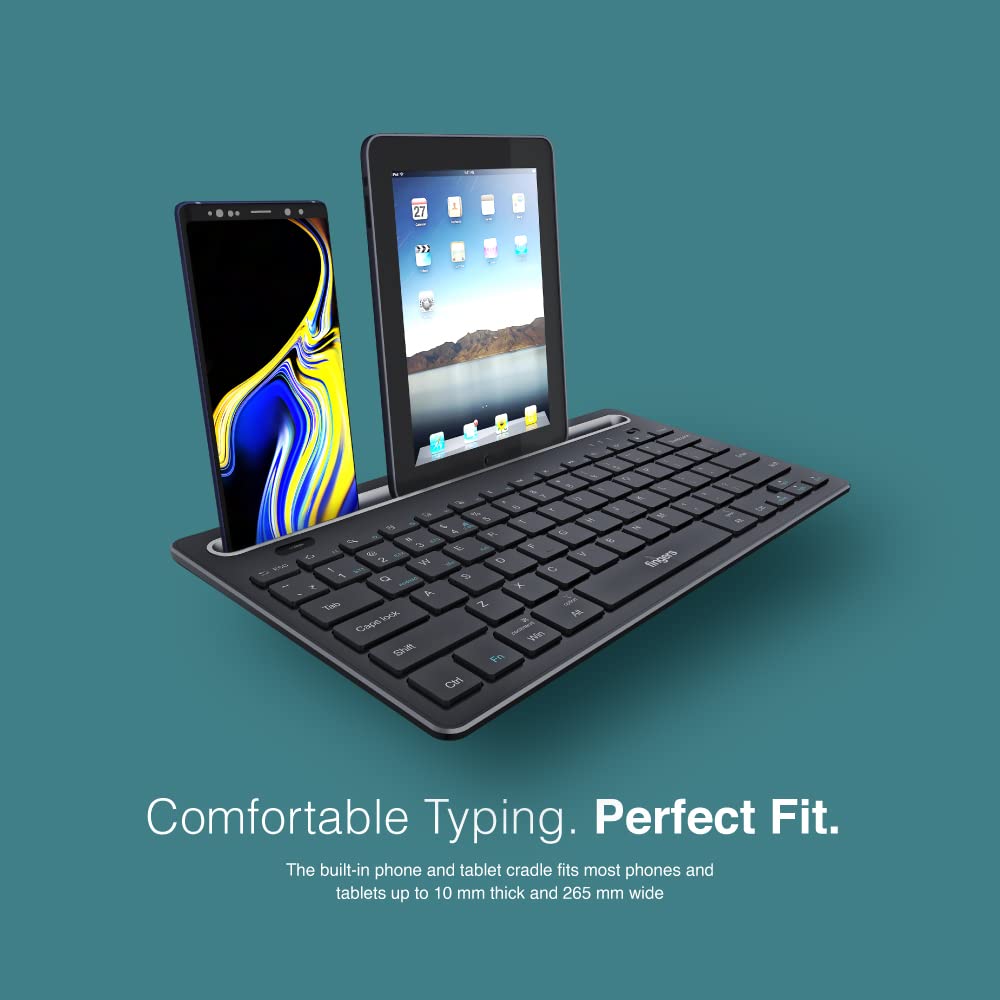
Image 4.2: The keyboard's integrated cradle holding a smartphone and a tablet for ergonomic viewing.
4.4. Sistema eragilearen bateragarritasuna
The Lil’Clicks keyboard is compatible with a wide range of operating systems:
- Leihoak
- macOS
- Android
- Linux
- Chrome OS
The keyboard automatically adapts to the connected operating system for optimal functionality. Some function key behaviors may vary slightly depending on the OS.
5. Mantentzea
5.1. Garbiketa
Teklatua garbitzeko, garbitu gainazala astiro-astiro zapi leun eta lehor batekinamp, lint-free cloth. Avoid using harsh chemicals, abrasive cleaners, or excessive moisture, as these can damage the keyboard. The membrane-coated sheet beneath the keys helps protect against dust and minor spills.
5.2. Bateria zaintzea
The keyboard features a long-lasting battery, providing up to 45 days of usage on a single charge. To prolong battery life:
- Kargatu teklatua guztiz lehenengo erabili aurretik.
- Saihestu bateria maiz erabat deskargatzea.
- Teklatua denbora luzez gordetzen baduzu, kargatu % 50era arte eta gorde leku fresko eta lehor batean.
5.3. Biltegiratzea
When not in use, store the keyboard in a clean, dry environment away from extreme temperatures and direct sunlight. Its compact and lightweight design makes it easy to carry and store.

Image 5.1: The Lil’Clicks keyboard's portability, shown being carried and used in a cafe setting.
6. Arazoak
If you encounter issues with your FINGERS Lil’Clicks keyboard, please refer to the following troubleshooting steps:
6.1. Teklatua ez da konektatzen/parekatzen
- Egiaztatu potentzia: Ensure the keyboard is turned on and has sufficient battery charge.
- Sartu berriro parekatze moduan: For Bluetooth, press and hold Fn + BT1/BT2/BT3 until the indicator blinks. For 2.4 GHz, ensure the USB receiver is securely plugged in.
- Gailuaren Bluetooth-a: Ziurtatu Bluetooth gaituta dagoela zure gailuan eta aurkigarria dela.
- Forget Device (Bluetooth): If previously paired, try removing/forgetting the keyboard from your device's Bluetooth list and then re-pairing.
- USB hargailua: Try plugging the 2.4 GHz USB receiver into a different USB port on your device.
- Interferentzia: Hurbildu teklatua gailura eta urrundu interferentziak sor ditzaketen beste haririk gabeko gailuetatik.
6.2. Keys Not Responding or Typing Incorrectly
- Bateria maila: A low battery can affect key responsiveness. Charge the keyboard fully.
- Konexioaren egonkortasuna: Ensure a stable connection. If using Bluetooth, try switching to a different Bluetooth channel (BT1, BT2, BT3) or re-pairing. If using 2.4 GHz, ensure the receiver is firmly connected.
- Interferentzia: Wireless interference can sometimes cause missed keystrokes. Try moving to a different location or reducing other wireless activity.
- Giltza garbiak: Check for any debris or foreign objects under the keys that might be obstructing their movement.
- Sistema eragilearen modua: Ensure the keyboard is in the correct operating system mode if there are specific key combinations for OS switching (e.g., Fn + Android/Win/Mac keys).
6.3. Bateria ez da kargatzen
- Egiaztatu kablea: Ensure the Micro USB charging cable is securely connected to both the keyboard and the power source.
- Energia iturria: Try a different USB power source (e.g., another USB port on your computer, a different wall adapter).
- Kableen osotasuna: Inspect the charging cable for any signs of damage. Try using a different Micro USB cable if available.
7. Zehaztapenak
| Marka | HATZAK |
| Eredua | Lil’Clicks |
| Konektibitatea | Bluetooth, 2.4 GHz Wireless |
| Bateragarritasuna | Windows, macOS, Android, Linux, Chrome OS |
| Kolorea | Beltza |
| Neurriak (LxWxH) | 29 x 16 x 2 cm |
| Elementuaren pisua | 400 g |
| Bateriaren iraupena | Up to 45 days (on a single charge) |
| Teklak sakatzea bizitza | 5 milioi tekla sakatu |
| Cradle Dimensions | Fits devices up to 10 mm thick and 265 mm wide |
| Energia iturria | Bateriaren bidez |
8. Bermea eta Laguntza
8.1. Bermearen informazioa
The FINGERS Lil’Clicks Bluetooth Wireless Mini Keyboard comes with a 1 Urteko Bermea from the date of purchase. This warranty covers manufacturing defects under normal use. Please retain your purchase receipt as proof of purchase for warranty claims.
Bermeak ez ditu estaltzen honako hauen ondoriozko kalteak:
- Accidental damage, misuse, abuse, or negligence.
- Baimenik gabeko konponketa edo aldaketa.
- Higadura normala.
8.2. Manufacturer and Importer Details
Fabrikatzailea: Dynamic Conglomerate Pvt. Ltd., 329/330, GIDC Phase II, Near Sardar Chowk, Vapi, Dist. Valsad, Gujarat - 396195.
Inportatzailea: Dynamic Conglomerate Pvt. Ltd. 4th Floor, Simba Tower, Vishveshwar Nagar, Goregaon (E), Mumbai - 400063, Maharashtra
8.3. Bezeroarentzako arreta
For technical assistance, warranty claims, or any other inquiries, please contact FINGERS customer support through their official website or the contact information provided in your Quick Usage Guide.


