1. Produktua amaitu daview
The Leitner LH470 is a wireless computer headset designed for clear communication in various professional environments. It utilizes DECT 6.0 Level A wireless technology for extended range and features an Ultra Noise-Canceling microphone.
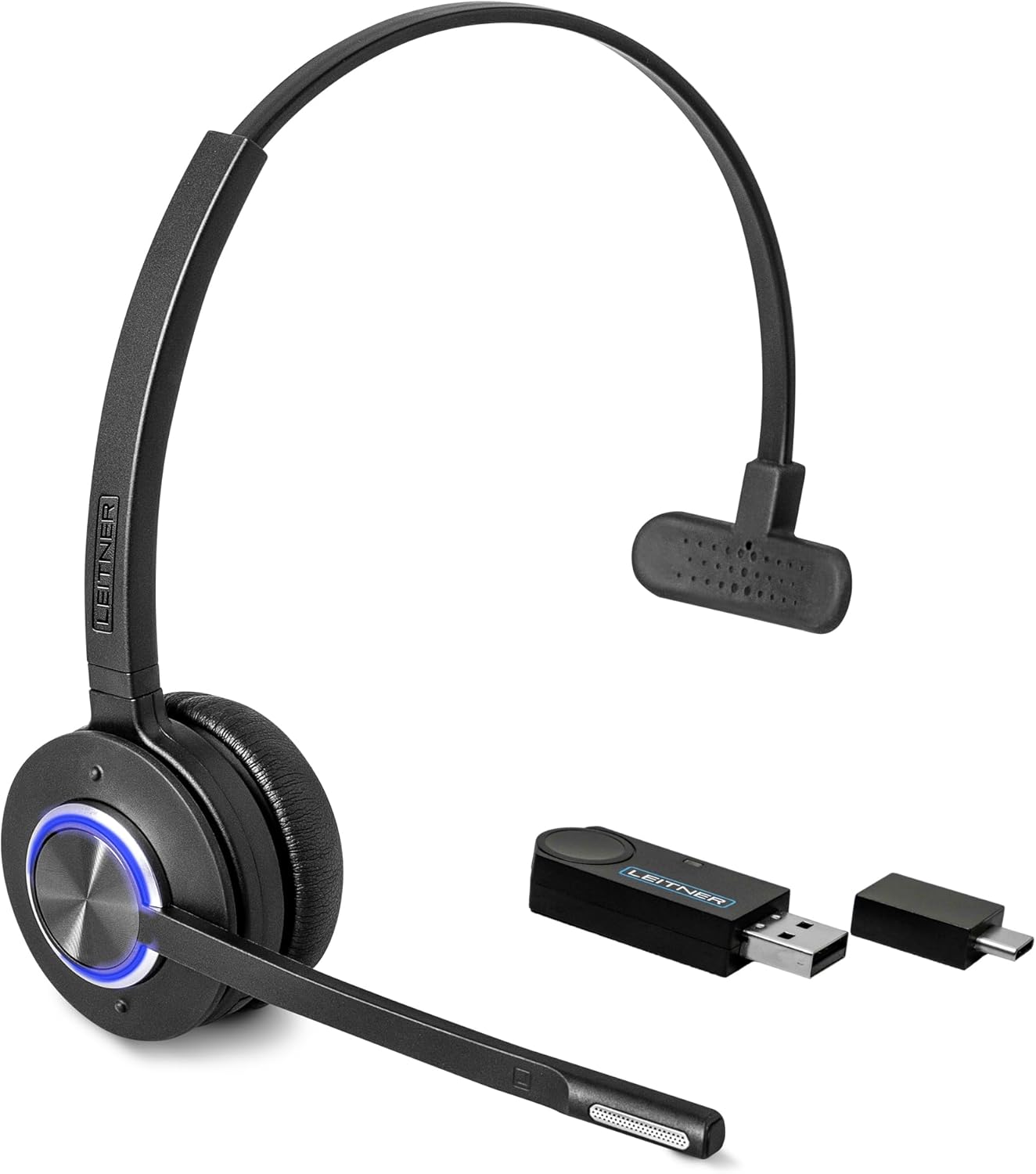
Image: Leitner LH470 Wireless Computer Headset, showing the single-ear headset, wireless USB dongle, and USB-A to USB-C converter.
2. Dakarten osagaiak
- Belarri bakarreko haririk gabeko entzungailuak
- Wireless Dongle (USB-A)
- USB-C kablea
- USB-A USB-C bihurgailua
- Babes-zorroa
3. Konfigurazioa eta konexioa
3.1 Connecting the Wireless Dongle
- Identify the USB port on your computer (USB-A or USB-C).
- If your computer has a USB-A port, plug the wireless dongle directly into it.
- If your computer has a USB-C port, attach the provided USB-A to USB-C converter to the wireless dongle, then plug the converter into your computer's USB-C port.
- The dongle will automatically connect to the headset when both are powered on.
3.2 Powering On the Headset
Press and hold the power button on the headset until the blue FocusLight LED ring illuminates. The headset will automatically attempt to connect to the dongle.
4. Entzungailuak erabiltzea
4.1 FocusLight Indicator
The headset features a glowing LED ring, the FocusLight, which indicates your call status:
- Urdin keinukaria: Sarrerako deia
- Urdin trinkoa: Deialdi aktiboa
- Solido morea: Isilduta

Image: Visual representation of the FocusLight LED ring indicating call status (incoming, active, muted).
4.2 Adjusting Listening Volume
The headset has two dimple buttons located above and below the main power/FocusLight ring. These control the listening volume (how loud callers sound to you).
- Press the upper dimple button to increase listening volume.
- Press the lower dimple button to decrease listening volume.
4.3 Mute/Unmute Microphone
To mute or unmute your microphone, press the middle audio button on the headset. The FocusLight will turn solid purple when muted and return to blue when unmuted.
Video: Instructions on adjusting listening and speaking volumes on Leitner Wireless Headsets.
4.4 Adjusting Microphone Volume (on Base)
To adjust how loudly your voice is transmitted to callers, use the microphone volume controls located on the bottom of the charging base.
- Flip the charging base over.
- Locate the microphone symbol with '+' and '-' buttons.
- Press the '+' button to increase microphone volume.
- Press the '-' button to decrease microphone volume.
4.5 Headband Adjustment (UltraFlex)
The LH470 features an UltraFlex headband, allowing you to customize its fit.
- Gently bend and mold the headband outwards to achieve a wider fit.
- Gently bend and mold the headband inwards to achieve a tighter fit.
Video: Demonstration of how to adjust the UltraFlex headband for a perfect fit.
4.6 Device Compatibility and Range
The LH470 headset is compatible with desktops, laptops, and tablets. It works with popular communication platforms such as Microsoft Teams and Zoom. It is not compatible with cell phones.
The headset uses DECT 6.0 Level A wireless technology, providing an operating range of up to 350 feet from the wireless dongle.

Image: Illustration of the Leitner LH470 headset's compatibility with various softphone applications and computer systems.
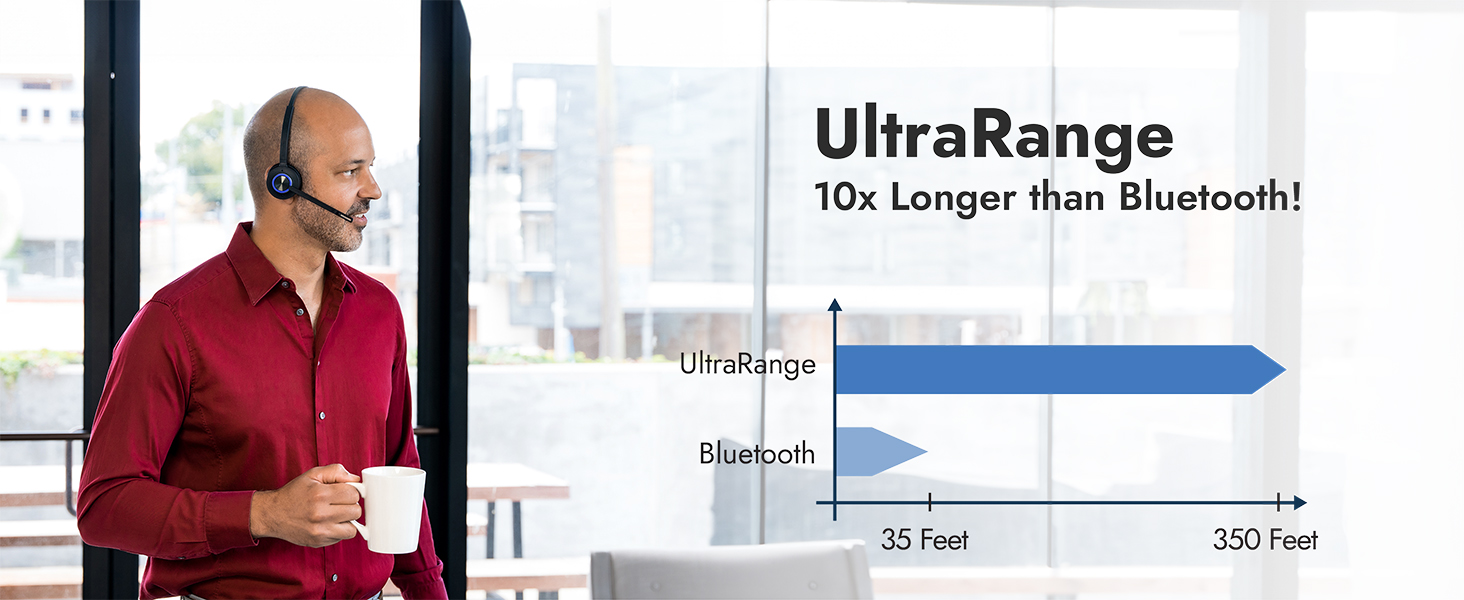
Image: A graph illustrating the Leitner UltraRange of up to 350 feet, significantly longer than typical Bluetooth range.
5. Mantentzea
5.1 Entzungailuak kargatzea
Charge the headset using the provided USB-C cable. The headset can be charged by connecting the USB-C cable directly to the headset or by placing it on a compatible charging base (sold separately).
5.2 Garbiketa
To maintain optimal performance and hygiene, regularly wipe the headset with a soft, dry cloth. Avoid using harsh chemicals or abrasive materials.
6. Troubleshooting Microphone Issues
If you experience issues with your microphone, follow these steps:
6.1 Check Headset Mute Status
If you hear a beep every 8 seconds in your headset, the microphone may be muted. Press the middle audio button on the headset to unmute it. The FocusLight will change from solid purple to blue.
6.2 Verify Computer Input Settings (Windows)
- Right-click the speaker icon in the bottom-right corner of your desktop.
- Select "Open Sound Settings".
- Under the "Input" section, ensure "Microphone (2- DECT Headset)" is selected as your input device.
6.3 Verify Computer Input Settings (Apple macOS)
- Click the Apple icon in the upper-left corner of your screen.
- Select "System Preferences".
- Click on "Sound".
- Go to the "Input" tab and ensure "DECT Headset" is selected as your sound input device.
6.4 Sound Control Panel (Windows Advanced)
For more detailed control, access the Sound Control Panel:
- From the "Sound Settings" menu (as in 6.2), click "Sound Control Panel" under Related Settings.
- In the "Sound" window, go to the "Playback" tab and ensure "Headphones (2- DECT Headset)" has a green checkmark as the default device.
- Go to the "Recording" tab. Ensure "Microphone (2- DECT Headset)" is the only device with a green checkmark or a green phone icon. If another device is set as the "Default Communication Device", right-click "Microphone (2- DECT Headset)" and select "Set as Default Communication Device".
Video: Detailed guide on fixing audio issues on your computer, including microphone settings for Windows and macOS.
6.5 Softphone Application Settings
Sometimes, audio settings need to be configured within your specific softphone or dialer application (e.g., Zoom, Microsoft Teams).
- Open your softphone application.
- Navigate to the application's "Settings" or "Preferences" (often represented by a gear icon).
- Locate the "Audio" or "Sound" settings.
- Under the microphone input device, ensure "DECT Headset" (or similar) is selected.
7. Zehaztapenak
| Ezaugarri | Xehetasuna |
|---|---|
| Ereduaren izena | LH470 Premium Dongle Headset |
| Konektibitate Teknologia | Wireless DECT 6.0 Level A (Up to 350 FT) |
| Aurikularretarako Jack | USBa |
| Dakarten osagaiak | Protective Case, Single-Ear Wireless Headset, USB-A to USB-C Converter, USB-C Cable, Wireless Dongle |
| Materiala | UltraFlex Moldable Material |
| Elementuaren pisua | 11.6 ontza (0.33 kilogramo) |
| Zarata Kontrol Ezaugarriak | Ultra Noise-Canceling Microphone |
| Ezaugarri bereziak | Leitner FocusLight, UltraFlex Headband |
| Pilak | 1 litio-polimeroko bateria behar da (barne) |
| UPC | 810067130516 |
8. Bermea eta Laguntza
The Leitner LH470 headset comes with a 5 urteko ordezkapen osoa bermea, guaranteed by Leitner Headsets.
For any pre-sales support, technical assistance, or warranty claims, please contact Leitner Headsets customer service. Our US-based headset experts are available to provide unlimited support.
Contact information can typically be found on the official Leitner Headsets website or by referring to the contact details provided with your product packaging.


