1. Sarrera
This manual provides essential information for setting up, operating, and maintaining your Doro Tablet. Designed for ease of use, the Doro Tablet features a simplified Android interface with large icons and clear sound, making it ideal for users seeking a straightforward digital experience. Please read this manual thoroughly to ensure proper use and to maximize your tablet's potential.

Image: The Doro Tablet displaying its simplified home screen with large icons for common functions like Google, Help, Settings, Assistant, Play Store, Video Call, View, Send, Search, and Camera. The tablet rests on its included wooden stand.
2. Segurtasun Informazio Orokorra
- Bateriaren segurtasuna: Do not attempt to replace the battery yourself. Use only Doro-approved chargers and cables.
- Uraren erresistentzia: The Doro Tablet is not water-resistant. Avoid exposure to liquids.
- Tenperatura: Operate the tablet within recommended temperature ranges (0°C to 35°C).
- Garbiketa: Erabili zapi leun eta lehor bat garbitzeko. Saihestu produktu kimiko gogorrak.
- Entzumenaren babesa: Entzumen-kalteak saihesteko, saihestu bolumen altuan denbora luzez entzutea.
3. Konfigurazioa
3.1 Kutxatik ateratzea eta hasierako kargatzea
Upon unboxing, ensure all components are present: Doro Tablet, USB-C charging cable, power adapter, and wooden stand. Connect the tablet to the power adapter using the USB-C cable and charge it fully before first use. The battery indicator on the screen will show charging status.
3.2 Piztea eta itzaltzea
- Pizteko: Press and hold the power button (located on the side) until the Doro logo appears.
- Itzaltzeko: Press and hold the power button, then select 'Power off' from the options on the screen.
3.3 Hasierako konfigurazio-morroia
The first time you power on your tablet, a setup wizard will guide you through essential configurations:
- Hizkuntza hautaketa: Aukeratu zure hizkuntza hobetsia.
- Wi-Fi konexioa: Select your Wi-Fi network and enter the password. A stable internet connection is required for updates and app downloads.
- Google kontua: Hasi saioa zure Google kontuarekin edo sortu berri bat. Hau beharrezkoa da Google Play Store eta beste Google zerbitzu batzuk atzitzeko.
- Doro Interface Settings: Customize settings for the simplified Doro interface, including text size and icon arrangement.

Image: The Doro Tablet highlighting its user-friendly features, including ease of use, four speakers for clear audio, and an extra bright screen for enhanced readability. Icons indicate adjustable text size, screen brightness, and Bluetooth connectivity.
4. Operating the Doro Tablet
4.1 Simplified User Interface (EVA)
The Doro Tablet features an intuitive EVA user interface with large, clear icons and simplified menus. This design ensures easy navigation and access to core functions.

Image: The Doro Tablet showcasing its 'View' menu, which organizes functions by usage, such as 'My emails', 'My photos and videos', 'My calendar', 'My contacts', 'My notes', and 'My geographical position'. This illustrates Doro's patented, Android-based user interface designed for simplicity.
4.2 Oinarrizko nabigazioa
- Sakatu: Touch an icon or item once to open or select it.
- Pasatu hatza: Slide your finger across the screen to scroll through lists or switch between home screens.
- Zoom egiteko apur bat egin: Use two fingers to zoom in or out on photos or web orrialdeak.
4.3 Komunikazioa
The Doro Tablet is equipped for easy communication:
- Bideo-deiak: Use the 'Video Call' icon to initiate video calls with friends and family. The tablet's cameras (5MP front, 8MP rear) provide clear video.
- Mezularitza: Access messaging applications through the 'Send' or 'View' menus to send and receive text messages or emails.
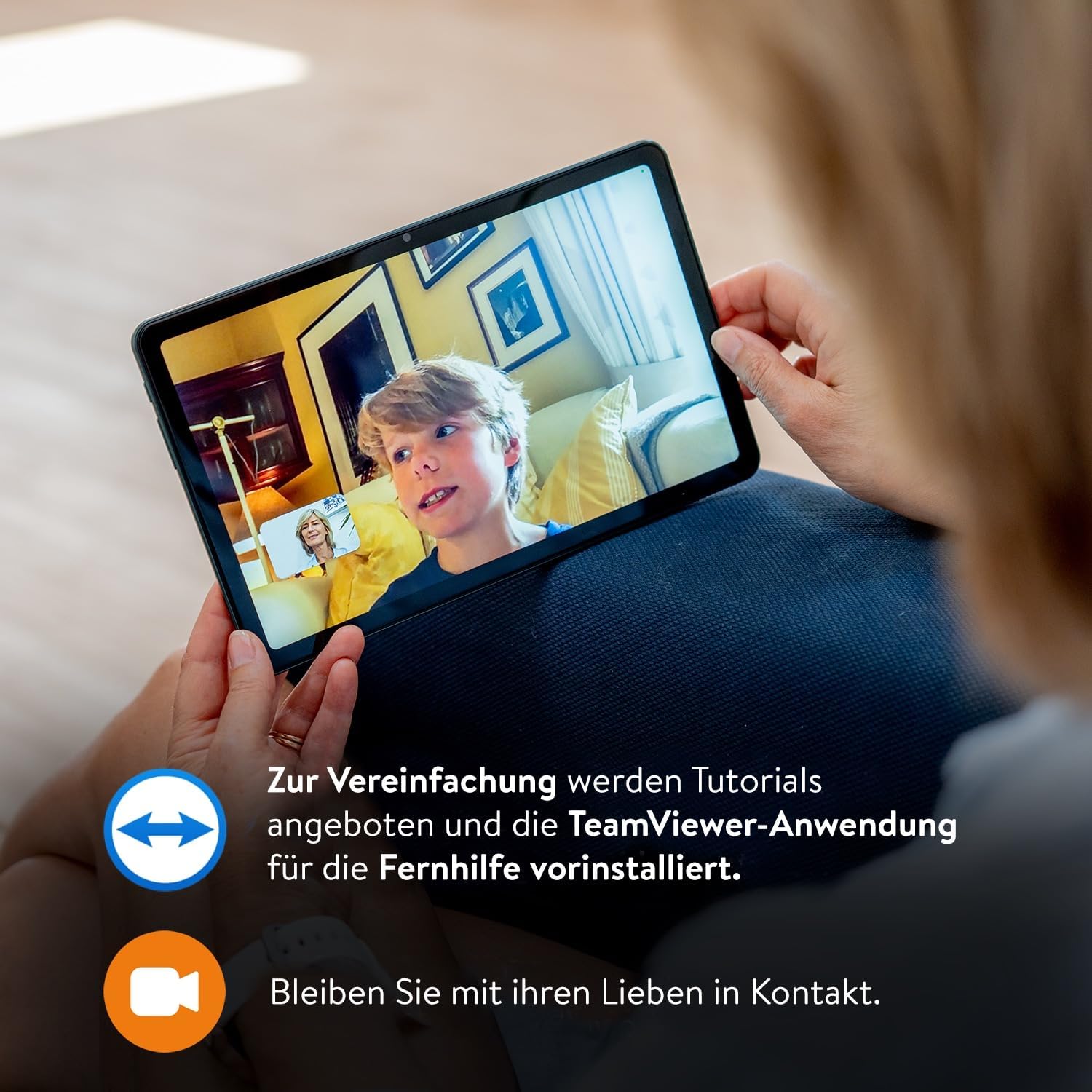
Image: A user engaged in a video call on the Doro Tablet, demonstrating its communication capabilities. The image also notes the availability of tutorials and the pre-installation of TeamViewer for remote assistance, emphasizing connectivity and support.
4.4 Multimedia and Internet
- Viewing Photos & Videos: Erabili 'View' menu to access your photos and videos. The 10.4-inch HD screen offers a bright and high-contrast display for comfortable viewing.
- Soinu garbia: Enjoy high-quality audio from the tablet's four speakers, perfect for watching videos or making calls.
- Interneten arakatzea: The 'Search' icon provides access to internet browsing.

Image: A collage of Doro Tablet features, including its large, bright, and high-contrast screen, pre-installed TeamViewer for remote support, the included wooden stand, the intuitive EVA user interface, and its clear, powerful sound. The 'Search' menu is also depicted, offering options like 'Something on the Internet', 'Around me', and 'An item on my tablet'.
4.5 Using the Wooden Stand
The included wooden stand provides a stable base for your tablet, allowing for hands-free viewing during video calls or media consumption. It features two grooves to accommodate the tablet with or without a protective case.

Irudia: Xehetasun zehatza view of the Doro Tablet's wooden stand, designed to hold the tablet securely for hands-free use.
5. Mantentzea
- Pantaila garbitzea: Gently wipe the screen with a microfiber cloth. For stubborn smudges, slightly dampGarbitu oihal bat urarekin edo elektronikarako bereziki diseinatutako pantaila-garbitzaile batekin.
- Bateria zaintzea: To prolong battery life, avoid fully discharging the tablet frequently. Charge it when the battery level is low, and avoid leaving it plugged in for extended periods after it's fully charged.
- Software eguneraketak: Periodically check for system updates in the 'Settings' menu to ensure your tablet has the latest features and security patches.
- Biltegiratze kudeaketa: Ezabatu beharrezkoak ez direnak aldizka files and apps to free up storage space and maintain optimal performance.
6. Arazoak
If you encounter issues with your Doro Tablet, refer to the following common solutions:
| Arazoa | Irtenbidea |
|---|---|
| Tableta ez da pizten. | Ensure the tablet is charged. Connect it to the charger for at least 30 minutes, then try powering on again. If it still doesn't turn on, perform a forced restart by holding the power button for 10-15 seconds. |
| Pantailak ez du erantzuten. | Berrabiarazi tableta. Arazoak jarraitzen badu, ziurtatu pantaila garbi eta hondakinik gabe dagoela. |
| Ezin da wifira konektatu. | Check if Wi-Fi is enabled in 'Settings'. Verify the Wi-Fi password. Restart your Wi-Fi router. |
| Soinua distortsionatua edo baxuegia da. | Check the volume settings. Ensure the speakers are not obstructed. Restart the tablet. |
| Aplikazioak motel doaz edo huts egiten dute. | Close unused applications. Clear app caches in 'Settings' > 'Apps'. Ensure sufficient storage space is available. Restart the tablet. |
7. Zehaztapenak
Below are the technical specifications for the Doro Tablet:
- Marka: Doro
- Ereduaren izena: Doro tableta
- Sistema eragilea: Android
- Pantailaren tamaina: 10.4 hazbete
- Pantailaren bereizmena: 1920 x 1200 pixel (1080p Full HD)
- Prozesadorearen marka: Unisoc
- Prozesadorearen abiadura: 1.8 GHz
- RAM: 4 GB
- Biltegiratze Edukiera: 32 GB
- Graphics Chipset Brand: Unisoc (Integrated)
- Konektibitatea: Wi-Fi (802.11n), Bluetooth
- Hardware Interfazea: HDMI
- Periferiko bateragarriak: Stylus Pen, HDMI compatible external screen, Bluetooth keyboard, Bluetooth headset
- Neurriak (L x W x H): 24.6 x 15.6 x 0.8 cm
- Produktuaren pisua: 477 gramo
- Ezaugarri bereziak: Stereo Speaker
- Bateria: Litio-ioizko 1 (barne)
8. Bermea eta Laguntza
For detailed warranty information, please refer to the warranty card included with your Doro Tablet or visit the official Doro website. Doro provides support for its products, and you can typically find contact information for customer service on their website. Information regarding spare parts availability and guaranteed software updates is not explicitly provided in the product details and may vary. Please consult Doro's official channels for the most current information.


