1. Produktua amaitu daview
The ProtoArc K100-A is an ultra-slim wireless Bluetooth keyboard specifically designed for Mac devices. It features a full-size layout with a numeric keypad, responsive scissor-switch keys for quiet typing, and adjustable white LED backlighting. This keyboard supports connection to up to three devices simultaneously, allowing for seamless switching between your MacBook, iMac, iPad, or iPhone. Its built-in rechargeable battery ensures long-lasting use.

Image: The ProtoArc K100-A keyboard connected to a MacBook, iPad, and iPhone, showcasinbere gailu anitzeko gaitasuna.
2. Paketearen edukia
- ProtoArc K100-A atzeko argiztatutako Bluetooth teklatua
- USB-C kargatzeko kablea
- Erabiltzailearen eskuliburua (dokumentu hau)
3. Hasteko
3.1 Teklatua kargatzea
Before first use, fully charge the keyboard. Connect the provided USB-C charging cable to the keyboard's Type-C port and the other end to a USB power source (e.g., computer USB port, USB wall adapter). A full charge takes approximately 4-5 hours. The built-in 1200mAh lithium-ion battery provides a standby time of 3-4 months.

Image: The keyboard's Type-C charging port with the charging cable inserted.
3.2 Piztu/Itzali
Locate the power switch on the side or back of the keyboard. Slide it to the "ON" position to power on the keyboard. Slide it to "OFF" when not in use to conserve battery.
4. Bluetooth konexioa
The ProtoArc K100-A keyboard supports connection to three different devices via Bluetooth. Follow these steps to pair your devices:
- Ziurtatu teklatua piztuta dagoela.
- Press and hold one of the Bluetooth channel keys (BT1, BT2, edo BT3) 3-5 segundoz dagokion adierazle-argia azkar keinuka hasi arte. Horrek adierazten du teklatua parekatze moduan dagoela.
- On your Mac device (MacBook, iMac, iPad, iPhone), go to Sistemaren ezarpenak (edo Sistemaren hobespenak) > Bluetootha.
- Aktibatu Bluetooth-a eta bilatu eskuragarri dauden gailuak.
- Hautatu "ProtoArc K100-A" gailuen zerrendatik.
- Follow any on-screen prompts to complete the pairing process. The indicator light will stop flashing and remain solid for a few seconds, then turn off, indicating successful pairing.
- Repeat these steps for up to two additional devices using the other Bluetooth channel keys.

Image: The dedicated Bluetooth channel keys (BT1, BT2, BT3) on the keyboard.
4.1 Gailuen artean aldatzea
To switch between paired devices, simply press the corresponding Bluetooth channel key (BT1, BT2, edo BT3) once. The keyboard will connect to the selected device within a few seconds.
5. Funtzionamendu-argibideak
5.1 Atzeko argiaren kontrola
The keyboard features soft white LED backlighting with three adjustable brightness levels (low, medium, high). To adjust the backlight brightness, press the backlight key (often indicated by a sun icon or similar) located on the top right of the keyboard. Pressing it repeatedly cycles through the brightness levels and turns the backlight off.

Image: The keyboard with its white adjustable backlight at different brightness levels.
5.2 Lasterbide-teklak
The keyboard includes 12 shortcut keys for enhanced productivity on Mac devices. These keys provide quick access to functions such as brightness adjustment, mission control, media playback, volume control, and more. Refer to the key labels for specific functions.

Image: Detail of the keyboard's silent scissor-switch keys, designed for quiet and responsive typing.
6. Mantentzea eta Zainketa
- Mantendu teklatua garbi zapi leun eta lehor batekin garbituz. Saihestu produktu kimiko gogorrak edo material urratzaileak erabiltzea.
- Do not expose the keyboard to extreme temperatures, humidity, or direct sunlight.
- Avoid spilling liquids on the keyboard. If a spill occurs, immediately power off the keyboard and allow it to dry completely before use.
- When not in use for extended periods, power off the keyboard to preserve battery life.
- The keyboard automatically enters sleep mode after 30 minutes of inactivity to save power. Press any key to wake it up.
7. Arazoak
- Keyboard not connecting/disconnecting frequently:
- Ziurtatu teklatua guztiz kargatuta dagoela.
- Verify Bluetooth is enabled on your device and the keyboard is within range (up to 10 meters).
- Saiatu teklatua zure gailuarekin berriro parekatzen.
- Ziurtatu beste haririk gabeko seinale indartsurik ez dagoela oztopatzen.
- Keys not responding or delayed response:
- Egiaztatu bateriaren maila eta kargatu behar izanez gero.
- Ziurtatu teklatua behar bezala konektatuta dagoela Bluetooth bidez.
- If the keyboard has entered sleep mode, press any key and wait a few seconds for it to reconnect.
- Atzeko argia ez dabil:
- Ziurtatu teklatua piztuta dagoela.
- Press the backlight key to cycle through brightness levels and turn it on.
- If the battery is very low, the backlight may not function to conserve power. Charge the keyboard.
8. Zehaztapenak
| Modelo zenbakia | K100-A |
| Marka | ProtoArc |
| Konektibitate Teknologia | Bluetootha |
| Gailu bateragarriak | Mac OS 12.2 or higher (MacBook, MacBook Pro, MacBook Air, iMac, iMac Pro, Mac Pro/Mini, iPad, iPhone) |
| Ezaugarri bereziak | Backlit, Rechargeable, Multi-Device Connection (3 devices) |
| Bateria Edukiera | 1200mAh Litio-ioia |
| Kargatzeko Denbora | 4-5 ordu |
| Egonean Denbora | 90-120 egun |
| Produktuaren neurriak | 16.79" L x 4.78" W x 0.57" H |
| Elementuaren pisua | 1.59 kilo |
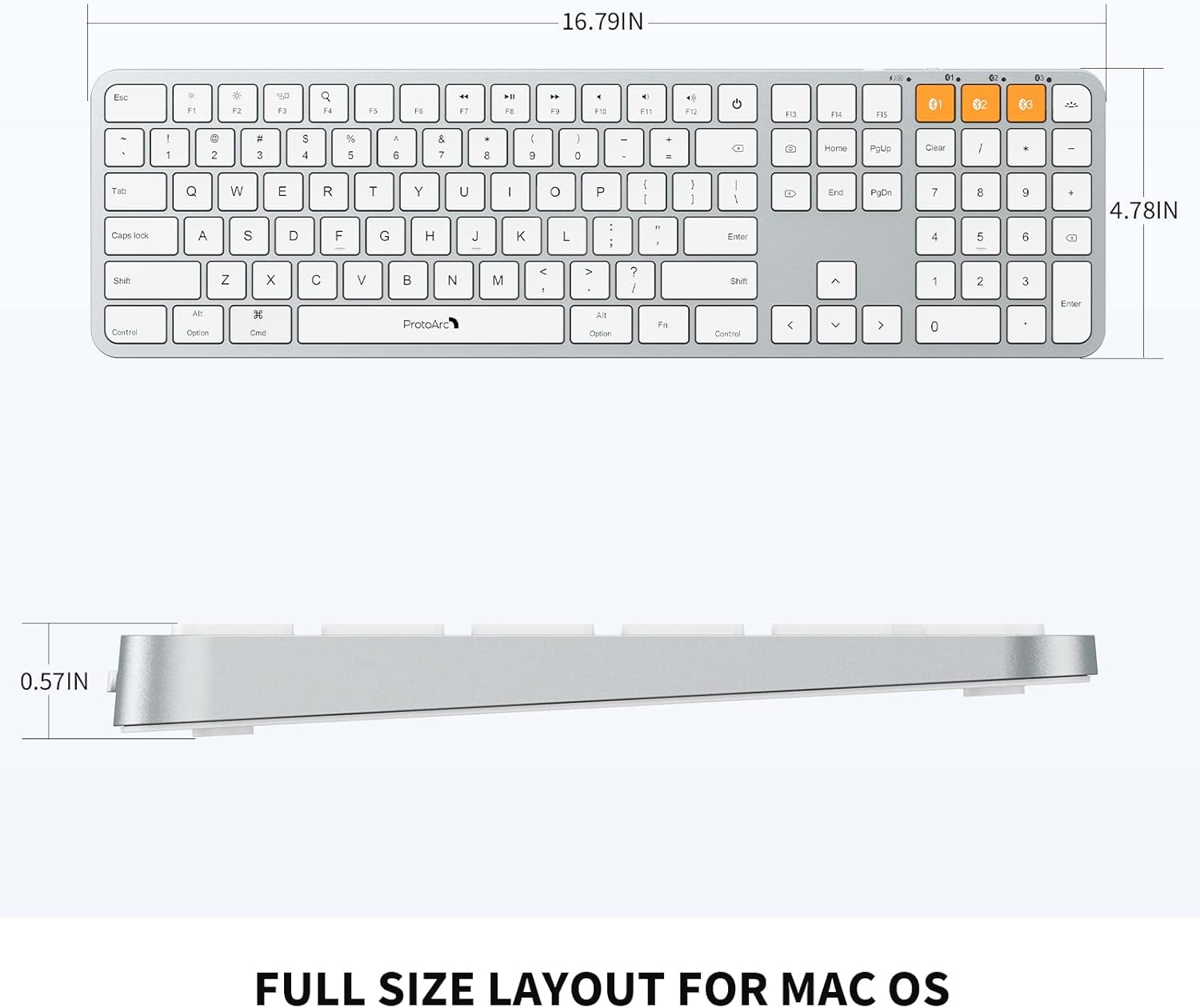
Image: Dimensional diagram of the ProtoArc K100-A keyboard.
9. Bermea eta Laguntza
For warranty information and technical support, please refer to the official ProtoArc webwebgunera edo jarri harremanetan zuzenean bezeroarentzako arreta-zerbitzura. Gorde erosketa-agiria berme-erreklamazioetarako.