1. Sarrera
Thank you for choosing the OMOTON KB515 Bluetooth Keyboard. This full-size wireless keyboard is specifically designed for Mac OS devices, offering a comfortable typing experience with multi-device connectivity. Please read this manual carefully to ensure proper setup and operation.

The OMOTON KB515 Bluetooth Keyboard integrated into a multi-device Mac OS workspace.
2. Paketearen edukia
- OMOTON KB515 Bluetooth teklatua
- Keycap tiratzailea
- Erabiltzailearen eskuliburua
Oharra: 2 AAA bateria behar dira funtzionatzeko eta ez daude paketean sartuta.
3. Konfigurazioa eta parekatzea
3.1 Bateriaren instalazioa
- Bilatu bateriaren konpartimentua teklatuaren atzealdean.
- Ireki bateriaren konpartimenduaren estalkia.
- Sartu bi (2) AAA pila, polaritate zuzena (+/-) ziurtatuz.
- Itxi bateriaren konpartimenduaren estalkia.
3.2 Piztu/Itzali
Slide the power switch, located on the top edge of the keyboard, to the "ON" position to power on the keyboard. Slide it to "OFF" to power off.
3.3 Bluetooth Pairing Instructions
The OMOTON KB515 keyboard supports connection to up to three devices simultaneously via Bluetooth. Ensure Bluetooth is enabled on your Mac OS device before proceeding.
- Piztu teklatua ON/OFF etengailua erabiliz.
- Eduki sakatuta Fn tekla eta Bluetooth kanalaren tekletako bat (BT1, BT2, edo BT3) for 3-5 seconds until the corresponding LED indicator (blue light) blinks. This activates pairing mode for the selected channel.
- On your Mac OS device, go to Sistemaren ezarpenak (edo Sistemaren hobespenak) > Bluetootha.
- In the list of available devices, select "OMOTON Teklatua".
- Follow any on-screen prompts to complete the pairing process. The blue indicator light will turn off once successfully connected.
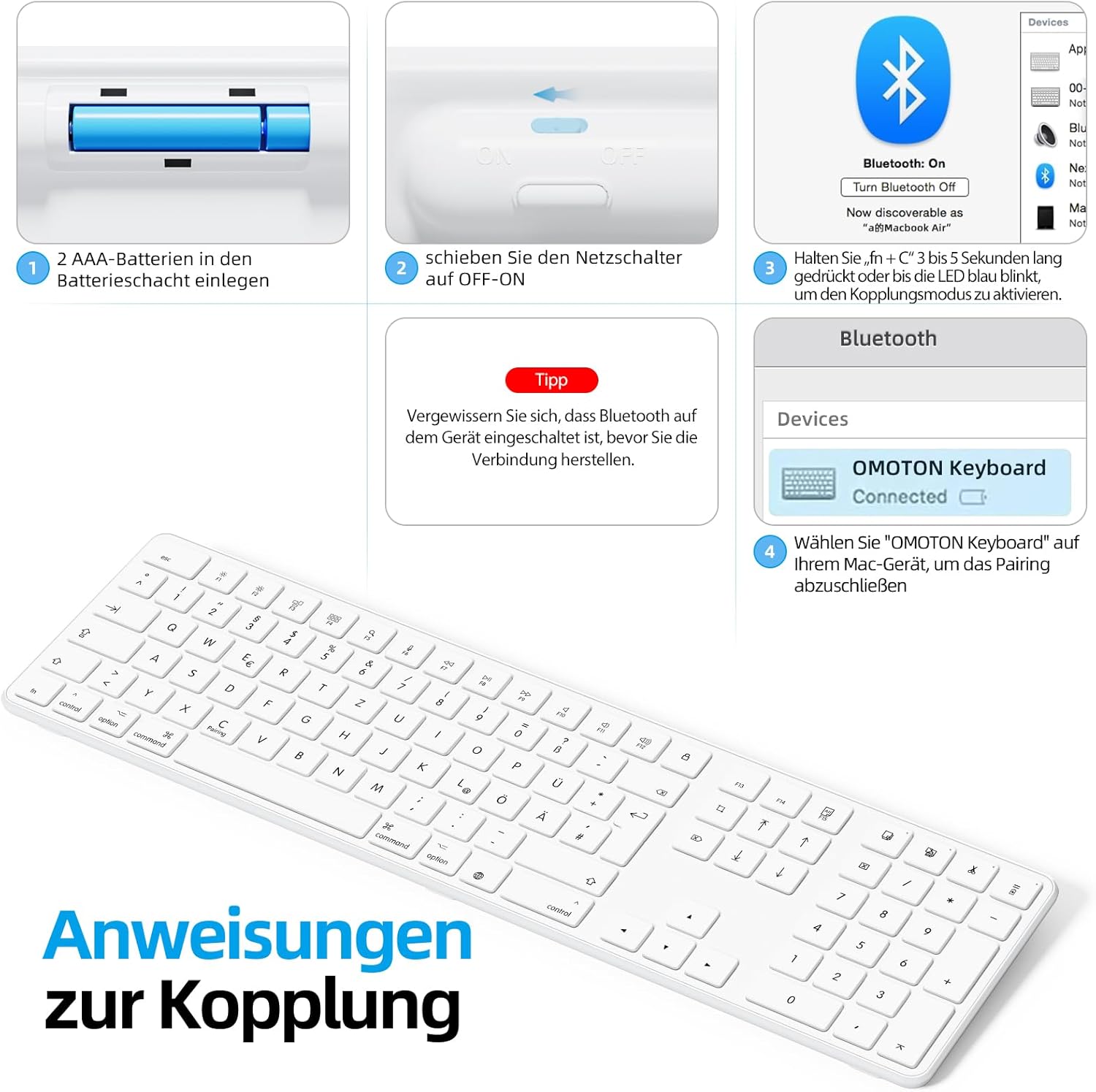
Visual guide for battery insertion and Bluetooth pairing steps.
Aholkua: To pair with additional devices, repeat step 2 using a different Bluetooth channel (BT2 or BT3).
4. Teklatua erabiltzea
4.1 Parekatutako gailuen artean aldatzea
To switch between your paired devices, simply press the Fn tekla dagokion Bluetooth kanalaren teklarekin batera (BT1, BT2, edo BT3) that your desired device is paired to. A short press is sufficient for switching.
4.2 Multimedia eta funtzio teklak
The OMOTON KB515 keyboard features 12 dedicated multimedia shortcut keys optimized for Mac OS, providing quick access to various functions.

The keyboard layout highlighting the optimized multimedia keys for Mac OS.
- F1-F2: Pantailaren distira doitzea
- F3: Misioaren Kontrola
- F4: Launchpad
- F7-F9: Media Playback Controls (Previous, Play/Pause, Next)
- F10-F12: Volume Controls (Mute, Volume Down, Volume Up)
4.3 Energia aurrezteko modua
To conserve battery life, the keyboard will automatically enter sleep mode after 10 minutes of inactivity. To wake it up, simply press any key. The keyboard will reconnect to the last active device.
5. Mantentzea
- Mantendu teklatua garbi, zapi leun eta lehor batekin.
- Avoid exposing the keyboard to liquids or excessive moisture.
- Do not disassemble the keyboard, as this will void the warranty.
- When not in use for extended periods, turn off the keyboard to save battery life.
- Use the included keycap puller to carefully remove and clean individual keycaps if necessary.
6. Arazoak
6.1 Keyboard Not Connecting/Pairing
- Ziurtatu teklatua piztuta dagoela eta bateria berriak dituela.
- Make sure Bluetooth is enabled on your Mac OS device.
- Verify that the keyboard is in pairing mode (blue LED blinking) for the selected channel.
- Saiatu teklatua desparekatzen eta berriro parekatzen gailuaren Bluetooth ezarpenetatik.
- Restart your Mac OS device and try pairing again.
- Ensure the keyboard is within the effective Bluetooth range (typically up to 10 meters).
6.2 Teklek ez dute erantzuten
- Egiaztatu bateriaren maila eta ordeztu behar izanez gero.
- Ensure the keyboard is properly connected to your device. Try switching Bluetooth channels.
- Garbitu giltzen azpian egon daitekeen edozein hondakin.
6.3 Atzerapena edo deskonexioak
- Move the keyboard closer to your Mac OS device to reduce interference.
- Ensure there are no other strong wireless signals or devices interfering with the Bluetooth connection.
- Check for any available software updates for your Mac OS.
7. Zehaztapenak
| Modelo zenbakia | KB515 |
| Marka | OMOTON |
| Konektibitate Teknologia | Bluetootha |
| Energia iturria | 2 x AAA bateria (ez daude barne) |
| Teklatuaren diseinua | QWERTZ (German) |
| Bateragarritasuna | Mac OS X 10.10 and above (MacBook Air, MacBook Pro, iMac, iPad, etc.) |
| Ezaugarri bereziak | Wireless Connection, Numeric Keypad, Multimedia Keys, Ergonomic Design |
| Materiala | Rubber (keypad cushioning) |
| Kolorea | Zuria |

Keyboard dimensions and key features like ON/OFF switch and battery slot.
8. Bermea eta Laguntza
For warranty information or technical support, please refer to the documentation provided with your purchase or contact OMOTON customer service directly through their official website or the retailer where you purchased the product. Please have your model number (KB515) and proof of purchase ready.


